
Comments and mentions
You can write comments on tasks and notes to talk with your teammates. This article explains how to write comments, and how to use mentions, replies, and attachments.
| Who can use it | Available on |
|---|---|
| All | All |
Write a comment
The comment box is at the bottom of the task details or the note. Type your message and click the send button on the right to post it. You can also post with Ctrl (Command on Mac) + Enter.


Comments are in chronological order. When there are many comments, use "Show earlier comments" to load older ones.
You can use the same formatting as the note editor, such as bold, lists, and checklists. See How to use the note editor for details.
A comment you have not posted yet is kept in your browser even if you open another task or note.
Write the description of a task or the body of a note in the body, not in a comment. Comments are for conversations over time.
Notify someone with a mention
Type @ in the comment box to show the list of members. When you select one, @username is added to the comment, and the member is notified when you post.
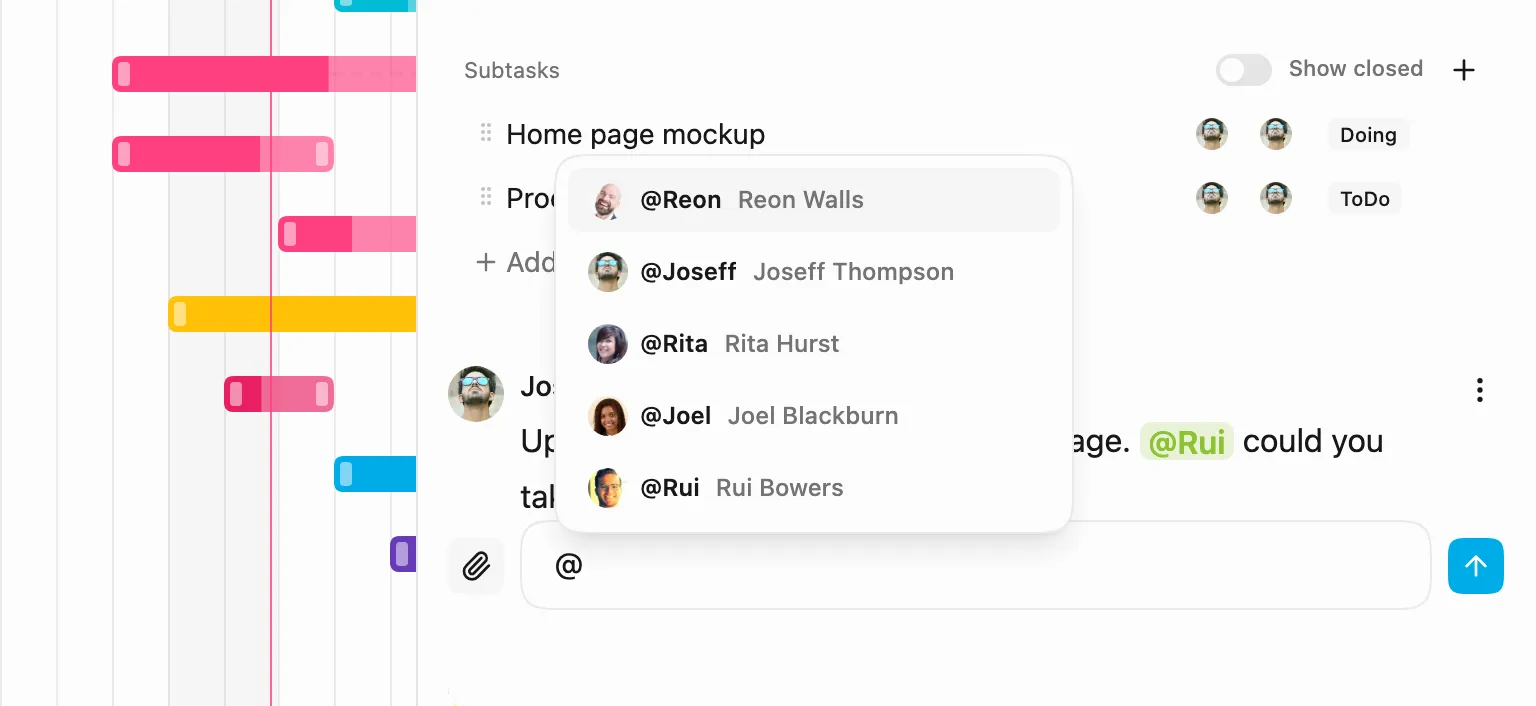
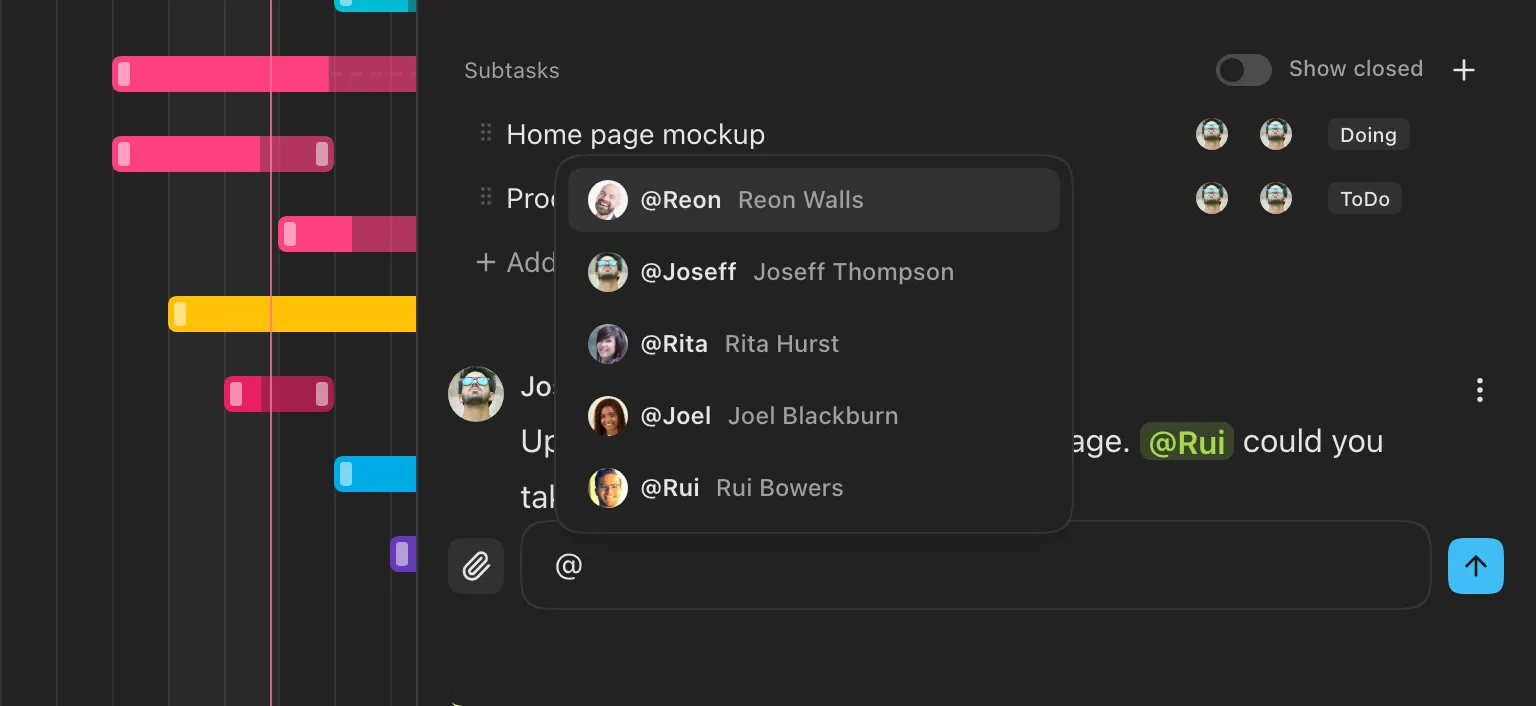
If the member's notification setting is "None", the notification will not be delivered.
Attach files
Click the "Attach" button on the left of the comment box, or drag and drop files onto it. The chosen files are listed above the comment box and attached to the comment when you post. You can remove them with × before posting.
Images dropped or pasted into the comment box appear inside the comment.
Reply to a comment
Choose "Reply to this comment" from the menu on the right of a comment, and "Replying to ..." is shown above the comment box. A reply is placed below the original comment with a slight indent. Click × to cancel the reply.
Work with a comment
The menu on the right of a comment offers the following.
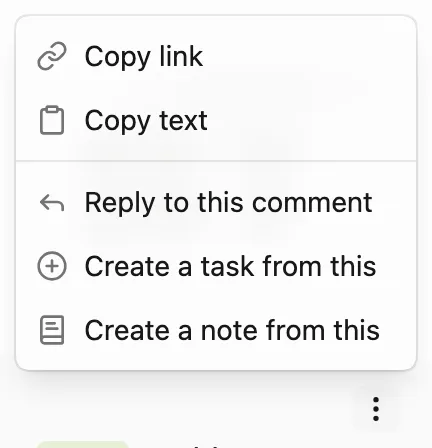
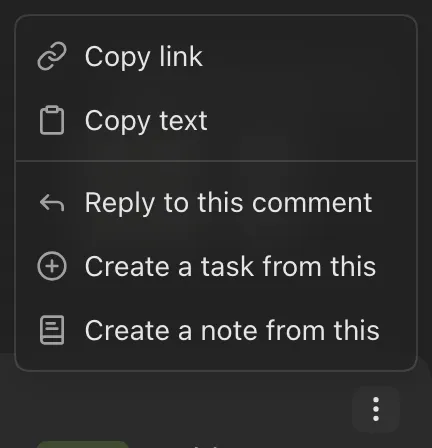
- Copy link: copies a link to that comment. When you open the link, the page scrolls to the comment and flashes it.
- Copy text: copies the text of the comment.
- Edit this comment: rewrite the comment (your own comments only). Save with "Save", or cancel with "Cancel" or Esc.
- Reply to this comment
- Create a task from this: opens the task creation dialog with the comment text as the details.
- Create a note from this: creates a note from the comment text and opens it. The note title is made from the name of the original task (or note), the date and time, and the author, and the tags are carried over.
- Delete comment: deletes the comment (your own comments only).
When you delete a comment
Deleting cannot be undone. If the comment has replies, the replies remain and the deleted comment is shown as "(deleted)".
Paste a URL
When you write a URL in a comment, a card is shown below the comment for the first URL.
- URL of a Repsona task or note: a card with the name, project, and description is shown. Click it to open it in the side panel.
- URL of a Repsona attachment: the file is shown.
- URL of another web page: a card with the page title, image, and description is shown. Click it to open it in a new tab.
If you paste a link copied with "Copy link", it becomes a card for the task or note that contains that comment.
When sending failed
If a comment could not be posted, for example because of a connection problem, "Could not send" is shown below the comment.
- Retry: sends it again.
- Discard: discards the comment.
What you wrote is also kept as a draft, so you can go back to the comment box and rewrite it later.
Add reactions
You can add reactions to comments with emoji or text. See Reaction and how it works for details.
Was this page helpful?