
Create API keys
API keys let external systems use the Repsona API. This page explains how to create and delete API keys.
| Who can use it | Available on |
|---|---|
| All | All |
Create an API key
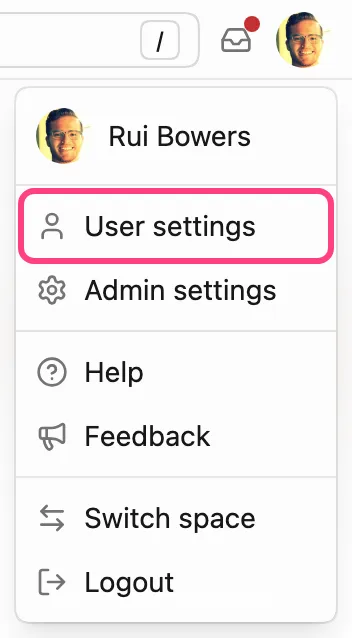
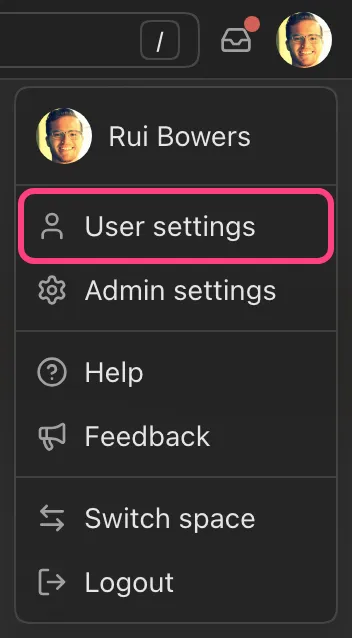
- Open the menu from the icon in the upper-right corner of the screen.
- Click "User settings".
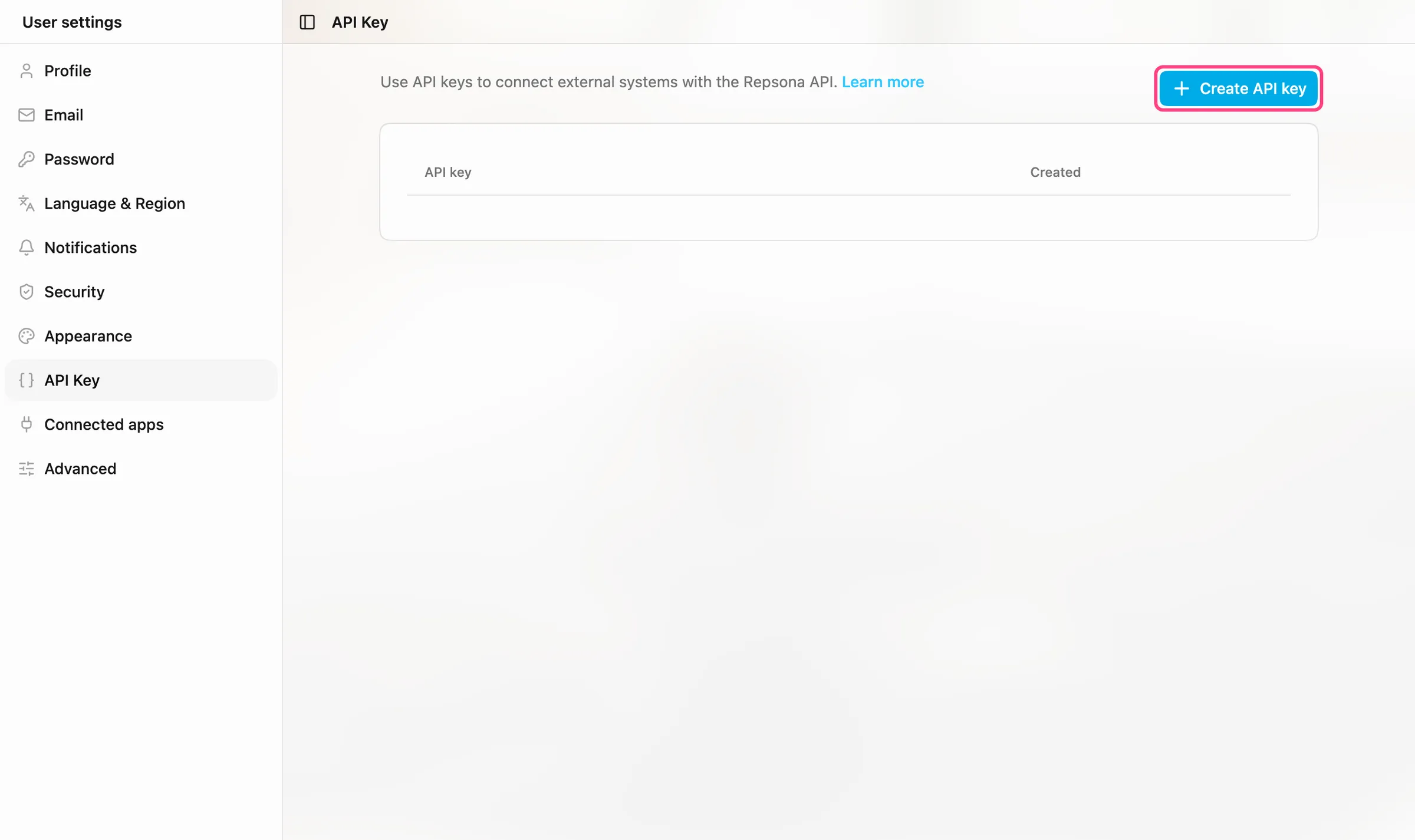
- Open "API Key" in the left menu.
- Click "Create API key".
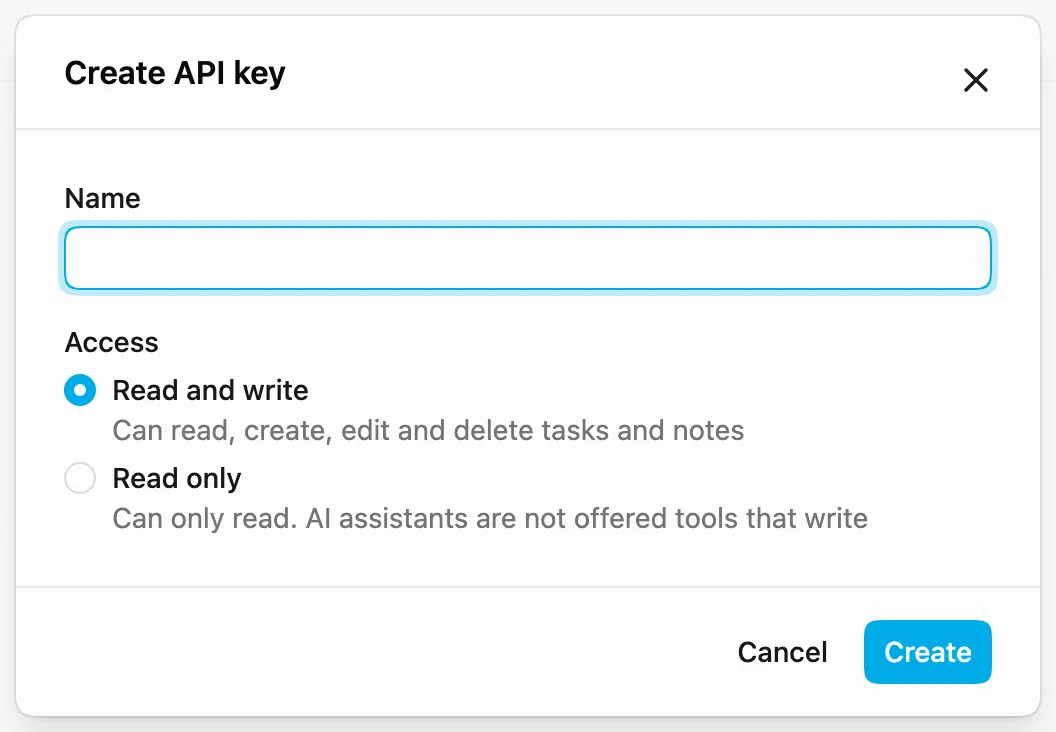
- Enter a name that describes its purpose in "Name", choose the "Access", and click "Create".
- The created API key is shown. Click "Copy" to copy it and keep it in a safe place, then click "Done".
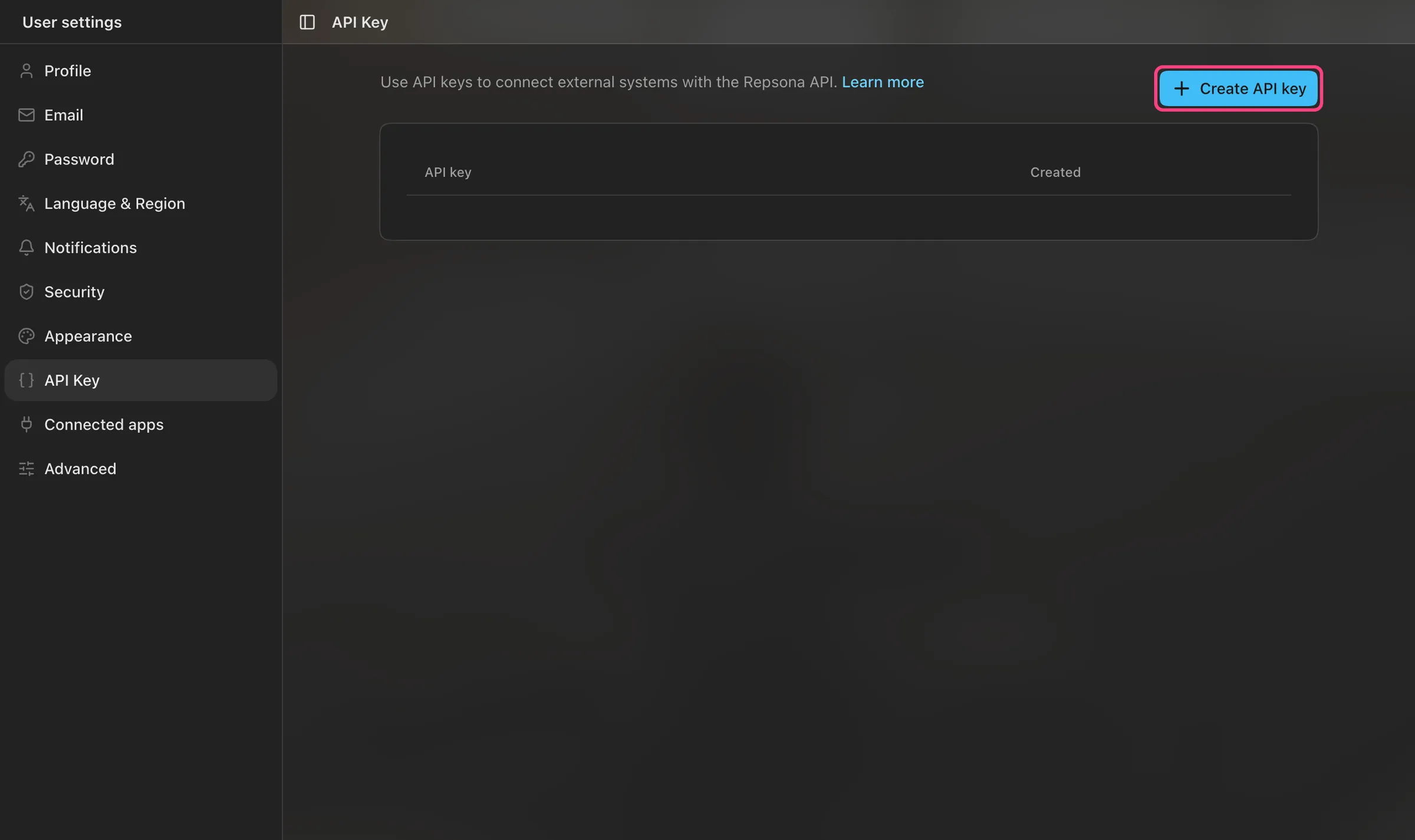
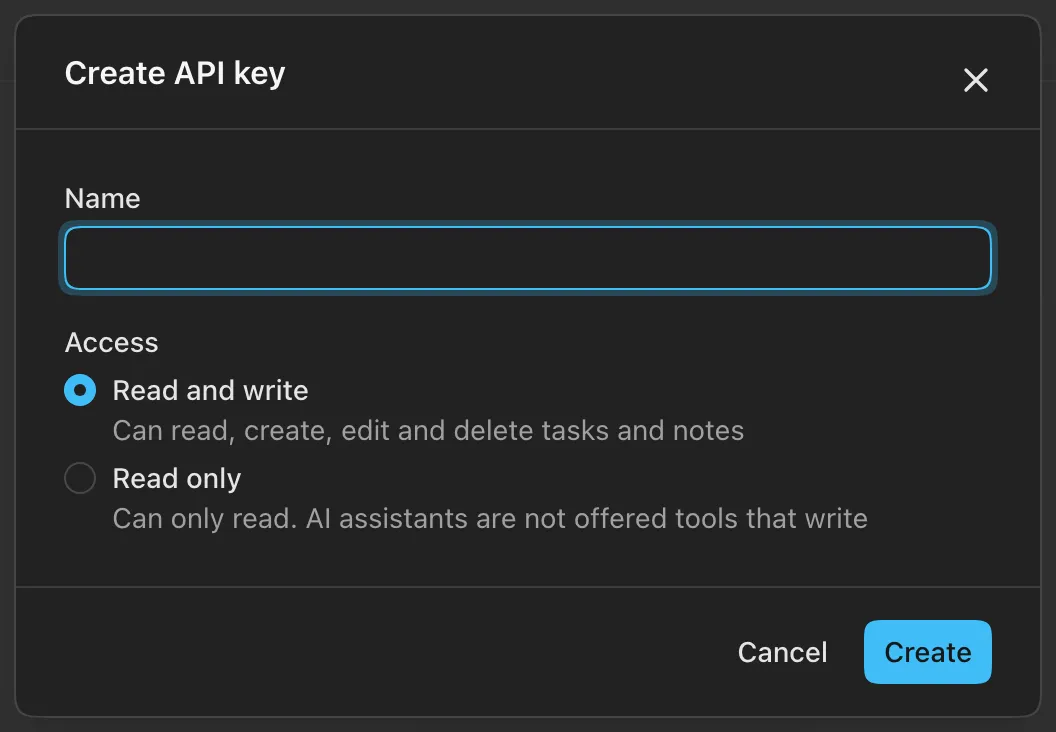
Choose one of these for "Access". If an AI assistant only needs to read, choose "Read only" so it cannot make changes.
- Read and write: Can read, create, edit and delete tasks and notes.
- Read only: Can only read. AI assistants are not offered tools that write.
The API key is shown only once, right after you create it. After you close the dialog you can't view it again. If you forgot to copy it, delete it and create a new one.
Delete an API key
- Open "API Key" in "User settings" the same way as above.
- Click "Delete" next to the key and confirm with "Delete".
A deleted API key stops working immediately. If a key may have leaked, delete it right away.
Using the API
For how to use API keys and the API specification, see the API documentation. API rate limits differ by plan; see Pricing.
Was this page helpful?