
See what your teammates are good at.
Work moves forward because of people. Reactions and introductions from teammates gather on each profile, the org chart shows who does what, and a retrospective board keeps small problems from piling up. All of it sits right next to your tasks, on every plan.
Click an avatar to see who you are working with
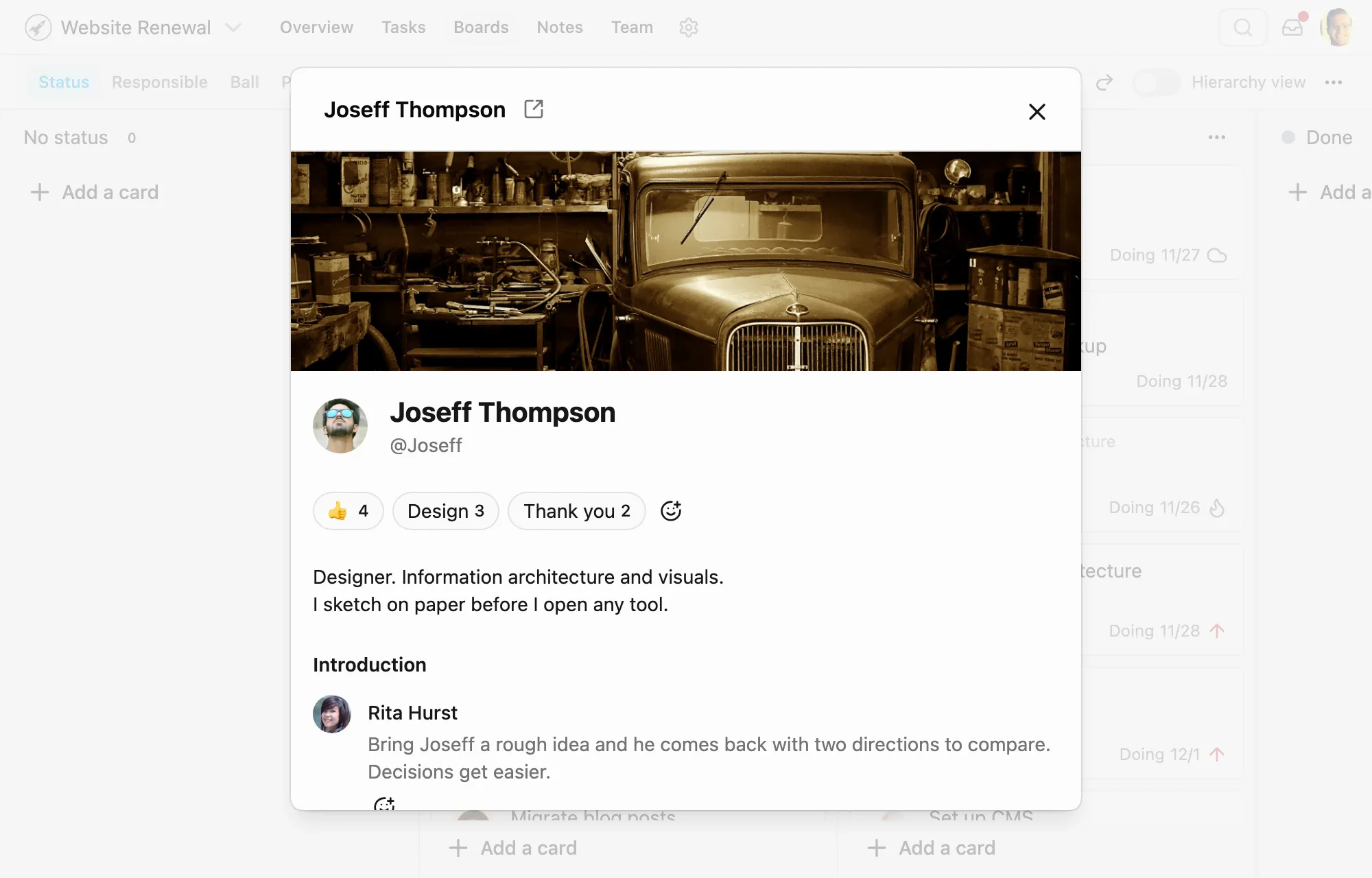
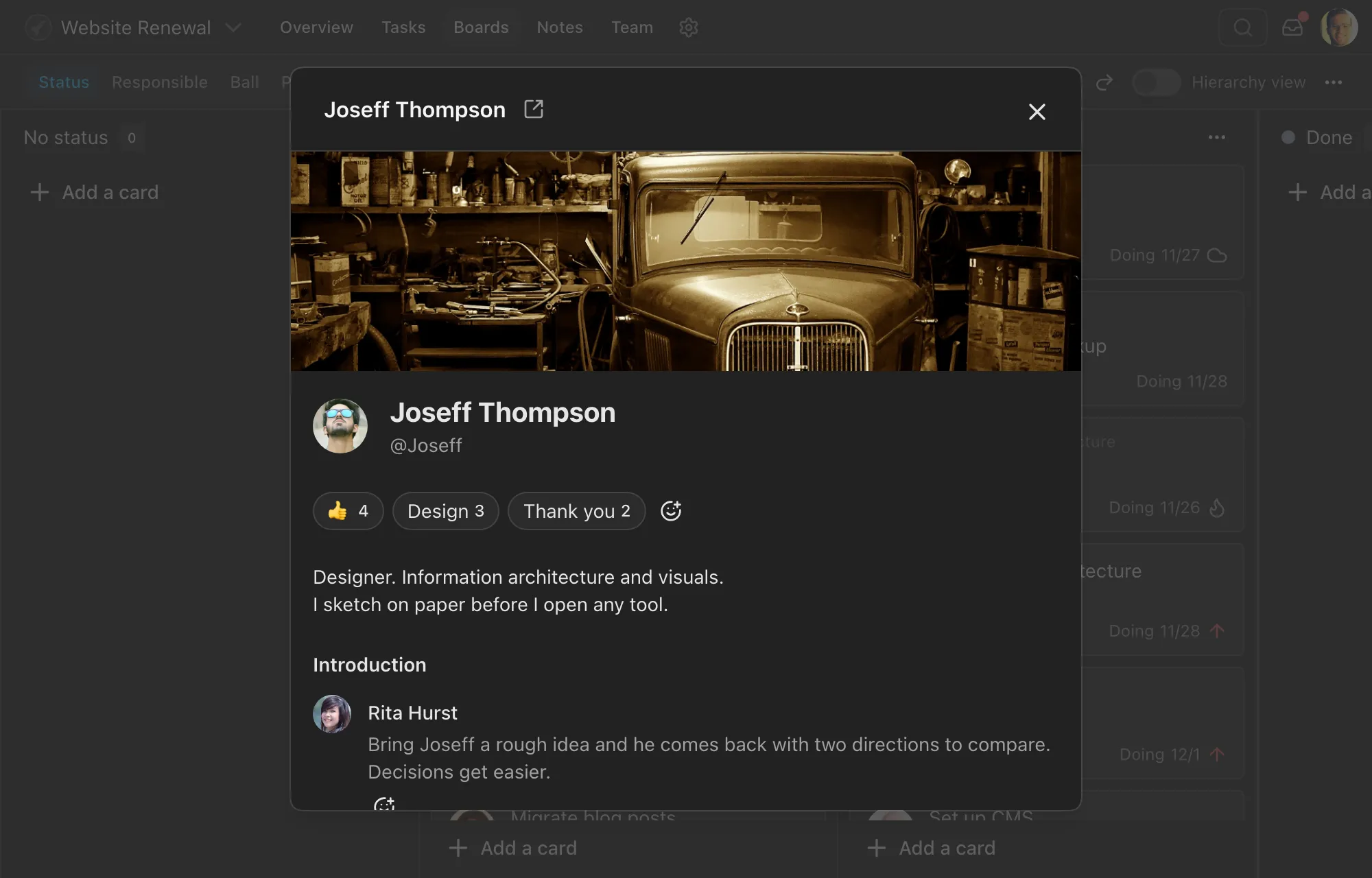
Hover over a teammate's avatar on a task card or a comment and you get their name and bio. Click it and their profile opens right there, without leaving the screen you were on. Mentions in comments and notes work the same way.
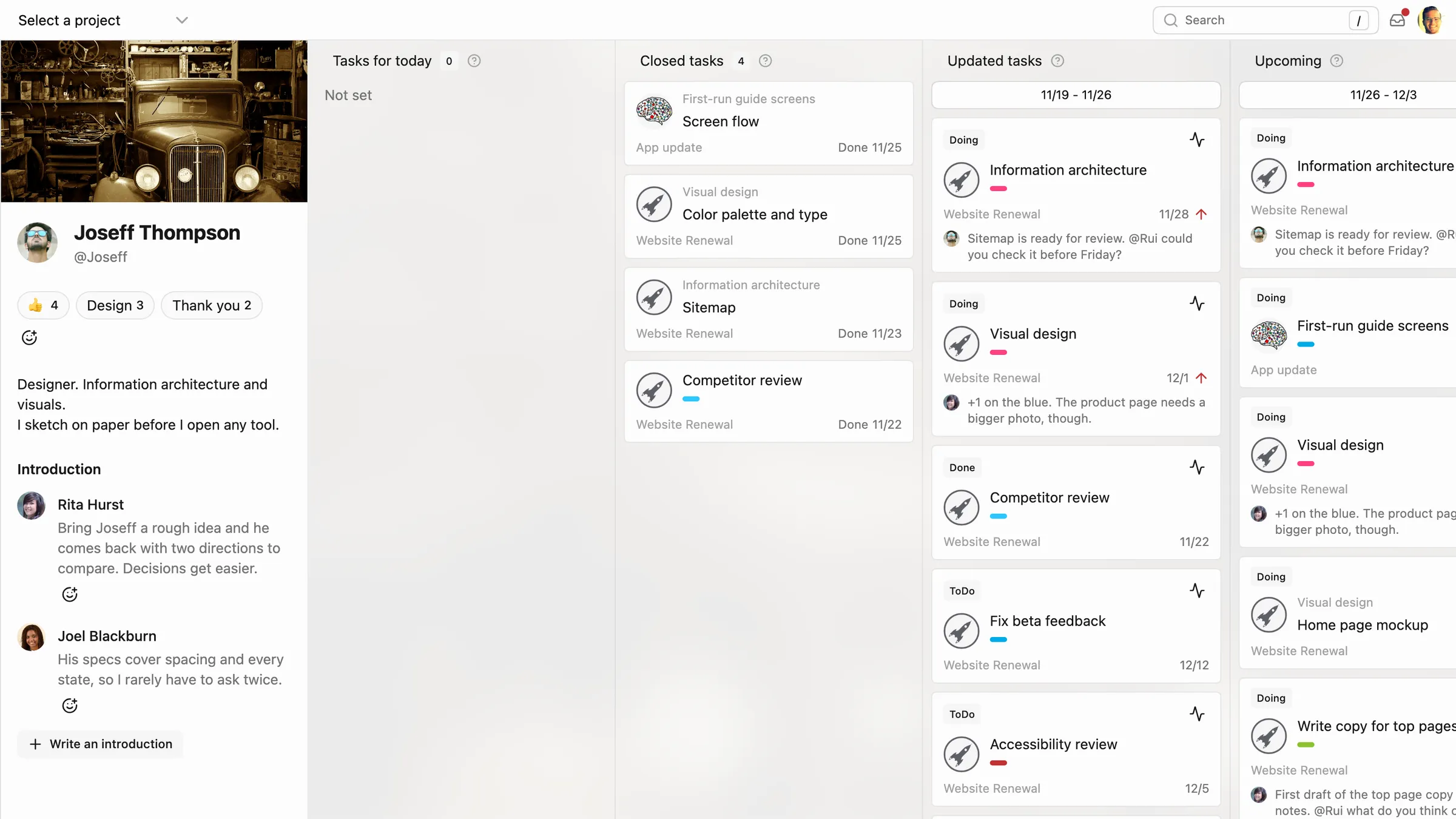
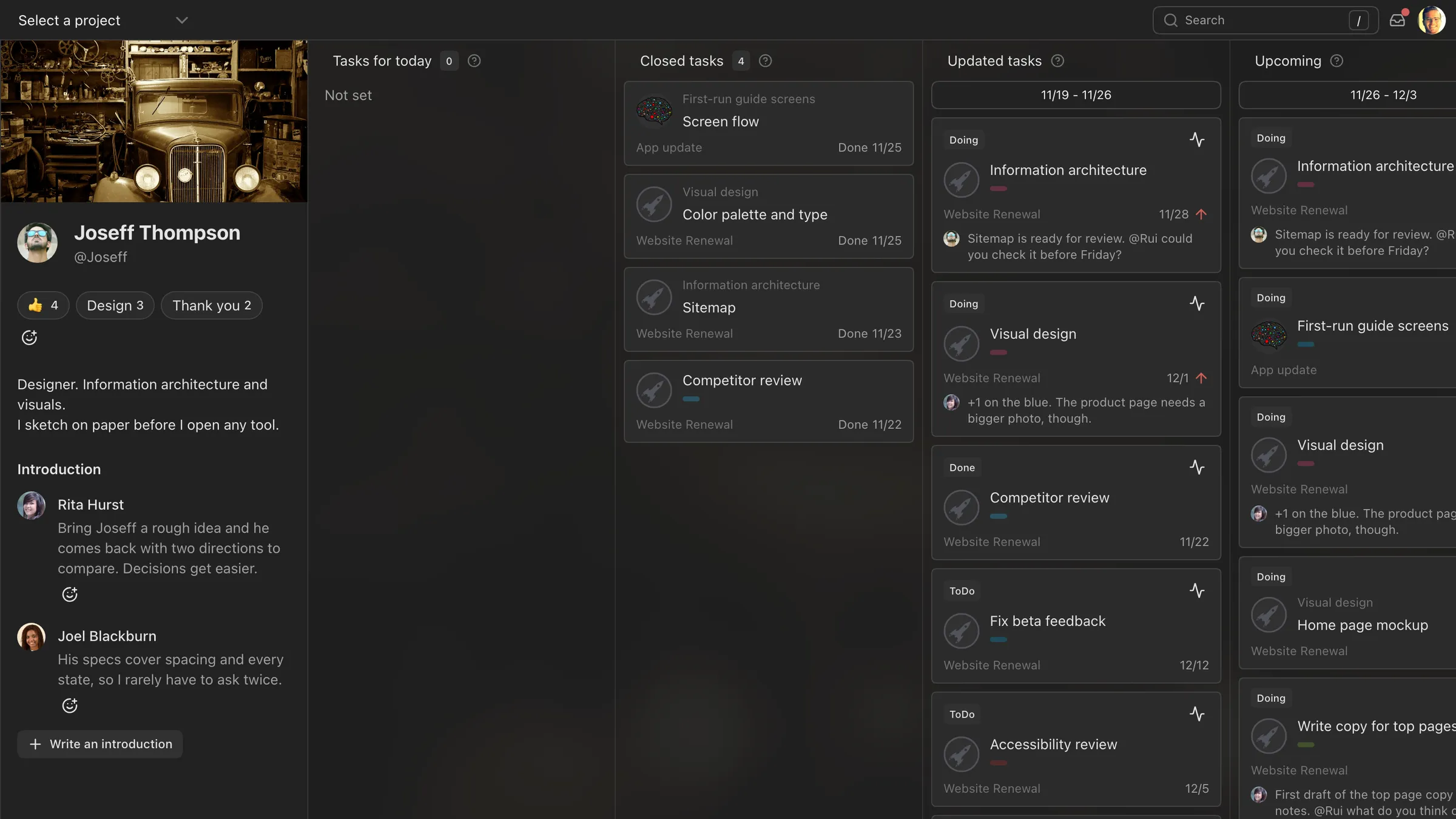
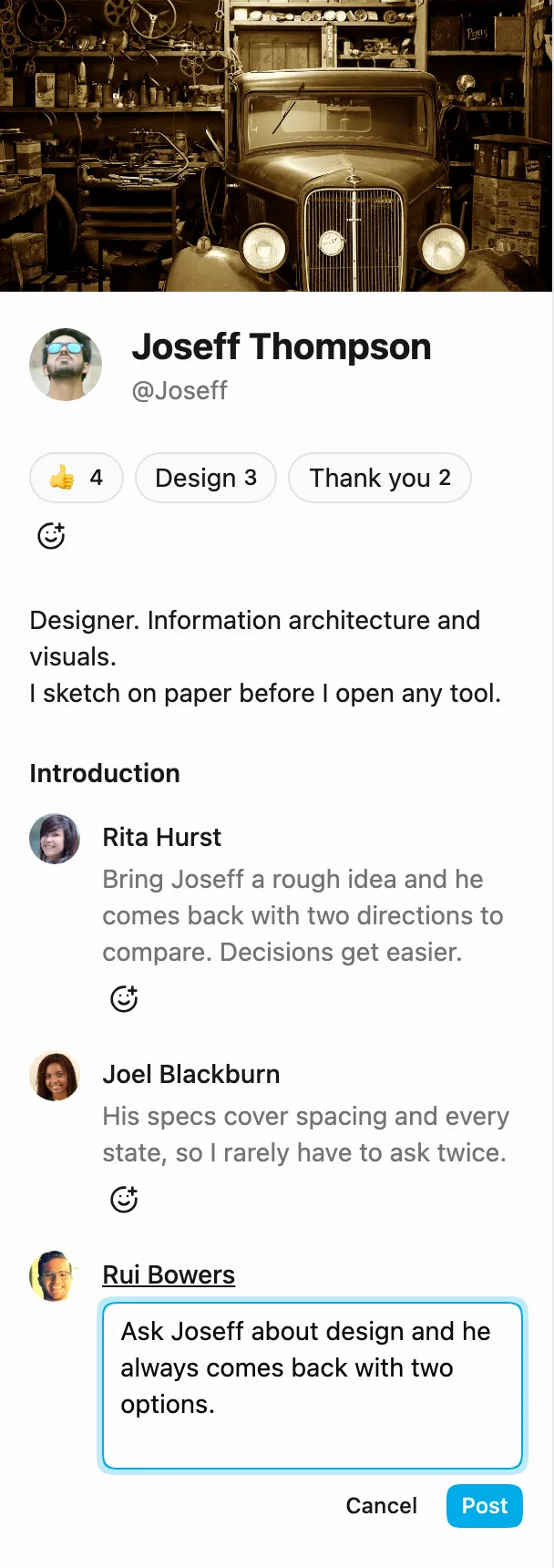
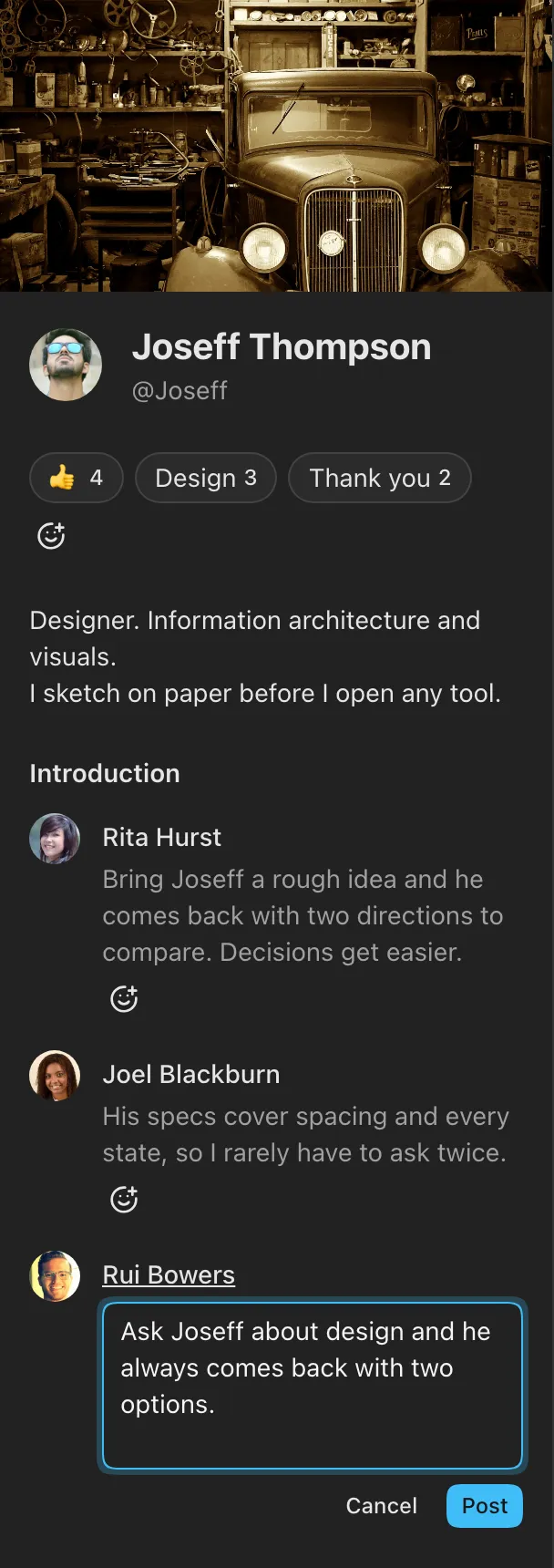
A profile shows a photo, a cover image, a bio, the reactions teammates have sent, and the introductions teammates have written. It is a quick way to get to know someone you have not worked with before.
Open the full page from the button next to their name to also see their tasks for today, closed tasks, updated tasks, upcoming work and activity.
Introductions are written by teammates
Each person writes their own bio. Separately, teammates can write an introduction for them: what they are good at, how they helped, what they are like to work with. Click Write an introduction on their profile. You get one introduction per teammate, and you can edit or delete it later.
The things people rarely say about themselves end up on their profile. Introductions can get reactions too.
React to a comment instead of replying
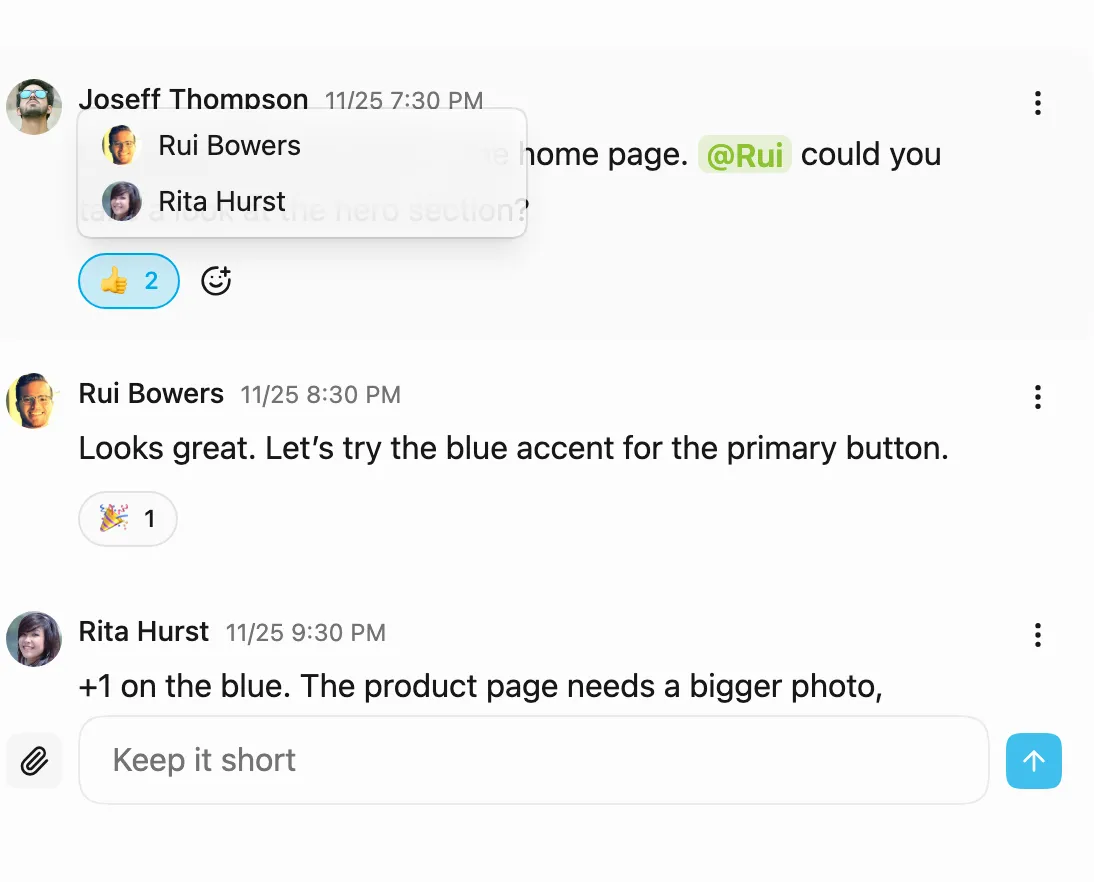
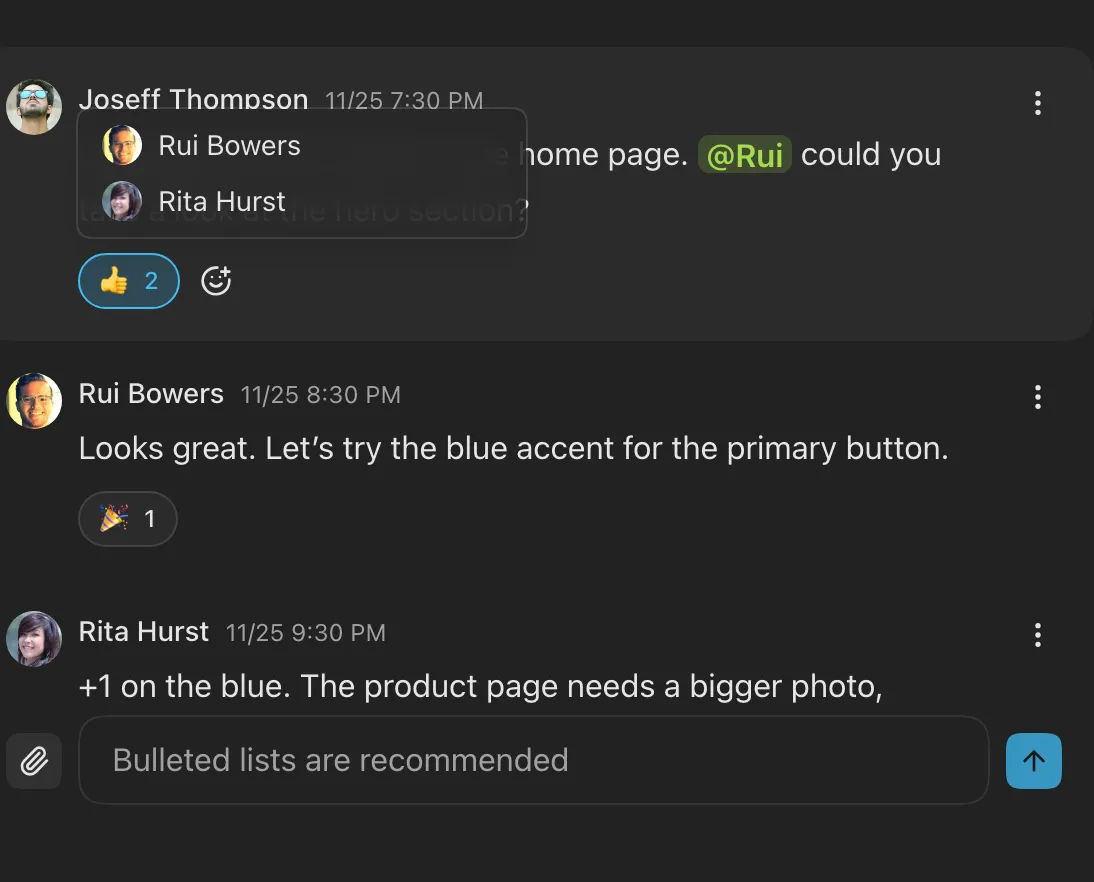
Add a reaction from the button under any comment. It says "seen" or "that helped" without another message in the thread. Click a reaction that is already there to add the same one, and click again to take it back.
Hover over a reaction to see who sent it. Every reaction a person receives also gathers on their profile.
Reactions work on task comments and note comments, teammate profiles, introductions, the project profile and Inbox notifications.
Say it with an emoji, or with a word
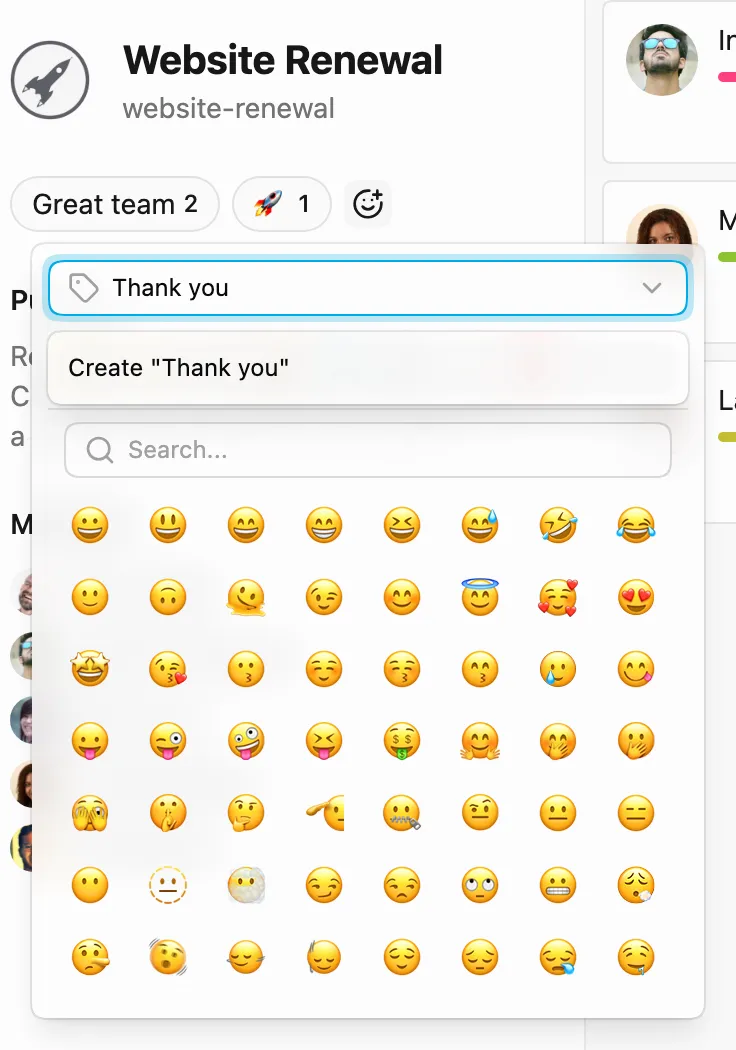
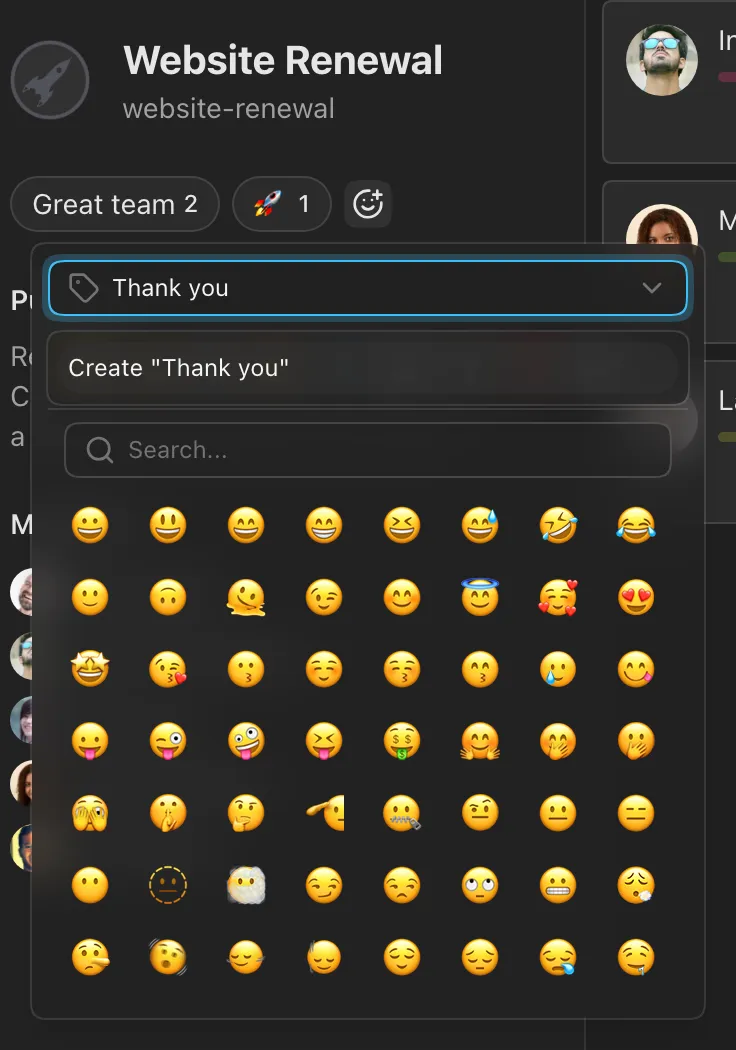
Pick an emoji from the list, or type a word into the field at the top and press Enter.
A word can be a feeling, like "Thank you" or "Nice work", or a skill, like "Design" or "Python". As these collect on someone's profile, you get a sense of what they are good at and what they bring to the team.
Give the project a profile too
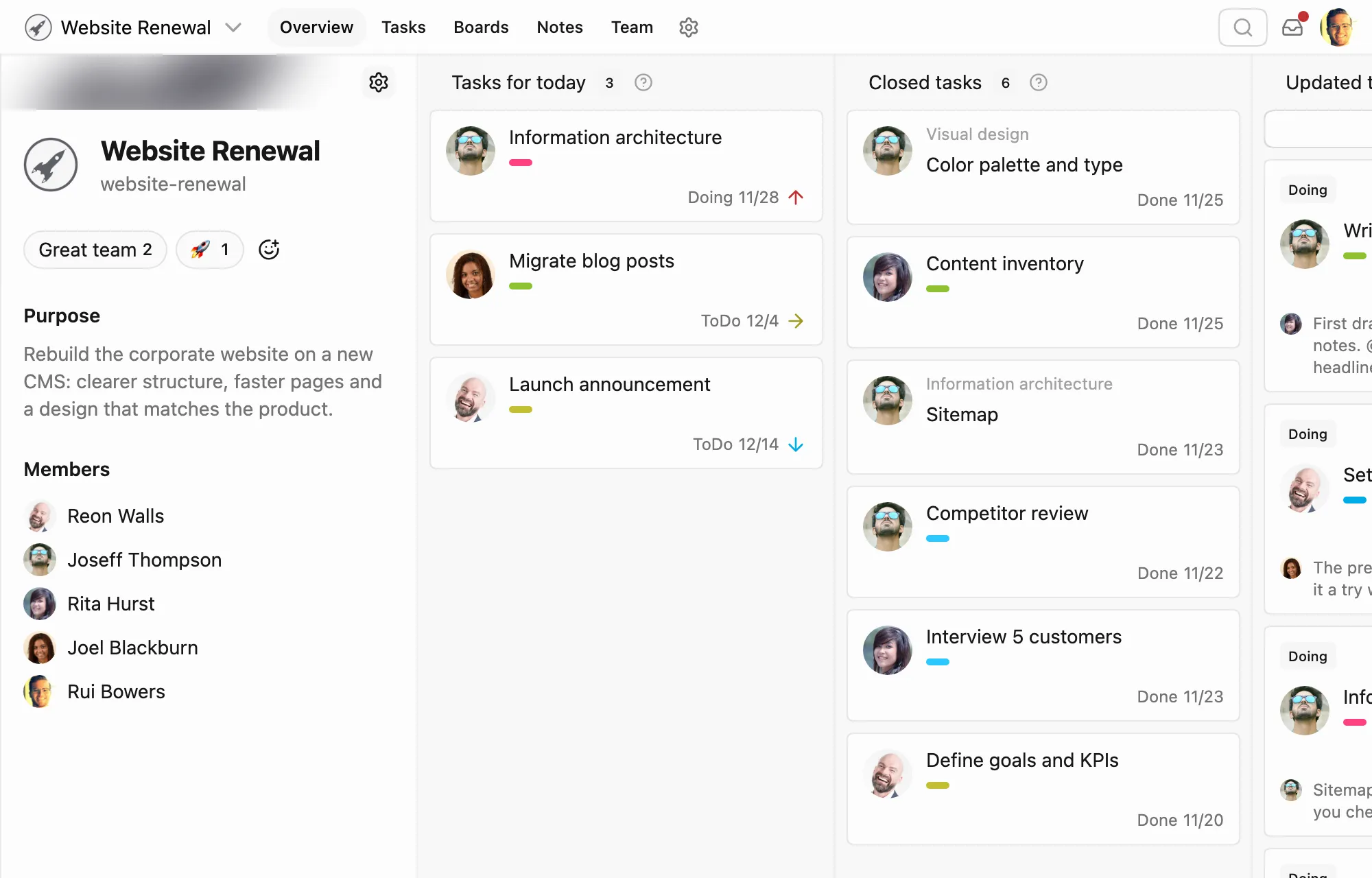
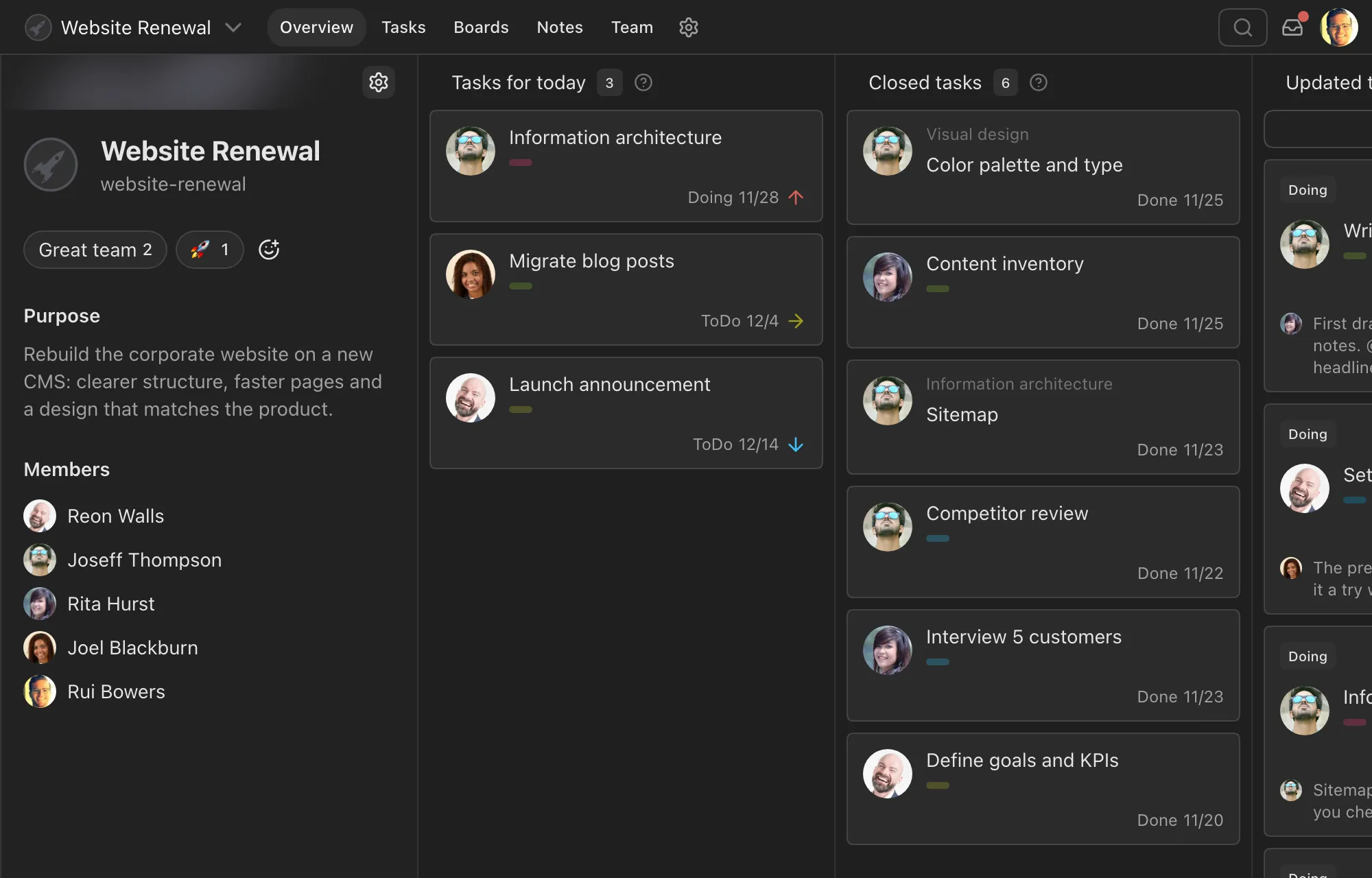
The Overview tab is the project's profile: its display name, purpose, product image and members. The reason this work matters stays where everyone can see it, whether they joined yesterday or a year ago.
A project can get reactions as well. Next to the profile are the team's tasks for today, closed tasks, updated tasks and upcoming work, so a morning check-in can happen on this one screen.
Lay out roles and teams as an org chart
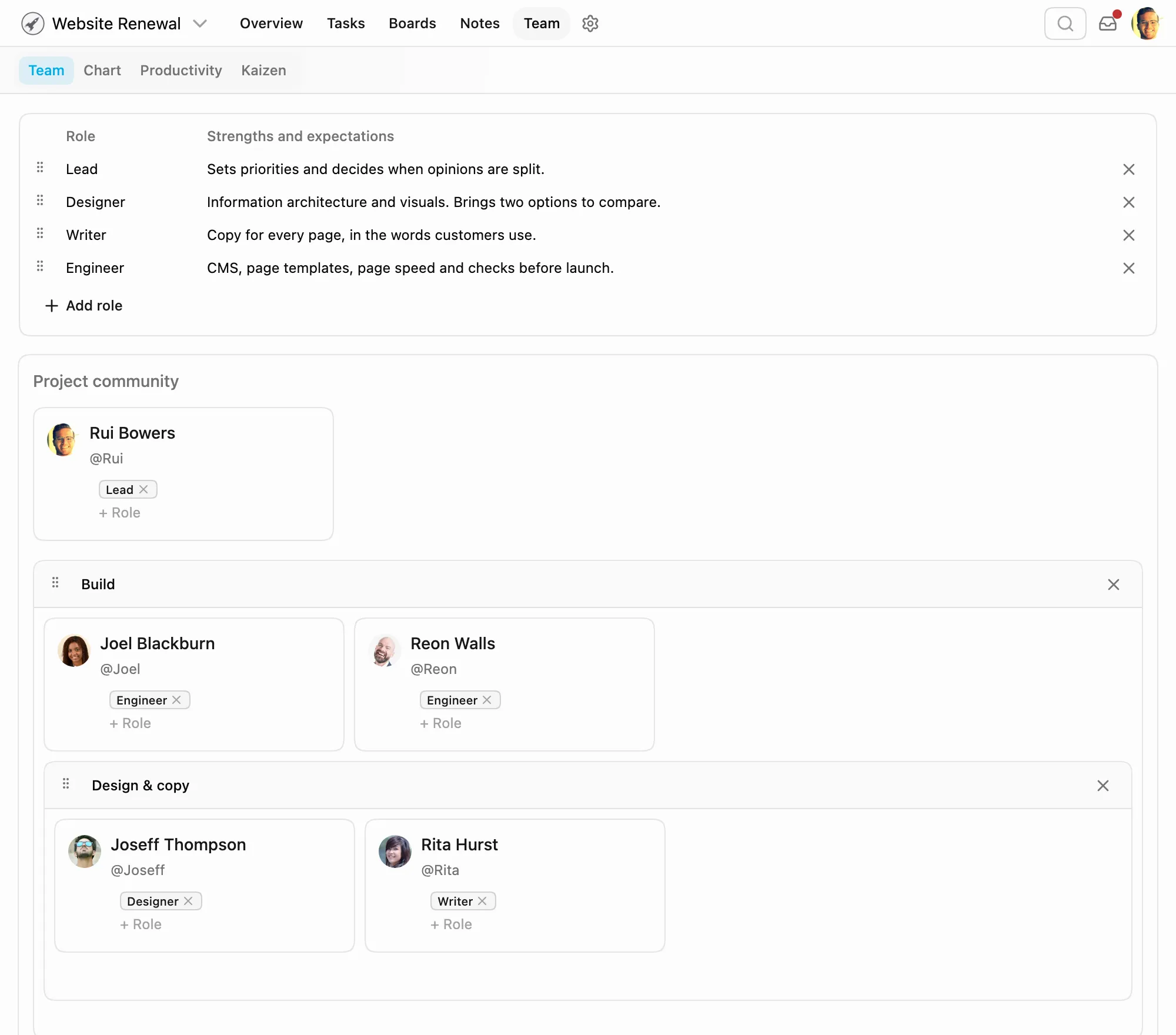
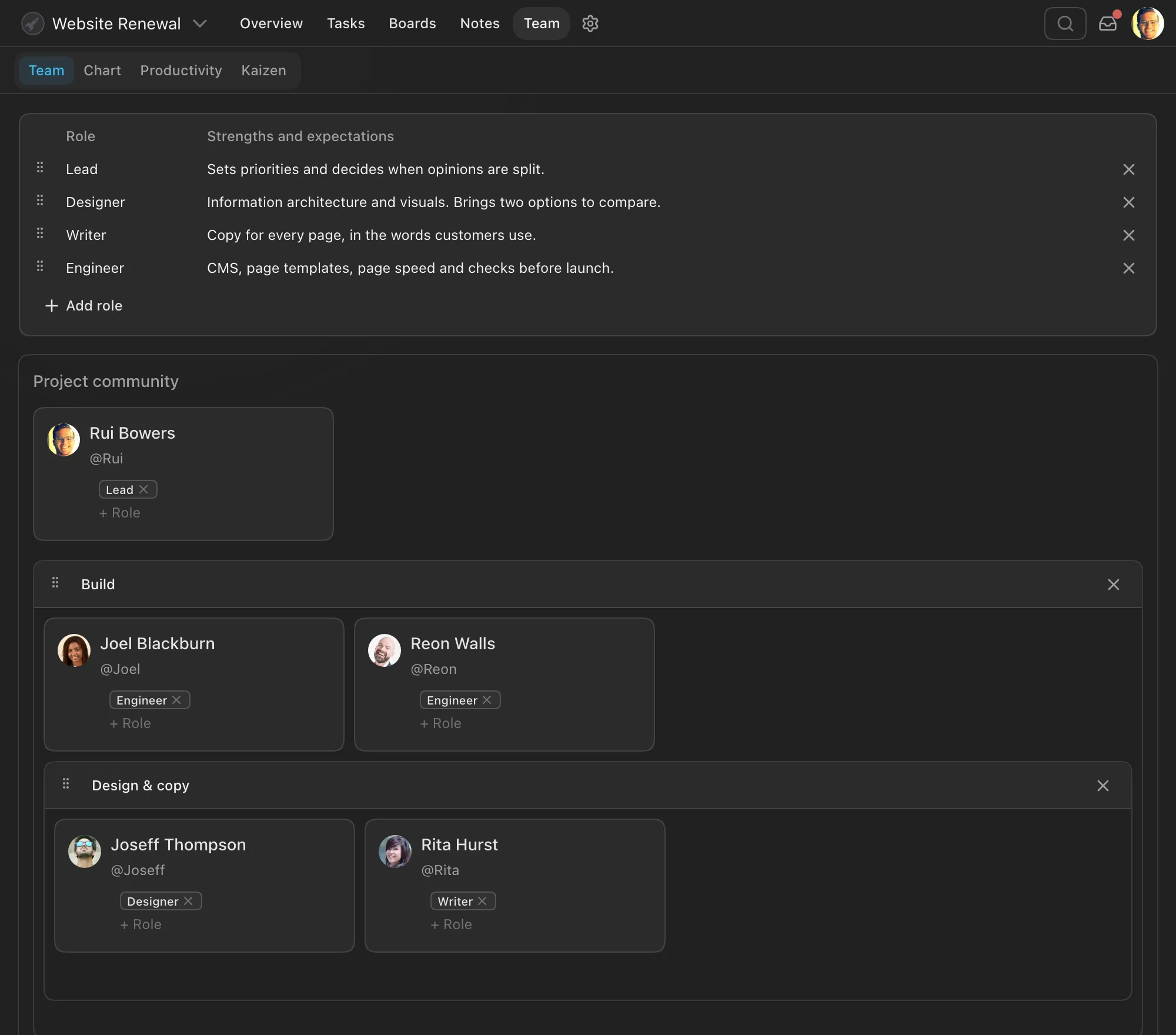
The Team tab shows every project member as a card. Click Add team to make a box for a company, a department or a squad, then drag cards into it. Put teams inside teams and you have the project's org chart.
A role has a name and a line for strengths and expectations. Add roles to a member from their card, and a newcomer can tell who to ask about what.
Changes are saved as you make them.
Run retrospectives with Problem, Try and Keep
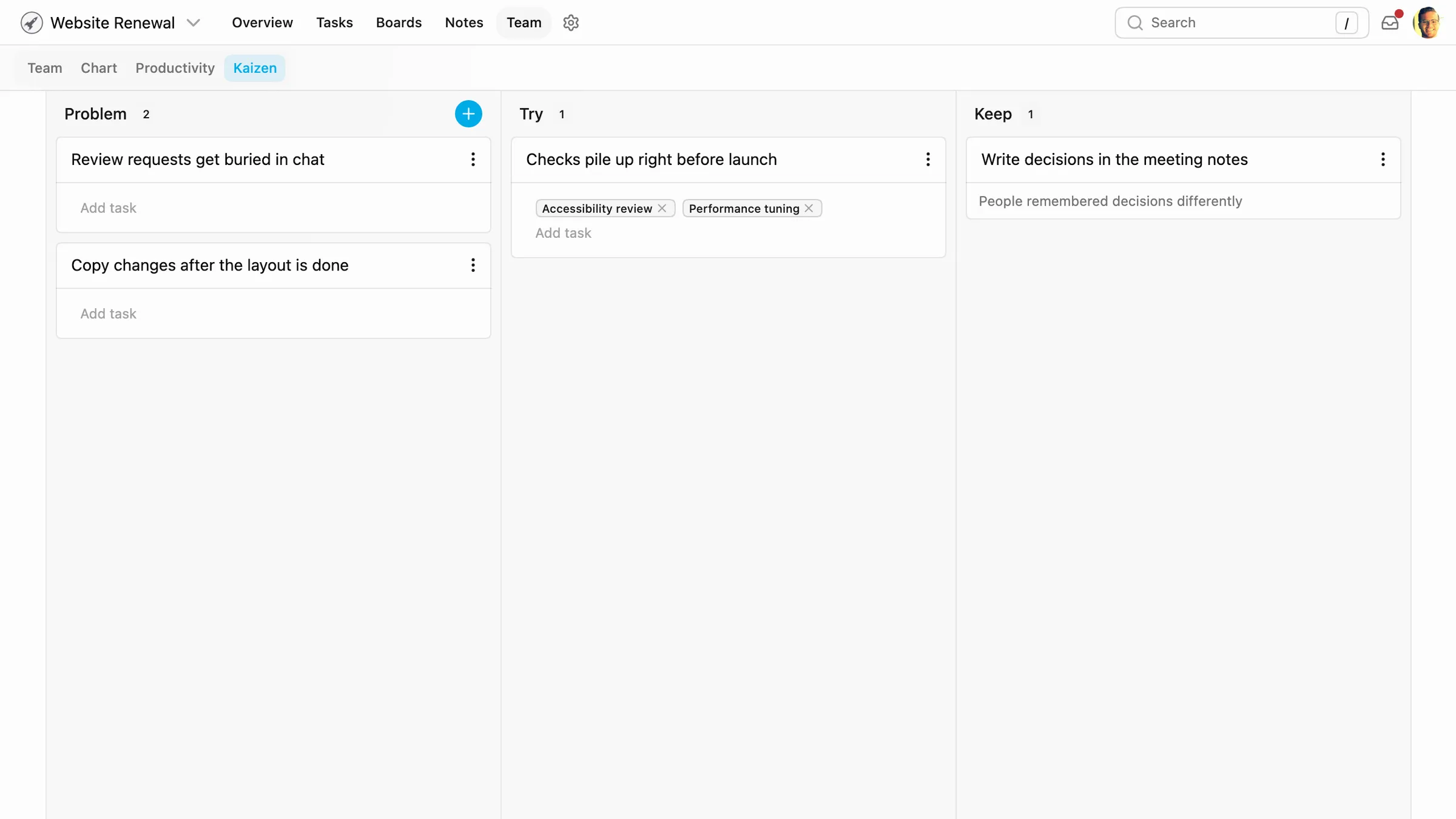
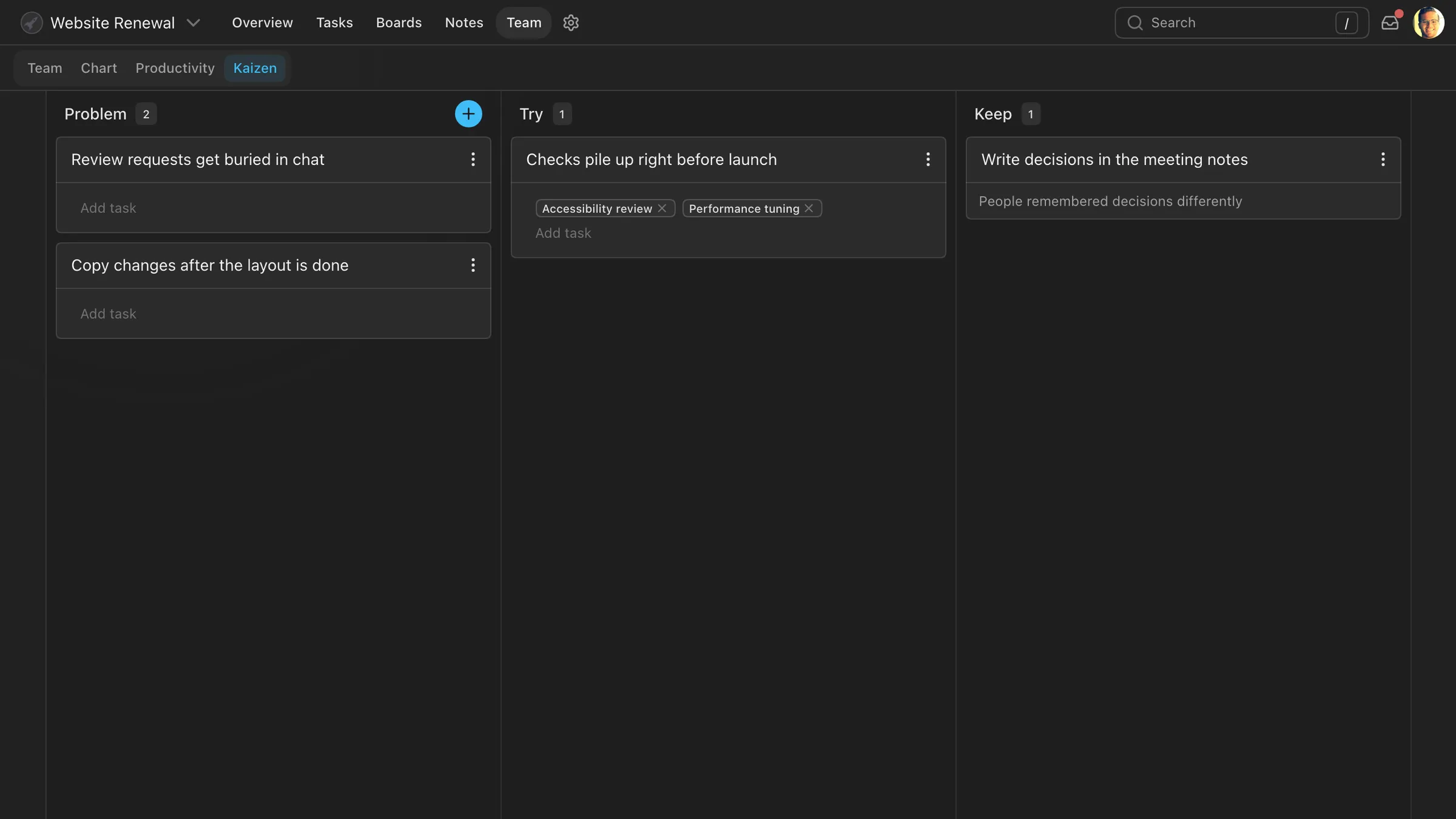
Kaizen is a retrospective board based on the KPT method. Write whatever is bothering the team as cards in the Problem lane. Small things are fine.
For a problem you decide to work on, use Add task to link tasks to the card and drag it to Try. Pick existing tasks from the project or create new ones on the spot. What came up in the retrospective becomes a task you can give an owner and a due date.
When a problem is solved, or there is something worth continuing, move the card to Keep and give it a name. It stays there as one of the team's habits.
Reactions and comments count as work
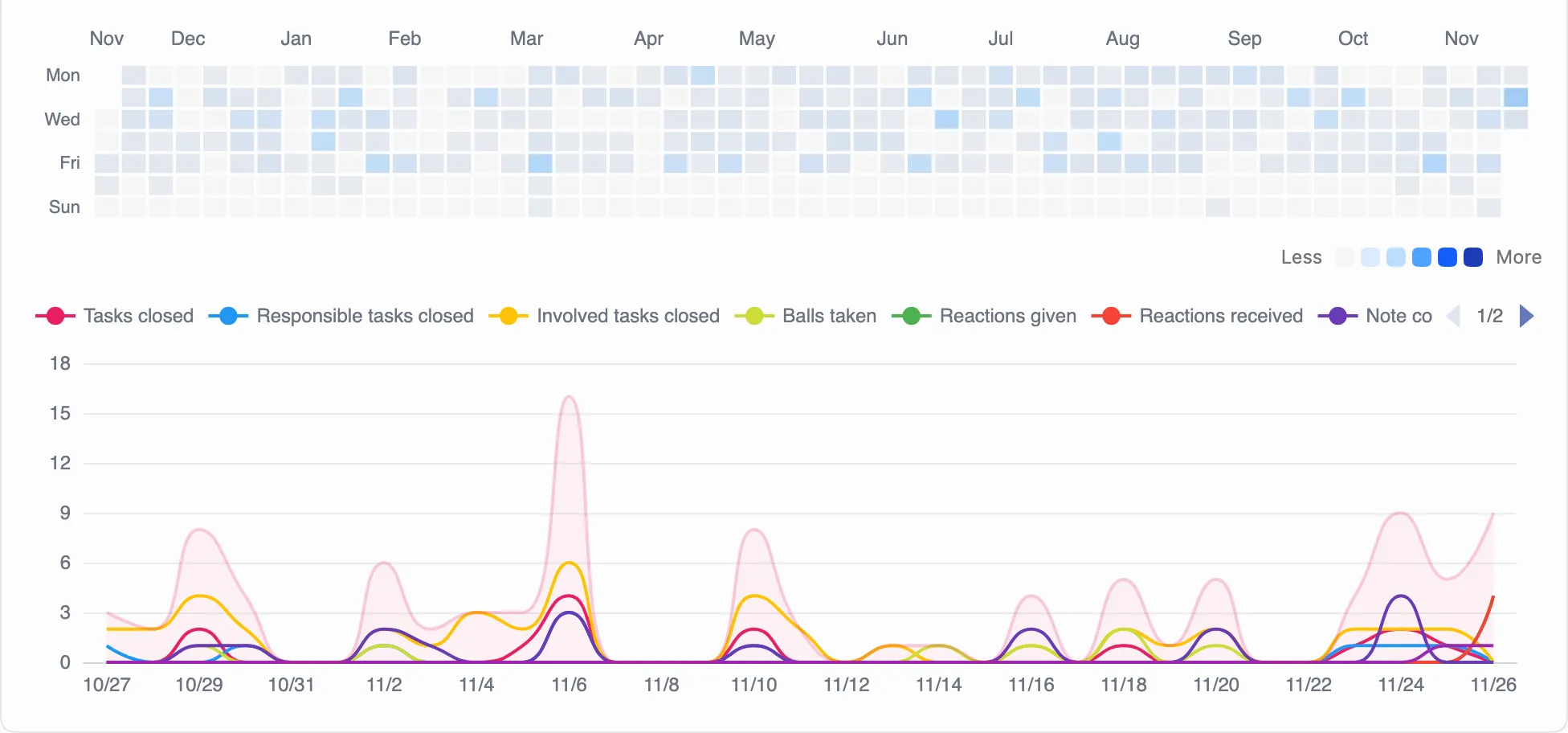
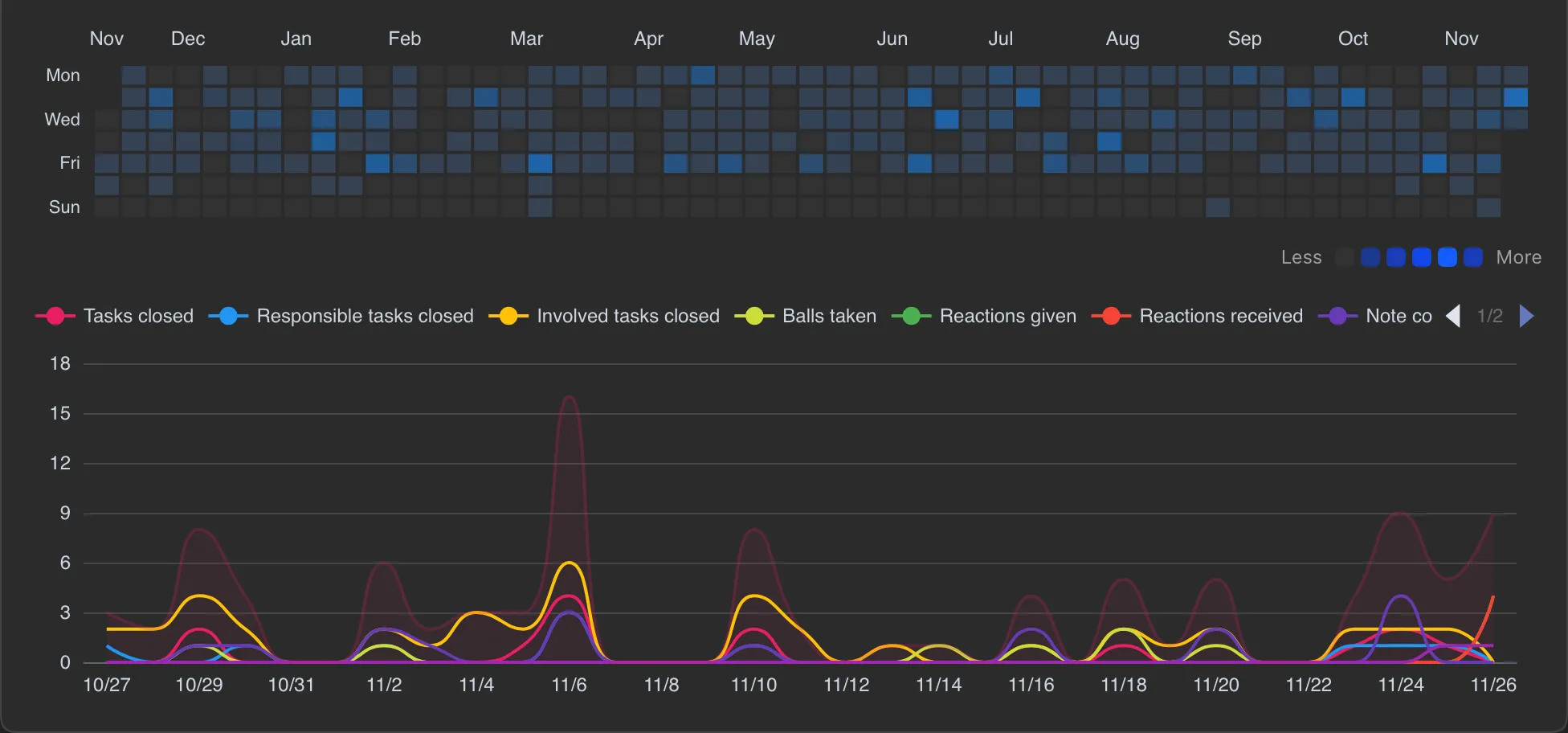
The Productivity tab shows each member's activity as a calendar and a line chart. Alongside closed tasks, the chart shows reactions given, reactions received, comments and note contributions.
Helping someone and speaking up show up as part of the team's work, next to the task counts. How far back the calendar goes depends on your plan's activity log retention. The details are on the Charts page.
What you can do
| Area | What you can do |
|---|---|
| Profile | Name, photo, cover image, bio, reactions received, introductions from teammates. The full page adds Tasks for today, Closed tasks, Updated tasks, Upcoming and Activity |
| Opening a profile | Hover over an avatar or a mention for the name and bio, click for the profile, then open the full page from there |
| Introductions | One per teammate, up to 2,000 characters. The author can edit and delete it. Your own profile has no button to write one |
| Where reactions go | Task comments, note comments, teammate profiles, introductions, the project profile, Inbox notifications |
| What a reaction is | An emoji, or text up to 64 characters. Tags whose type is set to Reaction or None in the tag settings appear as suggestions |
| Reaction rules | You can't react to your own comment, introduction or profile, or to notifications about your own actions. Click an existing reaction to add the same one, click again to remove it. Hover to see who reacted (reactions on the project show a count only) |
| Likes | Tasks and notes have a separate Like button |
| Project profile | Display name, purpose, product image, members, reactions to the project. Owners and admins edit it |
| Org chart | Add, name and reorder teams, nest teams inside teams (up to 10 levels), drag member cards into them |
| Roles | A name plus strengths and expectations. A member can have several roles |
| Kaizen | Three lanes: Problem, Try, Keep. New cards start in Problem. Link tasks to Problem and Try cards (existing tasks in the project or new ones), drag cards between lanes, name a card in Keep, delete |
| Productivity | A calendar and a 30-day line chart of activity per member: tasks closed, balls taken, reactions given and received within the project, note contributions, comments and more. The calendar goes back as far as your plan's activity log retention |
| Live updates | The org chart, the Kaizen board, and reactions on comments and profiles update on other people's screens as changes are made |
| Cross-project | Across projects, Team has only the Chart and Productivity tabs. Open a single project for the org chart and Kaizen (Cross-project) |
| Plans | Every plan. Member and project limits are on the pricing page |
Step-by-step instructions are in the help articles Teammate profile, Project profile, Visualize teammates and team structure (org chart), Kaizen for team retrospectives (KPT) and Reaction and how it works. Why Repsona is built around people is on the About page, and the rest of Repsona is on the features page.
FAQ
- Can I run a retrospective in Repsona?
- Yes. Each project has a Kaizen board with three lanes, Problem, Try and Keep, based on the KPT (Keep, Problem, Try) method. Write problems as cards in Problem, drag the ones you are working on to Try, and move what you want to keep doing to Keep.
- Can action items from a retrospective become tasks?
- Yes. On a problem card, use Add task to pick an existing task in the project or type a name to create a new one. A new task is created as a regular task in the same project, with no assignee or due date yet, so you can set both afterwards.
- Can I build a project org chart?
- Yes. On the Team tab, add a team, name it, and drag member cards into it. Teams can be nested inside teams. Each member can carry roles, and each role has a name and a line for strengths and expectations.
- Where can I add reactions?
- On task comments and note comments, on a teammate's profile, on an introduction written for a teammate, on the project profile, and on notifications in your Inbox. A reaction can be an emoji or a short piece of text such as "Thank you".
- Can I see who reacted?
- Yes. Hover over a reaction on a comment or a profile to see who added it. Reactions a person receives also gather on their profile.
- Is this included in the Free plan?
- Yes. Profiles, the org chart, reactions and the Kaizen board are on every plan, including Free. Member and project limits are on the pricing page.