
Meeting notes and how-tos, right next to the work.
Every project gets its own team wiki. Notes save as you type, and your team can edit the same note at the same time. Format with buttons or write in Markdown. Included in the Free plan.
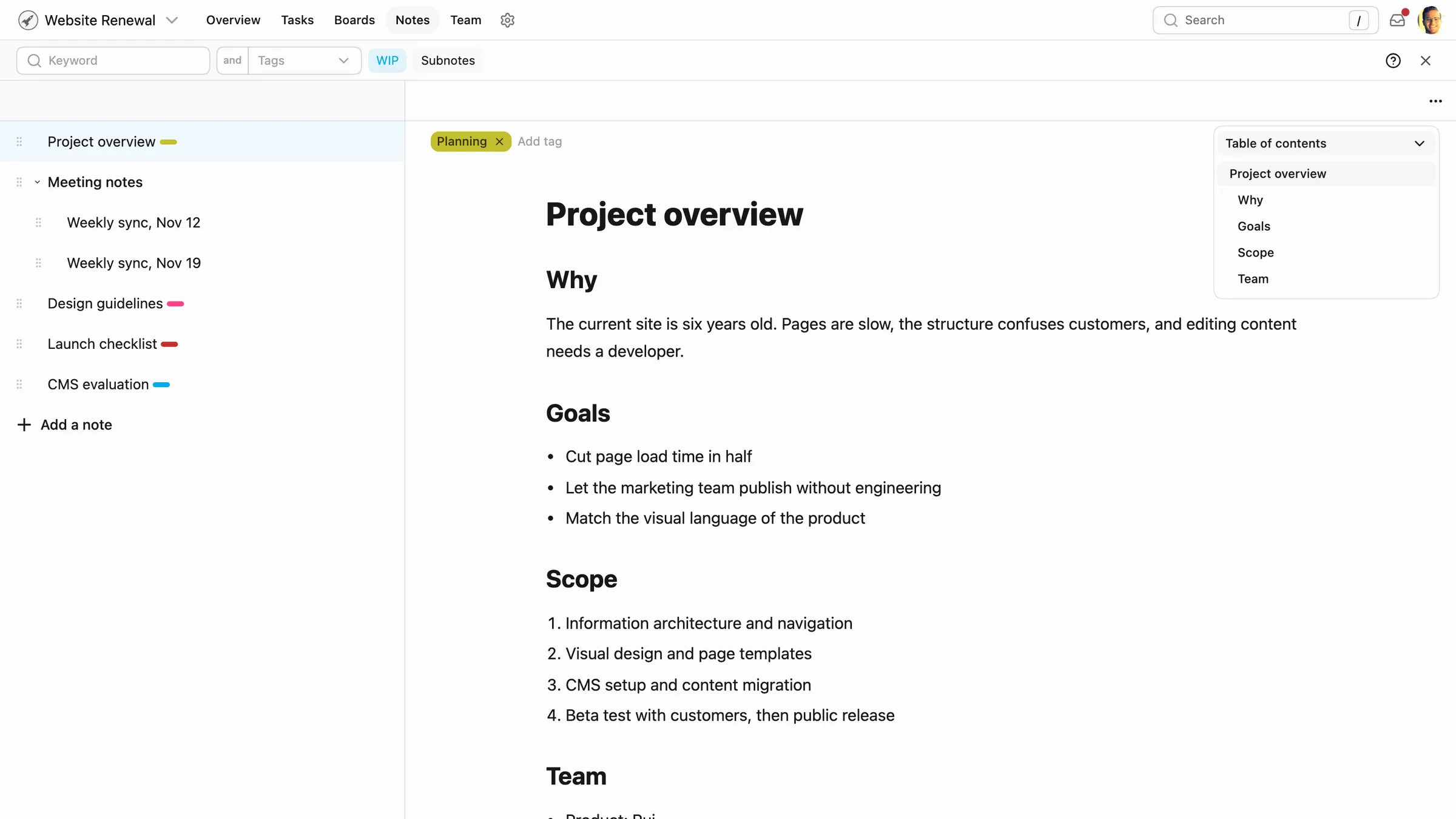
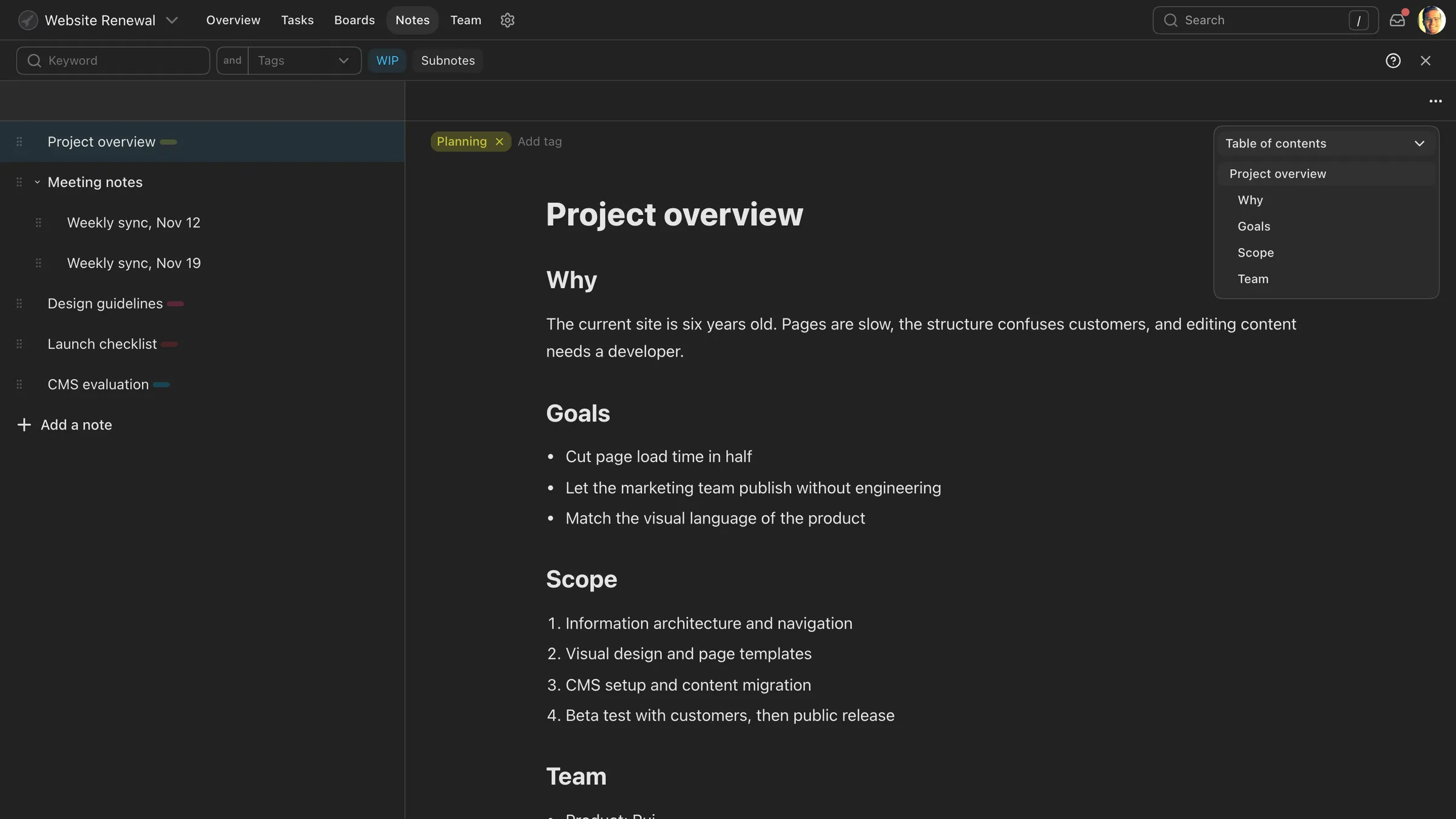
Keep your docs where the work happens
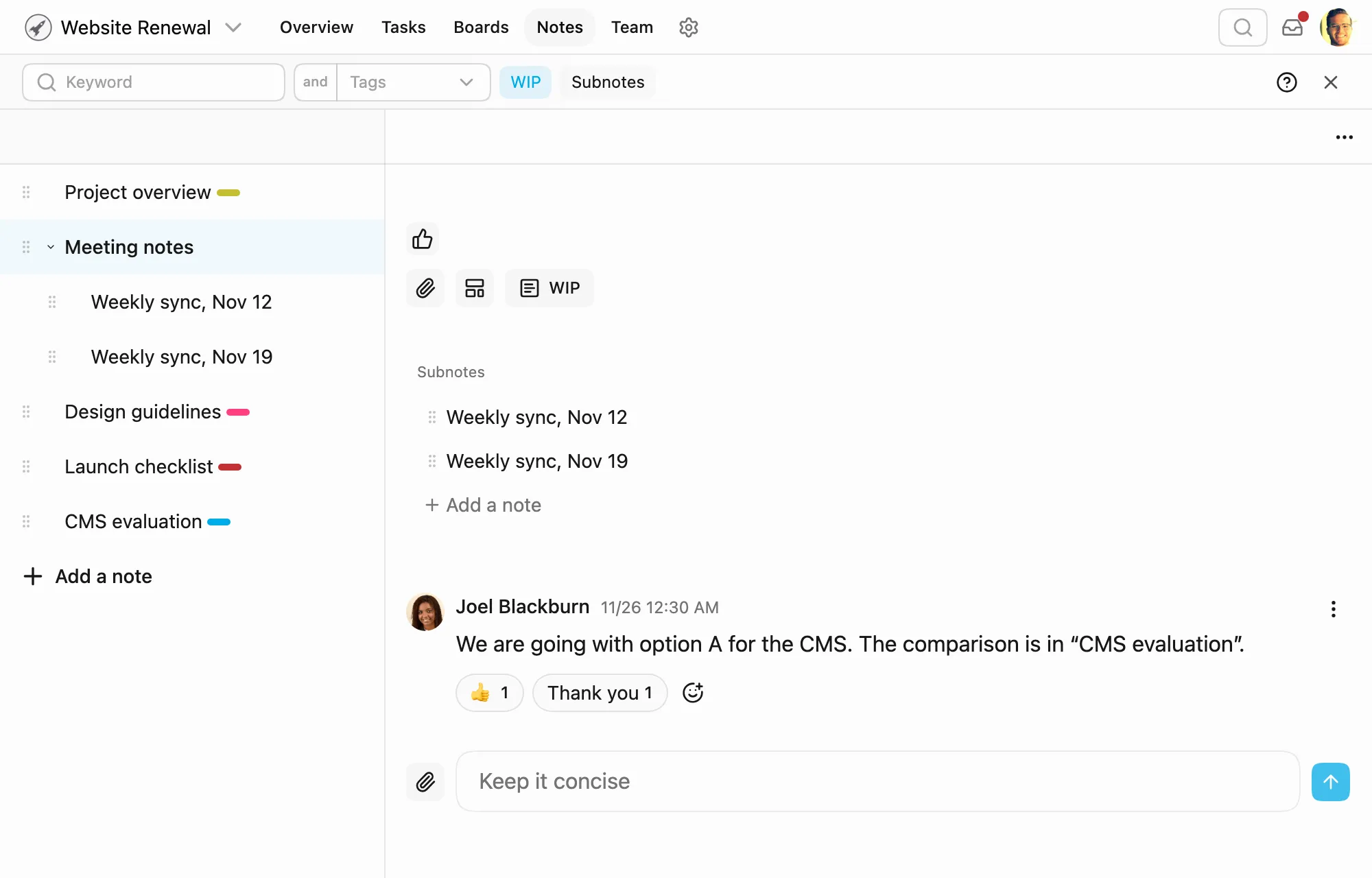
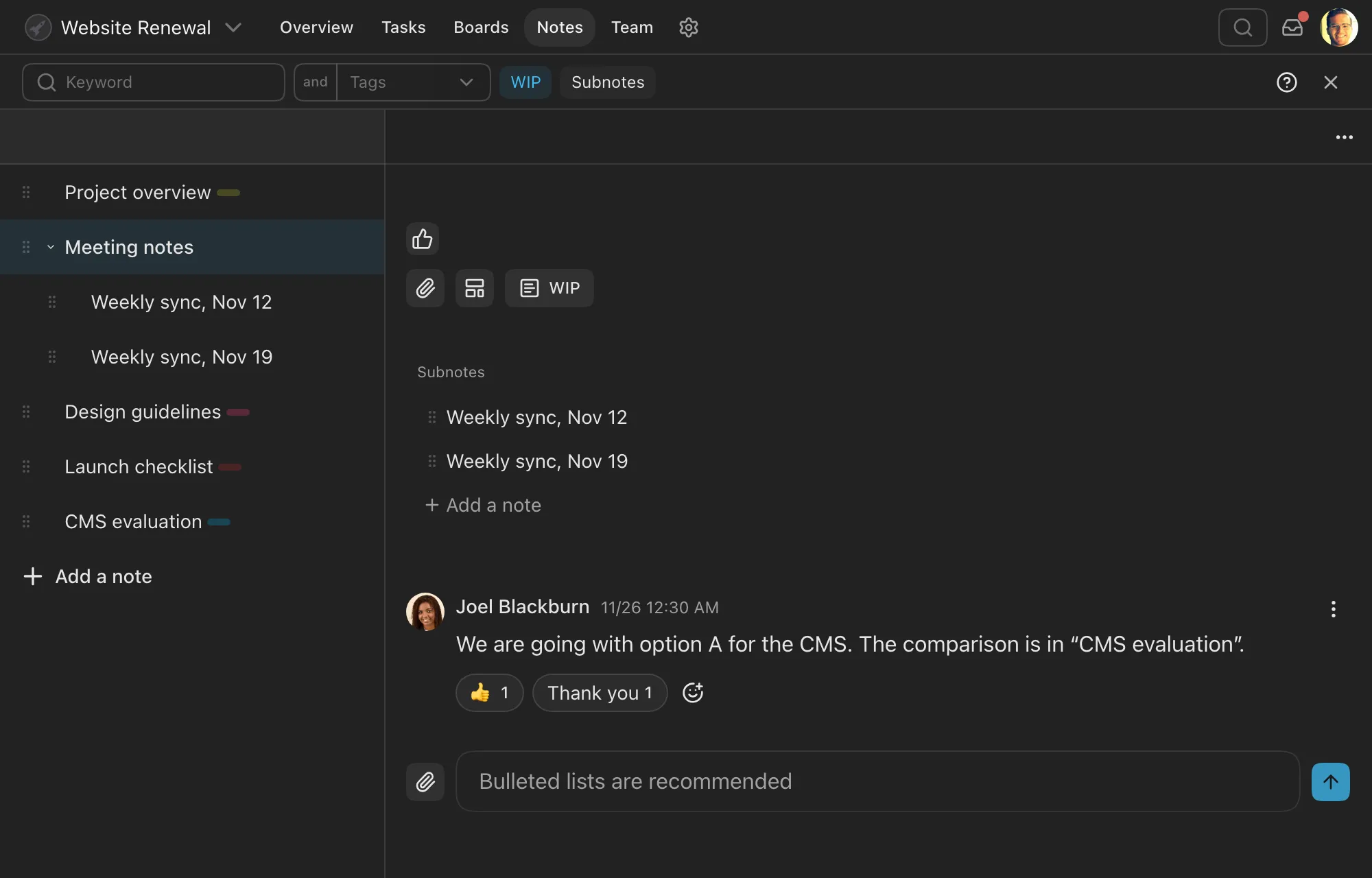
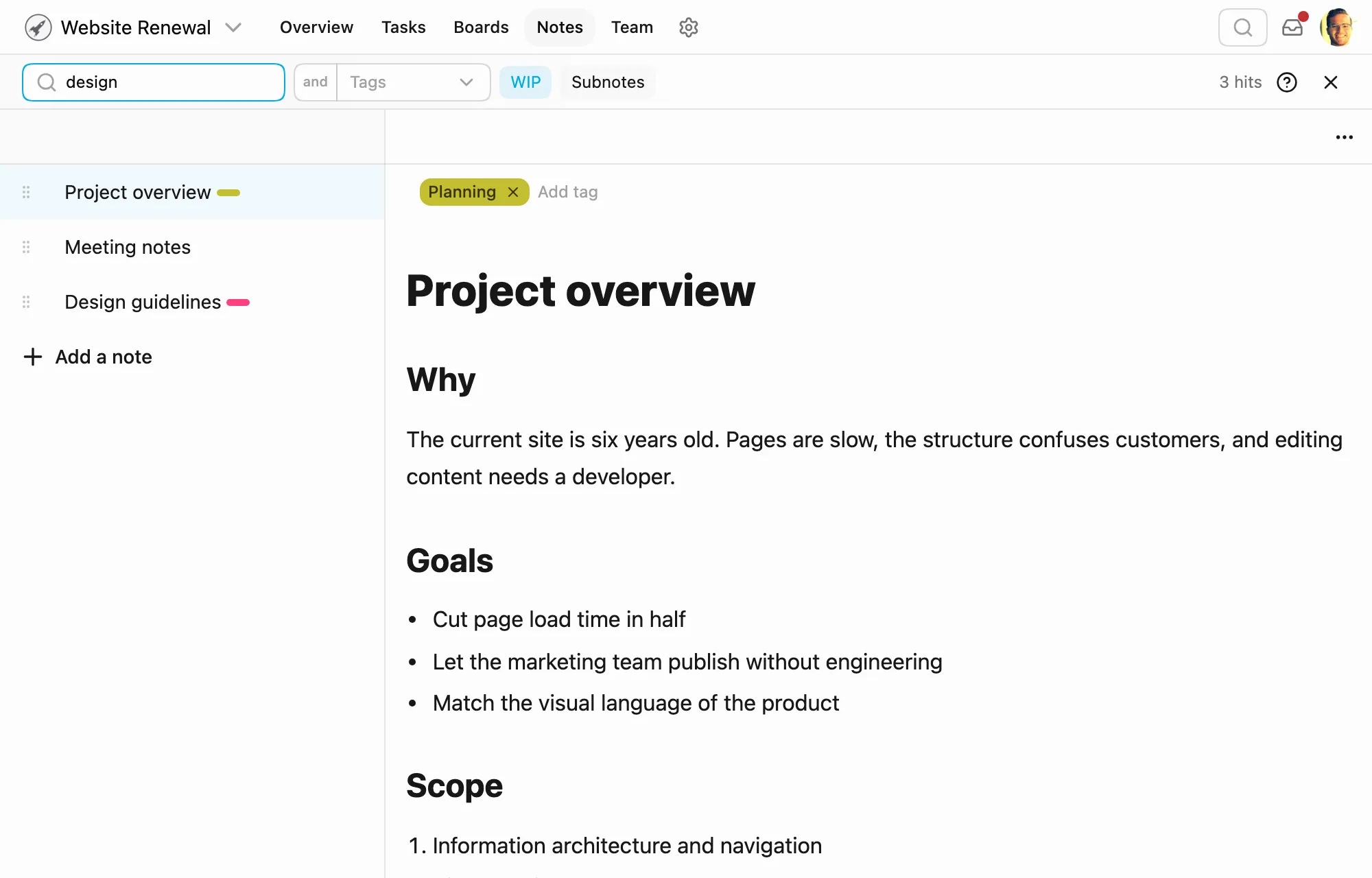
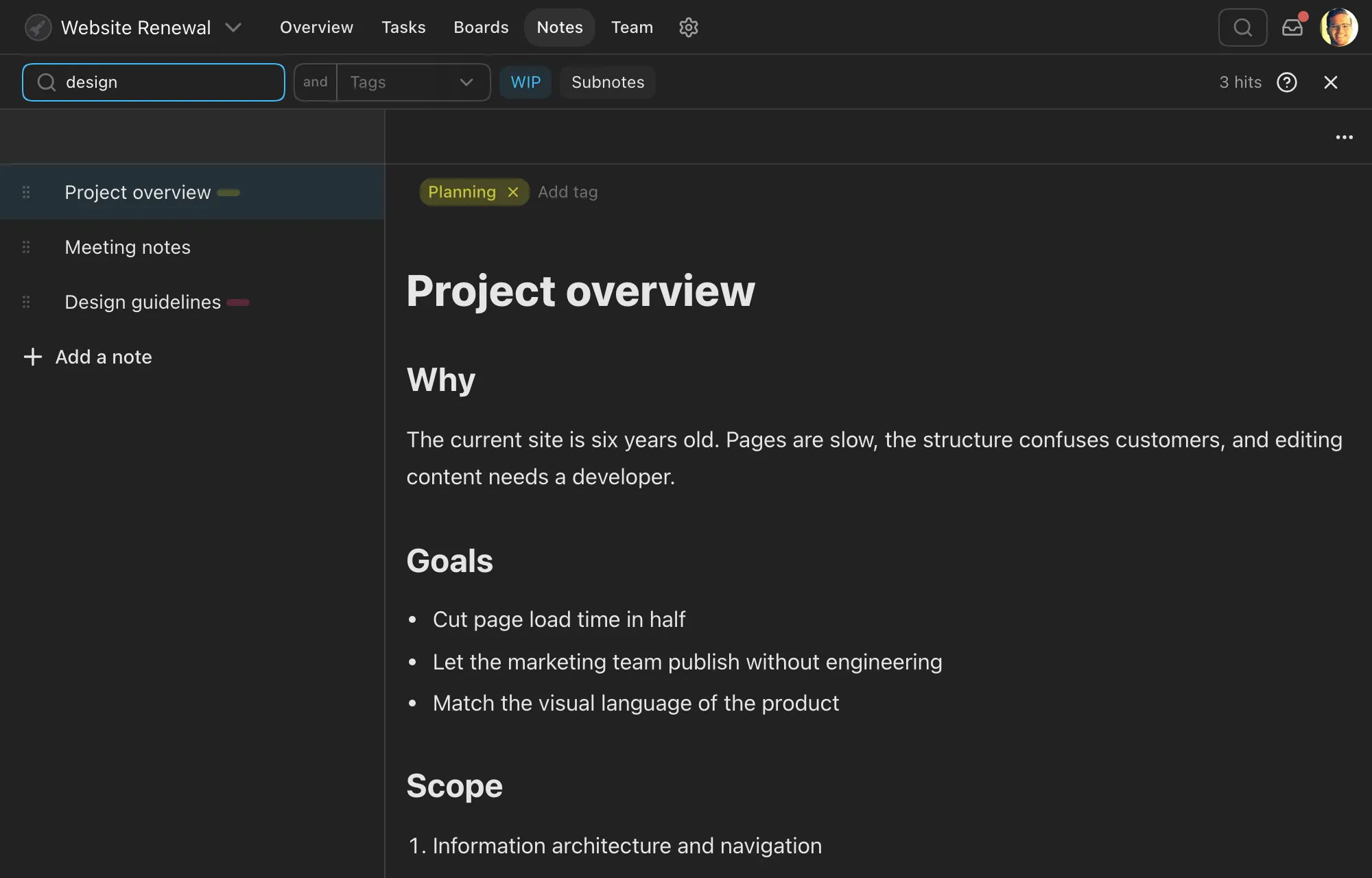
Notes sits in the project menu, next to Tasks and Boards. Meeting notes, step-by-step guides and the page a new teammate should read first all live in the same place as the work they describe.
Click "Add a note", type a title and press Enter. The note opens on the right and you can start writing.
Everything saves as you type. There is no save button.
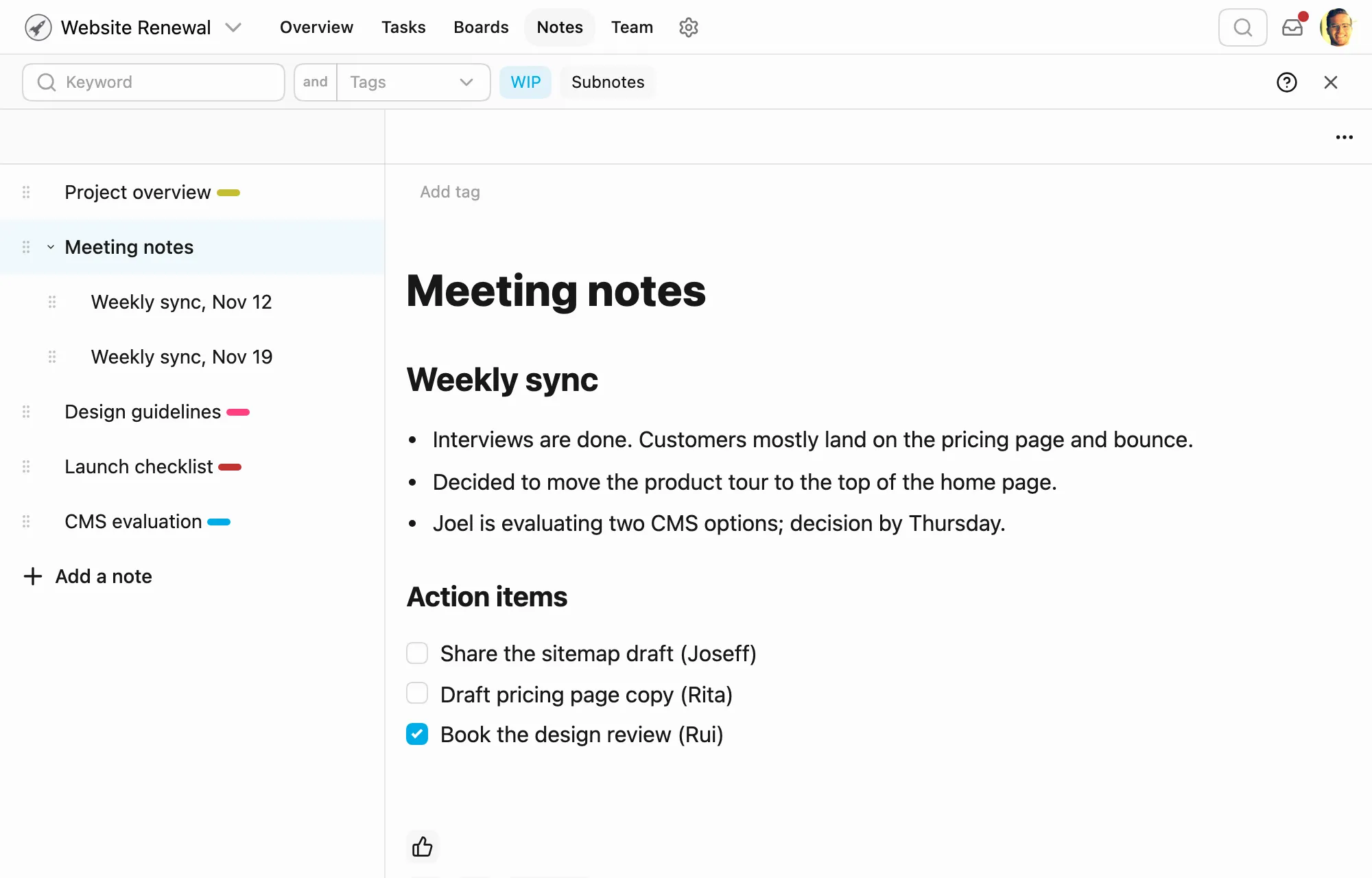
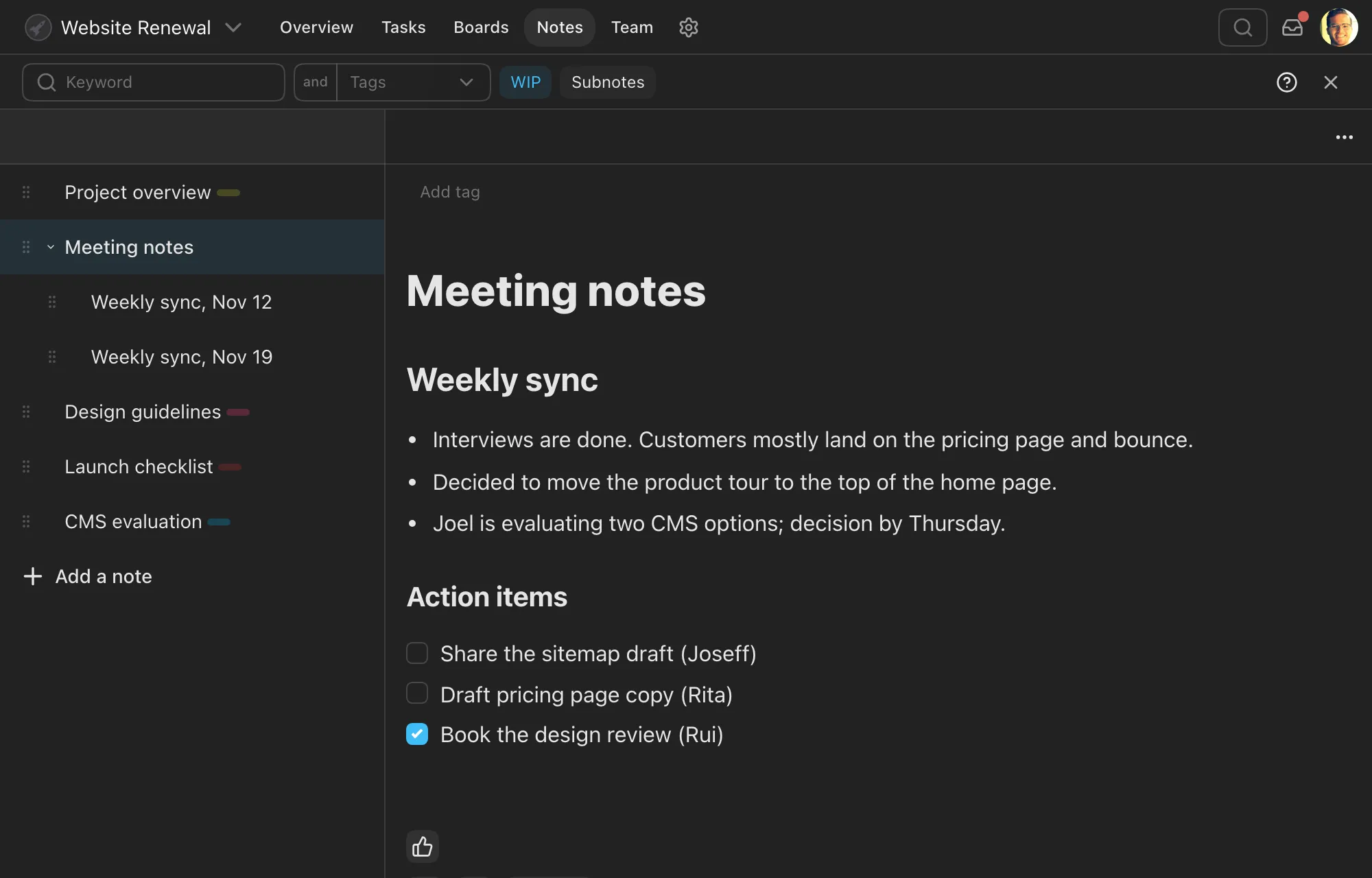
Nest notes into a wiki, and drag to rearrange
A note can hold other notes. Put each week's meeting under "Meeting notes" and each procedure under "How-tos", and you have a wiki without setting up folders.
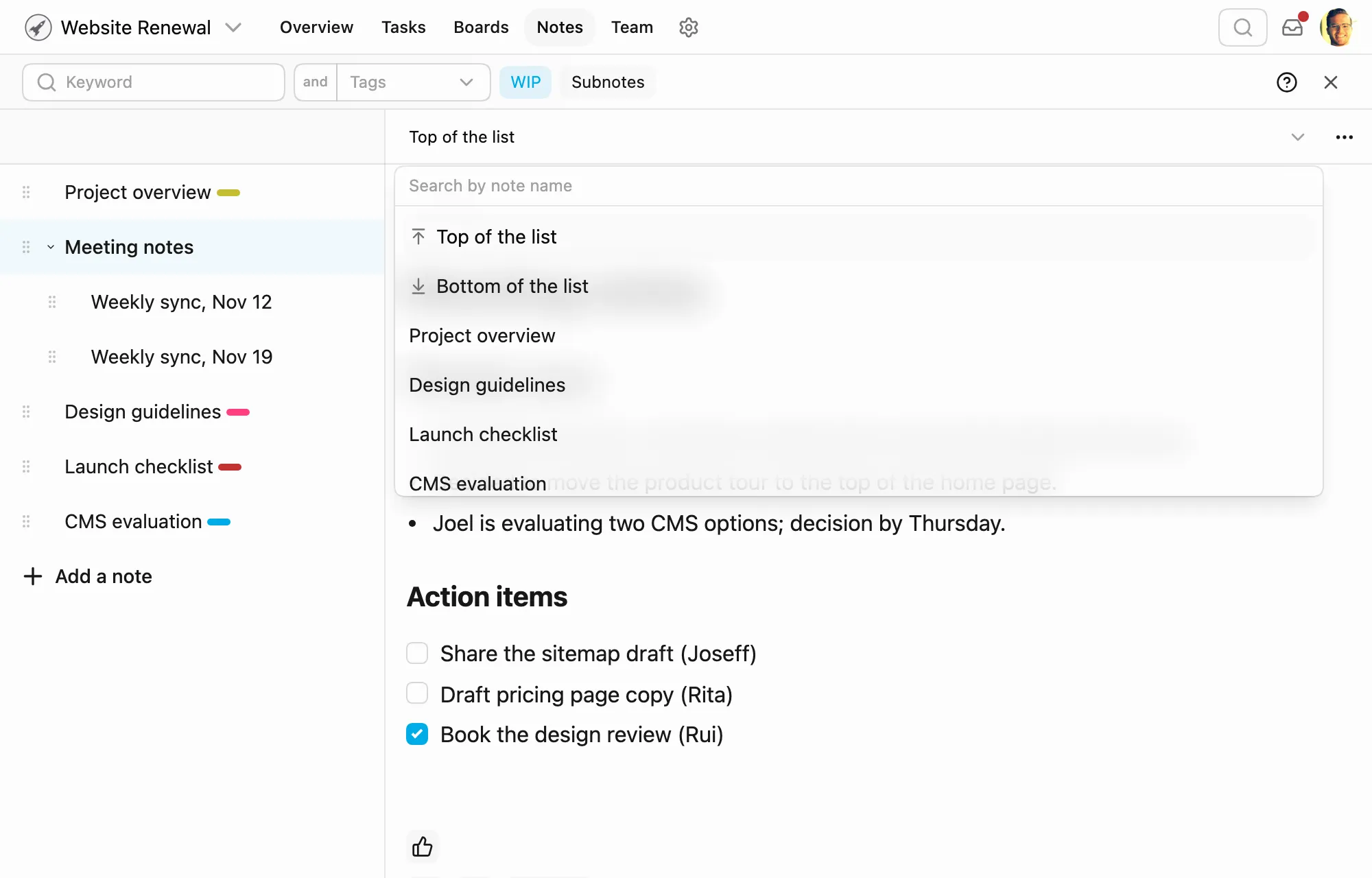
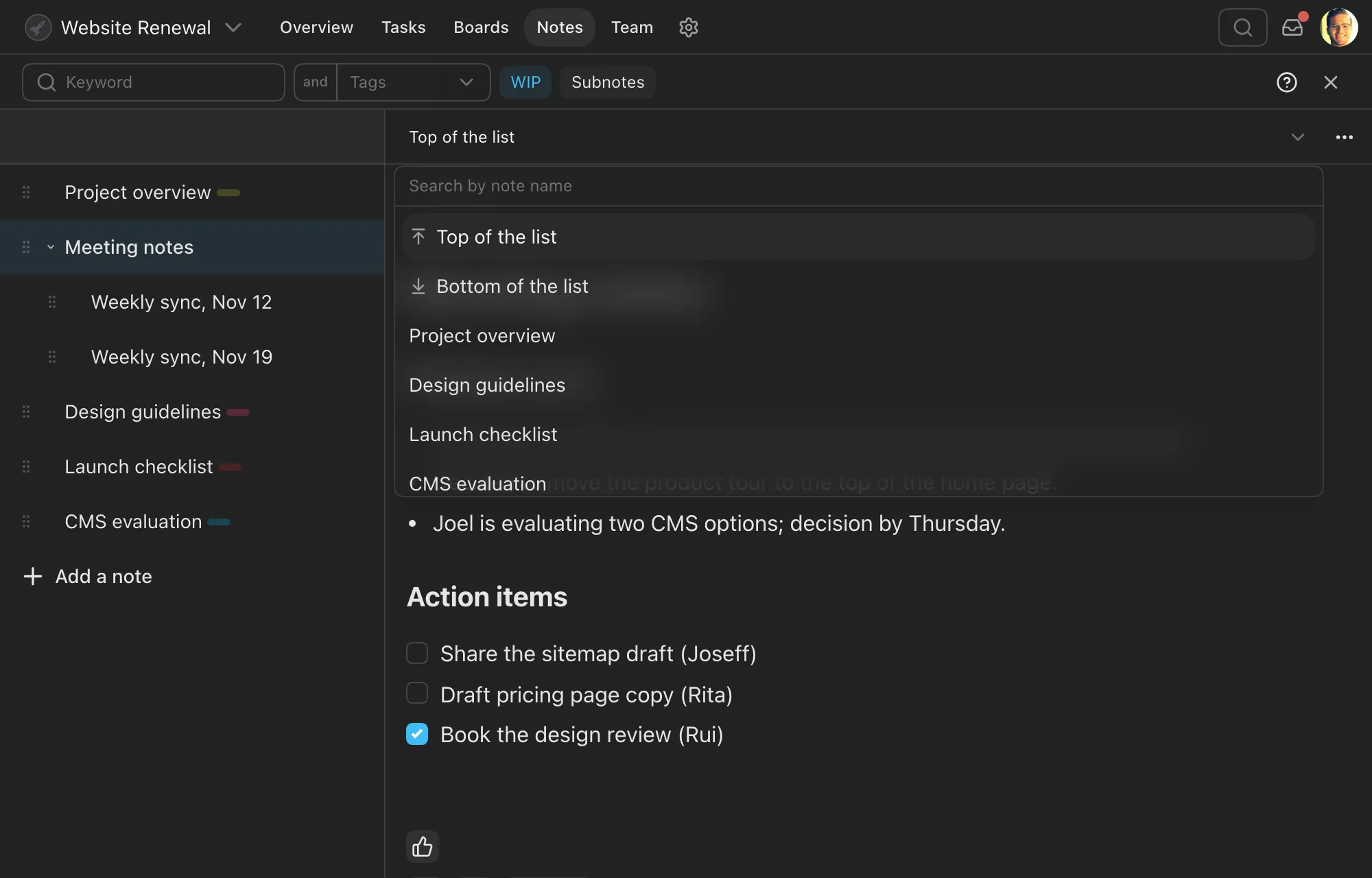
Drag a note by its name to reorder it, move it under another note or pull it back out. Once the list gets long, "Change parent" in the Note menu lets you search for the destination by name.
Tags show up in the list in color. A note you haven't finished can be marked WIP.
Headings, tables and checklists without the syntax
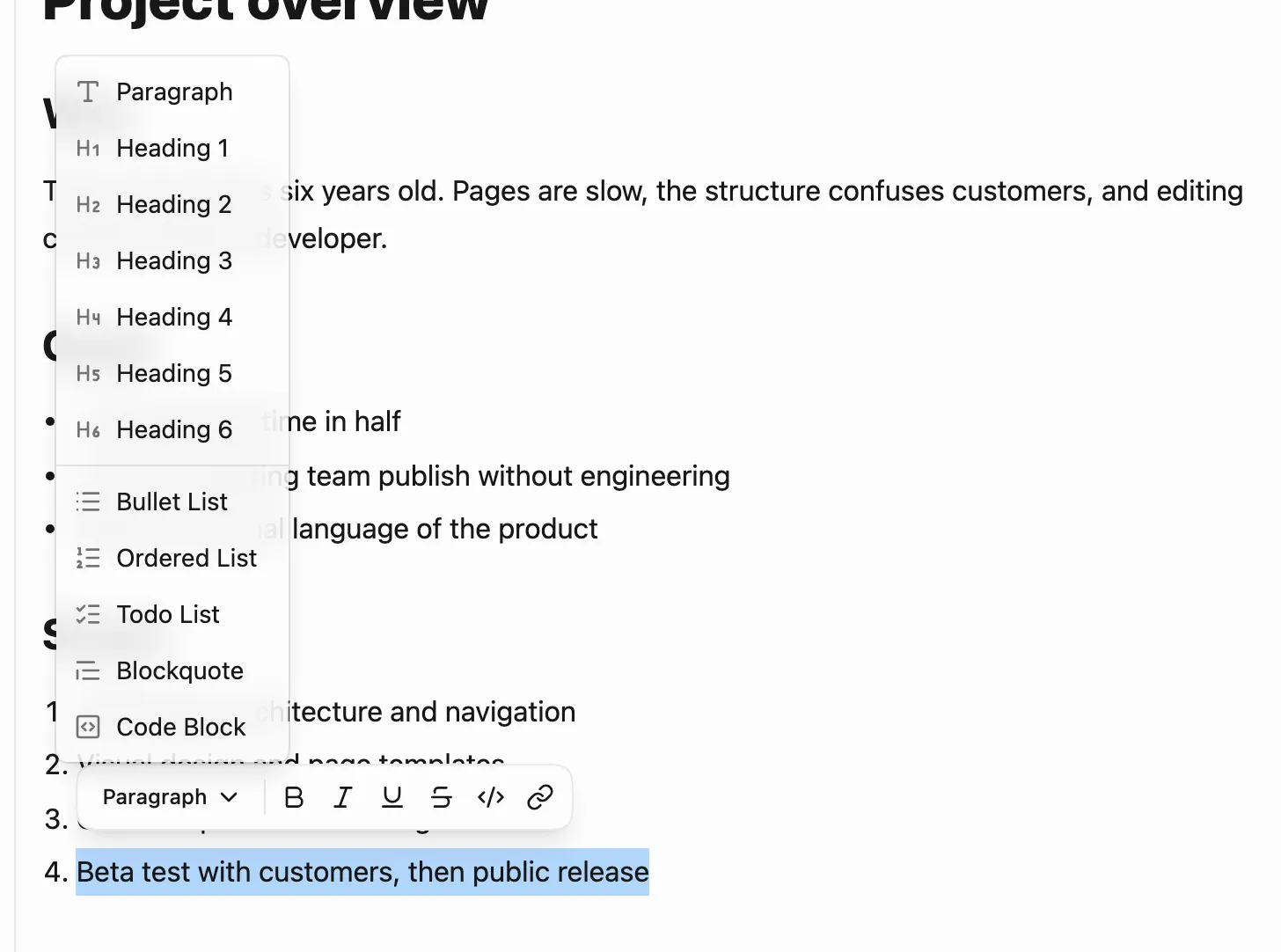
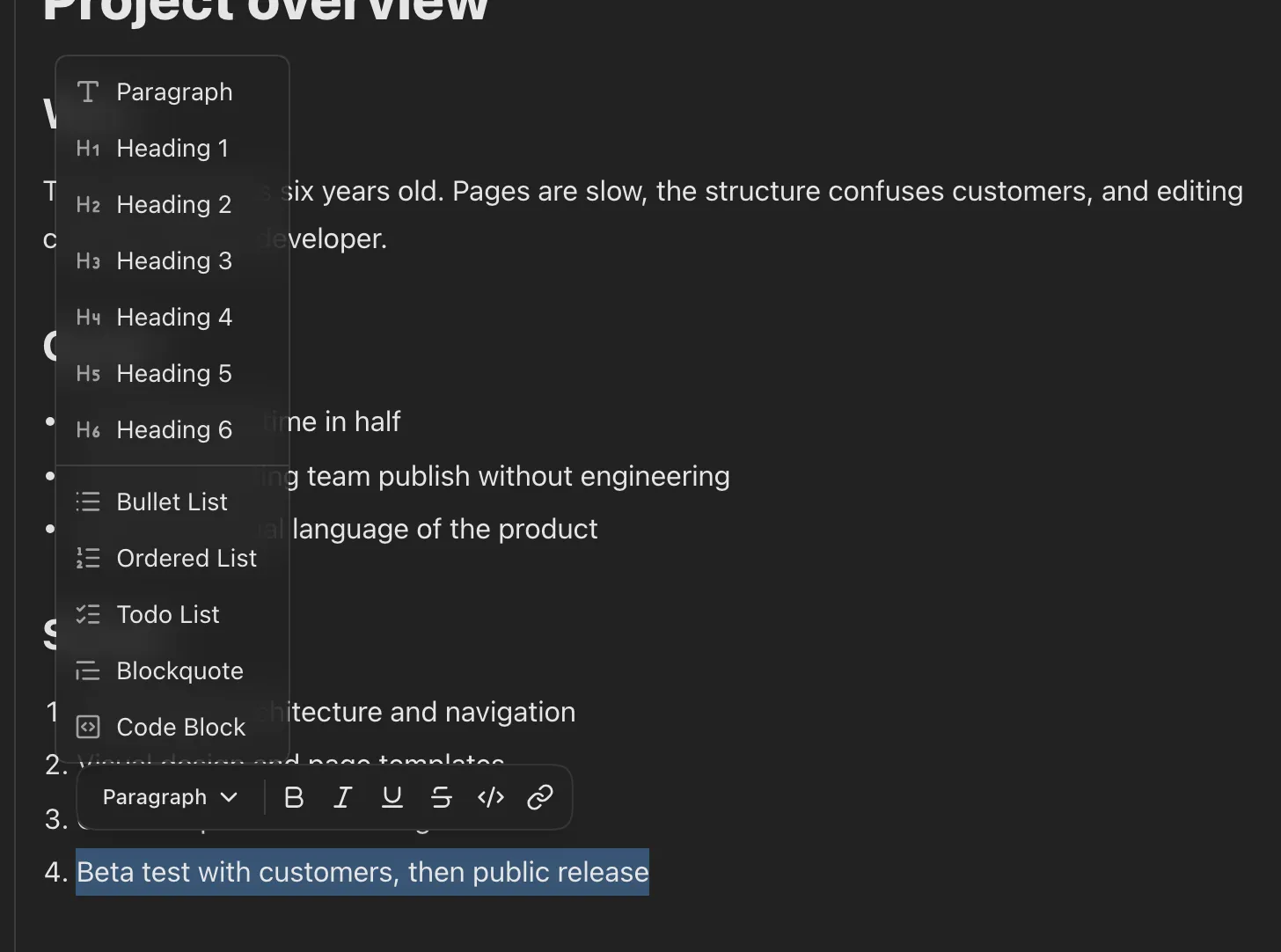
Select some text and a toolbar appears. Turn the line into a heading, a bullet list, a todo list, a quote or a code block, or add bold, italic, underline, strikethrough and links.
Type "/" at the start of a line to see everything you can insert. Tables have a small menu on each row and column for adding, moving and duplicating them. Code blocks are highlighted once you pick a language. Images can be dropped or pasted straight in.
Type "@" to mention a teammate and they get a notification. Todo items are checked off with a click.
Write in Markdown, take it out as Markdown
Start a line with # for a heading, - for a list, [ ] for a todo item or > for a quote, and it is formatted as you type. Paste Markdown text and it is converted the same way.
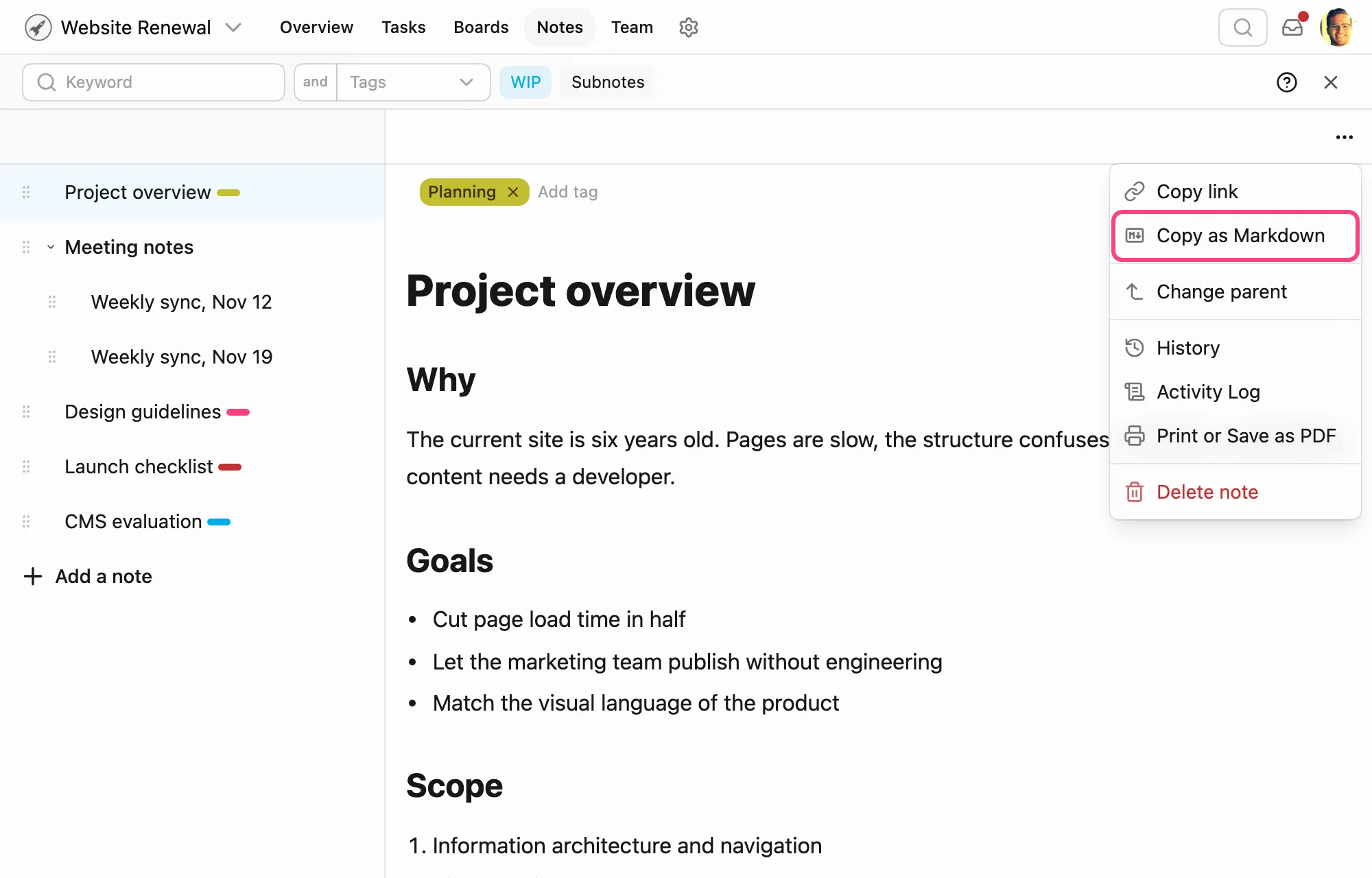
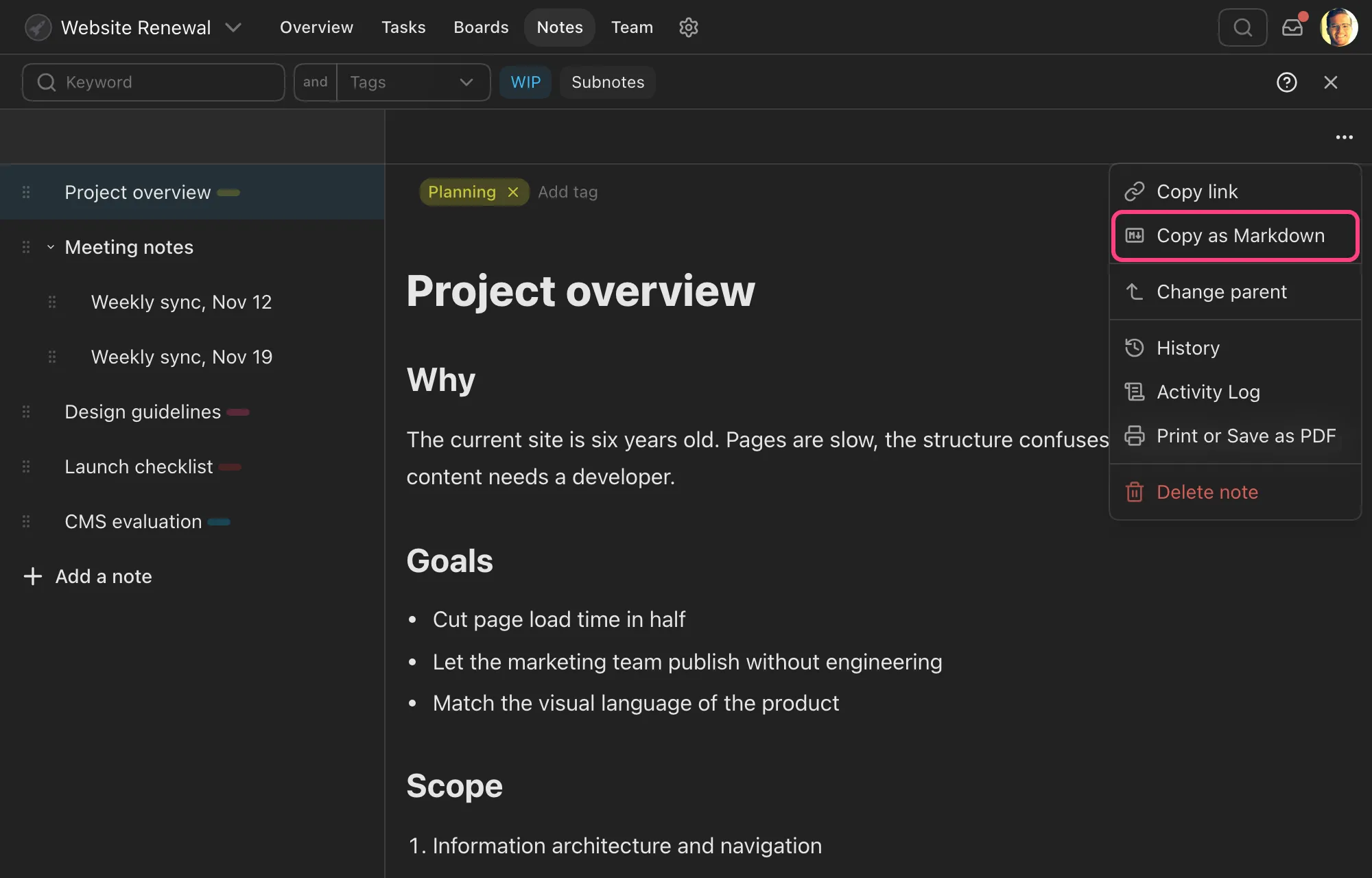
"Copy as Markdown" in the Note menu gives you the title and body as Markdown text, ready to paste into another tool. Mentions become plain "@name" text, and images are written with their URLs. Tags, comments and attachments are not included.
For paper or a PDF, use "Print or Save as PDF" in the same menu.
Edit the same note at the same time
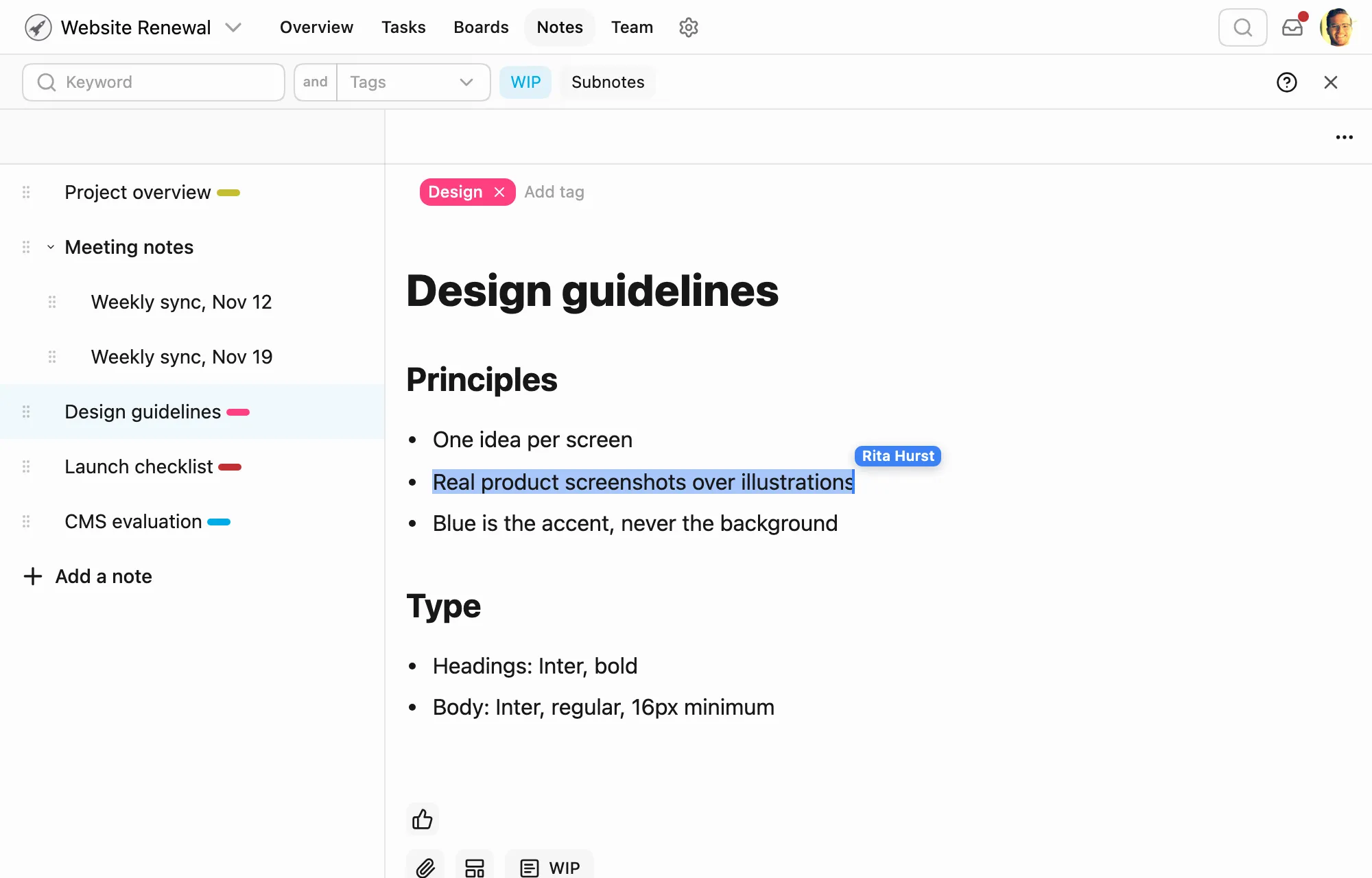
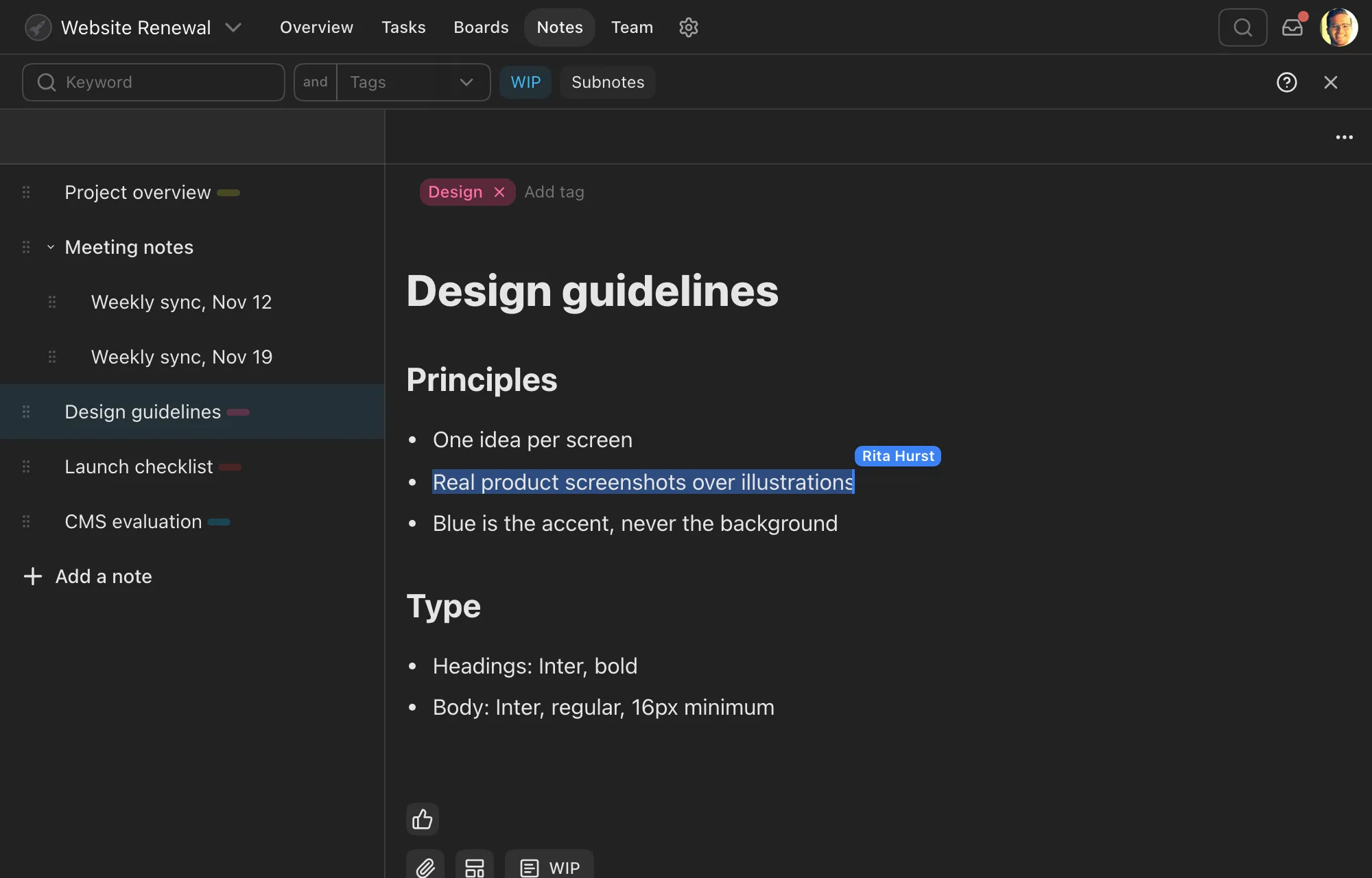
Several people can open a note and write in it together. Each keystroke appears on everyone's screen right away. Every cursor is labeled with its owner's name, and their selection is highlighted.
Run the meeting with the notes open. One person writes down the decisions while another adds the action items, and when the meeting ends everyone is looking at the same page.
Nobody's edits get overwritten by whoever saved last.
Talk it over under the note
Every note has a comment thread at the bottom. "Is this procedure still right?" or "Added one more decision" stays attached to the note it is about. Comments support mentions, replies and file attachments.
From a comment's menu, choose "Create a task from this". An action item raised in the meeting becomes a task before anyone forgets it.
Give a useful note a Like. Supporting files can be attached below the body.
Open a note without leaving your tasks
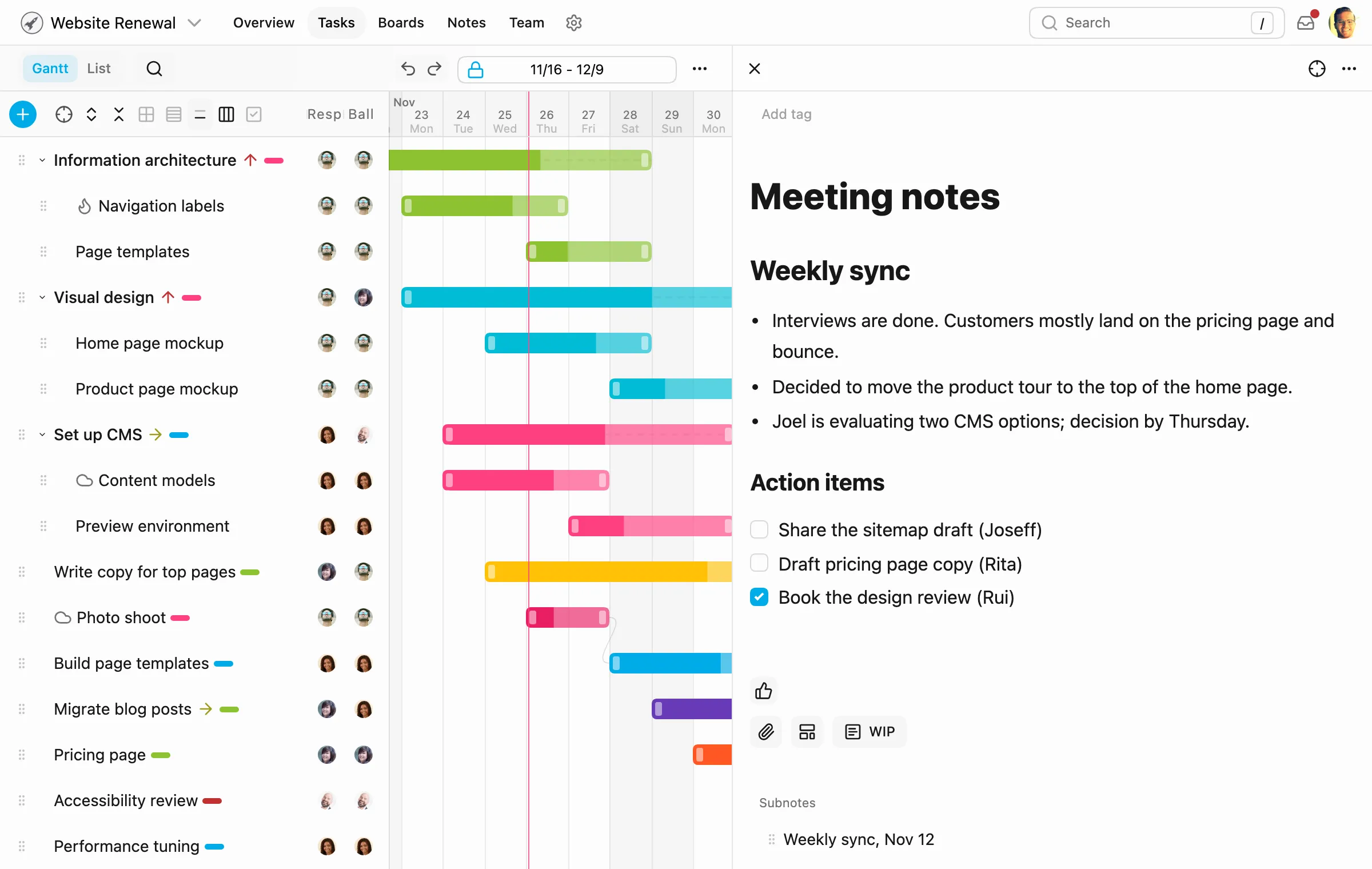
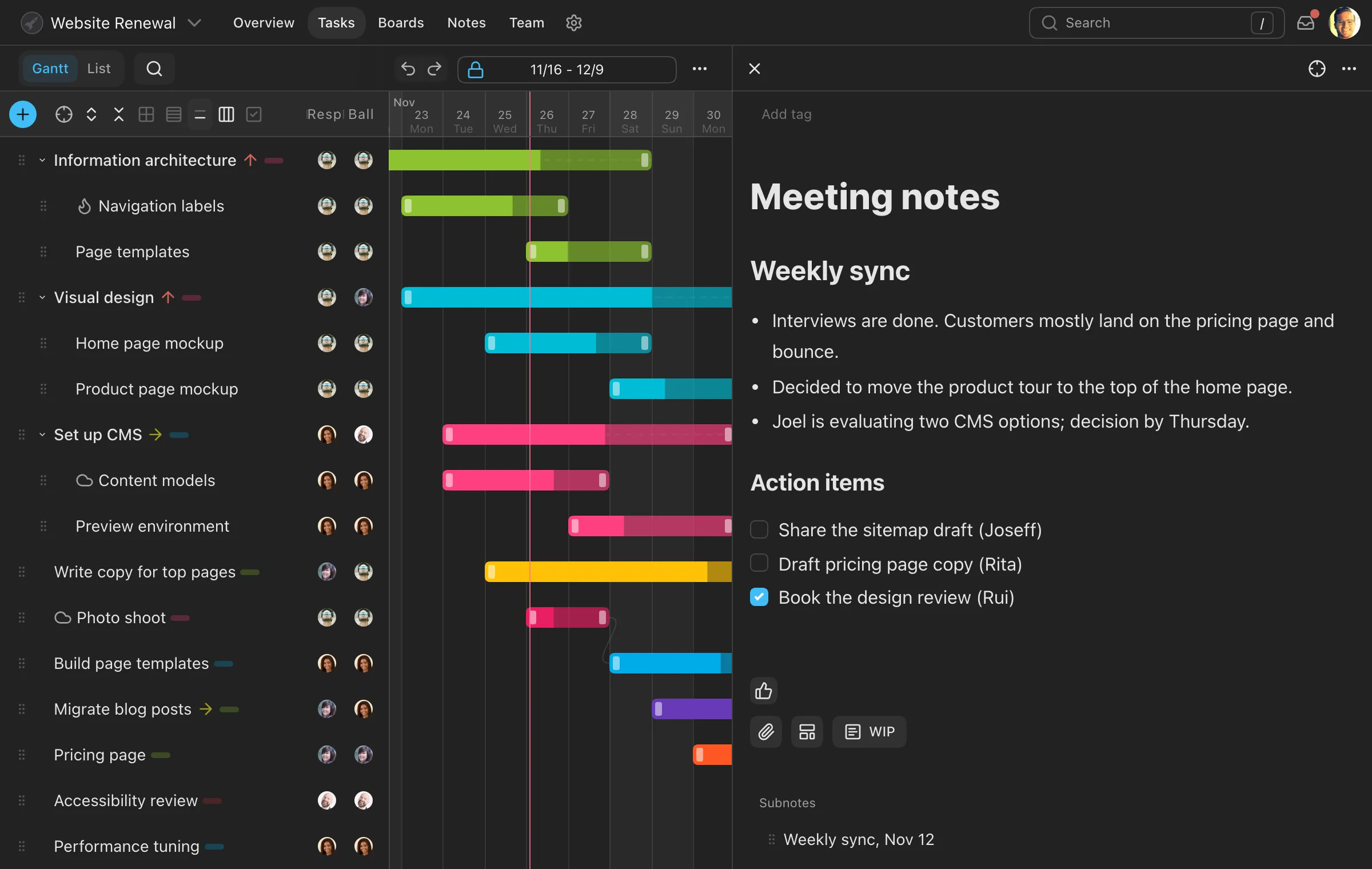
"Copy link" in the Note menu copies a link to the note. Paste it into a task comment and a card with the note's name and opening lines appears under the comment, so the work points to the guide to follow or the meeting where it was decided.
Click the card and the note opens in a panel on the right. You can read the procedure or check the decision with the Gantt chart or board still in front of you.
Hover over a heading and a # button copies a link to that exact heading.
Save the outline you use every time
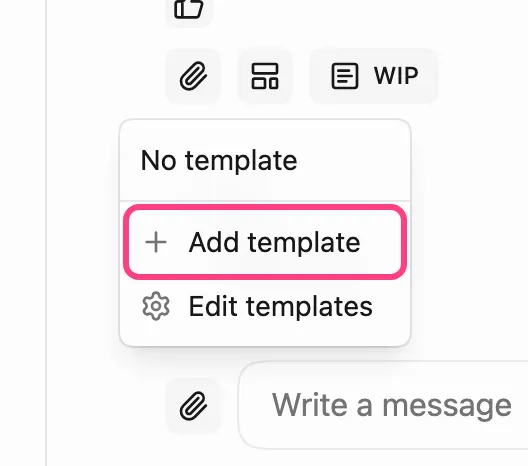
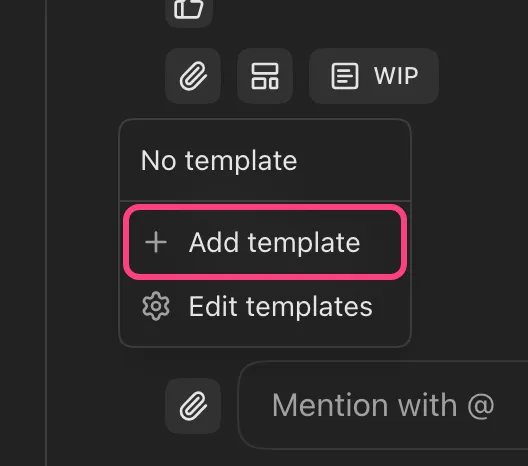
If every weekly meeting starts with the same headings, such as date, attendees, decisions and action items, save them as a template. A template keeps the title, the body and the tags.
To use one, pick it from the Template button below the note's body. The title, body and tags are replaced with the template's, and if the note already has content you are asked before anything is replaced. Notes written by different people end up with the same sections.
Templates belong to a project. Edit and reorder them in the project settings.
See who changed what, and go back
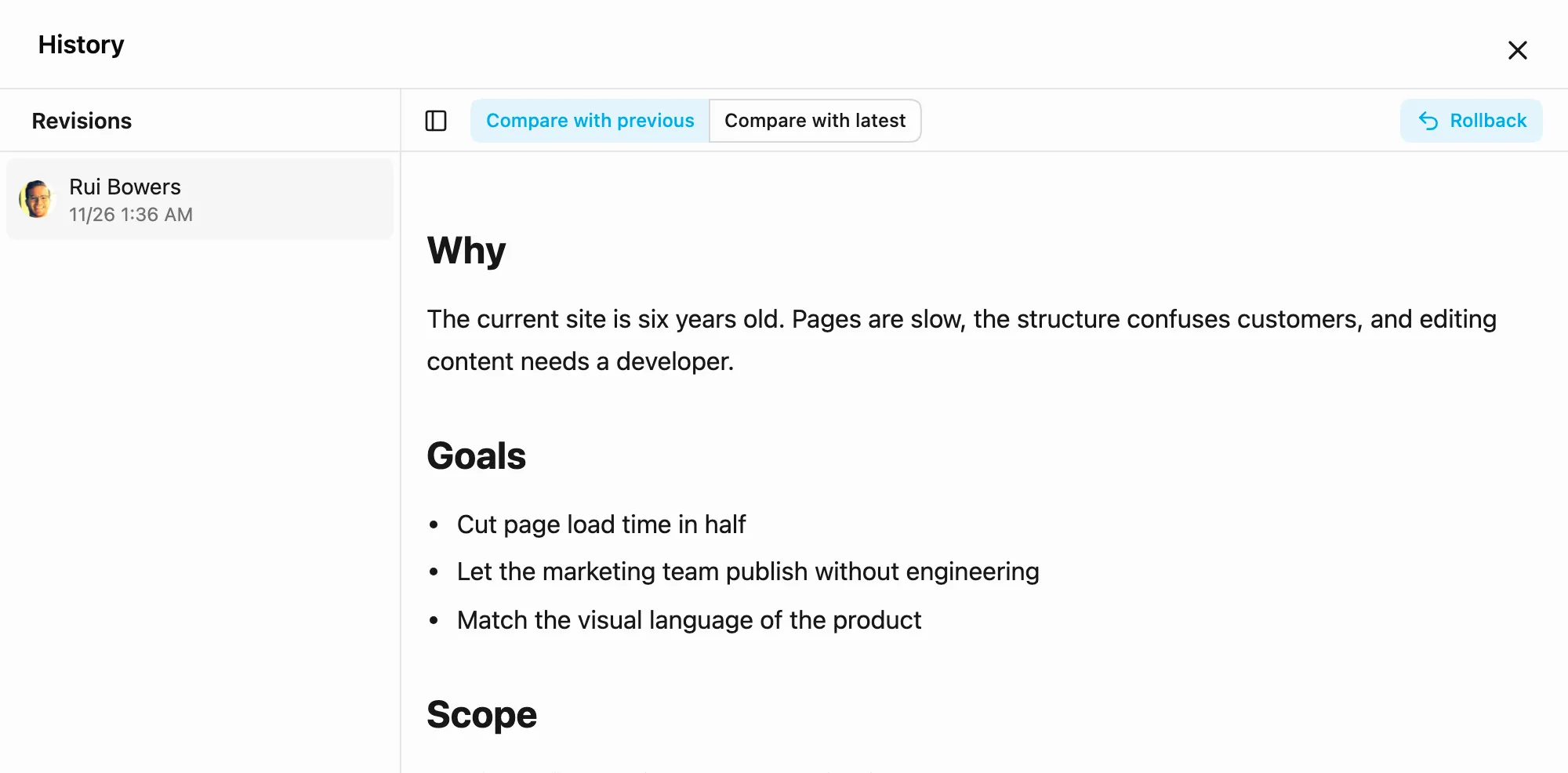
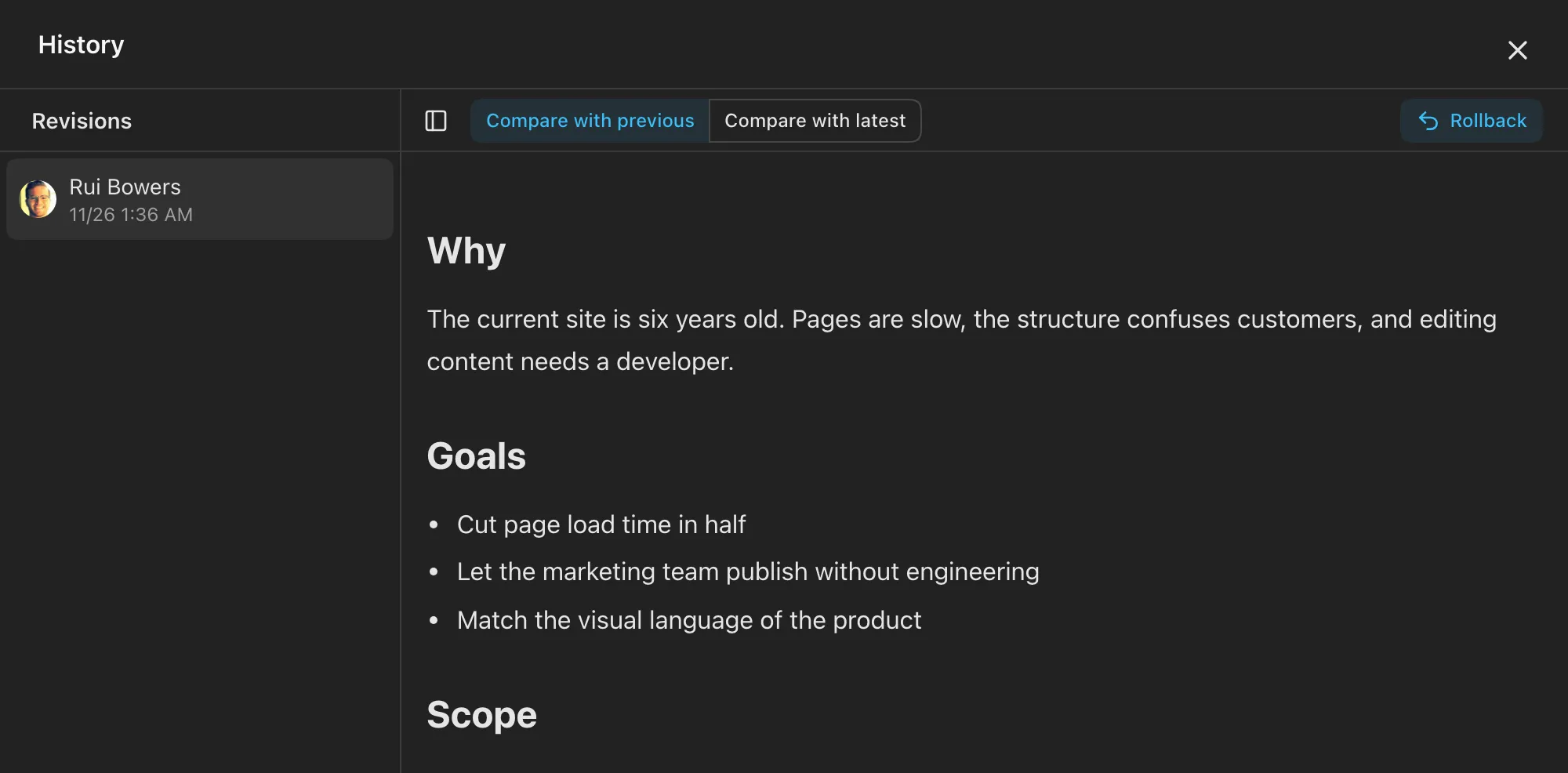
Editing a note's body leaves a revision behind. Open "History" in the Note menu, pick a revision from the list of names and times, and the text added and removed since the previous one is highlighted. You can compare it with the current body too.
If something was deleted by mistake, "Rollback" restores that revision's body.
Other changes, such as tags and where the note sits, are recorded in the Activity Log. How far back you can go depends on your plan. See the pricing page.
Find a note by keyword or tag
Type a keyword in the search bar above the notes and the list narrows to the notes with that word in the title or the body. Their parent notes stay in the list, dimmed, so you can see where each match sits. Separate words with a space to require all of them.
You can also filter by tag, exclude a tag, choose whether WIP notes are included, and choose whether to show the subnotes of a match that don't match themselves.
Not sure which project it was in? Use Search in the header. It looks through the tasks and notes of every project you belong to, except closed projects.
Everything notes can do
| Area | What you can do |
|---|---|
| Writing | Headings 1 to 6, bullet lists, ordered lists, todo lists, quotes, code blocks with syntax highlighting, tables, images, links, bold, italic, underline, strikethrough, inline code, mentions, emoji |
| Markdown | Markdown typed in is formatted on the spot, pasted Markdown text is converted, "Copy as Markdown" (title and body) |
| Real-time editing | Several people edit the same note at once. Cursors are labeled with names and selections are highlighted. Saving is automatic |
| Organizing | Notes under notes, with no limit on depth. Drag to reorder and re-parent, "Change parent", tags, WIP |
| Reading | Table of contents (when the window is at least 1280px wide), links to headings, Like |
| Discussion | Comments with mentions, replies and file attachments. Create a task or a note from a comment |
| Files | Images in the body, files attached to the note |
| History | Revision history with a diff for each revision and rollback, Activity Log |
| Templates | Save a title, body and tags. Add, edit and reorder templates per project |
| Search | Keyword (title and body), tags (include or exclude), with or without WIP notes, with or without non-matching subnotes. Search in the header covers tasks and notes together |
| Sharing and export | Link to a note, link to a heading, Copy as Markdown, Print or Save as PDF (in a browser) |
| Plans | Every plan. The limits on notes, attachments and how far back history goes are on the pricing page |
Step-by-step instructions are in the help articles Create, share, and manage notes to promote information sharing and How to use the Markdown editor for notes. For the full syntax, see How to write Markdown, and for templates, Task and note templates. Task comments and mentions are covered on the task list page, and using notes on your phone on the mobile apps page.
FAQ
- Is the team wiki free?
- Yes. Notes are in every plan, including the Free plan. See the pricing page for the limits on notes, attachments, members and projects.
- Can several people edit the same note at the same time?
- Yes. What one person types shows up on everyone's screen right away. Each person's cursor carries their name and their selection is highlighted, so you can see who is writing where. Notes save automatically.
- Do I need to know Markdown?
- No. Select some text and a toolbar appears, or type "/" at the start of a line to pick a heading, list, table or code block from a menu. If you do know Markdown, type it and it turns into formatting as you go.
- Can we comment on a note?
- Yes. Every note has a comment thread at the bottom, with mentions, replies and file attachments. From a comment's menu you can also create a task or a new note from that comment.
- Can I export a note to Markdown or PDF?
- Yes. "Copy as Markdown" in the Note menu copies the title and body as Markdown text. Tags, comments and attachments are not included. "Print or Save as PDF" opens your browser's print dialog, where you can print the note or save it as a PDF.
- Is there a version history? Can I restore an older version?
- Yes. "History" in the Note menu lists the revisions with who changed the note and when. Pick one to see what was added and removed, and use "Rollback" to restore that version. How far back you can go depends on your plan.
- How do I organize notes? Are there folders?
- There are no folders. You put notes under other notes instead, as many levels deep as you like, and drag them in the list to reorder them or move them under a different note. You can also tag notes and filter by tag.
- Does it work on my phone?
- Yes. You can read and edit notes in the iOS and Android apps. Printing and saving as PDF are done in a browser.