
Every project on one Gantt chart.
Cross-project puts the tasks from all the projects you belong to on one Gantt chart, list, board and timeline. See the whole schedule, and who has too much on, without switching projects. Cross-project is part of the Standard plan and is not available on the Free plan.
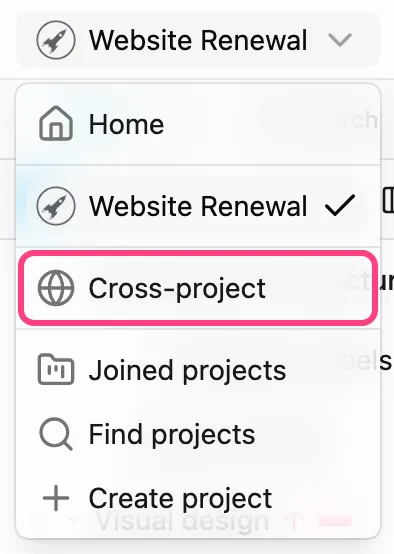
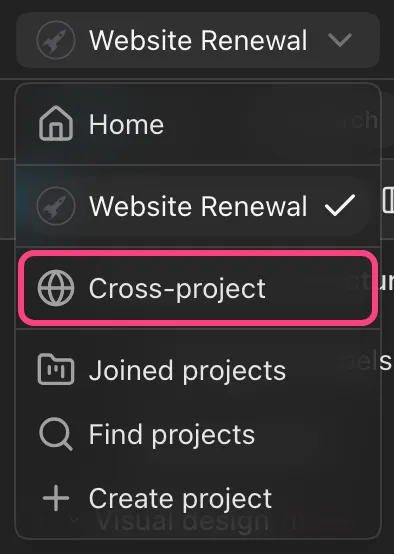
Pick Cross-project from the project menu
Click the project name at the top left and choose Cross-project. The tasks from every project you are a member of, except closed projects, come together on one screen.
The menu across the top is the same as inside a project: Overview, Tasks, Boards, Notes and Team. Go straight to the view you want.
Cross-project is part of the Standard plan. On the Free plan, choosing it shows information about the Standard plan. See the pricing page for what each plan costs.
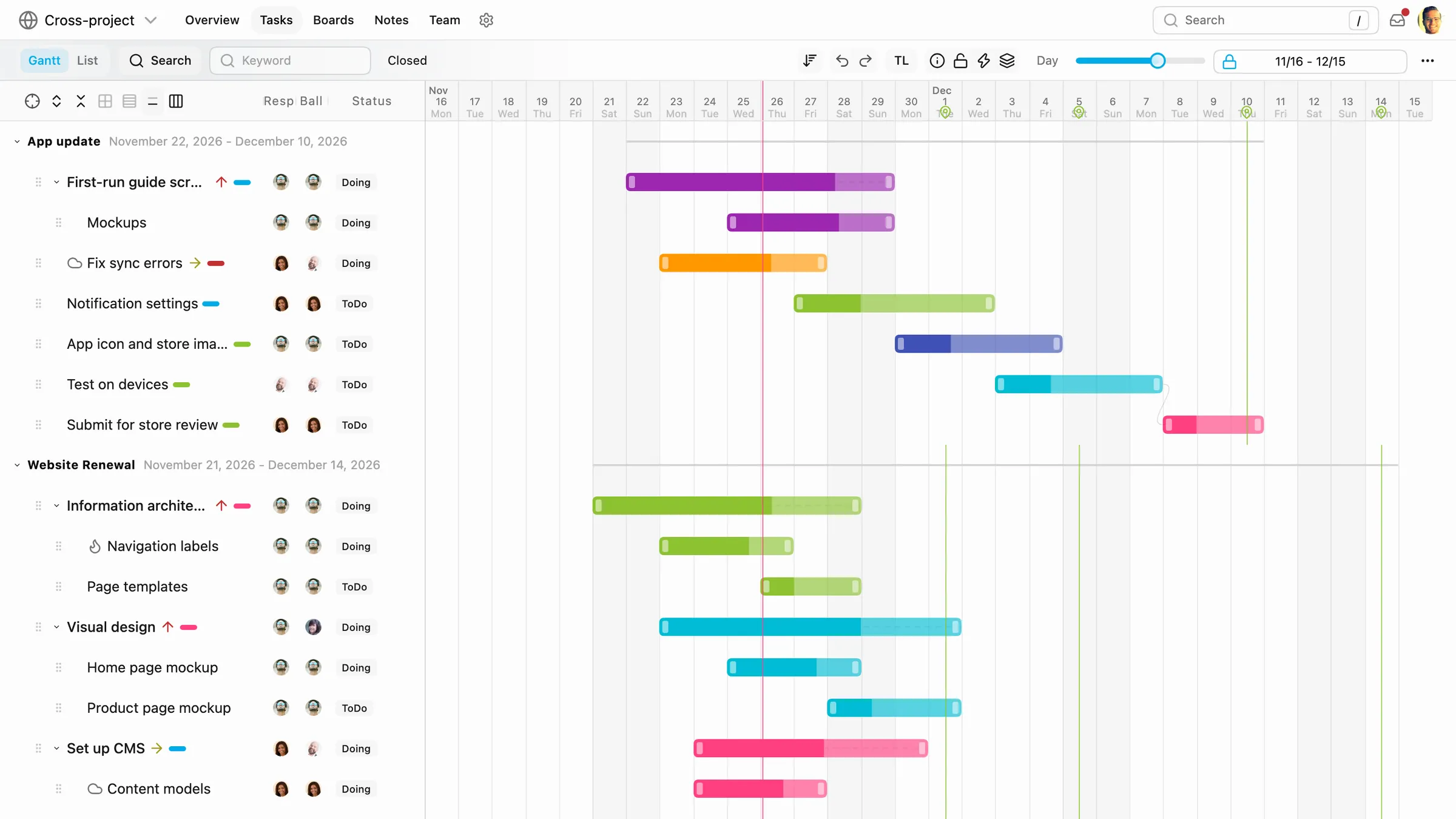
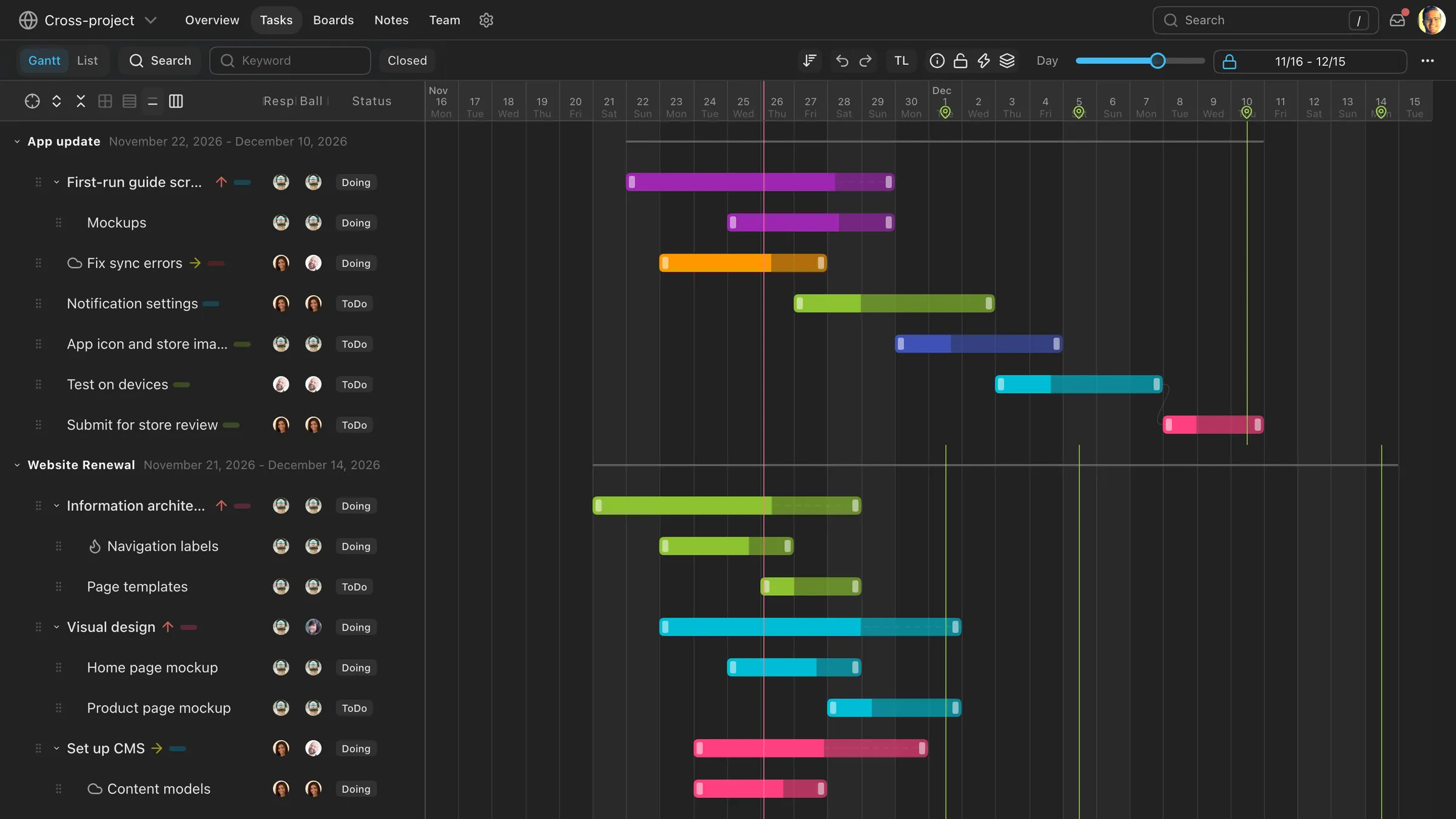
One Gantt chart, a heading for each project
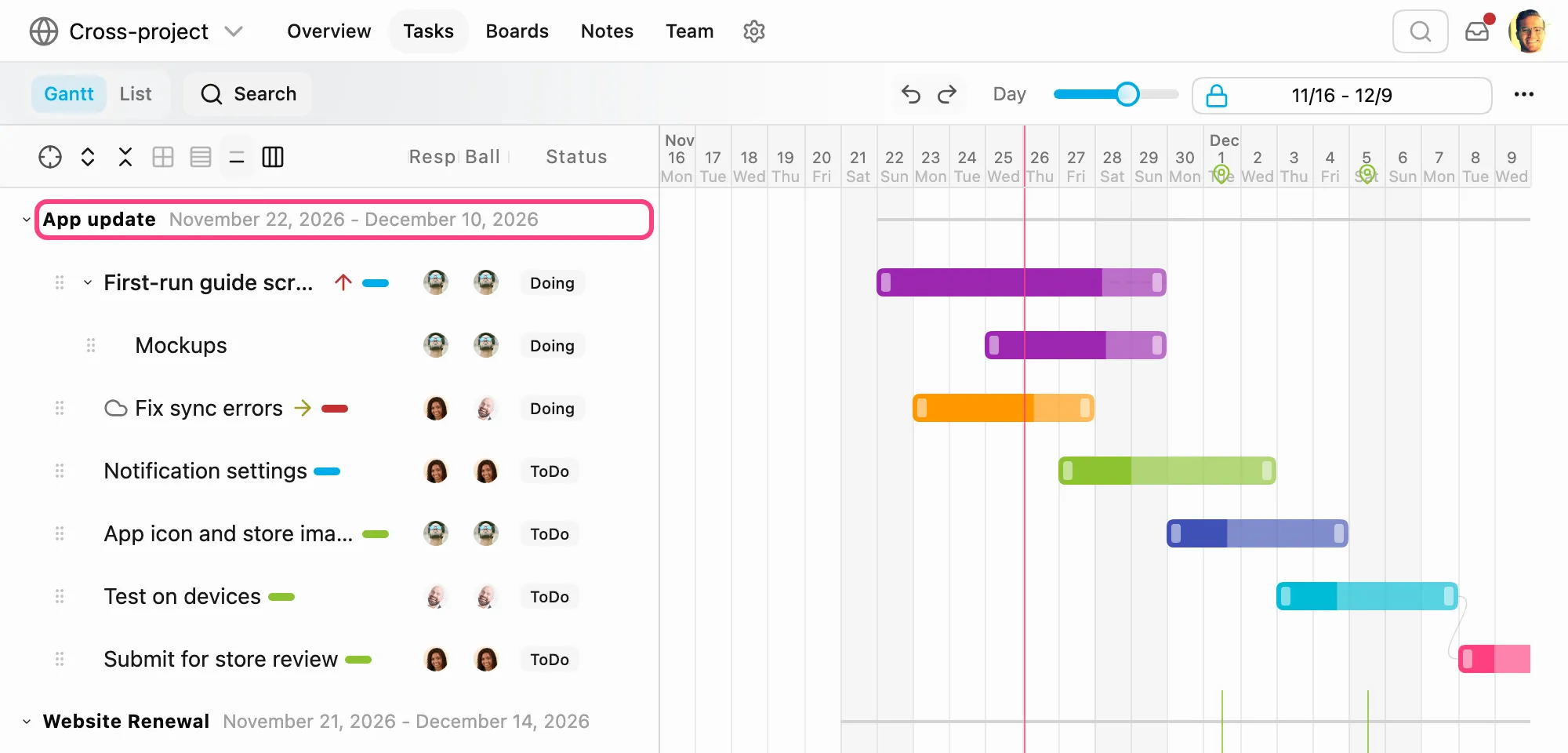
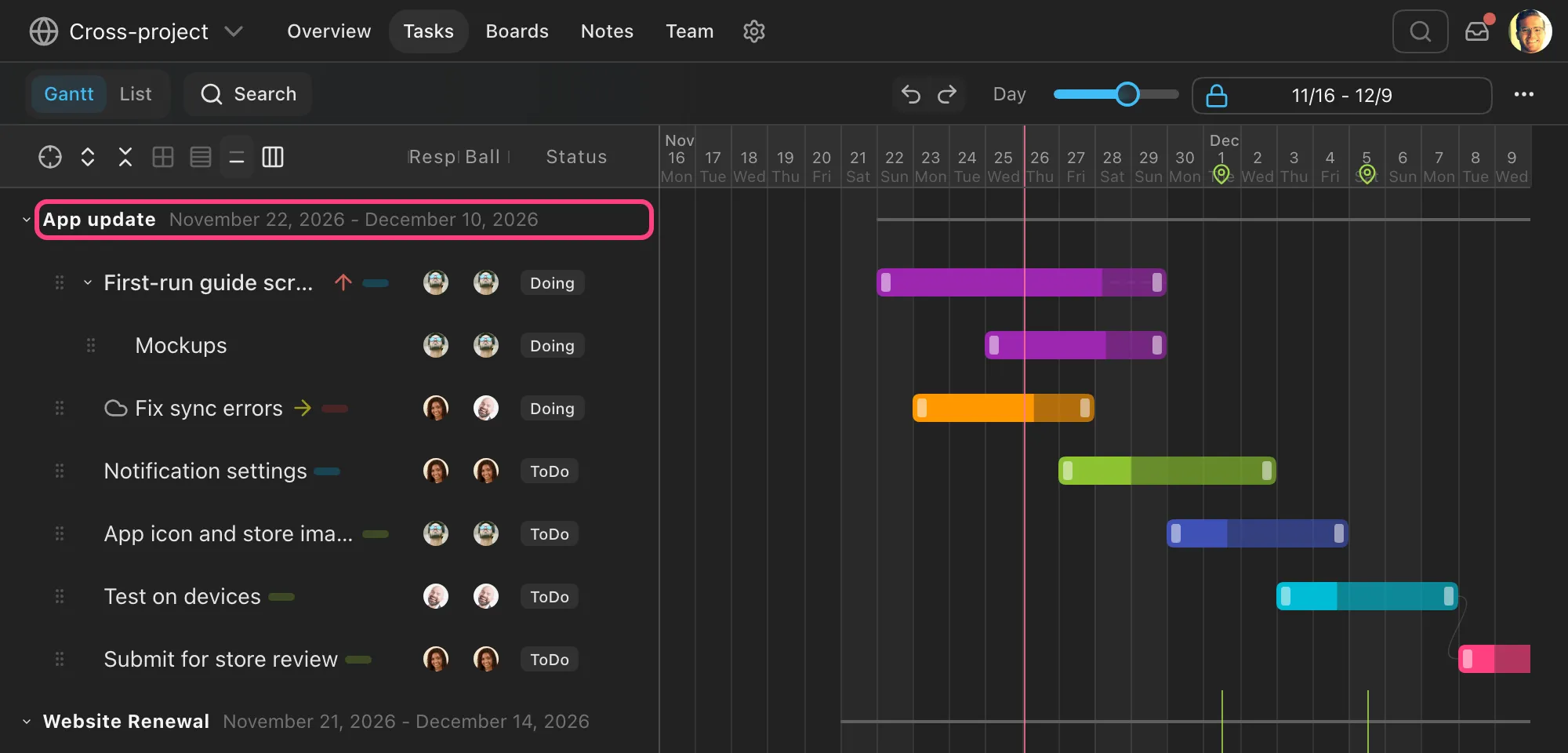
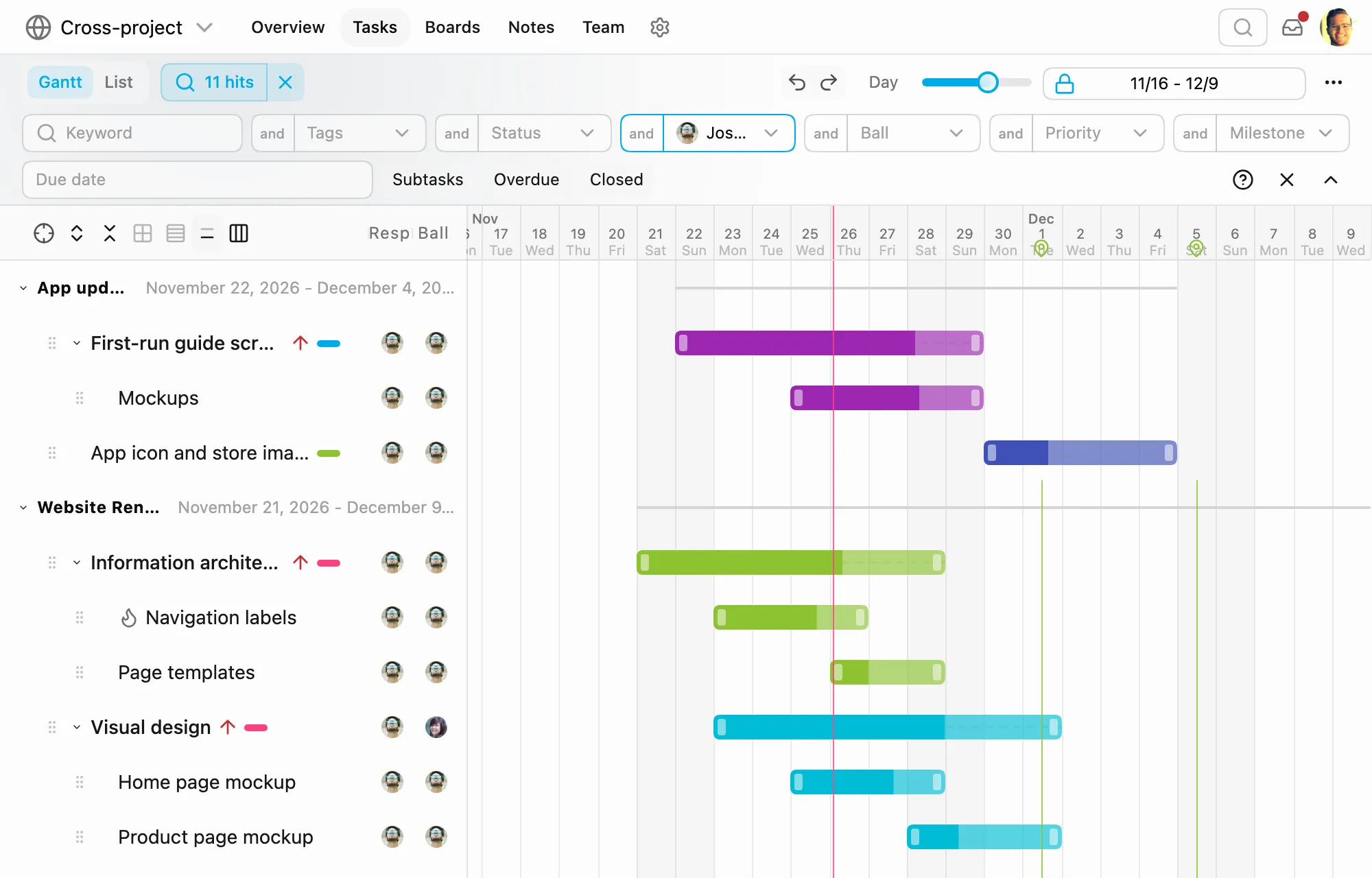
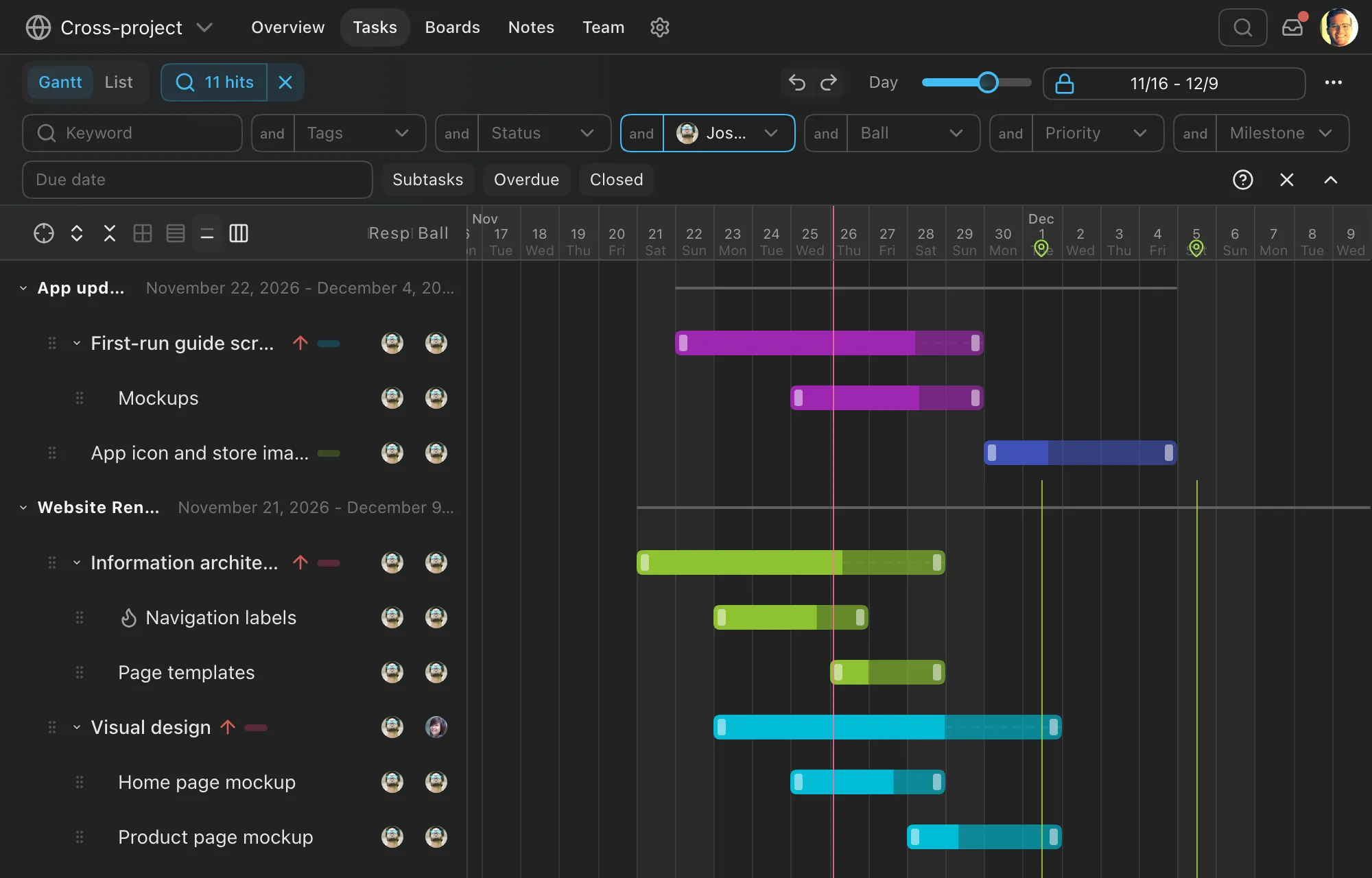
Open Tasks and each project becomes a heading row, with its tasks listed underneath. Next to the name is the date range of the tasks shown, from the earliest start date to the latest due date.
Click a heading to collapse it and keep only the projects you care about open. Projects appear in the order you arranged them on Home or the Joined projects page.
Days off, holidays and milestone lines are drawn only across the rows of the project they belong to. Projects with different days off sit side by side, each with its own calendar.
Edit in place, without opening the project
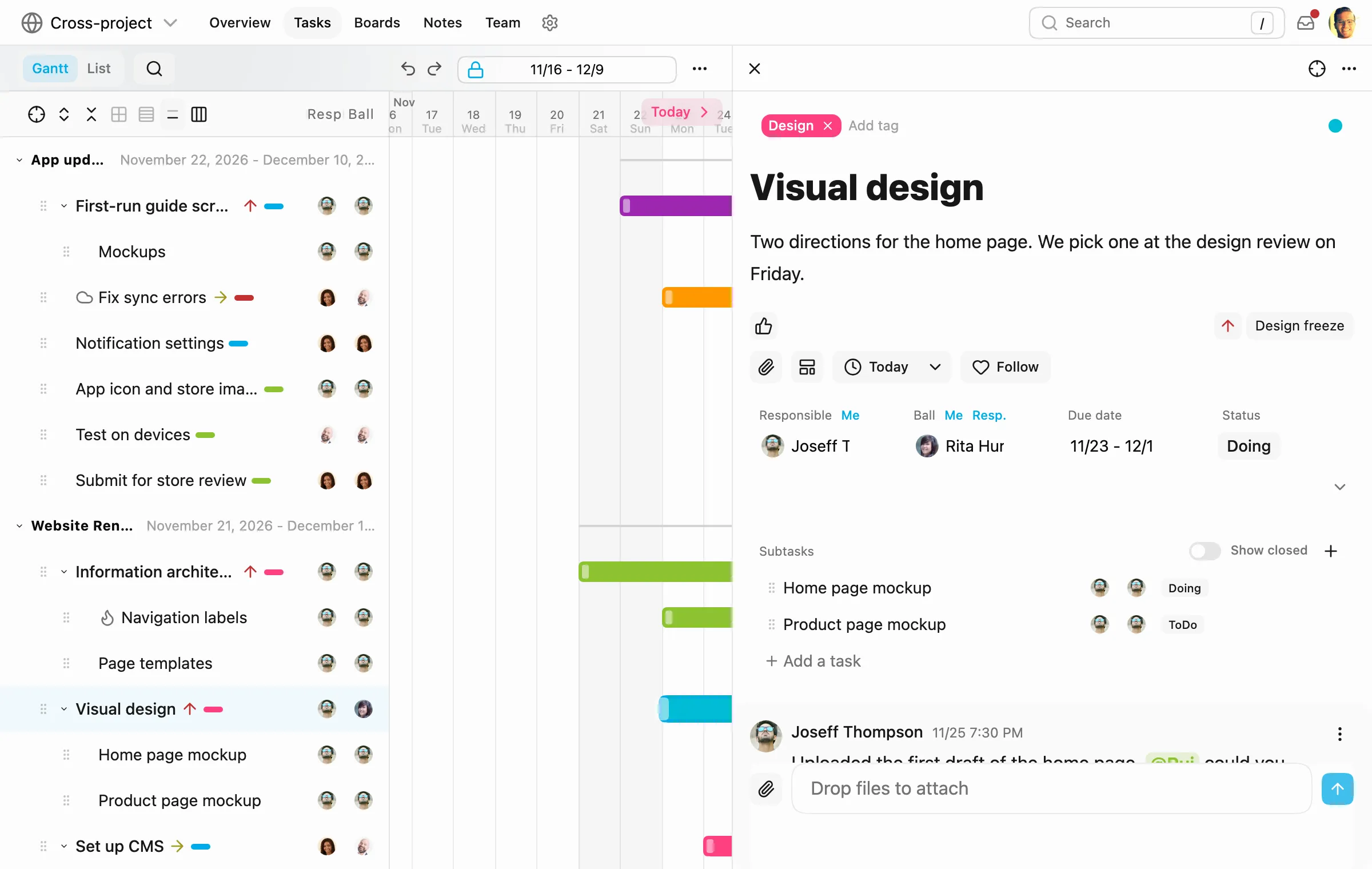
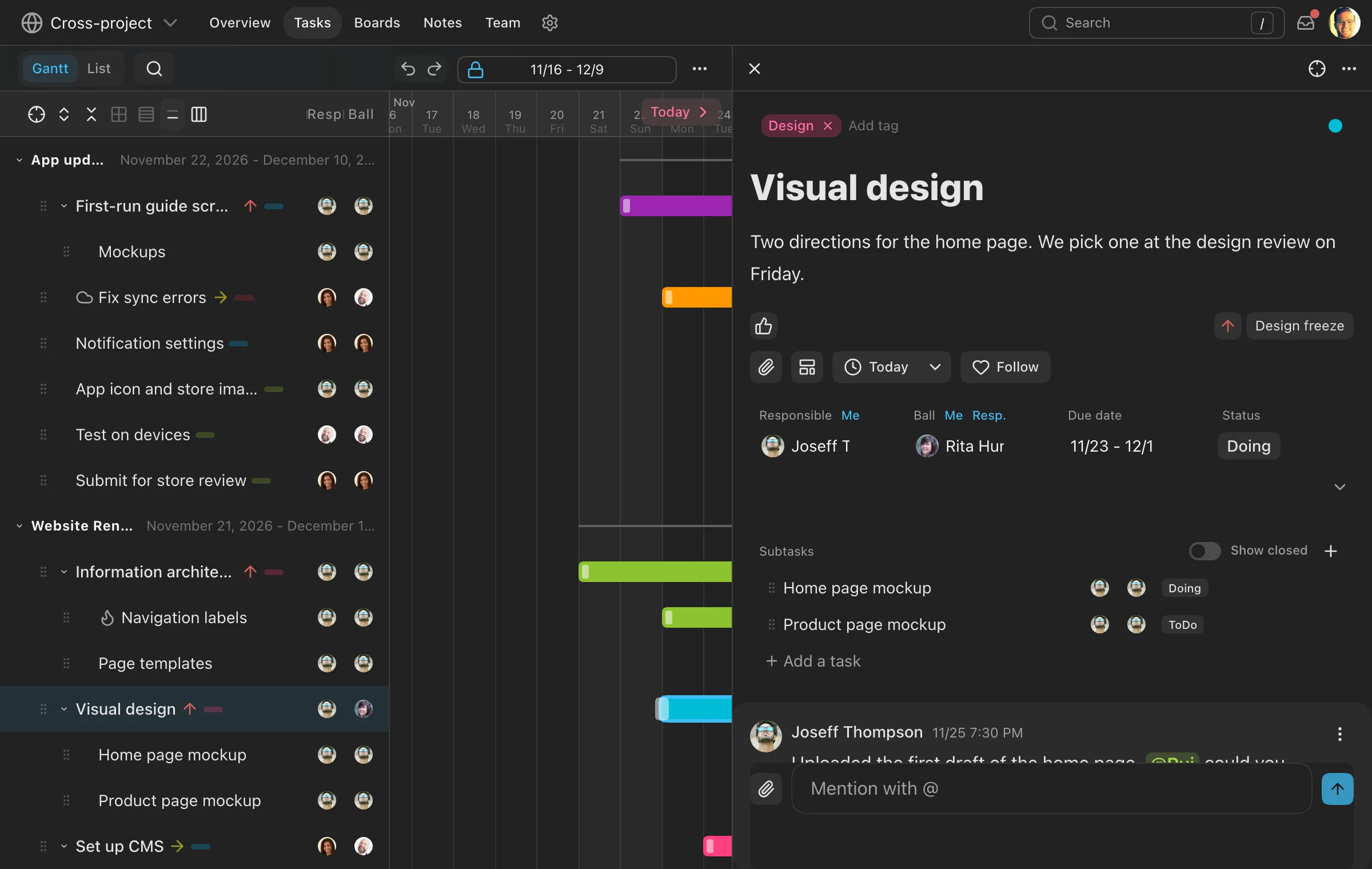
This is not a read-only report. Drag a bar to change its dates. Click a bar or a task name and the details open on the right, where you can change the assignee, who holds the ball and the status, and write a comment.
Drag a task under another project's heading to move it to that project. Its subtasks move with it. This doesn't work while the list is sorted in Due date order.
Dependencies link tasks in the same project. A line between two different projects can't be drawn.
One person's tasks, across every project
Filter by assignee and the chart narrows down to that person's tasks, with their parent tasks kept for context. Work that overlaps in the same week, in two different projects, shows up on one Gantt chart.
You can also filter by who holds the ball, status, tag, priority, milestone and due date. Statuses with the same name are combined into one option, even when they come from different projects.
For your own tasks there is a shortcut. On Home, the Gantt chart button on "Tasks you're responsible for" and "Tasks you have the ball on" opens the Cross-project Gantt chart filtered to the tasks you are responsible for, or the tasks you have the ball on.
Switch to a list to read down the columns
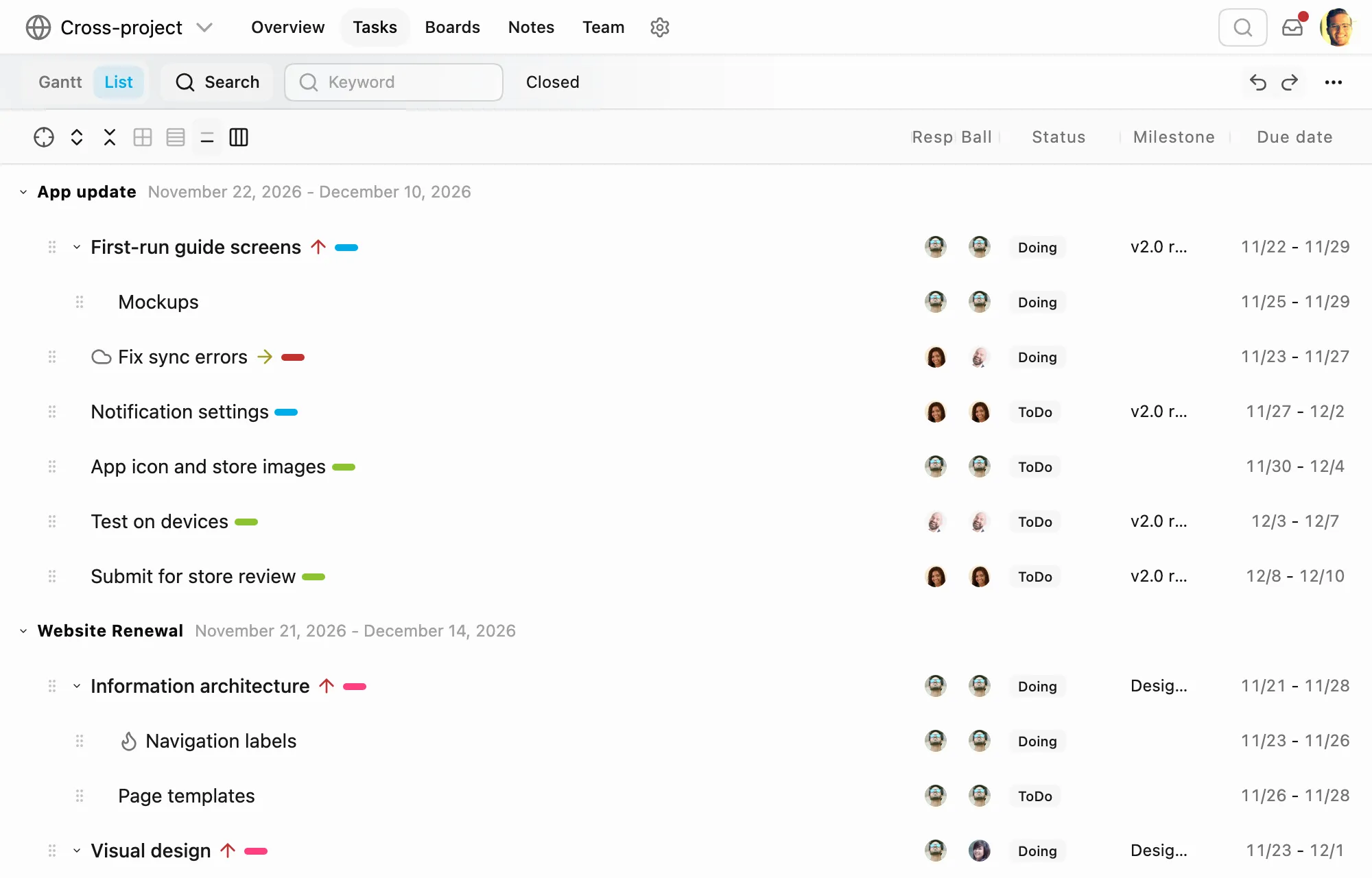
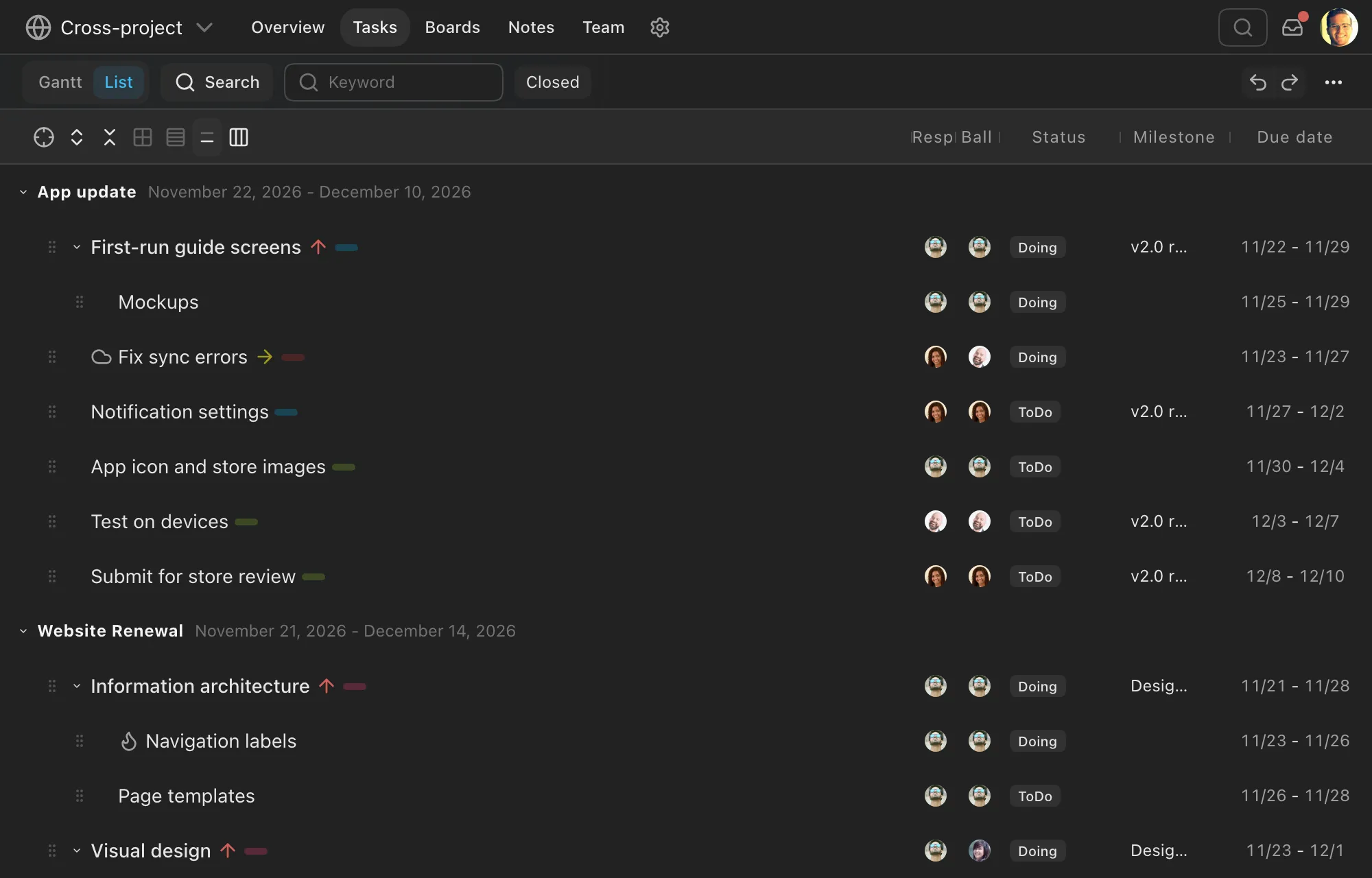
Switch the same screen to List and each project heading is followed by its tasks, with columns for assignee, ball, status, milestone and due date. Turn on Due date order in the menu to sort each project's tasks by due date.
Hover between two rows and click the line that appears to add a task at that spot. The new task belongs to the project whose heading it sits under.
The line doesn't appear on touch screens, and Cross-project has no Add a task button. To add tasks on a phone or tablet, open the project itself.
See who has too much on
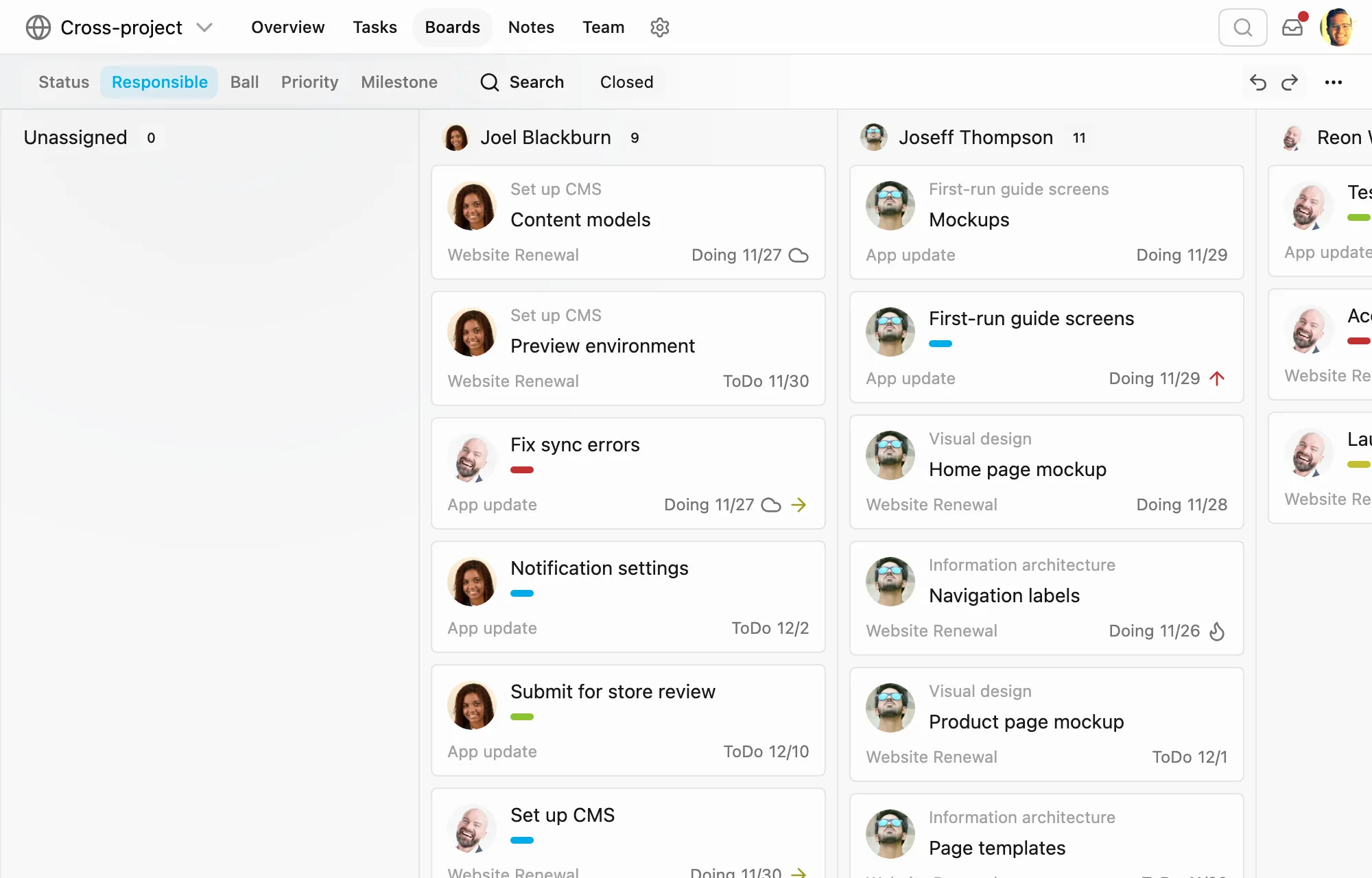
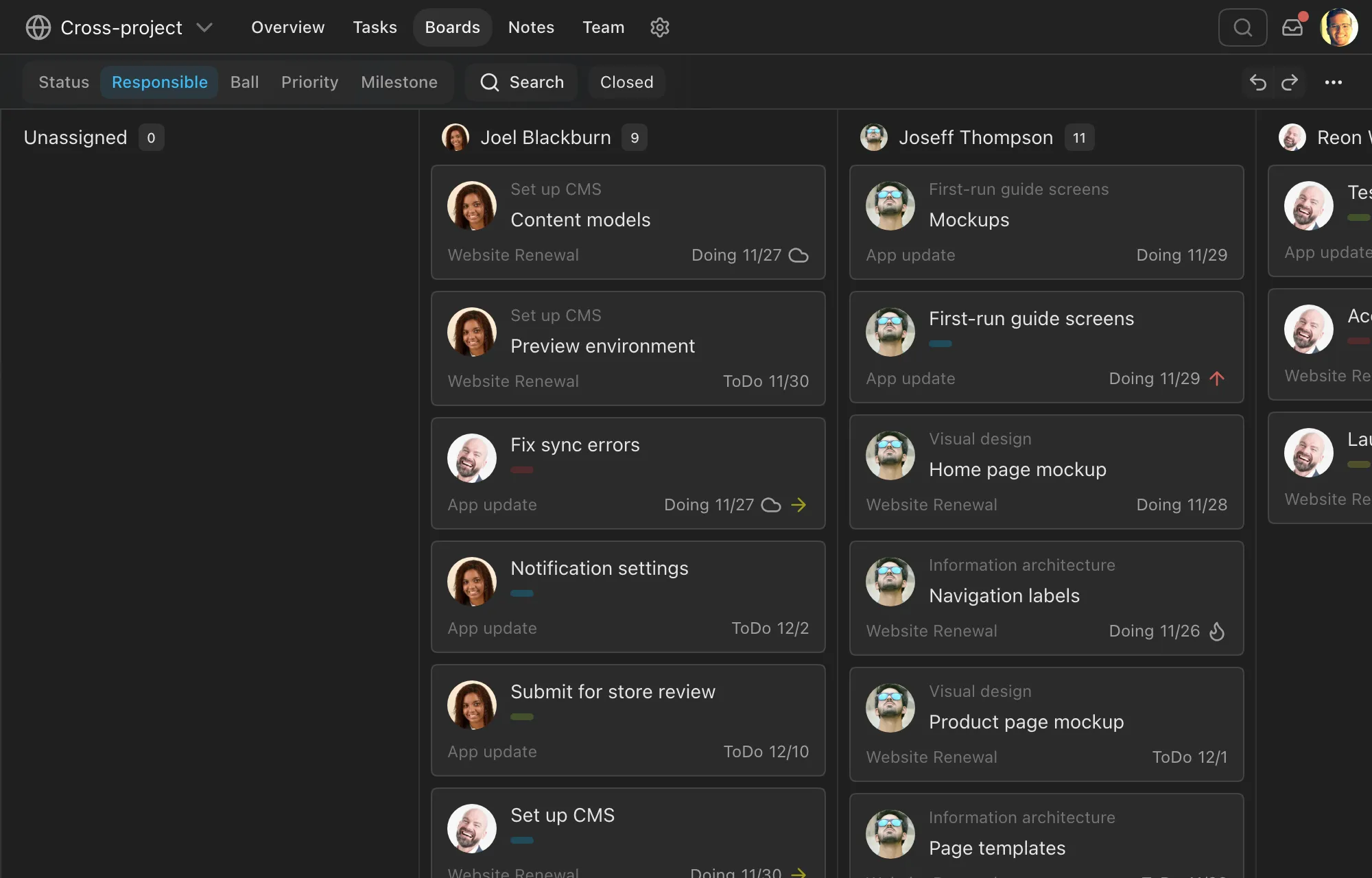
Under Boards, the Responsible tab gives each person a column with the tasks they are responsible for, from every project. The Ball tab does the same for whoever holds the ball right now. The count at the top of each column shows where work is piling up.
Every card shows the name of its project. Drag a card to another person's column to hand over the task or the ball. You can hand it to anyone who is a member of that task's project.
The Status, Priority and Milestone boards work here too. Statuses with the same name share one column, and each milestone column carries its project's name.
A timeline with a row for each project
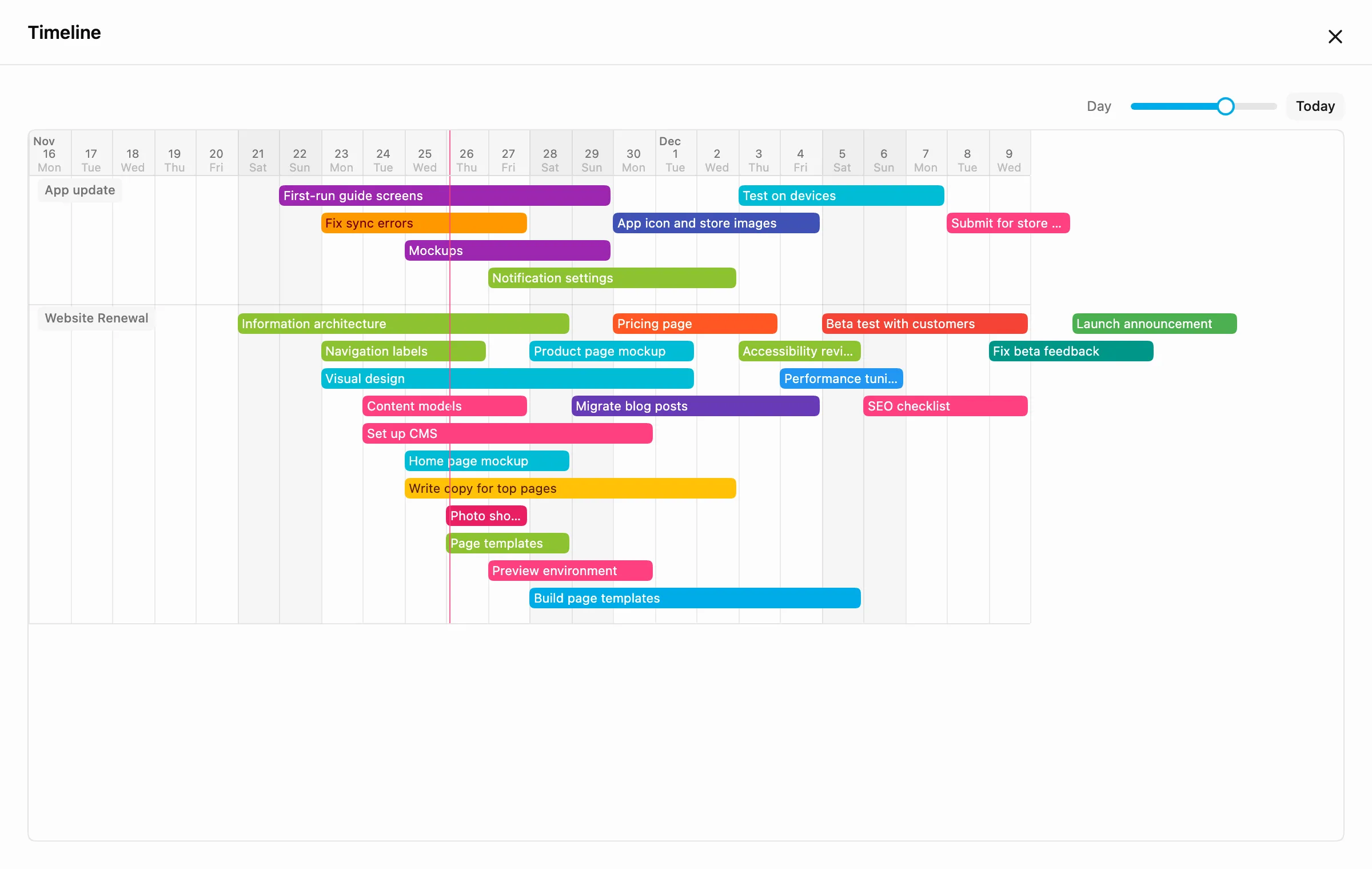
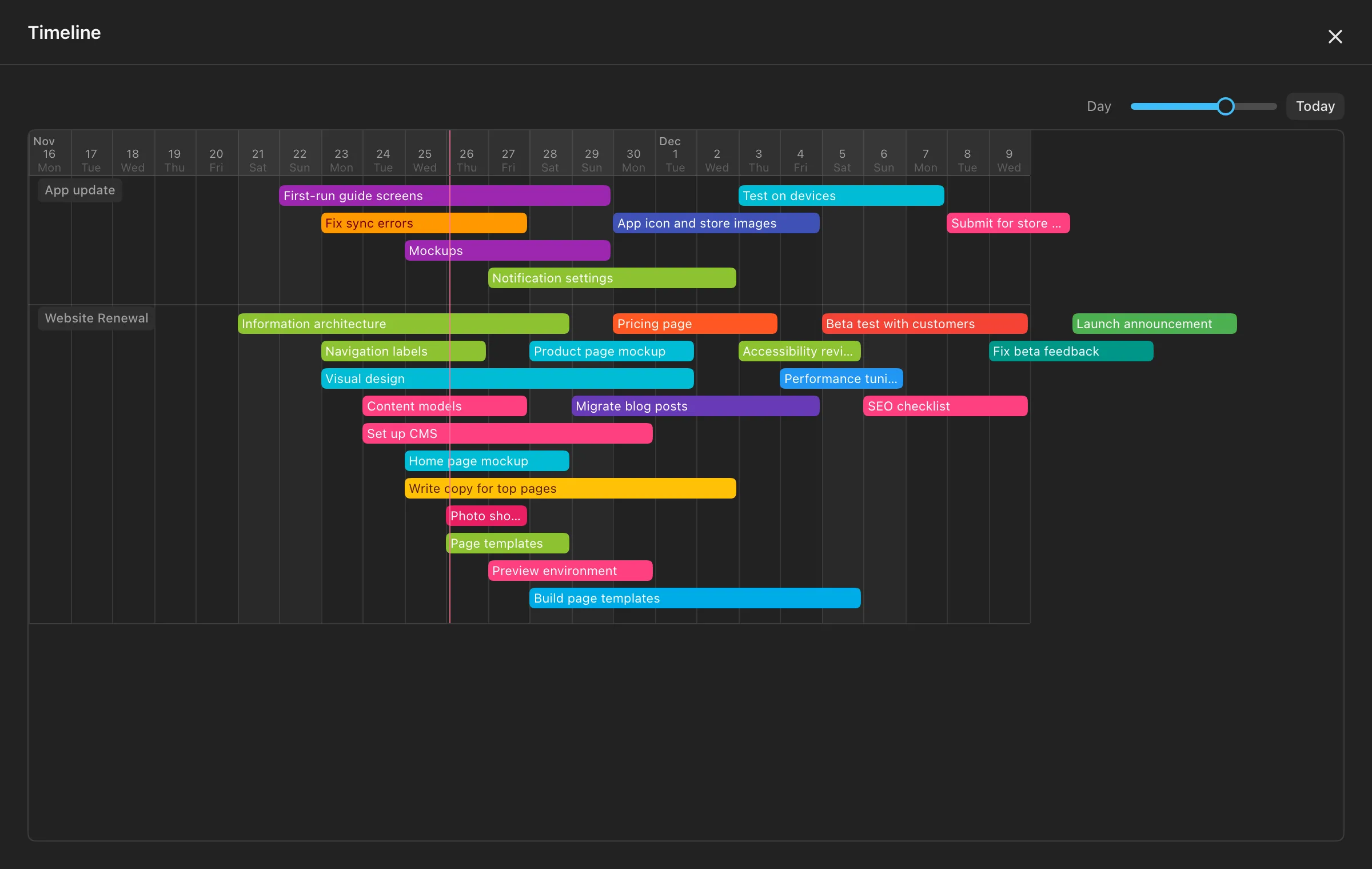
Open Timeline from the Gantt chart and each project gets its own row, with its bars packed together. You can compare when each project is busy without scrolling down a long Gantt chart. Tasks without a due date are left off the timeline.
In Cross-project the timeline is always split by project. Rows by assignee, by ball or by milestone are available inside each project.
Today's activity from every project
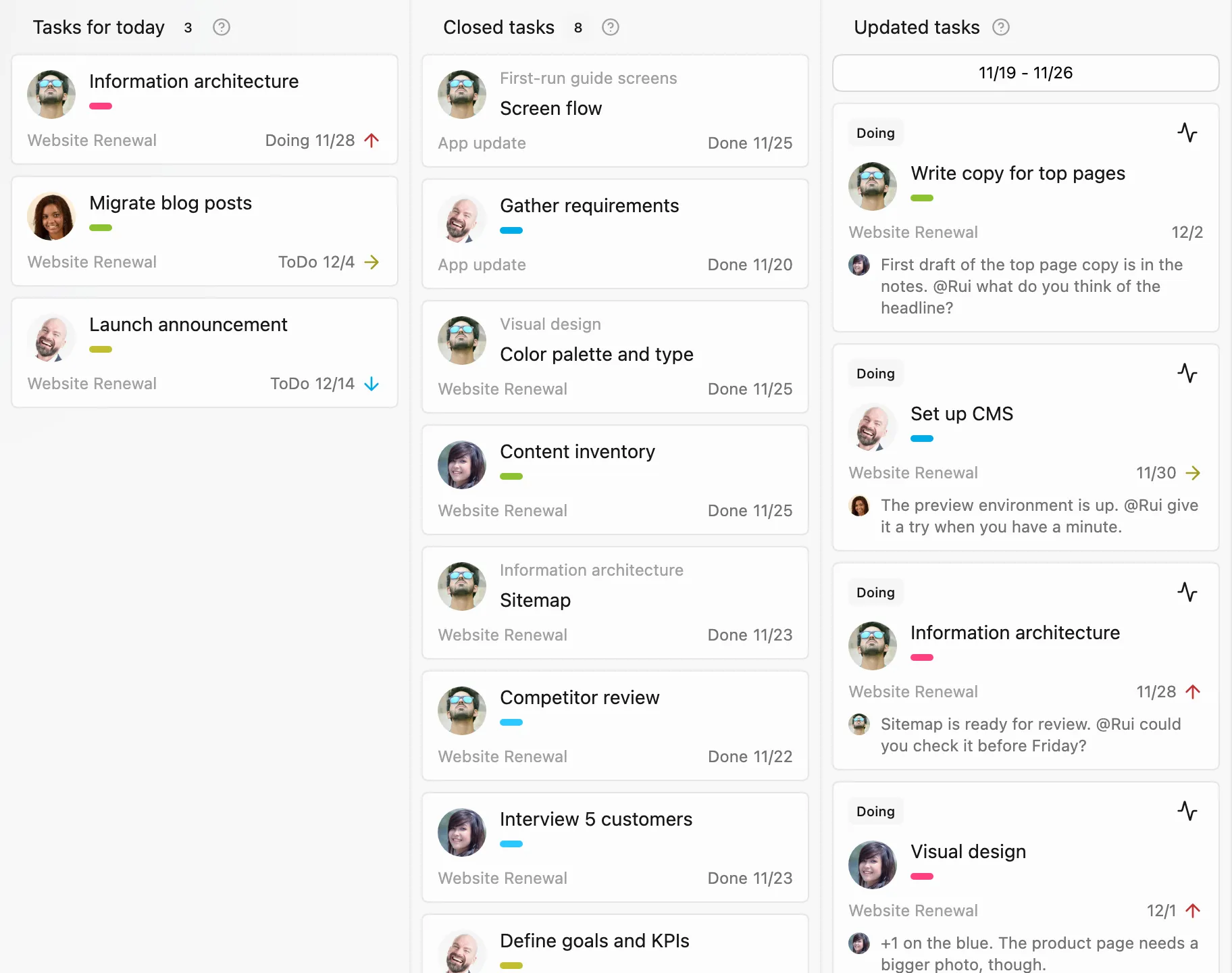
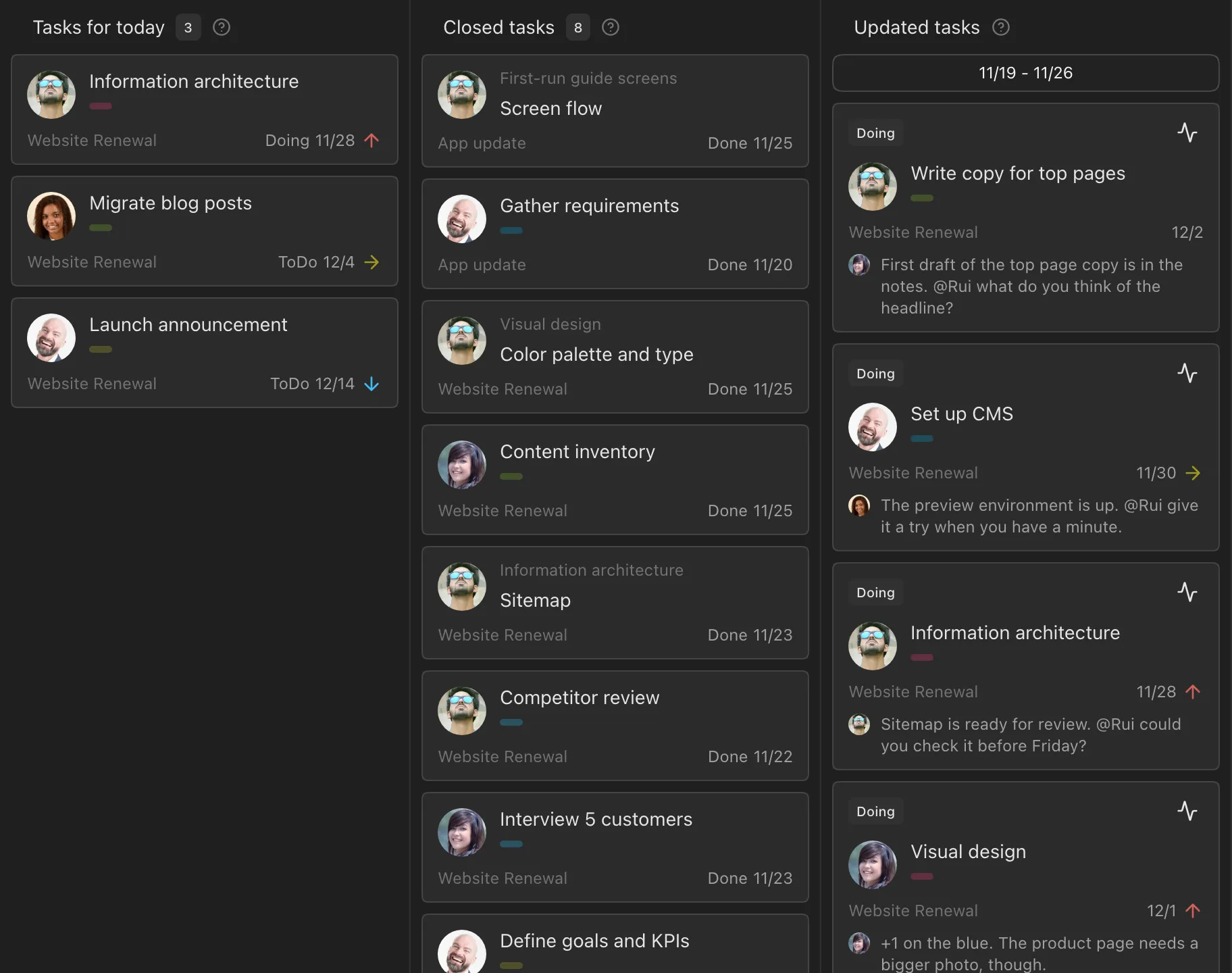
Overview lists Tasks for today, Closed tasks, Updated tasks and Upcoming, gathered from all your projects. Each card shows its project's name, so you can check what moved, and where, first thing in the morning.
Under Team, Chart and Productivity add up the figures from all your projects. Notes are listed under a heading for each project, too.
What you can do
| Area | What you can do |
|---|---|
| Plan | Standard plan. Not available on the Free plan |
| Projects included | The projects you are a member of that have not been closed |
| Views | Overview, Tasks (Gantt chart, List, Timeline), Boards (Status, Responsible, Ball, Priority, Milestone), Notes, Team (Chart, Productivity) |
| Telling projects apart | A heading row with the project's name on the Gantt chart, List and Notes. The project's name on each card on Boards and Overview. A row for each project on the Timeline |
| What you can edit here | Dates (draw or move a bar), assignee, ball and status, comments, task order, adding a task between rows (with a mouse), dependencies inside one project, moving cards on a board, Undo and Redo |
| Across projects | Move a task to another project, together with its subtasks. Dependencies between projects are not supported |
| Filters | Keyword, tag, status, assignee, ball, priority, milestone and due date. Statuses with the same name are combined |
| Export | Excel (XLSX), with a row for each project's name |
| Not available in Cross-project | Grouping the Gantt chart or the timeline by assignee, ball or milestone, Bulk update, the Add a task button (you can still add a task between rows), adding milestones, setting days off and holidays, CSV and Gantt-san JSON export and import, Print or Save as PDF, adding cards and columns (statuses, members, milestones) on boards, Hierarchy view on the Status board, and the Team and Kaizen tabs under Team. All of these work inside each project |
The Help article Cross-project view shows how to open it. For what each plan includes and costs, see the pricing page.
For what you can do inside a single project, see the Gantt chart, Boards and Responsible and Ball and Charts pages.
FAQ
- Is the Cross-project view free?
- No. Cross-project is part of the Standard plan and is not available on the Free plan. On the Free plan, choosing it from the menu shows information about the Standard plan. See the pricing page for what each plan costs.
- Can I see multiple projects on one Gantt chart?
- Yes. Open Tasks in Cross-project and every project appears on one Gantt chart, each under a heading row with the project's name. The same screen switches to a list.
- Which projects are included?
- The projects you are a member of that have not been closed. Tasks from projects you don't belong to are not shown. Projects appear in the order you arranged them on Home or the Joined projects page.
- Can I see one person's tasks across all projects?
- Yes. Filter by assignee, or by who holds the ball, and the Gantt chart narrows down to that person's tasks from every project. Parent tasks stay in place so you can see where each task sits. The Responsible and Ball boards show a column per person, so you can compare how much each person has. Grouping the Gantt chart by assignee, ball or milestone is not available in Cross-project.
- Can I link dependencies between tasks in different projects?
- No. A dependency links two tasks in the same project. You can still draw one from the Cross-project Gantt chart, as long as both tasks are in the same project.
- Can I move a task to another project?
- Yes. On the Cross-project Gantt chart or list, drag the task under another project's heading. Its subtasks move with it.
- Can I export a multi-project Gantt chart to Excel?
- Yes. Export to Excel (XLSX) puts every project on one sheet, separated by a row with the project's name. CSV export and import, and Print or Save as PDF, are not available in Cross-project. Use them from each project's own screen.