
Who owns it, and whose move it is.
Line your team's tasks up by person and you can see who has too much. Drag a card to another column and the task is reassigned. And when you hand a task over for review, pass the Ball, Repsona's field for the person who has to act next, so nobody has to ask who is holding things up. Available on the Free plan.
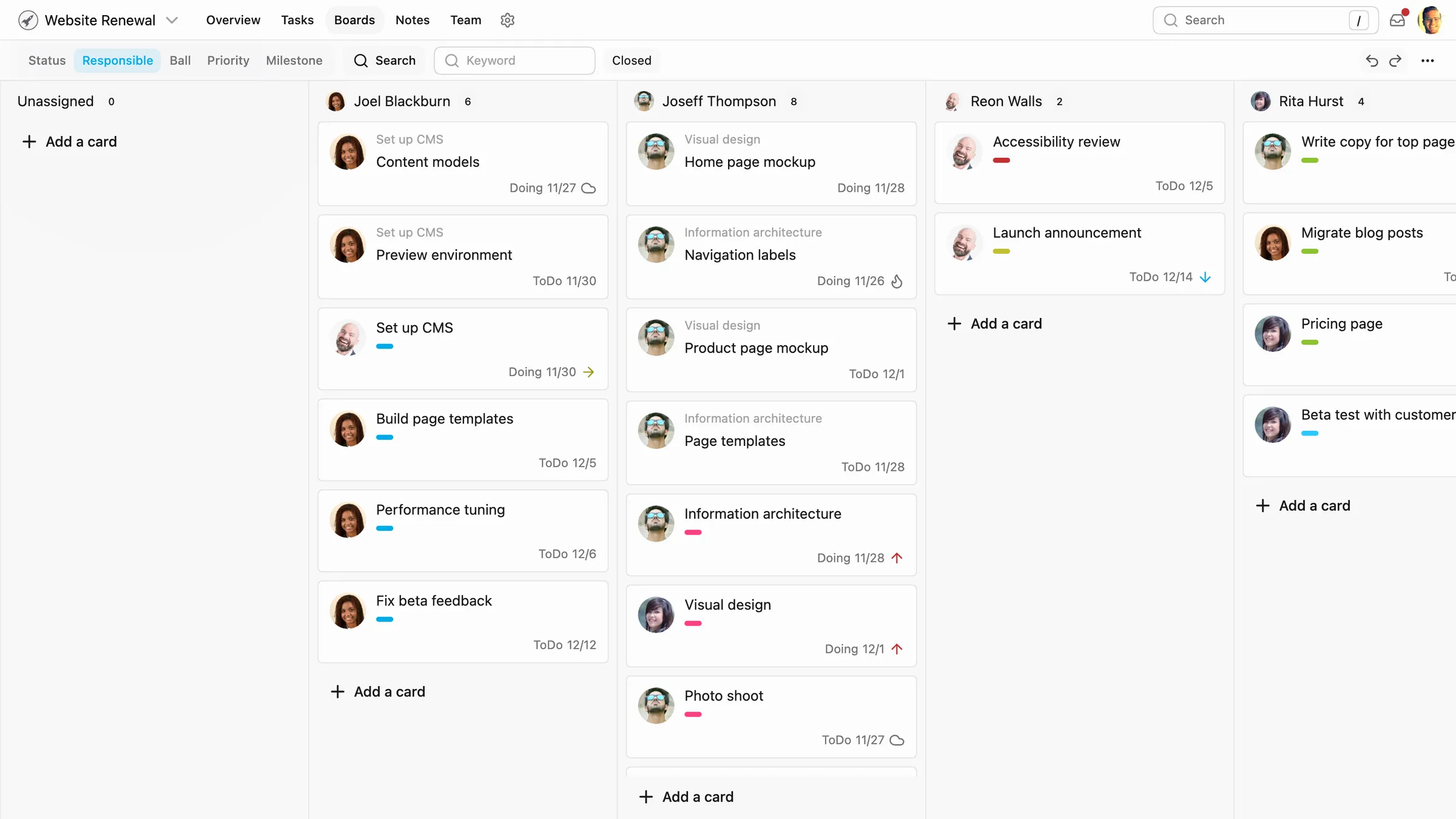
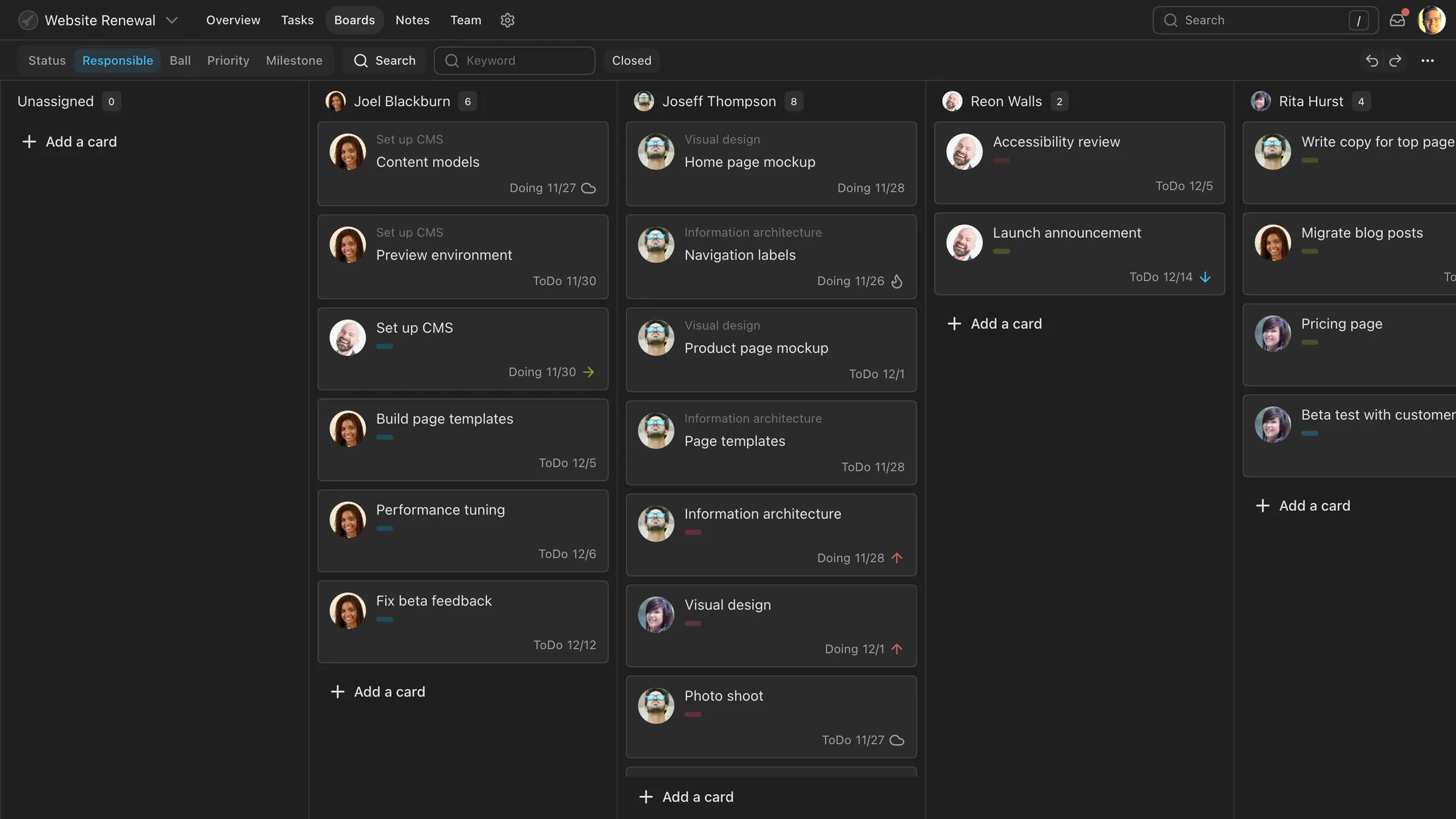
One column per person shows who is overloaded
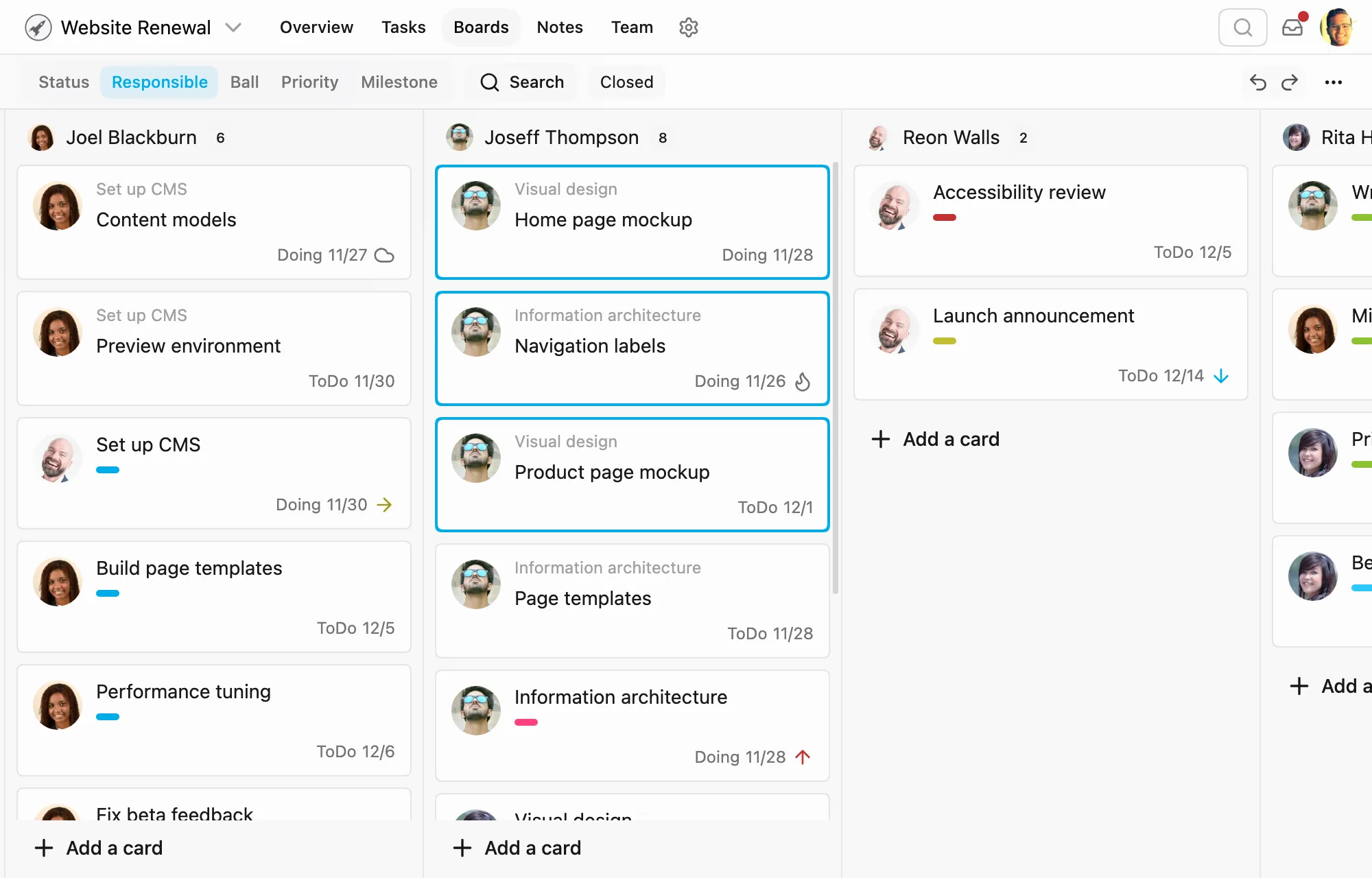
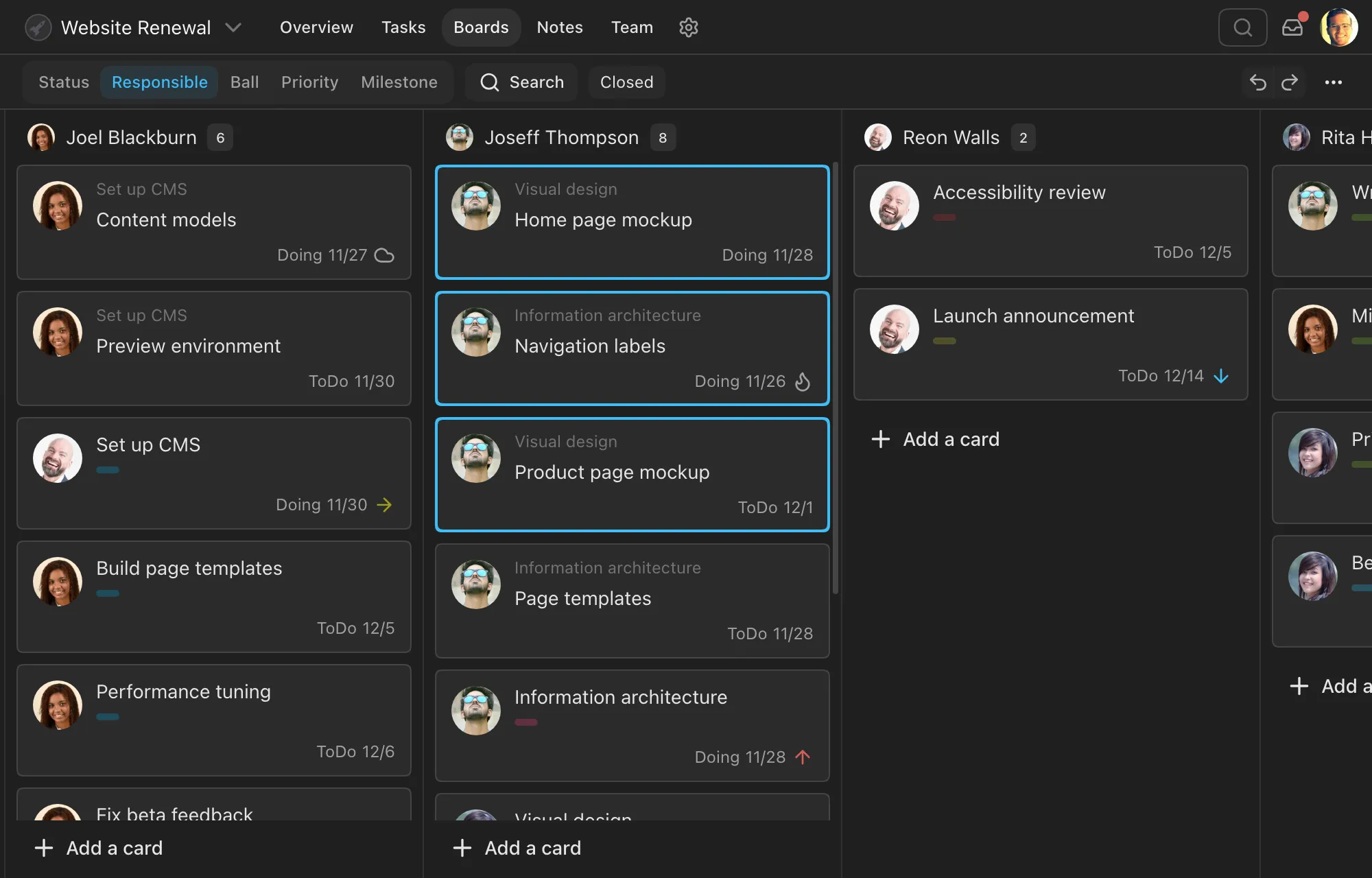
Open the Board and pick the Responsible tab. Every project member gets a column, and each task sits as a card under the person responsible for it. The number next to the name is how many cards are in that column.
A tall stack next to a short one is hard to miss. You can decide who has room for the next task without building a spreadsheet first.
Closed tasks are hidden to begin with. Turn on Closed to bring them back.
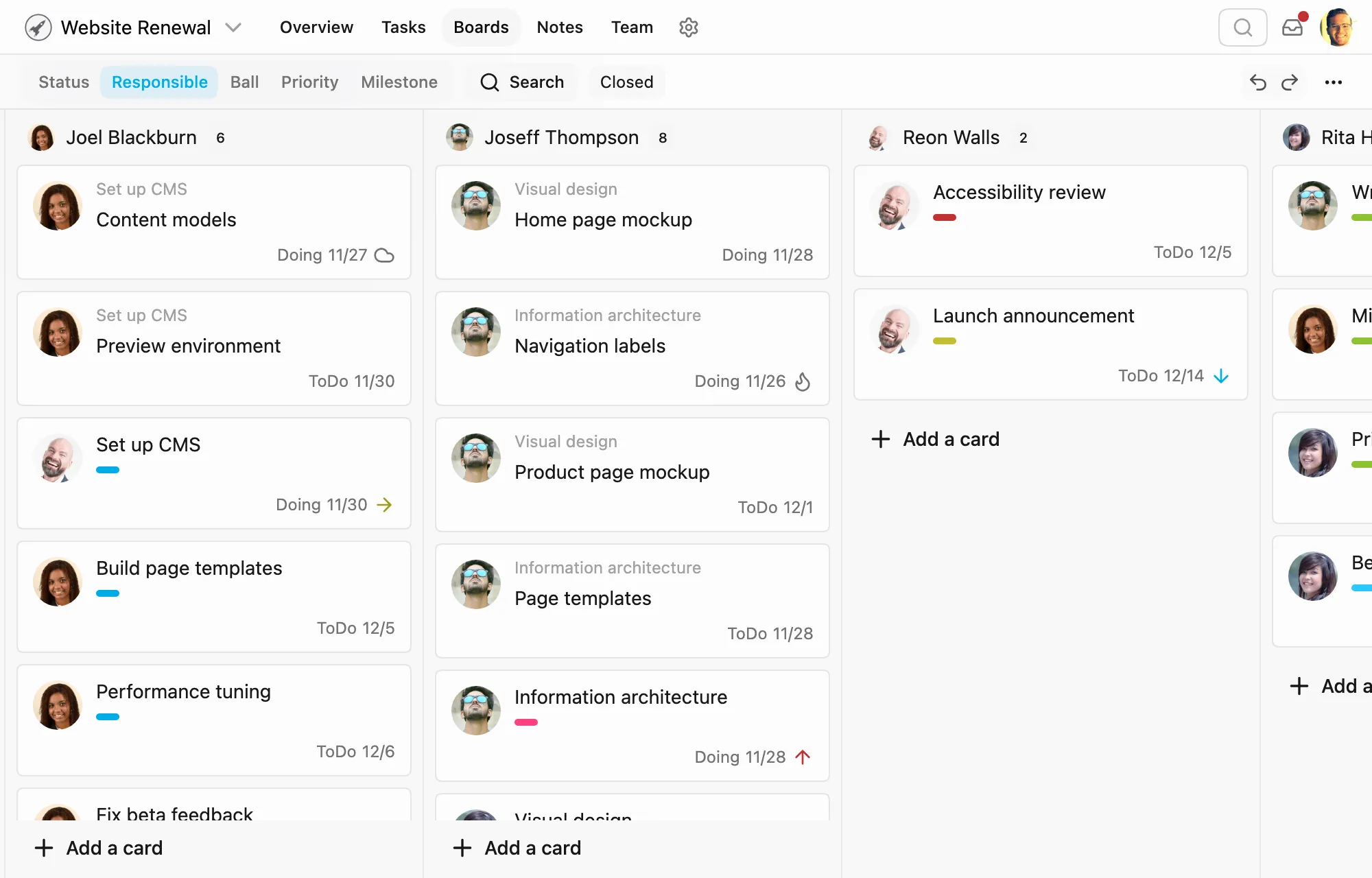
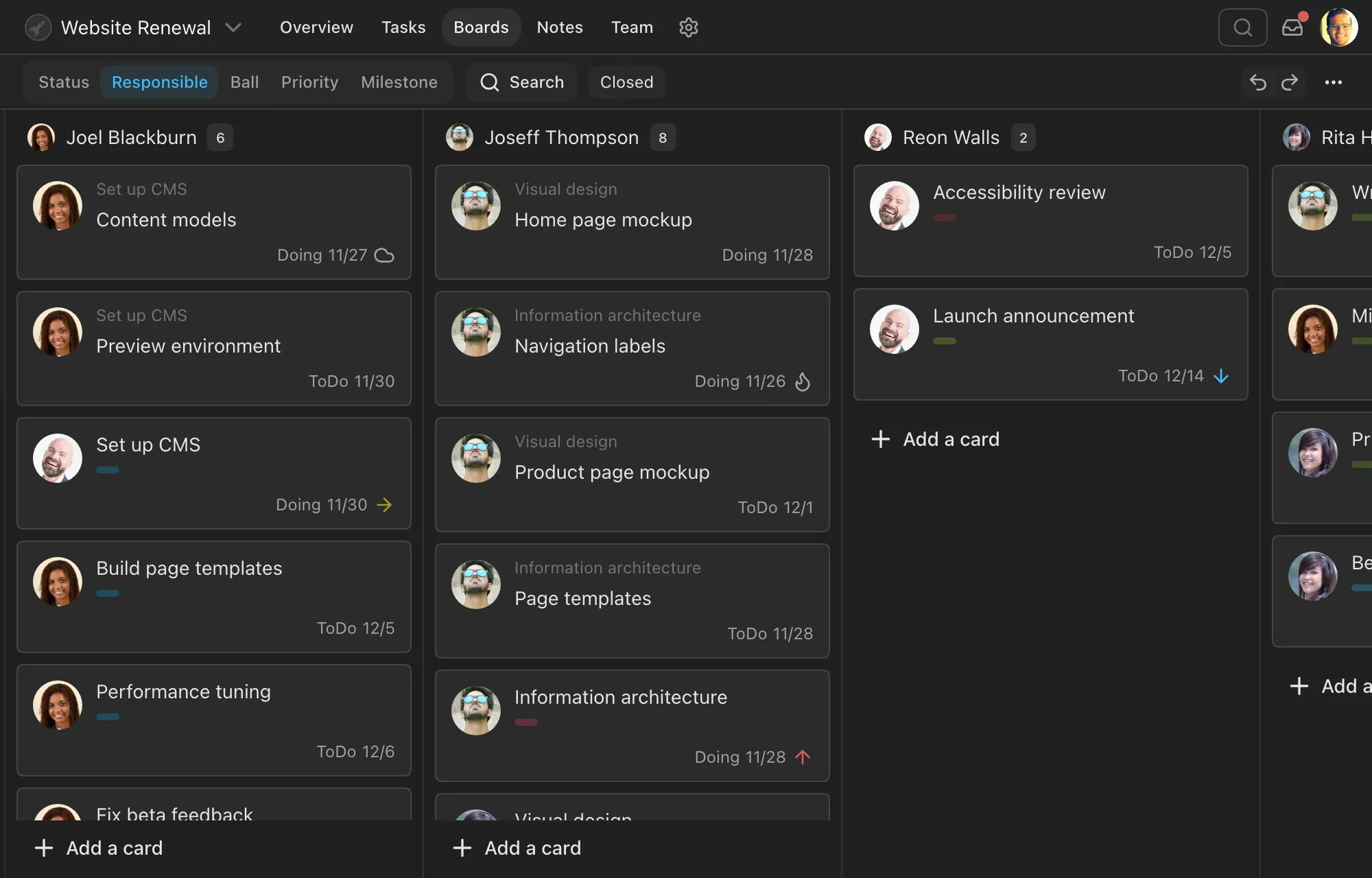
Drag a card to reassign the task
Drop a card in someone else's column and they are now responsible for it. Drop it in Unassigned to clear the assignee.
To hand over several tasks at once, hold Ctrl (⌘ on a Mac) or Shift, click the cards you want, then drag any one of them.
Undo and redo take you back one step at a time.
Open the card and the details agree
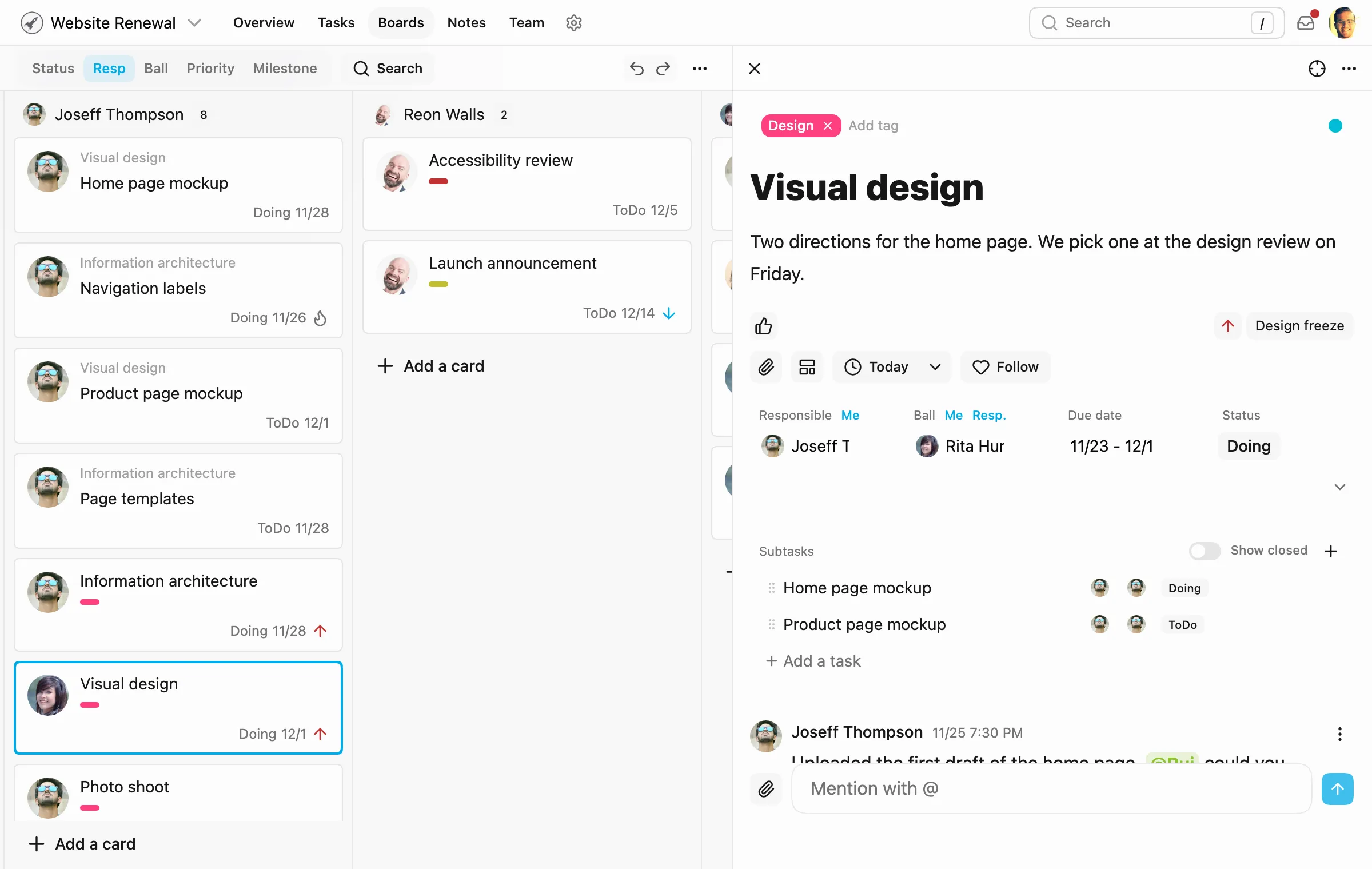
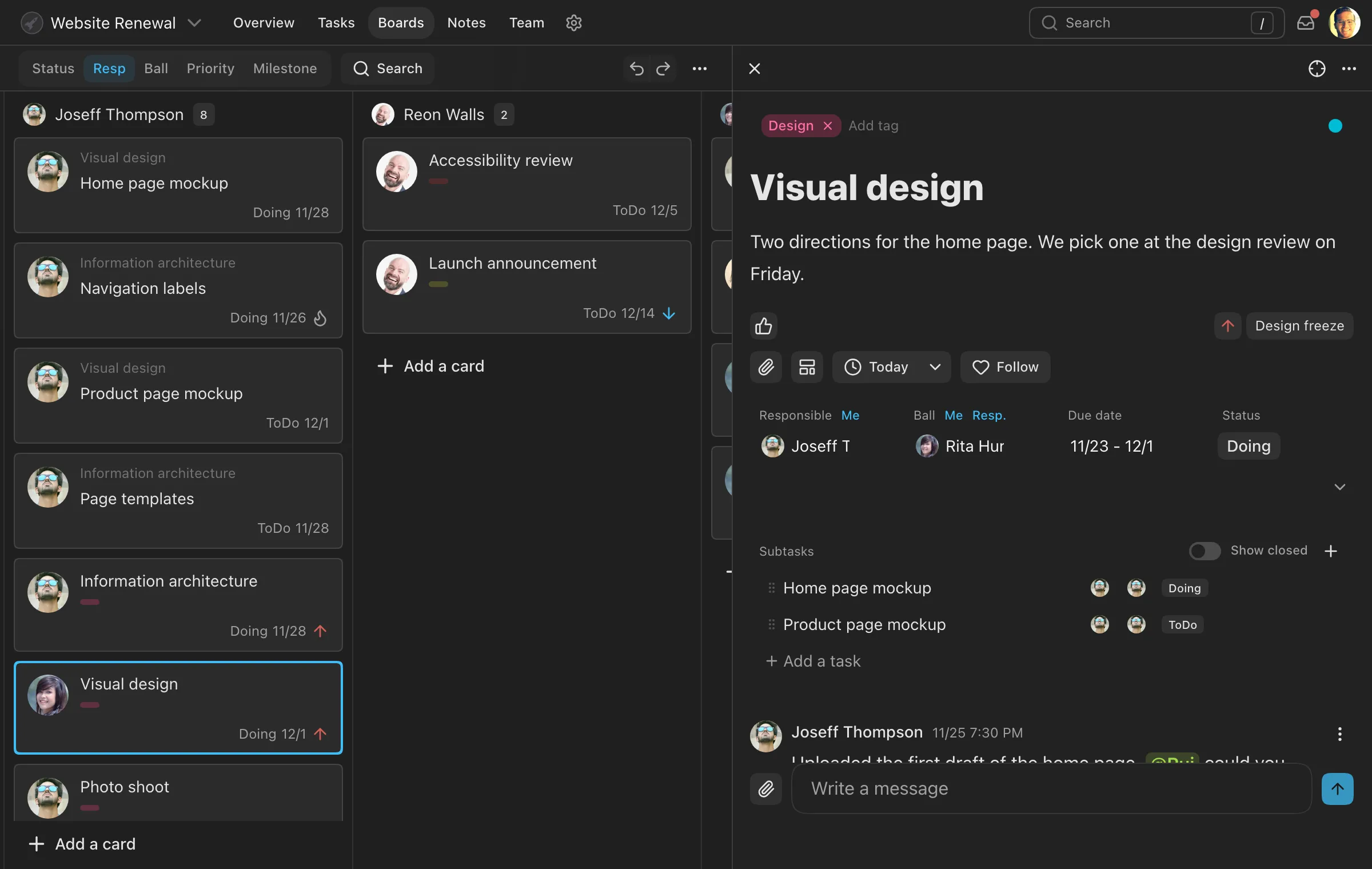
Click a card and its details open on the right of the same screen. The Responsible field already shows the person whose column you dropped it in.
It works the other way too: pick a different person in the details and the card moves to their column. Click Me to take the task yourself.
The due date, the status and the comments are all in the same panel.
The Gantt chart shows the same assignee
A task you reassigned on the board sits under its new owner on the Gantt chart and in the List too. Change it anywhere and every view agrees.
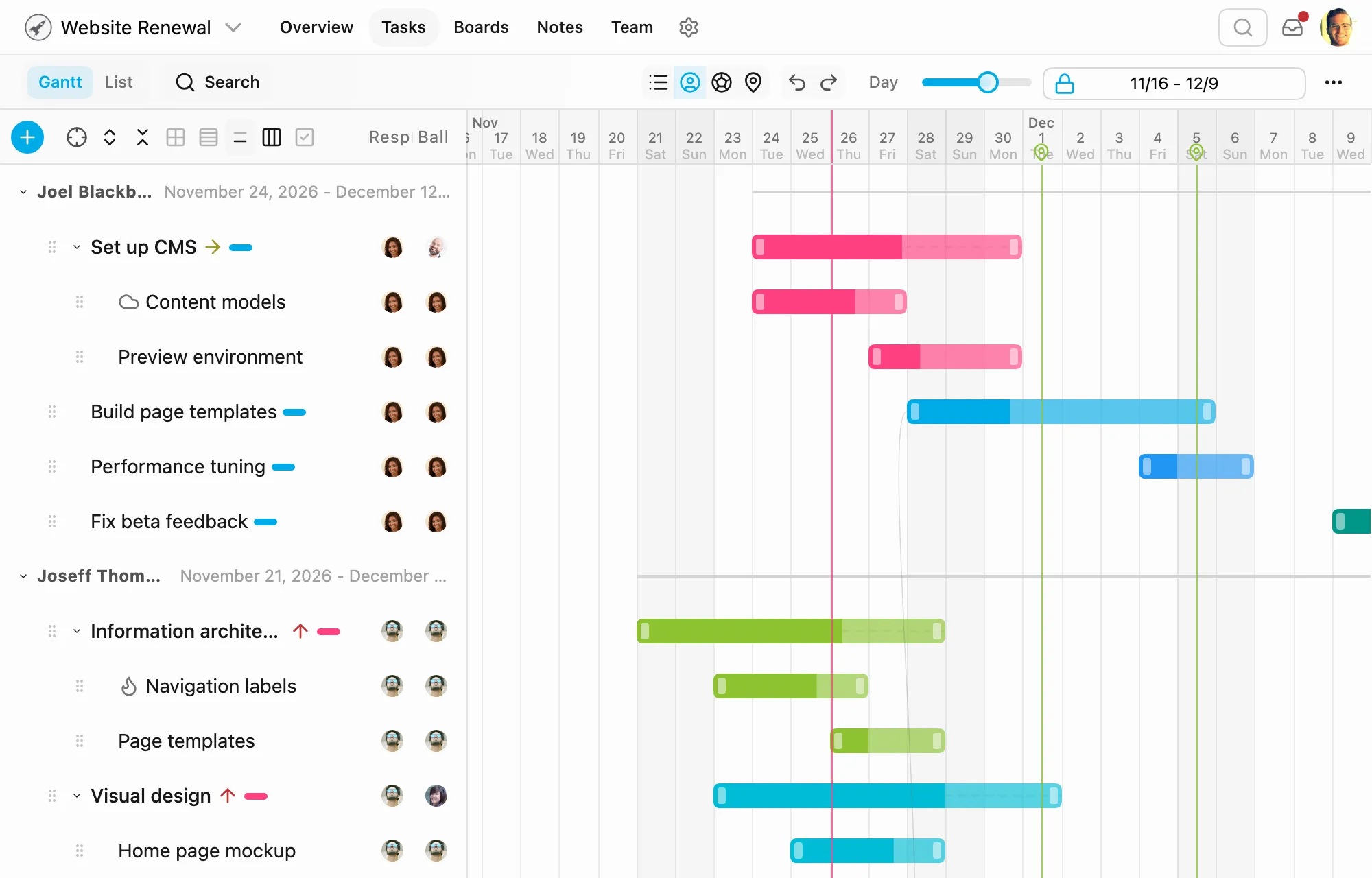
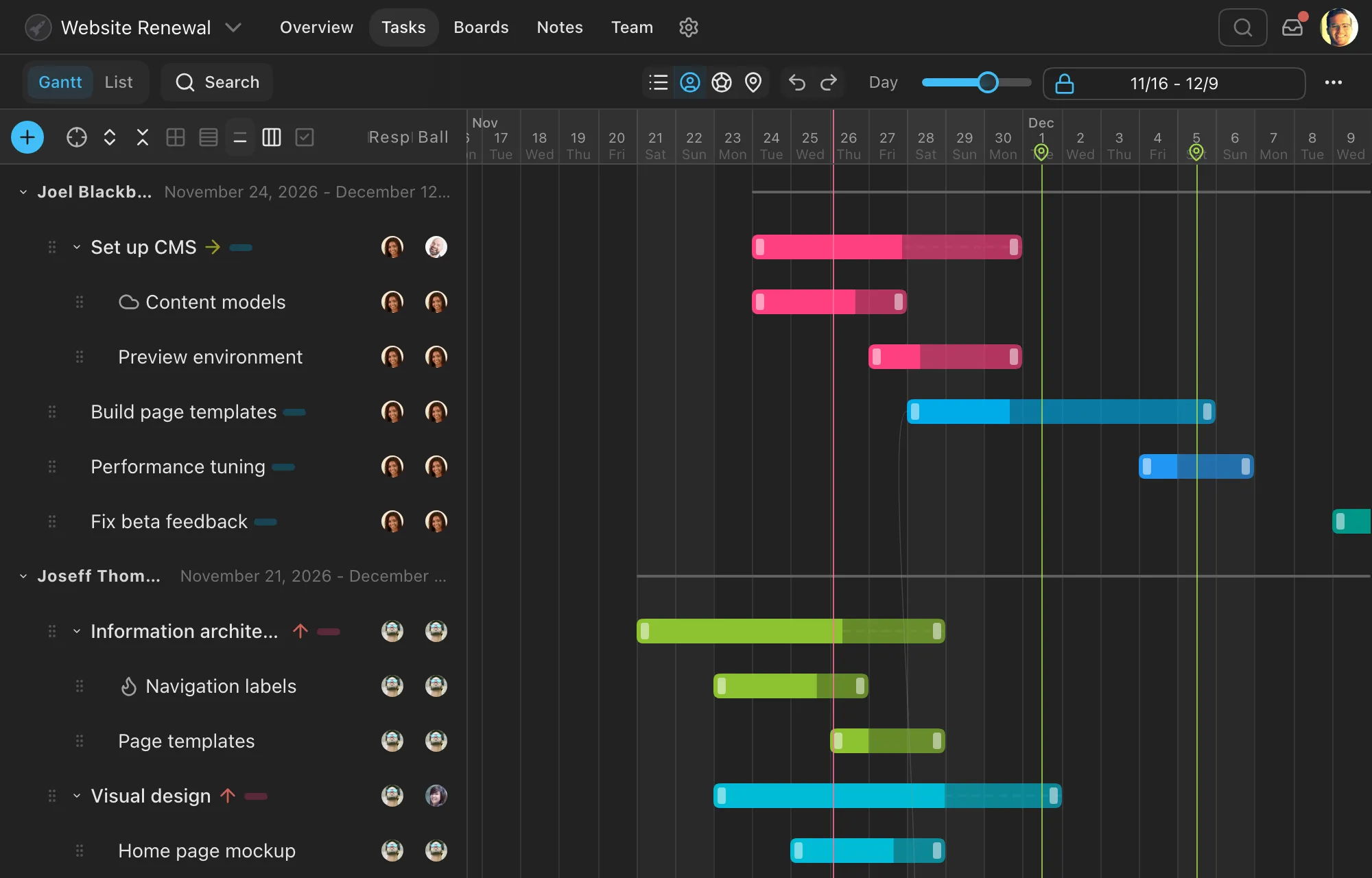
Within a project, both views can group tasks by responsible person with one click. With each person's bars stacked together, you can see when their work overlaps. Drag a task into another person's group to reassign it.
More on the Gantt chart page.
Rearrange the board by whose move it is
Every task has a second person field next to Responsible: the Ball. The responsible person owns the task until it is done. The Ball holder is whoever has to act on it right now. Ask for a review and the Ball goes to the reviewer; when they are done, it comes back.
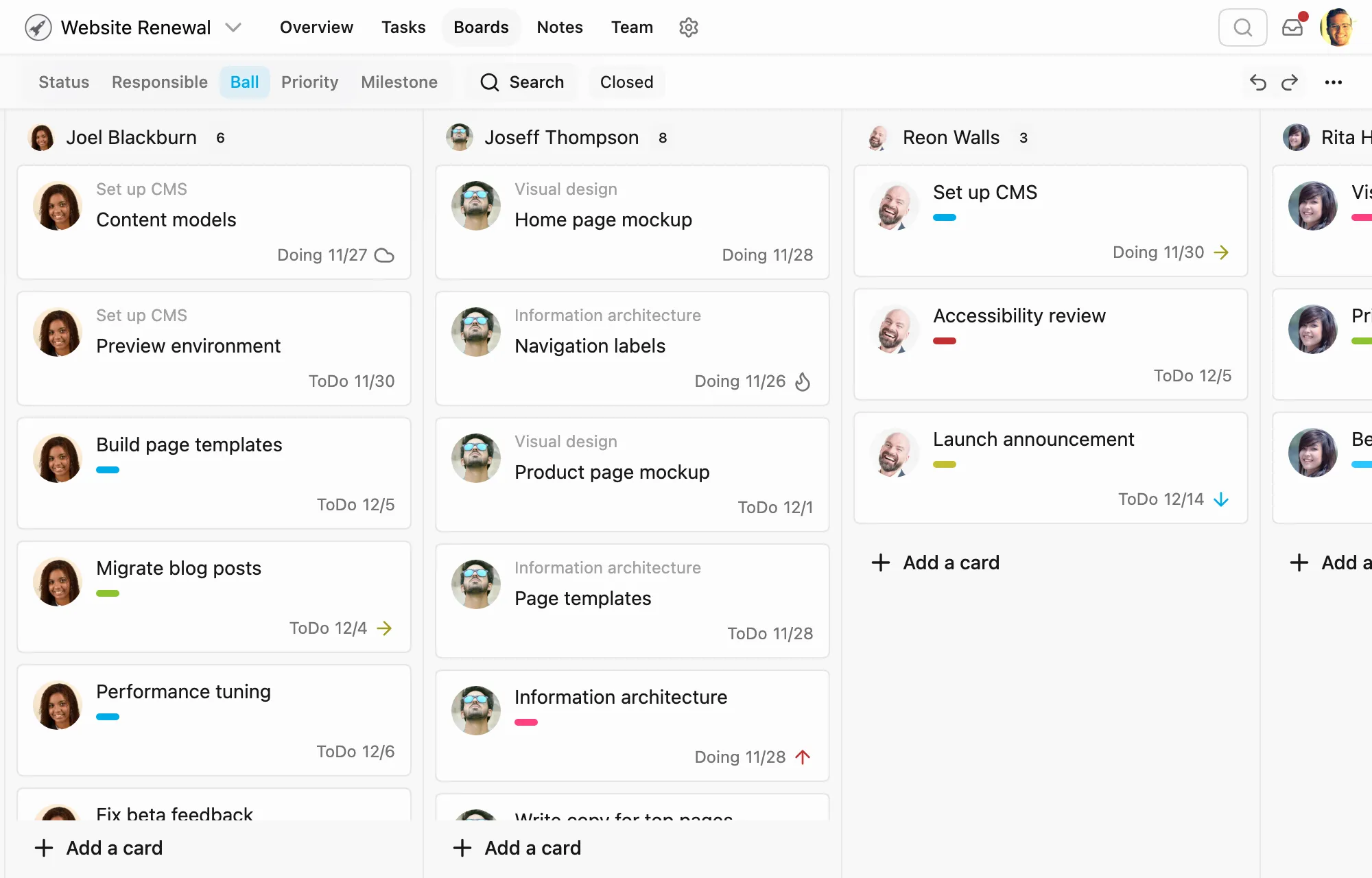
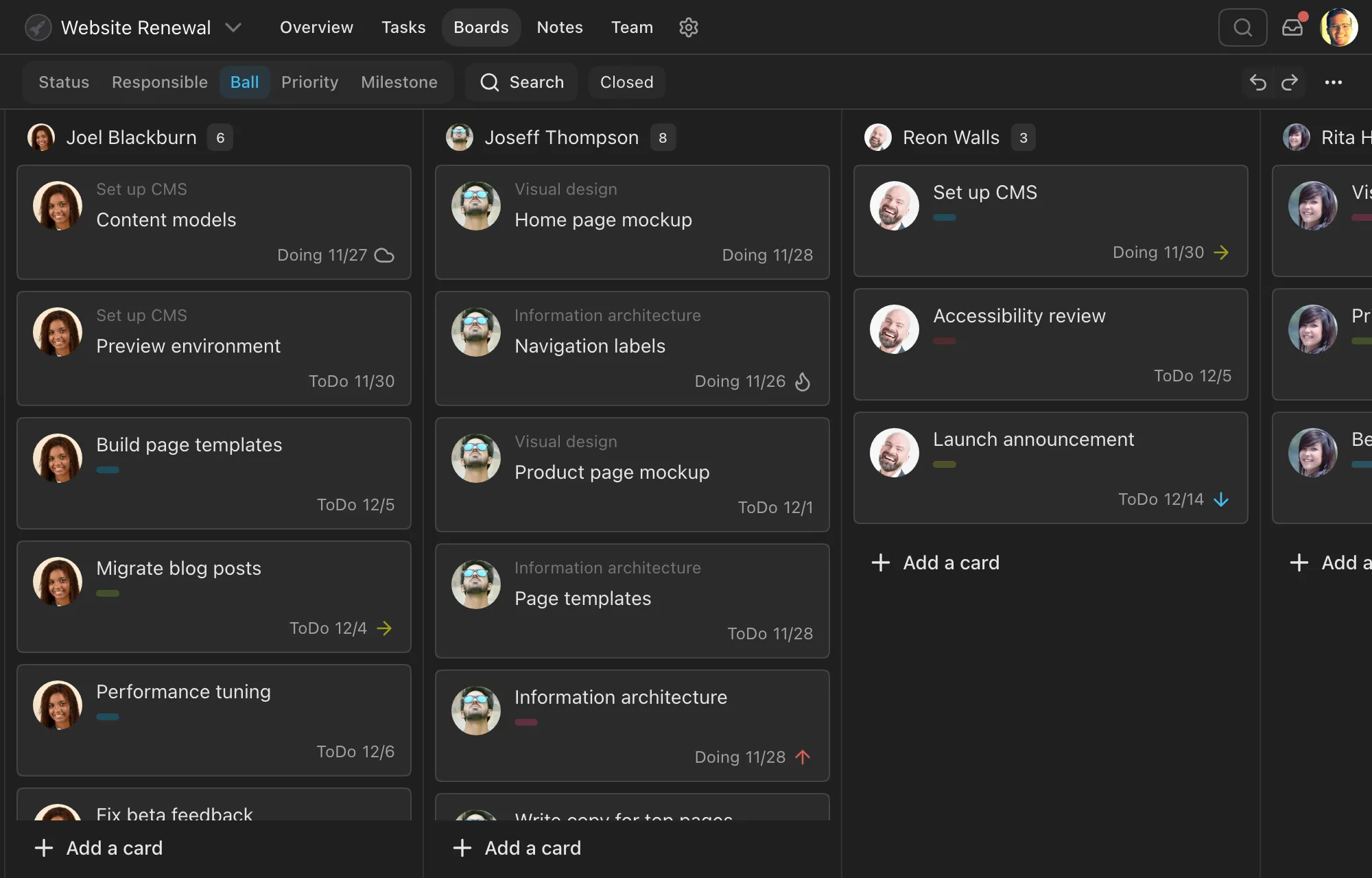
Switch to the Ball tab and the same cards regroup by who holds the Ball. A column that keeps filling up is where work is waiting.
On every board, the face on a card is the Ball holder (or the responsible person if no Ball is set). So on the Responsible board, a card showing someone else's face is a task that is in their court.
One customer put it this way: "Thanks to the “ball” feature, we can quickly identify bottlenecks by simply looking at the ball view—where tasks are stuck and who has them." (Miniique Co., Ltd.)
Passing the Ball is just picking a name
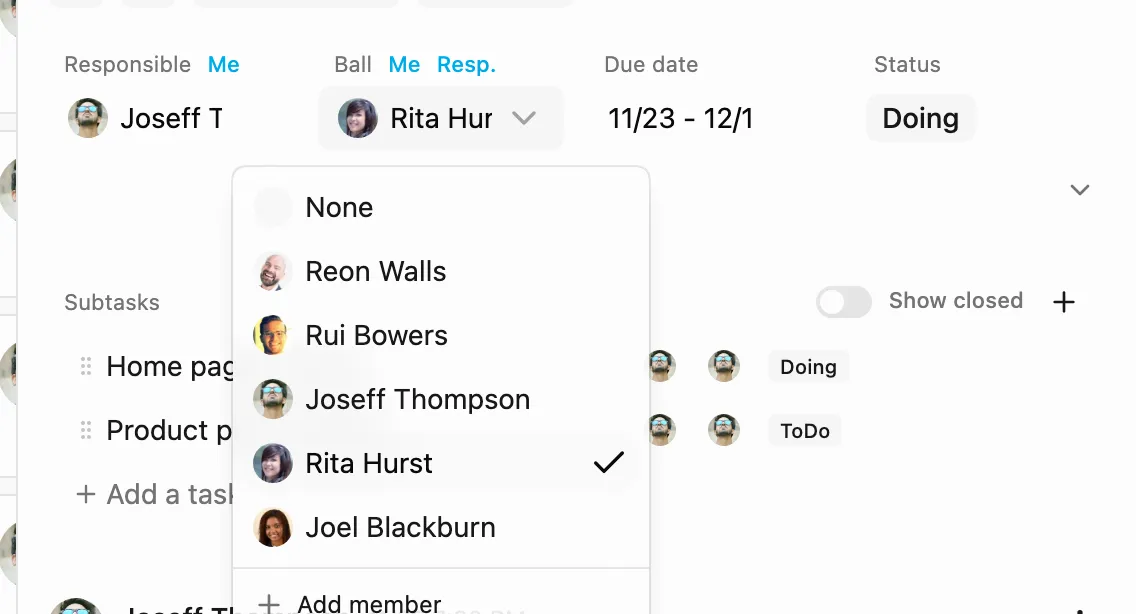
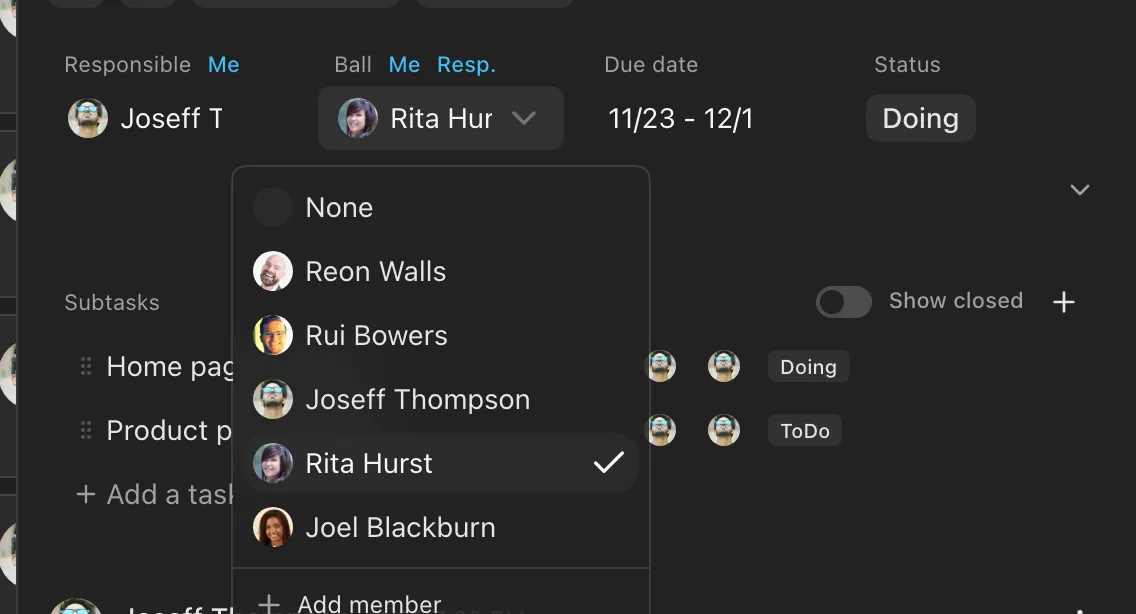
Open the Ball field in the task details and choose a person. The responsible person stays the same; only the Ball moves. The people you picked most recently are listed first.
Click Me to take the Ball yourself. When the Ball is with someone else, click Resp. to send it back to the responsible person.
On the Ball board, drag the card to the other person's column.
In the List, both people sit side by side
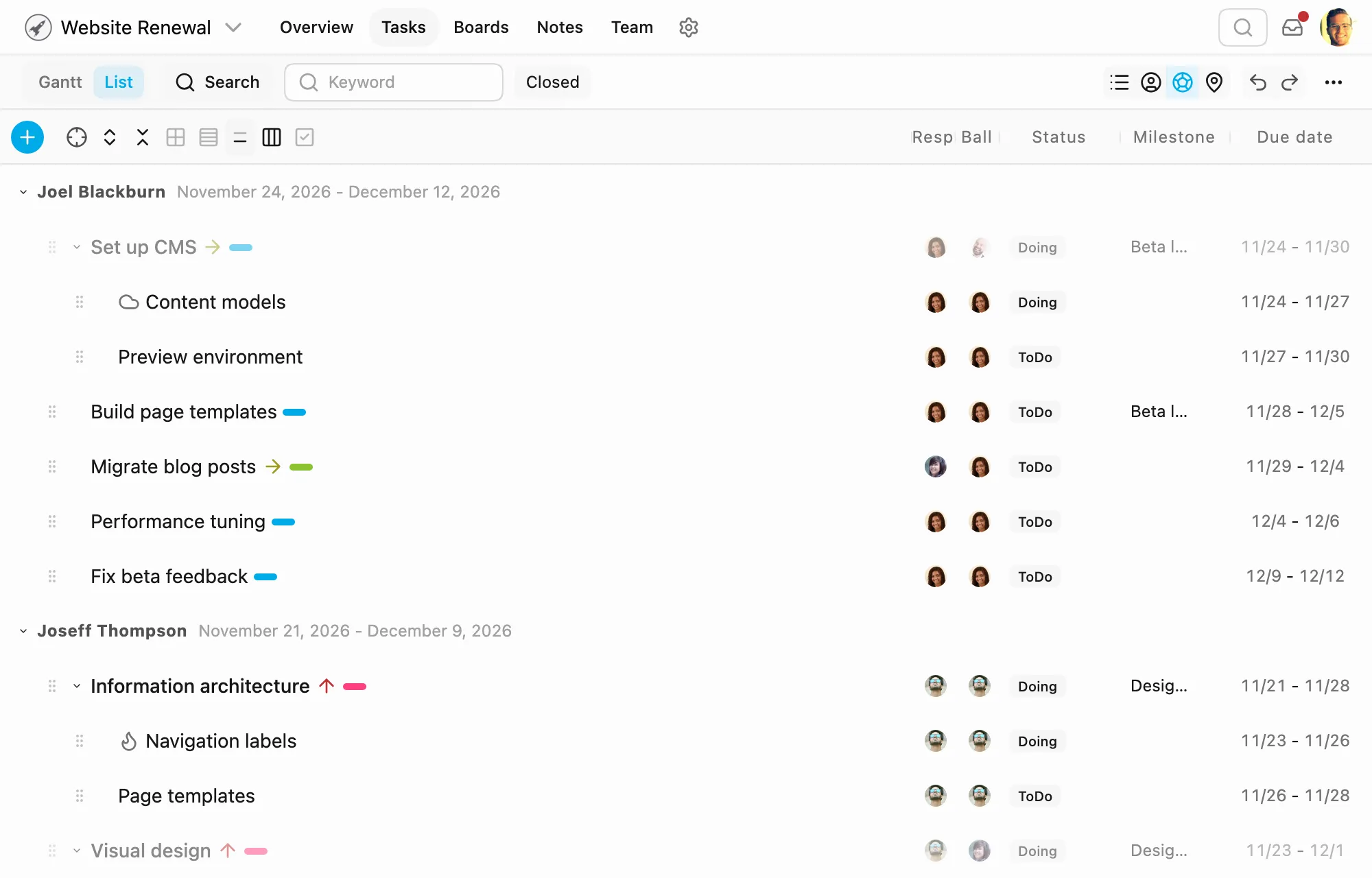
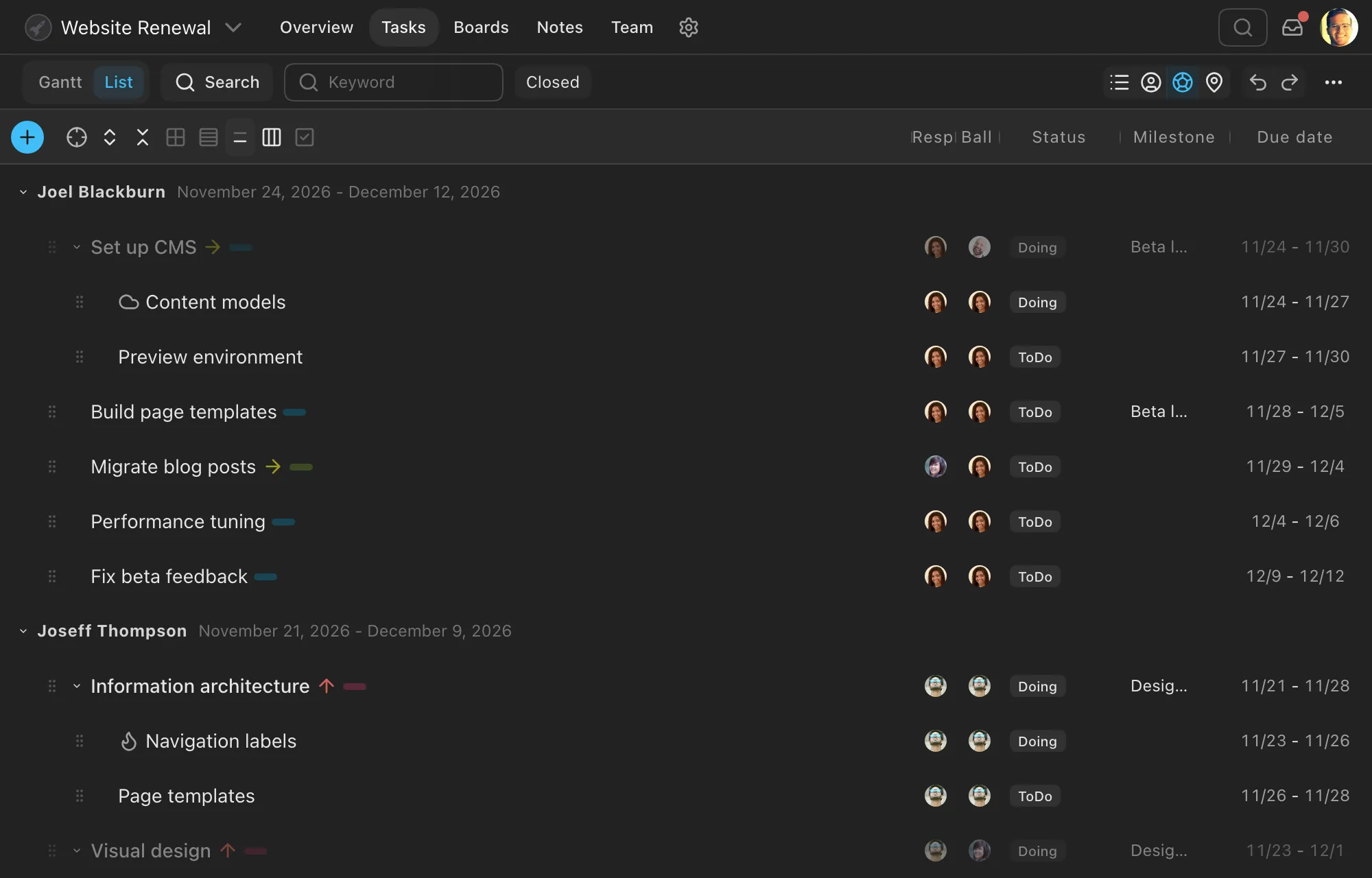
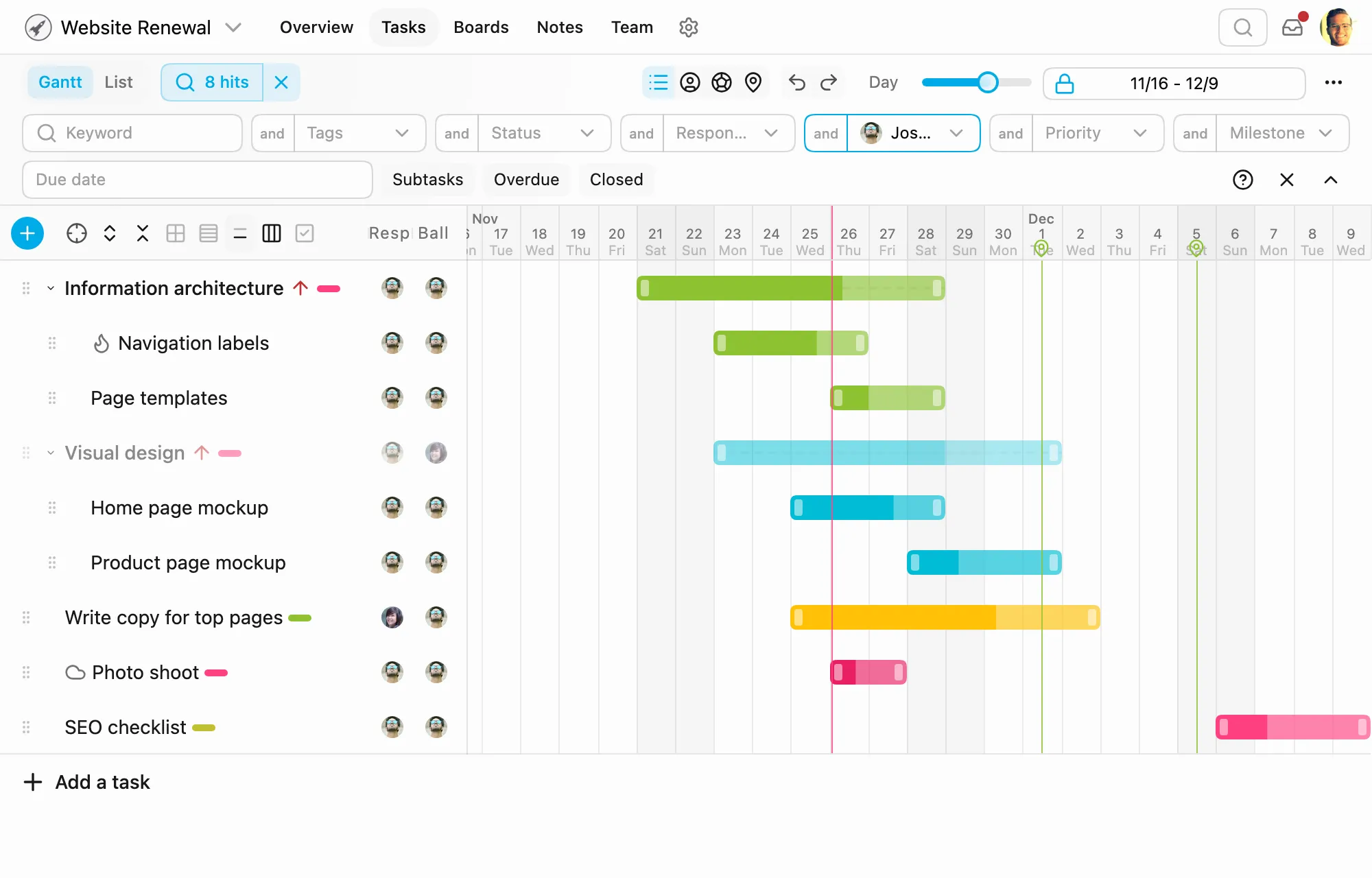
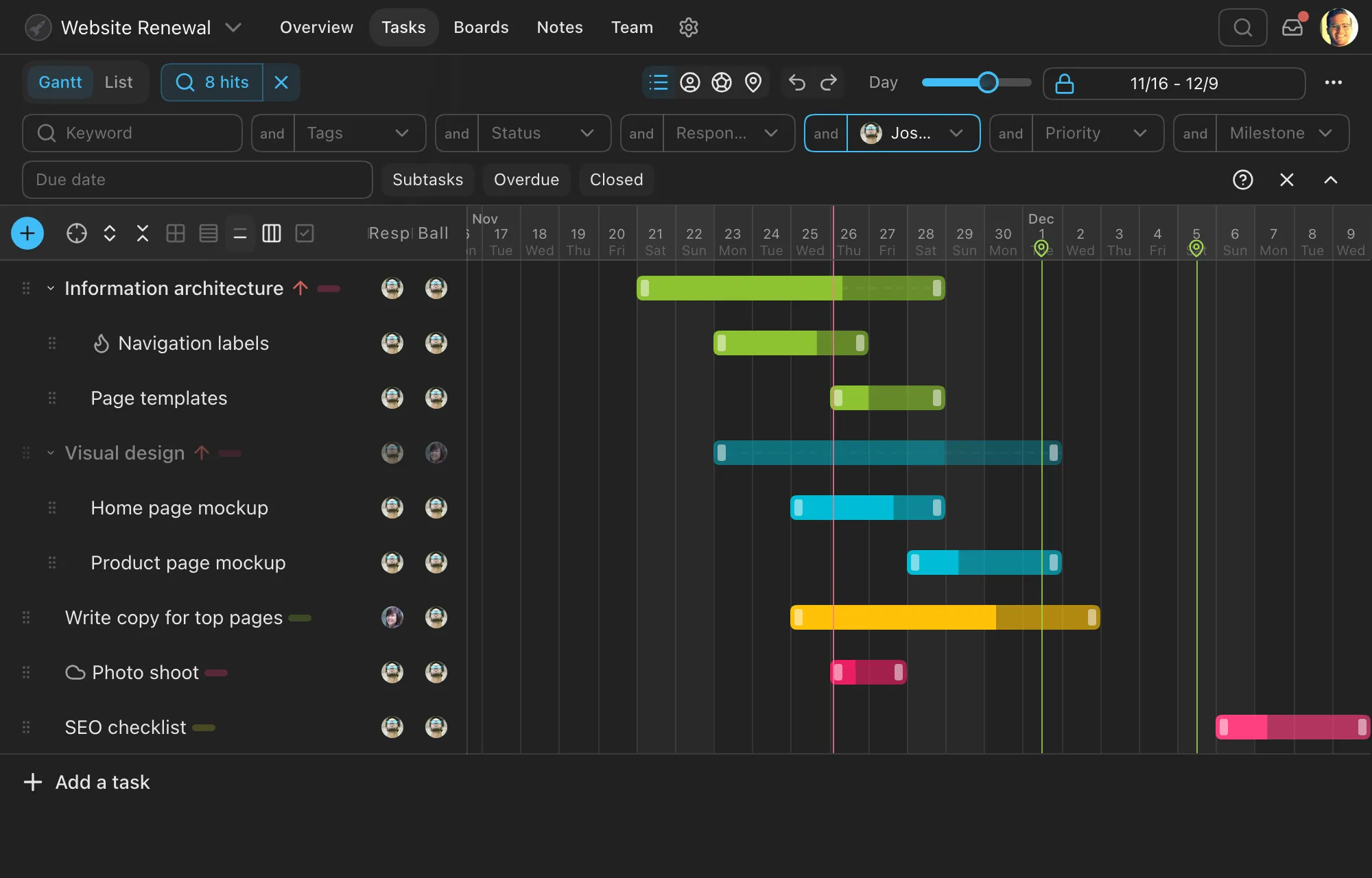
Every row in the List and the Gantt chart shows two faces: the responsible person and the Ball holder. Rows where the two differ are the tasks currently with someone else.
Click a face to change either one right in the row. To hand over a batch, tick the tasks and use Bulk update.
You can also group the List and the Gantt chart by Ball holder.
Filter down to one person's tasks
Choose people under Responsible or Ball in the search bar to narrow the view to their tasks. On the Gantt chart and the List, the parents of matching tasks stay in place, dimmed. You can pick several people at once, or exclude someone.
Combine it with other conditions, such as Overdue or a milestone, to find the tasks someone is still holding the Ball on past the due date.
The same filters work on the Gantt chart, the List and the boards.
Your own tasks come to you
Home lists the tasks you are responsible for and the tasks you have the Ball on, each sorted by due date. It is the place to start the day.
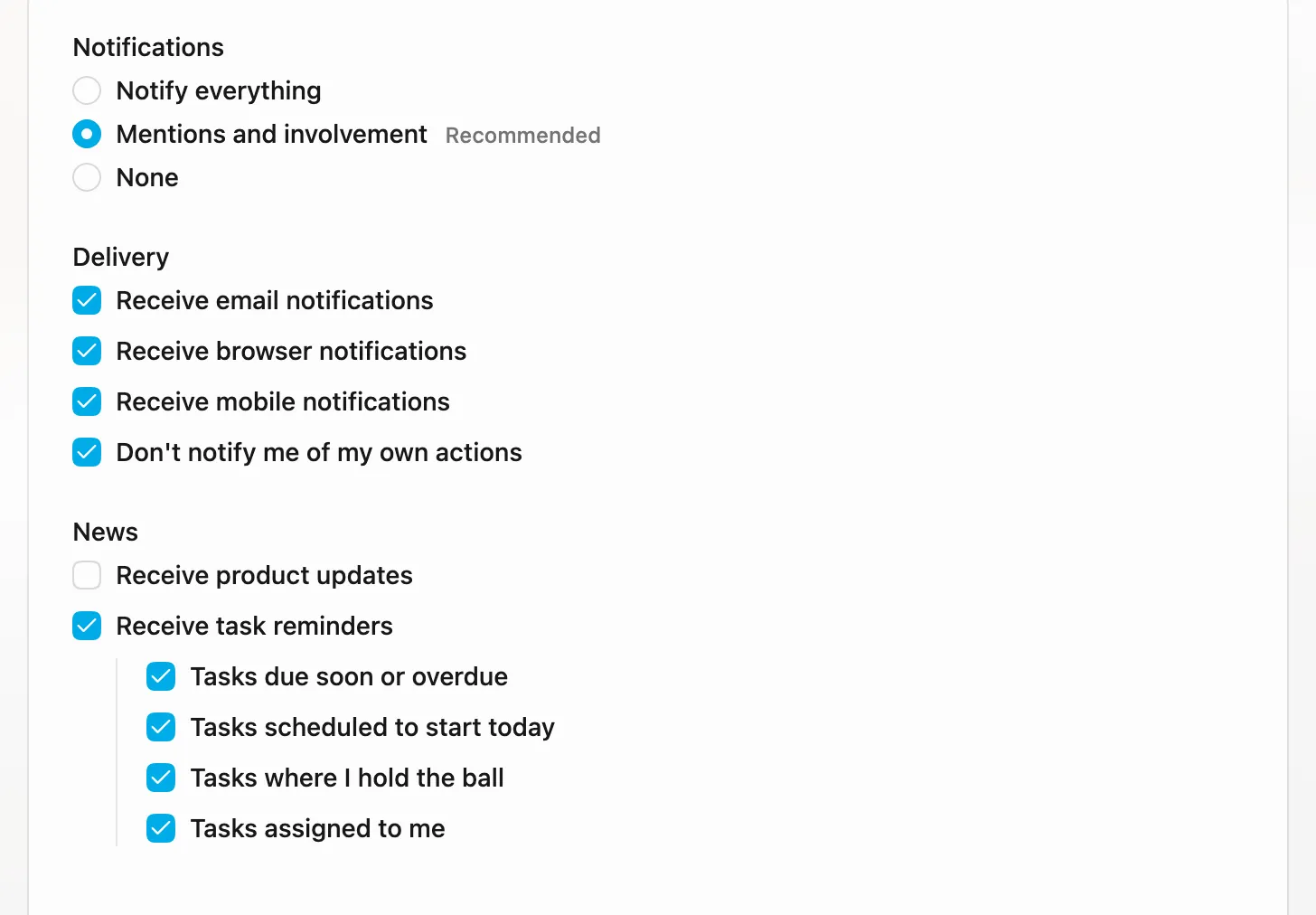
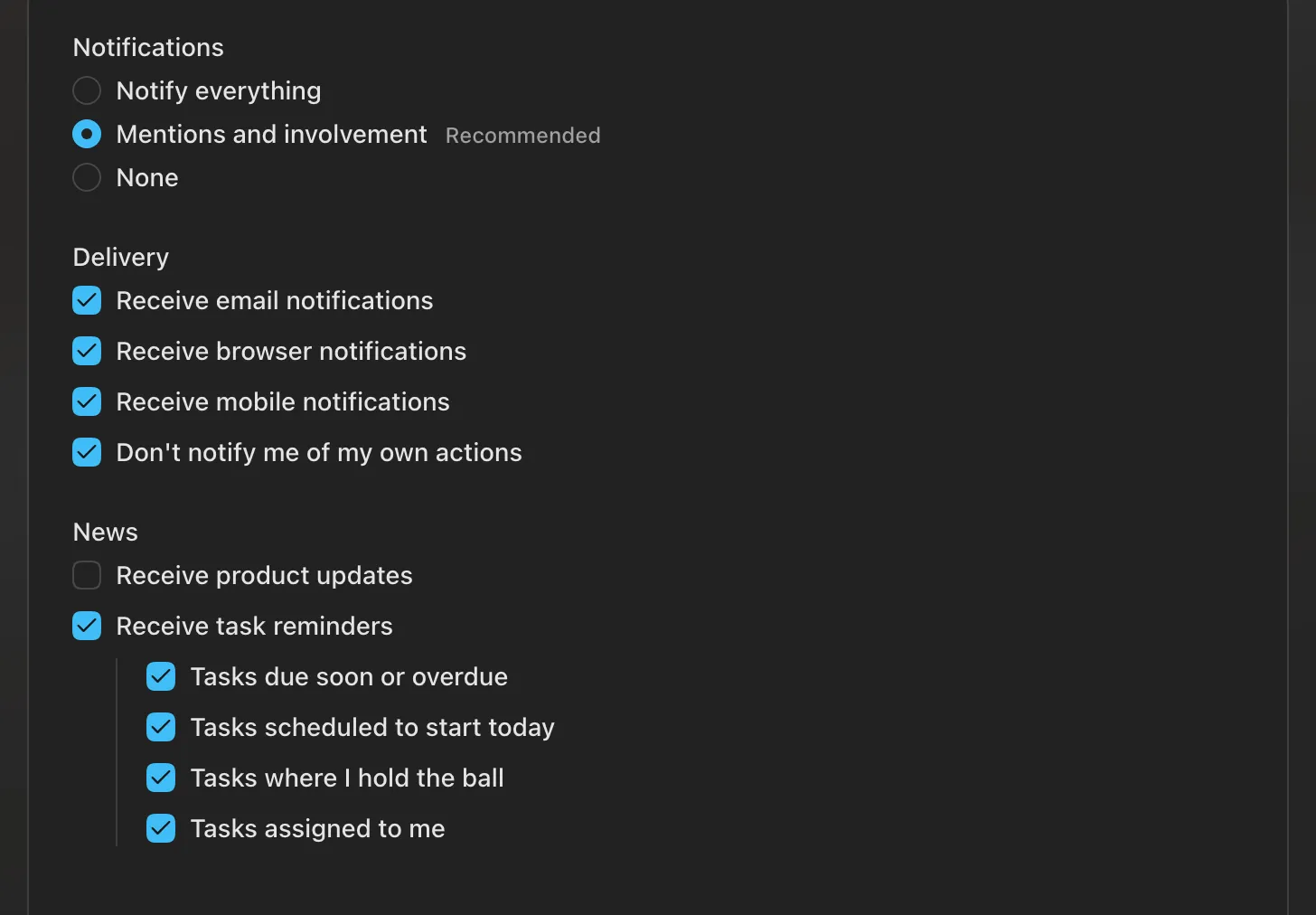
When someone makes you responsible for a task or passes you the Ball, it shows up in your Inbox, and so do new comments on the tasks you are responsible for or hold the Ball on. This reaches your Inbox even if your notification level is set to None. Whether you also get an email, a browser notification or a mobile push is up to you.
The daily task reminder email can include the tasks you hold the Ball on and the tasks assigned to you.
What you can do
| Area | What you can do |
|---|---|
| Boards by person | By responsible person, or by Ball holder. An Unassigned column comes first. A task count next to each name |
| Reassign a task | Drag the card to another column, change it in the task details or in a List or Gantt row, drag between groups, or use Bulk update |
| Pass the Ball | The same ways, plus the Me and Resp. (back to the responsible person) shortcuts in the task details |
| People per task | One responsible person and one Ball holder |
| Move several at once | Select cards with Ctrl (⌘ on a Mac) or Shift and drag them together. Undo and redo |
| Columns | One per project member. Drag to reorder (saved on this device, and shared by the Responsible and Ball boards). Owners and admins can add a member from the board |
| Cards | The Ball holder's face (the responsible person's if no Ball is set), parent task names, tags, status, due date, priority |
| Grouping | Gantt chart, List and Timeline by responsible person or by Ball holder (in a single project; not in Cross-project) |
| Filtering | Responsible and Ball in the search bar. Several people, exclusion, combined with other conditions |
| Home | Tasks you're responsible for and tasks you have the Ball on. Open tasks only, soonest due date first |
| Notifications | Inbox when you are made responsible or given the Ball (even with notifications set to None); email, browser and mobile notifications; the daily task reminder email |
| Plans | All plans. Cross-project, for several projects together, is on the Standard plan |
For step-by-step instructions, see Manage the responsible person with the Kanban board and Manage ball holders with the Kanban board in the Help Center. Boards by status or priority are on the Board page, and viewing several projects together is on the Cross-project page.
FAQ
- What is the Ball in Repsona?
- It is a second person field on every task. Responsible is the assignee, the person who owns the task until it is done. Ball is the person who has to act on it right now. When you ask someone to review your work, you pass them the Ball and stay Responsible. When they are done, the Ball comes back.
- Can a task have more than one assignee?
- No. A task has one Responsible person and one Ball holder, so ownership is never shared out until it belongs to nobody. Pass the Ball to a reviewer or approver, and anyone who just wants updates can follow the task to get notified.
- How do I keep track of tasks that are waiting on someone else?
- Pass the Ball to that person. The Ball board groups every task by who holds the Ball, so you can see where work is stuck. Each person's Home also lists the tasks they hold the Ball on, soonest due date first.
- Can I see how tasks are spread across the team?
- Yes. The Responsible board gives every member a column with their tasks and a count next to their name. Drag a card to another column to rebalance on the spot.
- Is someone notified when I assign them a task or pass them the Ball?
- Yes. It lands in their Inbox, even if they have set their notification level to None. Email, browser and mobile notifications are each person's choice in User settings, and the daily task reminder email can include the tasks they hold the Ball on.
- Is it free?
- Yes. The Responsible and Ball boards are available on the Free plan. Viewing several projects together (Cross-project) is on the Standard plan. See the pricing page for member and project limits.
- Can I see everyone's tasks across several projects?
- On the Standard plan, Cross-project opens the Responsible and Ball boards across the projects you belong to. Each card shows the project it comes from.
- Does it work on a phone?
- Yes. The boards open in the iOS and Android apps, and you can get a push notification when a task or the Ball is handed to you.