
A Kanban board where moving the card is the update.
Columns are statuses, cards are tasks. Drag a card to the next column and its status changes. The same cards can be laid out by priority or by milestone too. Included in the Free plan.
Drag a card and its status changes
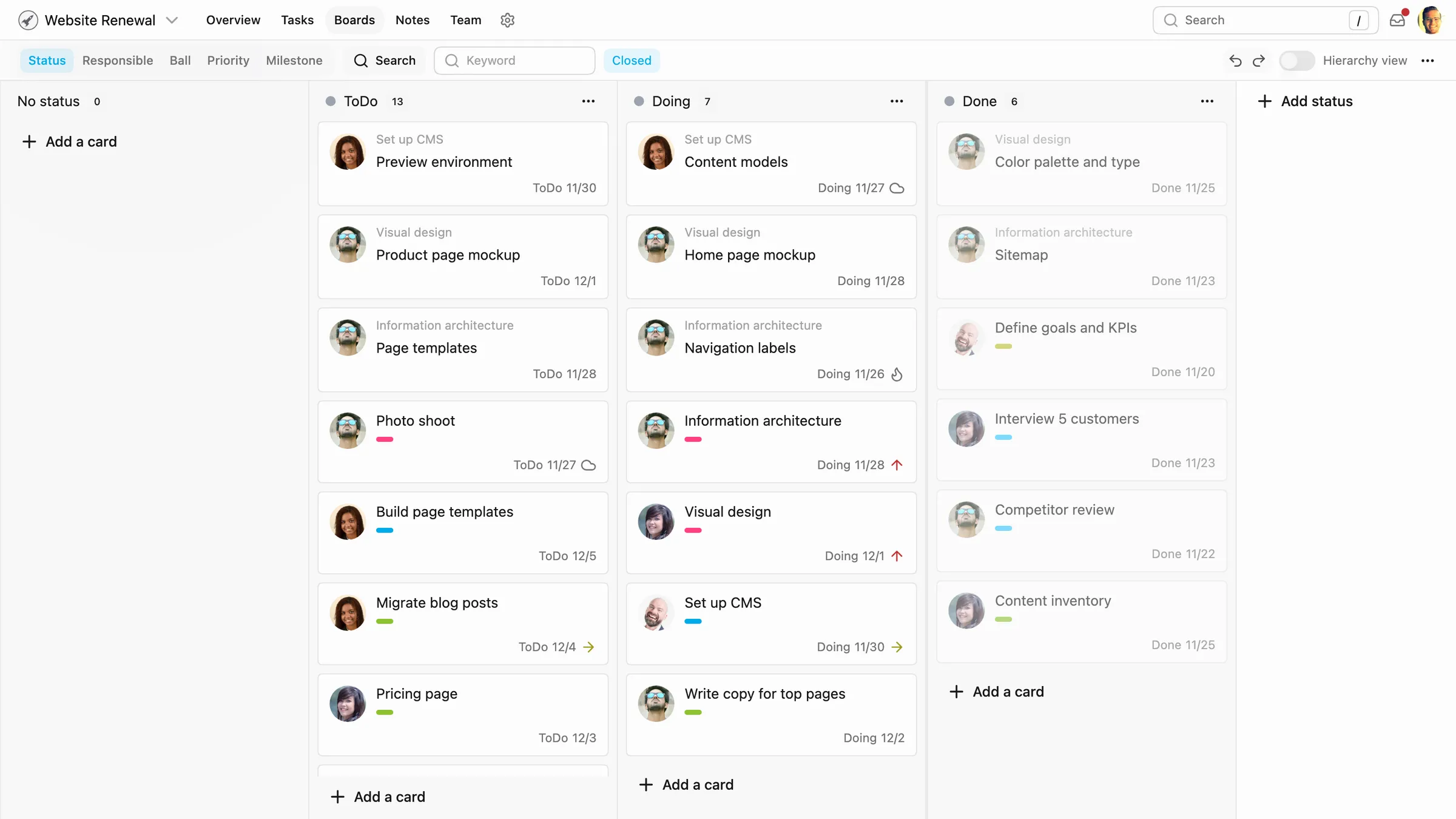
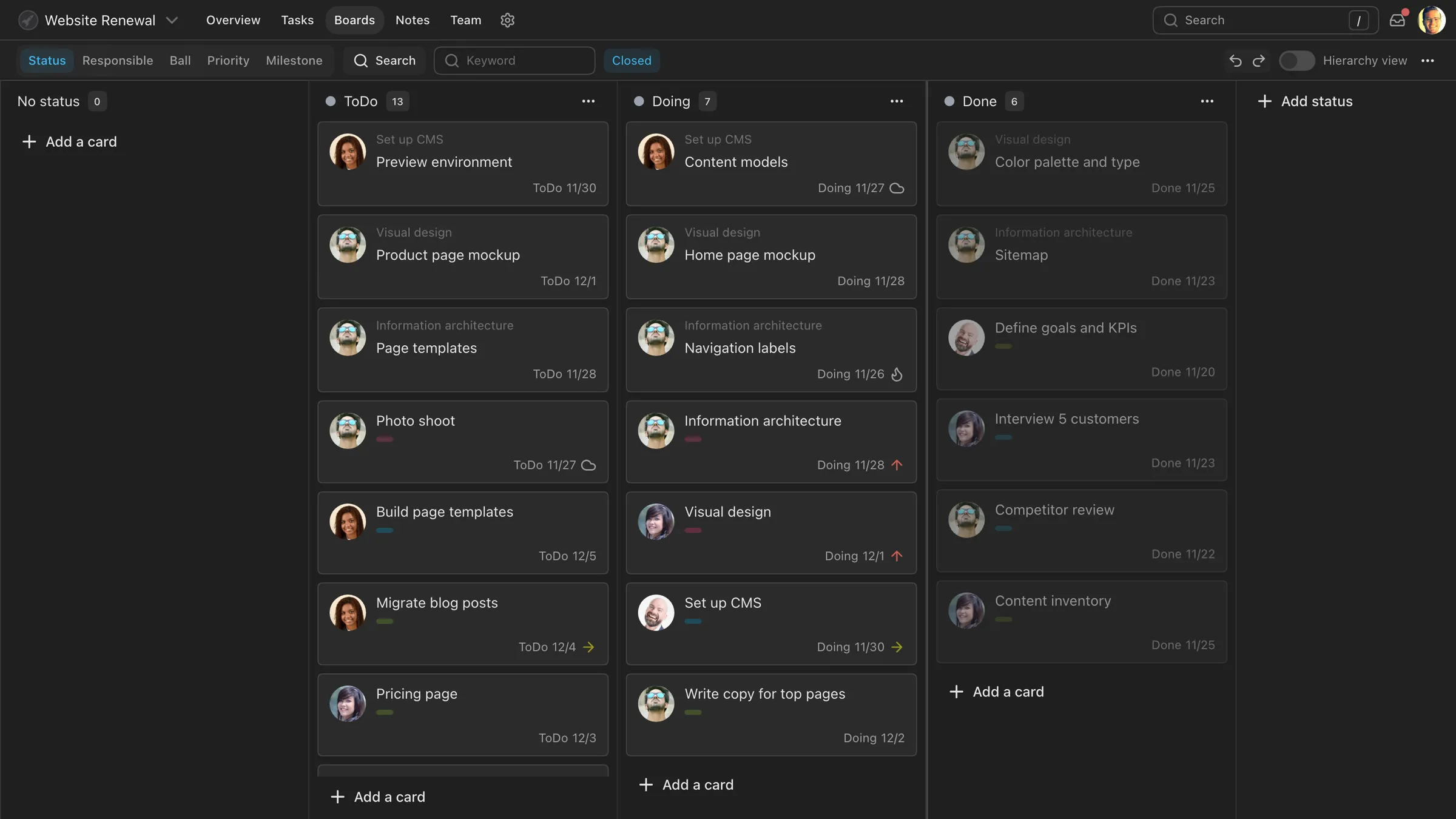
Columns are statuses and cards are tasks. Grab a card, drop it in the next column, and that task's status is updated. Drag it up or down within a column to set the order.
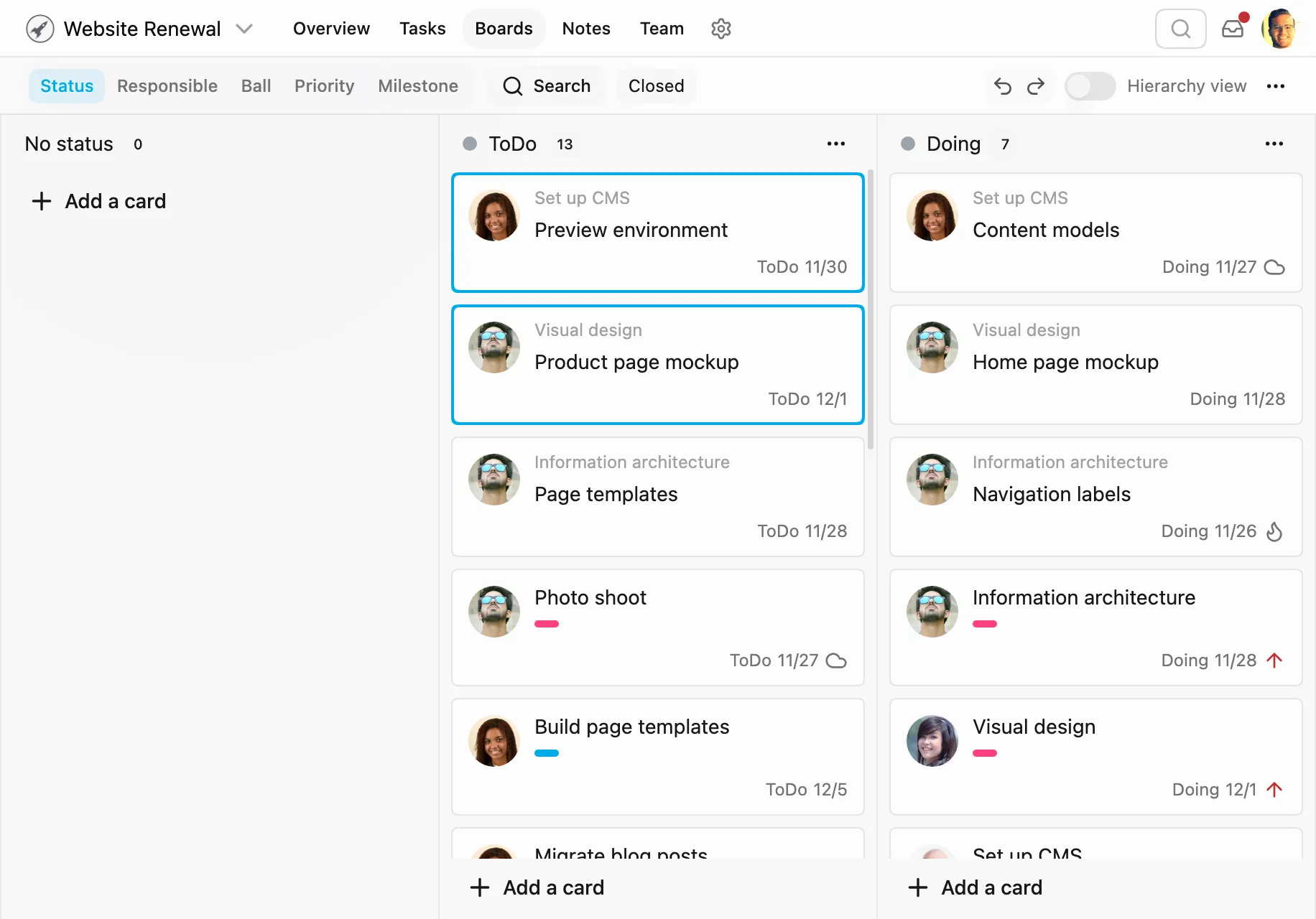
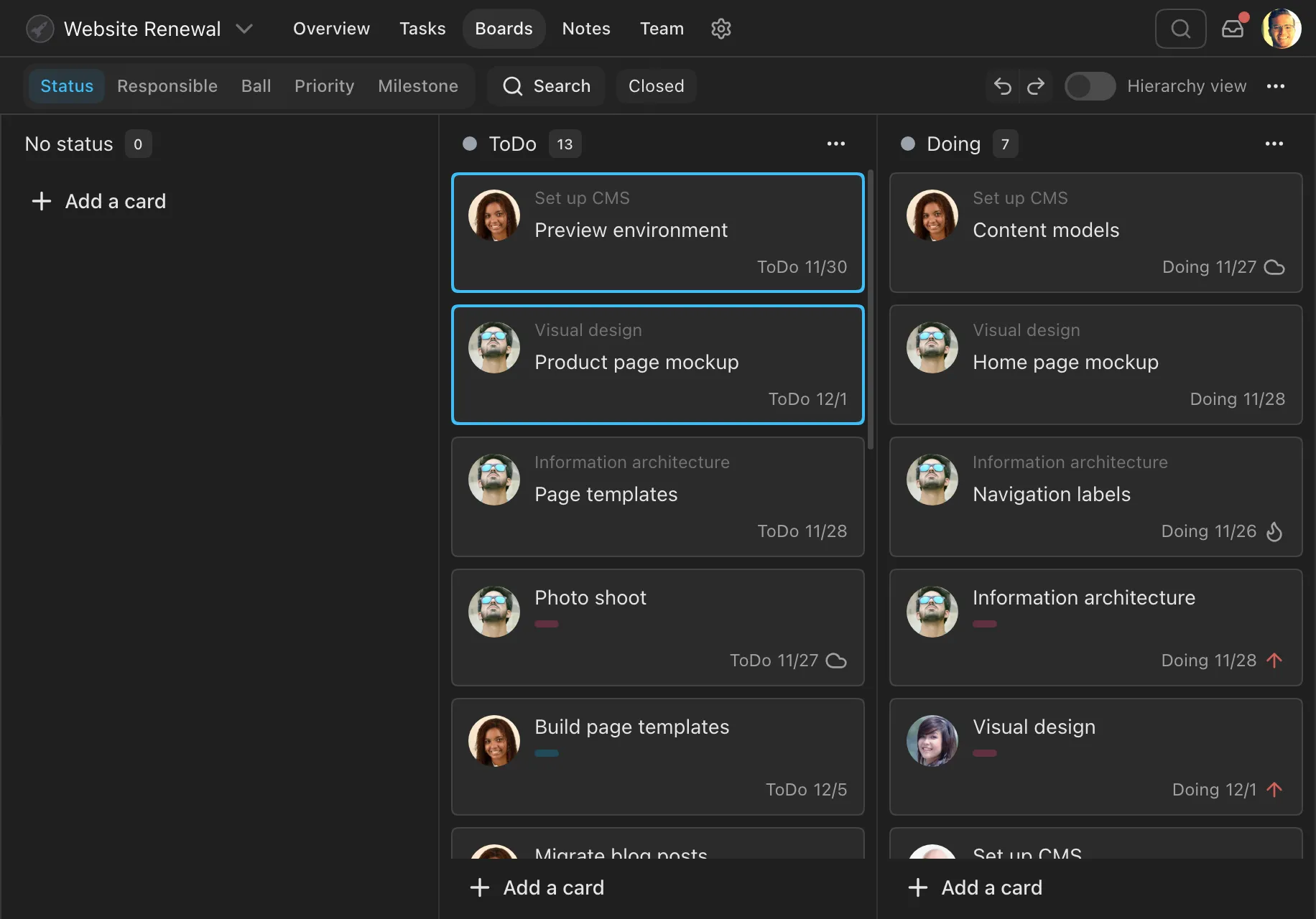
Hold Ctrl (⌘ on Mac) or Shift and click to select several cards in one column, then drag them together to another column or a new spot. If you slip, Undo and Redo take you back and forward.
To add a task, click Add a card at the bottom of a column. Type a name, press Enter, and keep going. Each one lands in that column.
Click a card to open the task
Click a card and its details open on the right of the same screen. Change the assignee (labeled Responsible in Repsona), who holds the ball (the person who acts next), the due date or the status. Talk it over in comments, then close the panel and you're back on the board.
A card is the same task as a bar on the Gantt chart and a row in the list. Change its status here and it has changed there too.
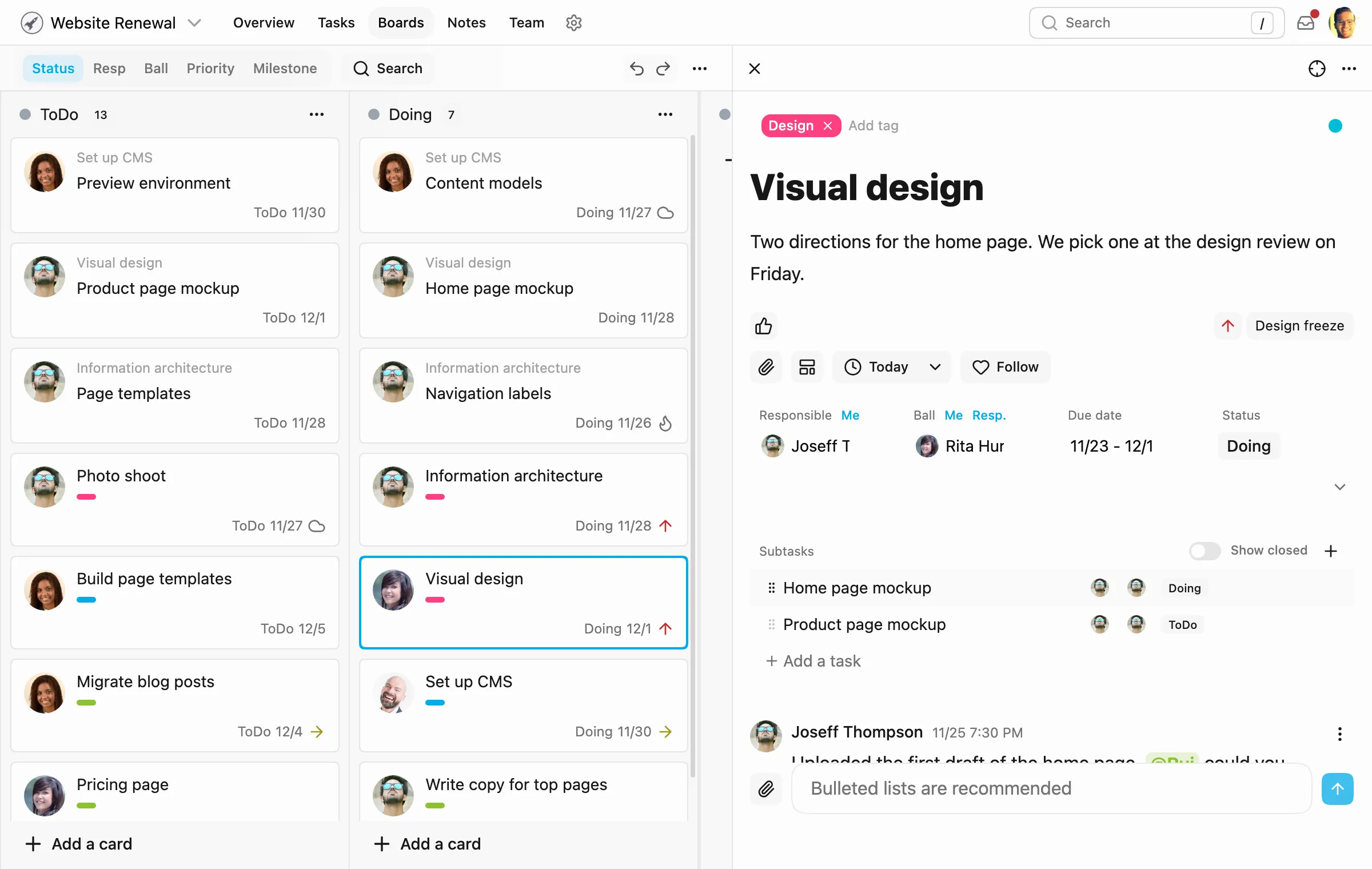
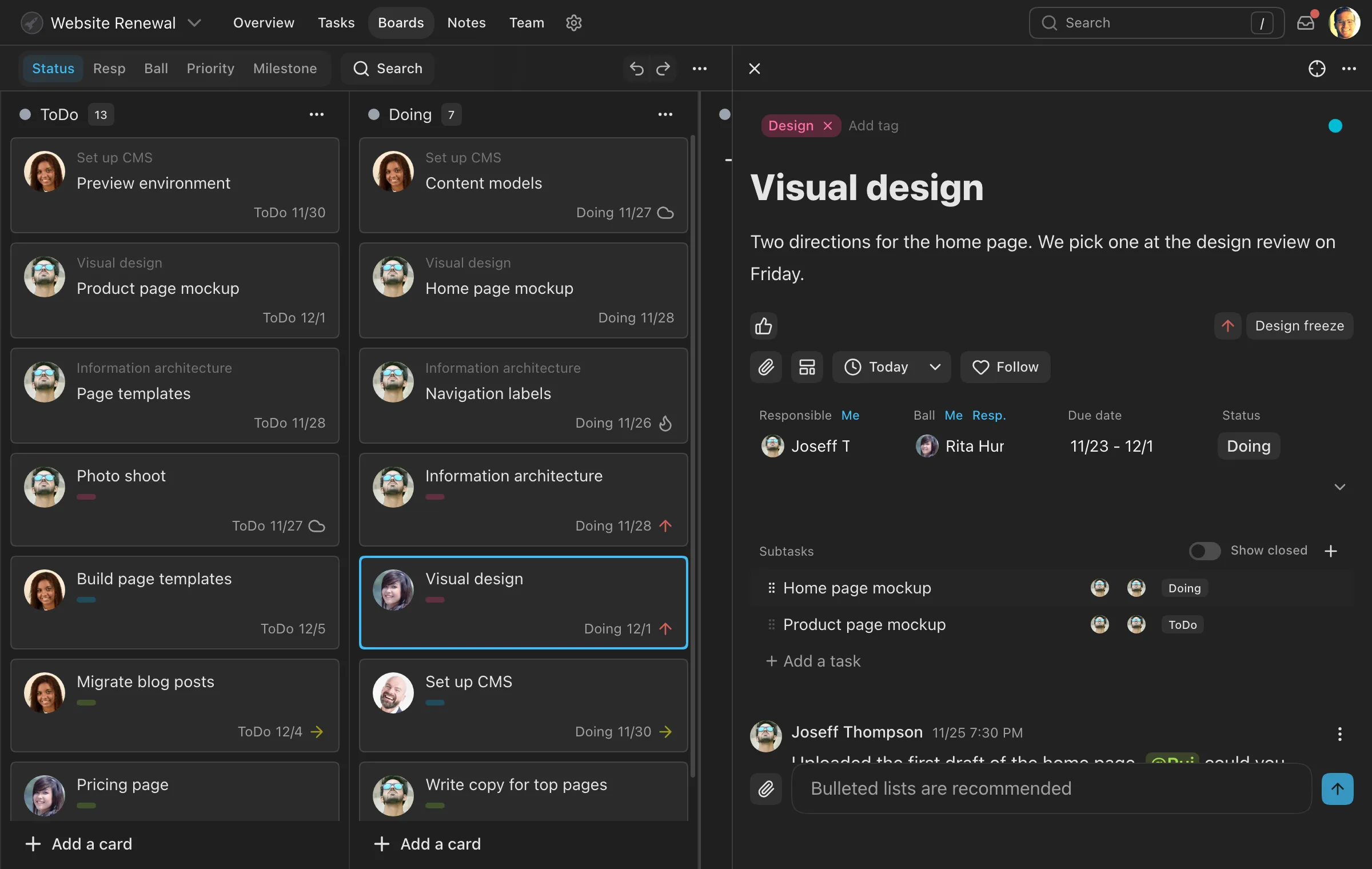
Each card shows who has it and when it's due
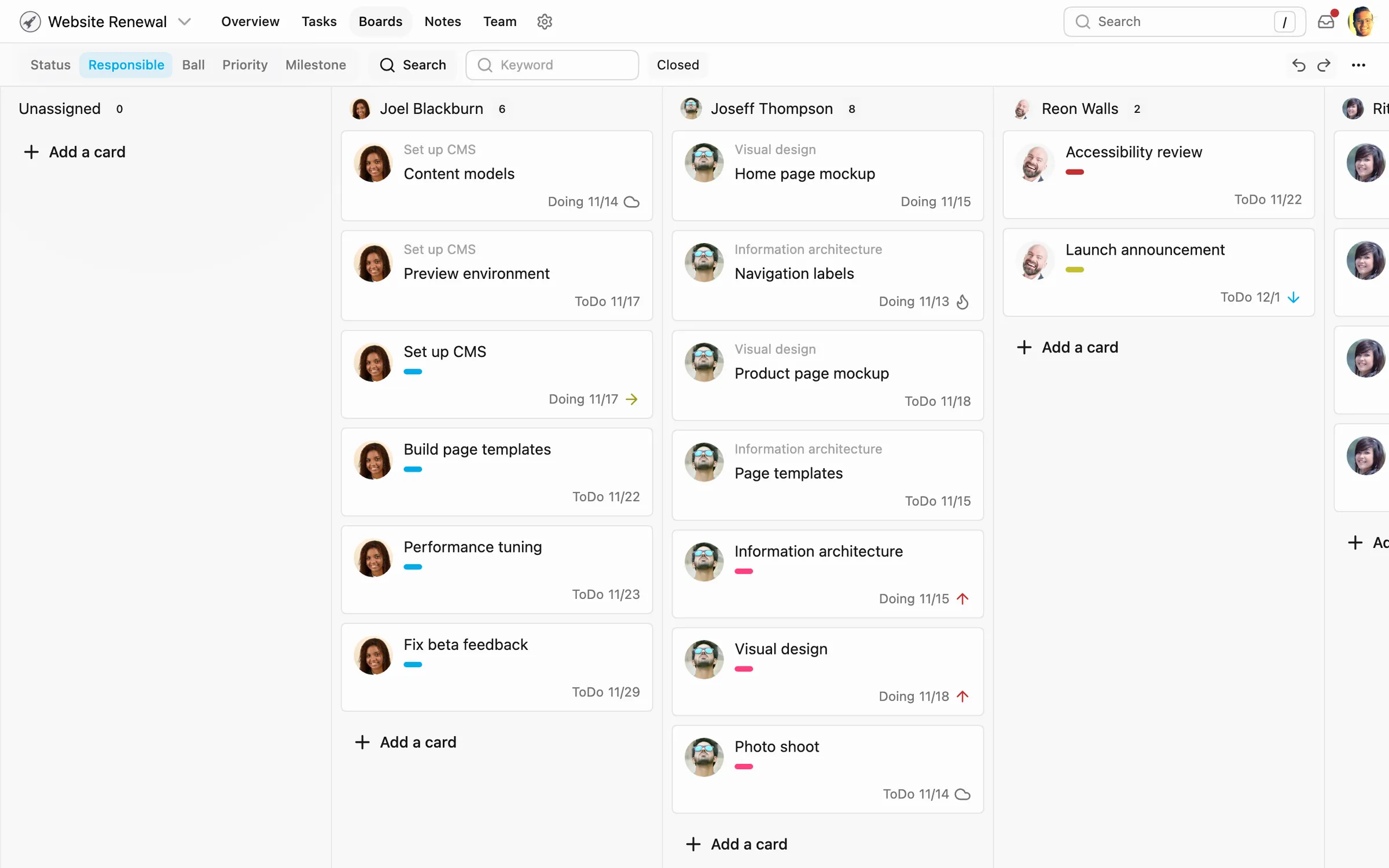
Beside the task name, a card shows the face of whoever holds the ball (or the assignee if nobody does), tag colors, the status, the due date and a priority arrow. A subtask's card also carries its parent's name.
A card due tomorrow gets a cloud, and one due today gets a flame. One to three days overdue, the flame turns red. Four or more days overdue, it becomes a skull. Closed cards get no mark.
When the board fills up, search narrows it down by keyword, assignee, ball, tag, due date, priority or milestone.
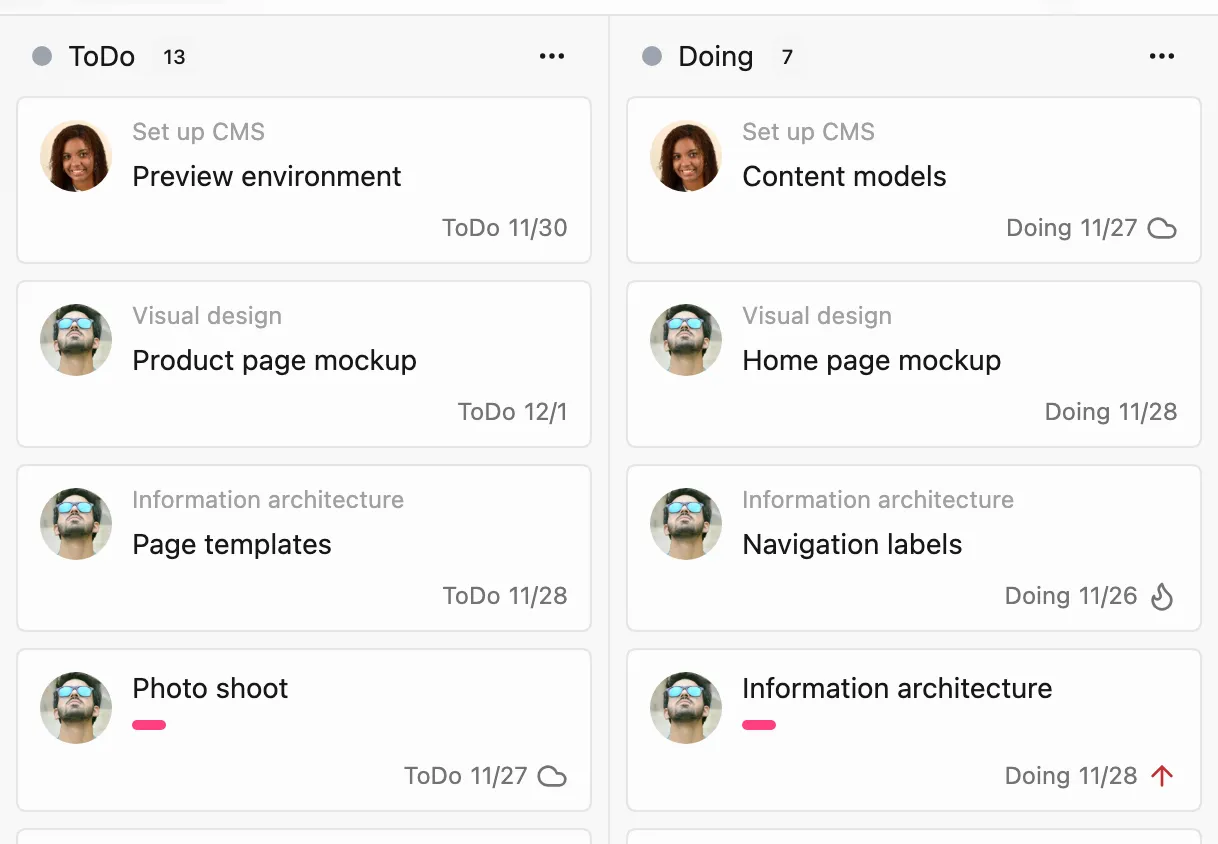
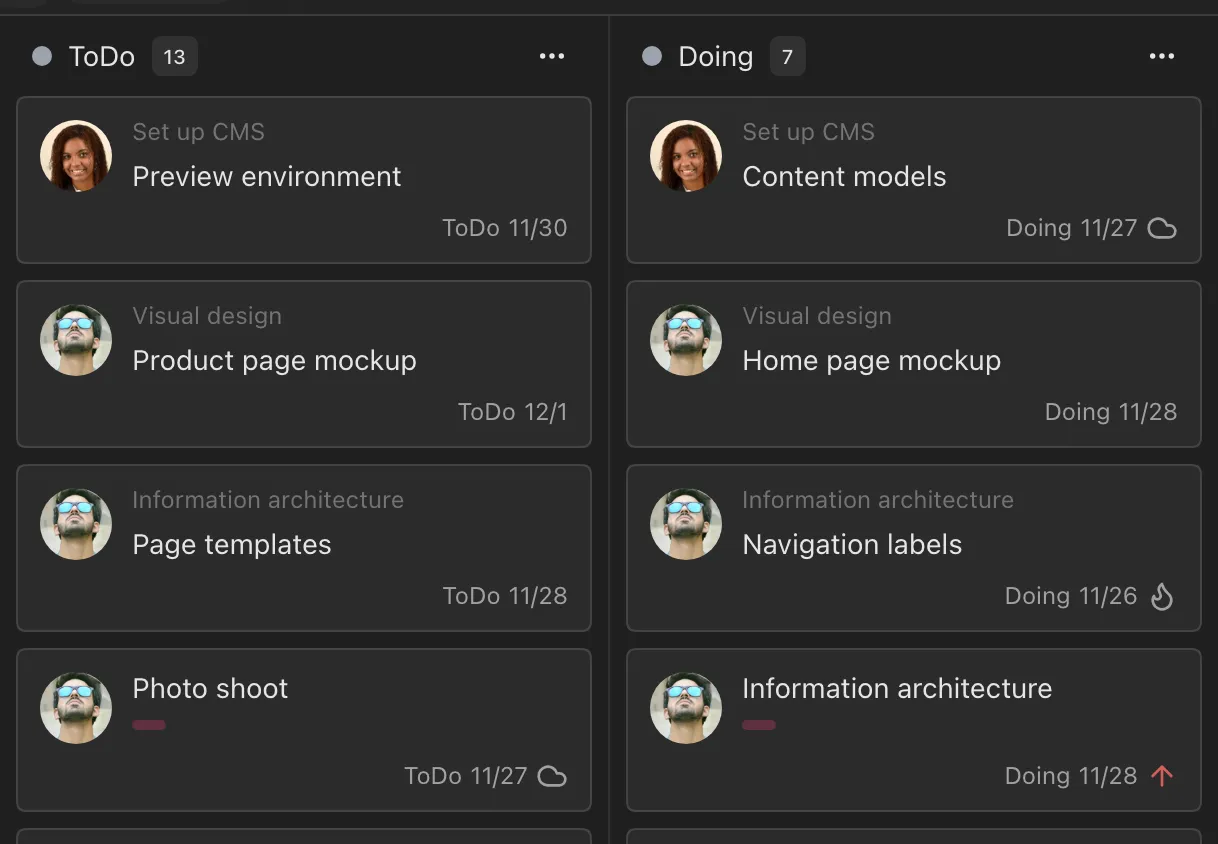
Shape the columns around how your team works
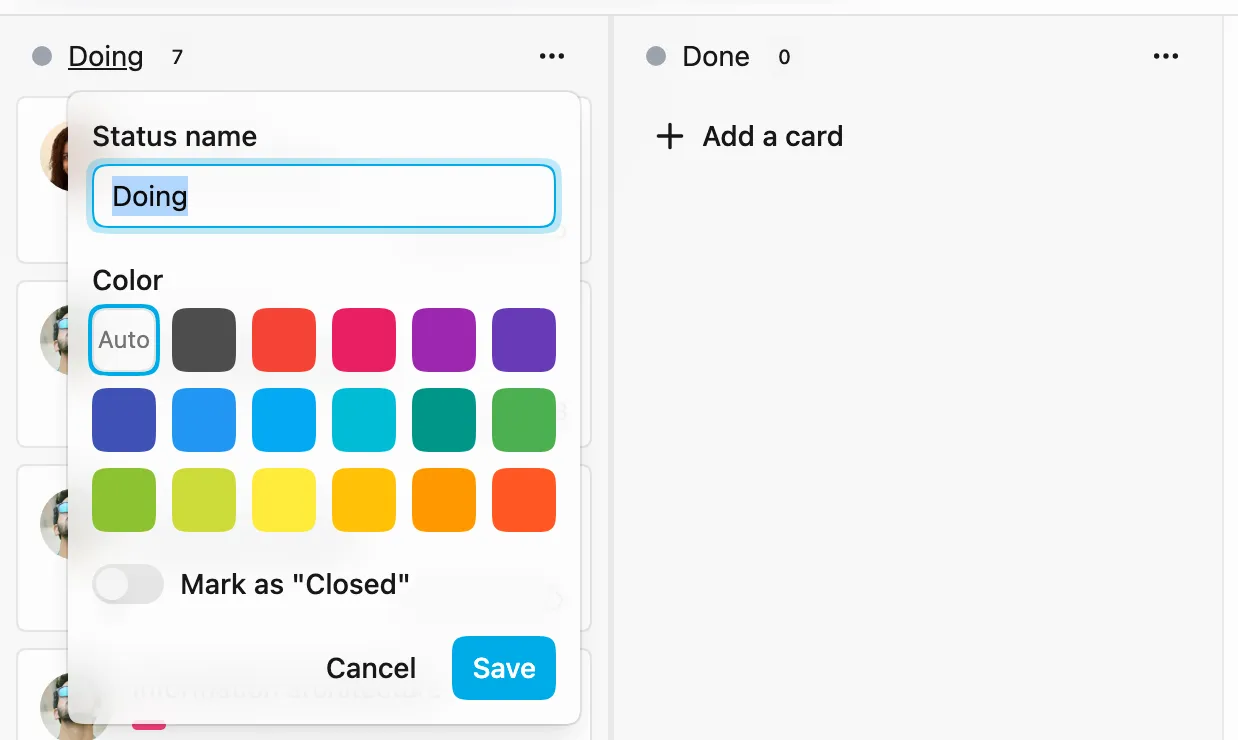
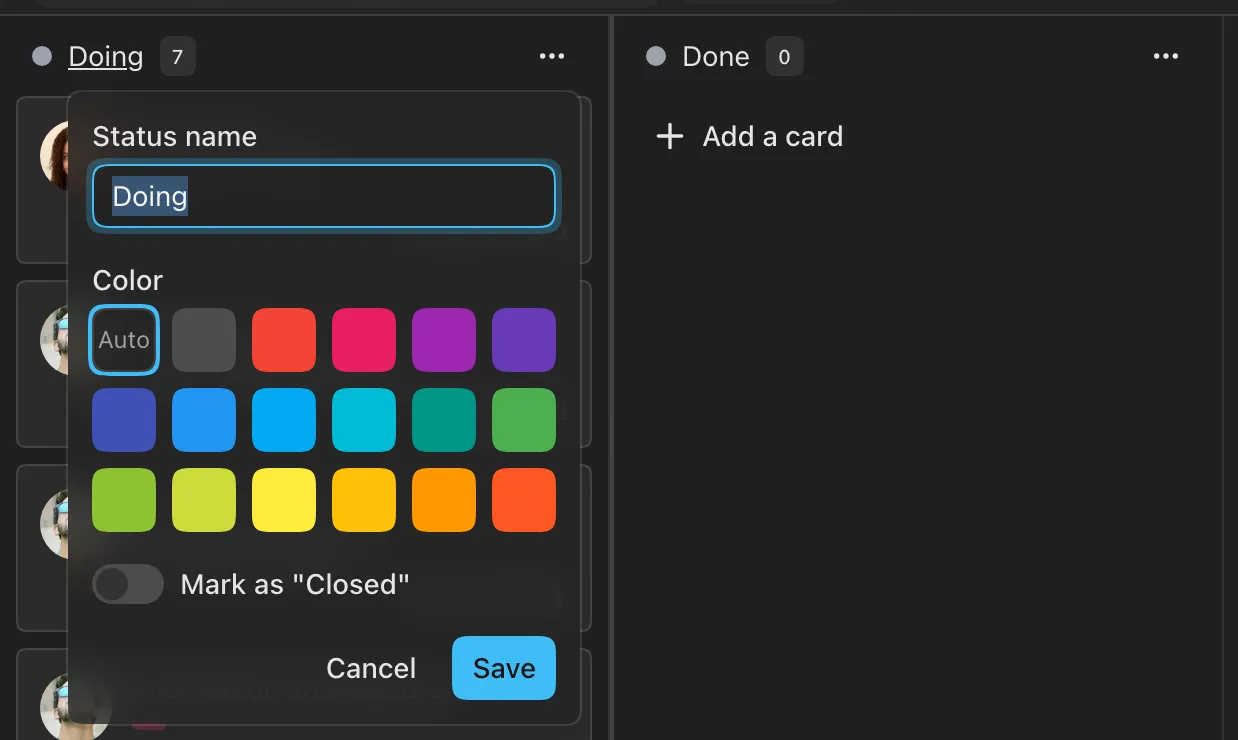
Click a column's name to rename the status or give it a color, so the board can say "In review" or "Waiting on client" in your team's own words. Drag a column by its header to reorder it.
Statuses marked as Closed sit to the right of a divider on the board. Dragging a column across the divider marks it closed as well, and dragging it back reopens it. Cards in closed columns are hidden until you turn on Closed in the toolbar or the search bar.
Keep the columns in order from just started to nearly done. The progress shown in Gantt bars and on milestones is worked out from that order.
Step into subtasks with Hierarchy view
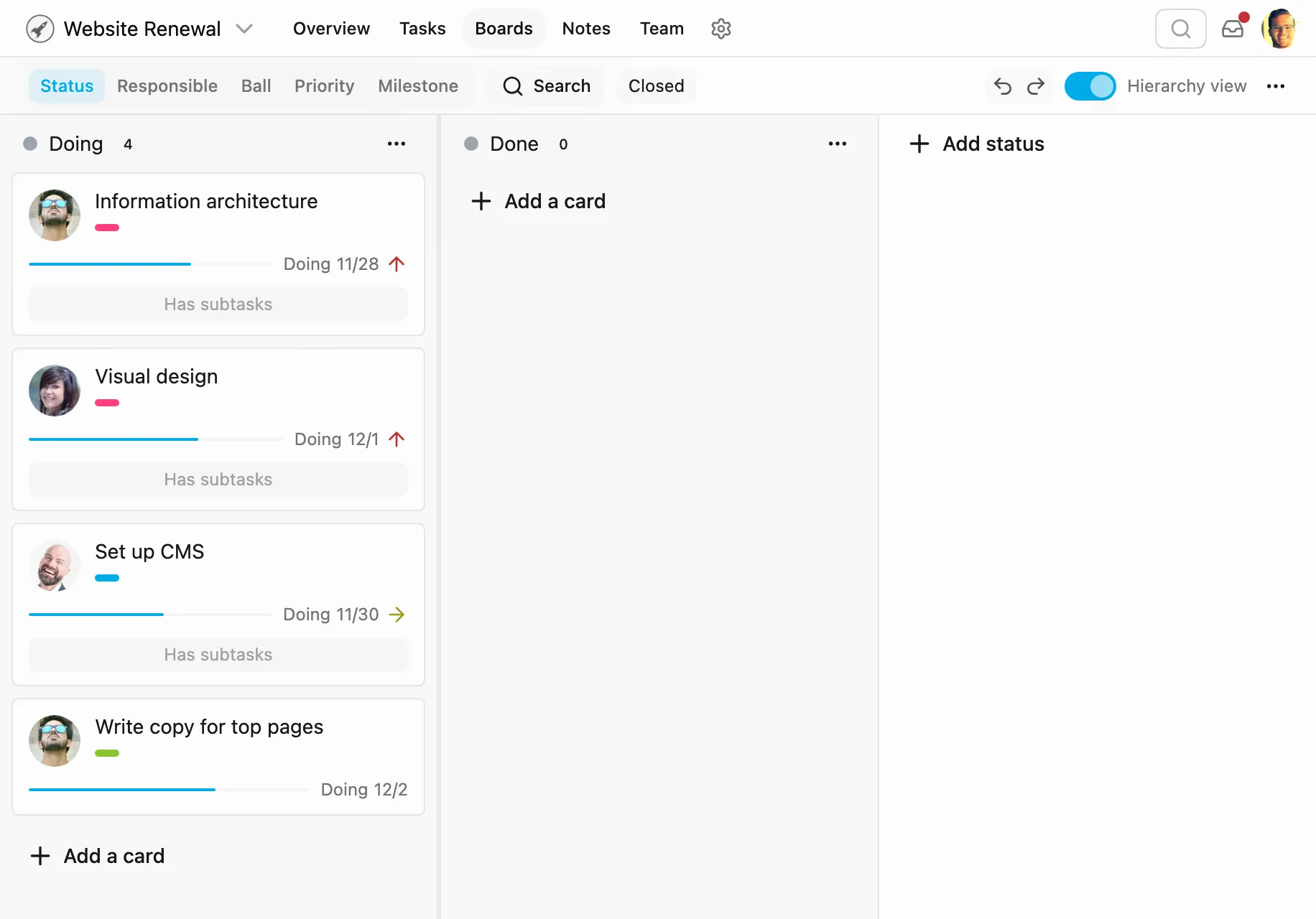
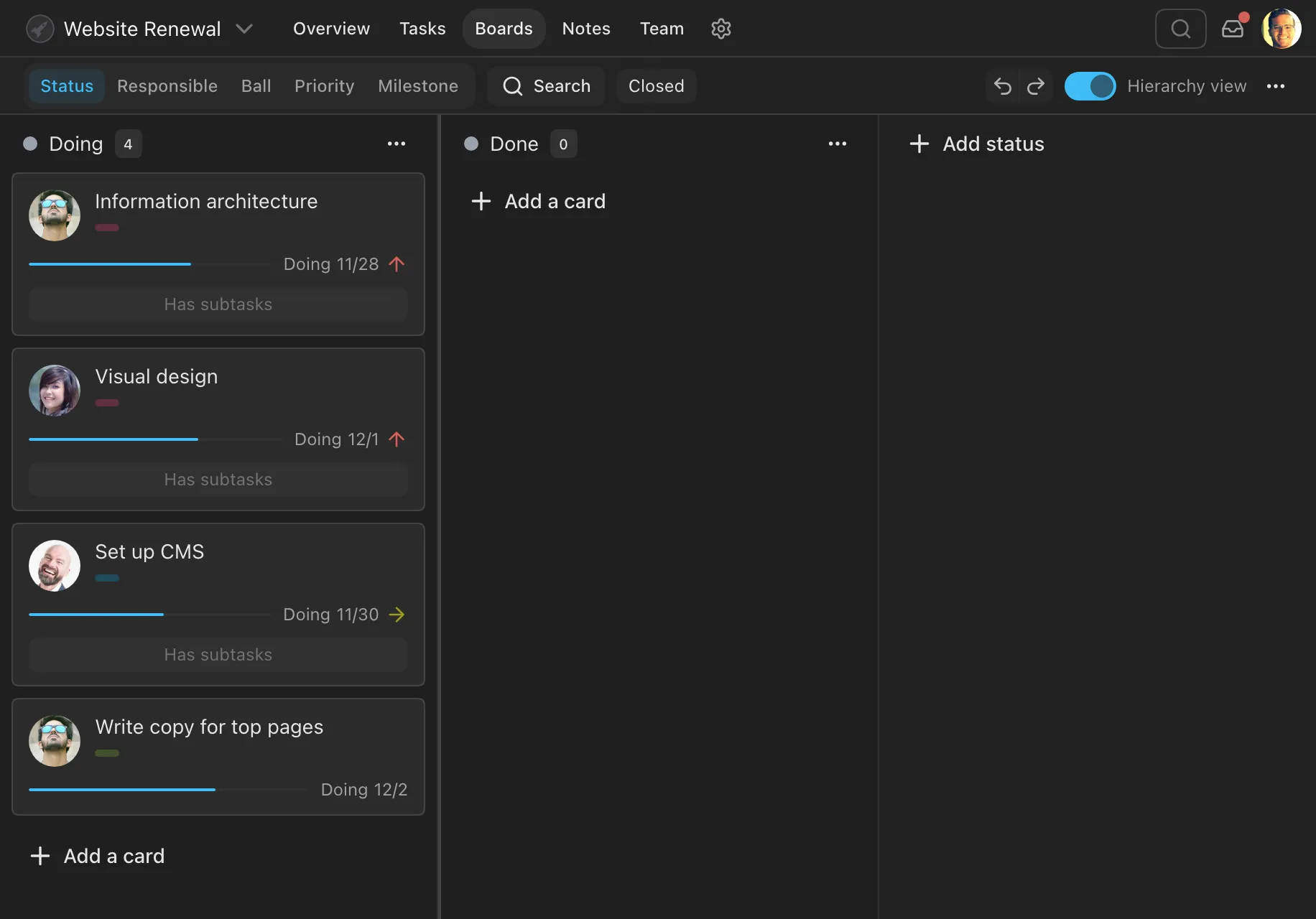
Break work into subtasks and the board fills up with cards. Turn on Hierarchy view and only top-level tasks are listed. The line on each card is its progress, subtasks included.
A card that has subtasks shows a Has subtasks button. Click it to open a board of just that task's subtasks. Cards you add there become its subtasks.
The breadcrumb at the top takes you back up.
Lay out the same cards by priority
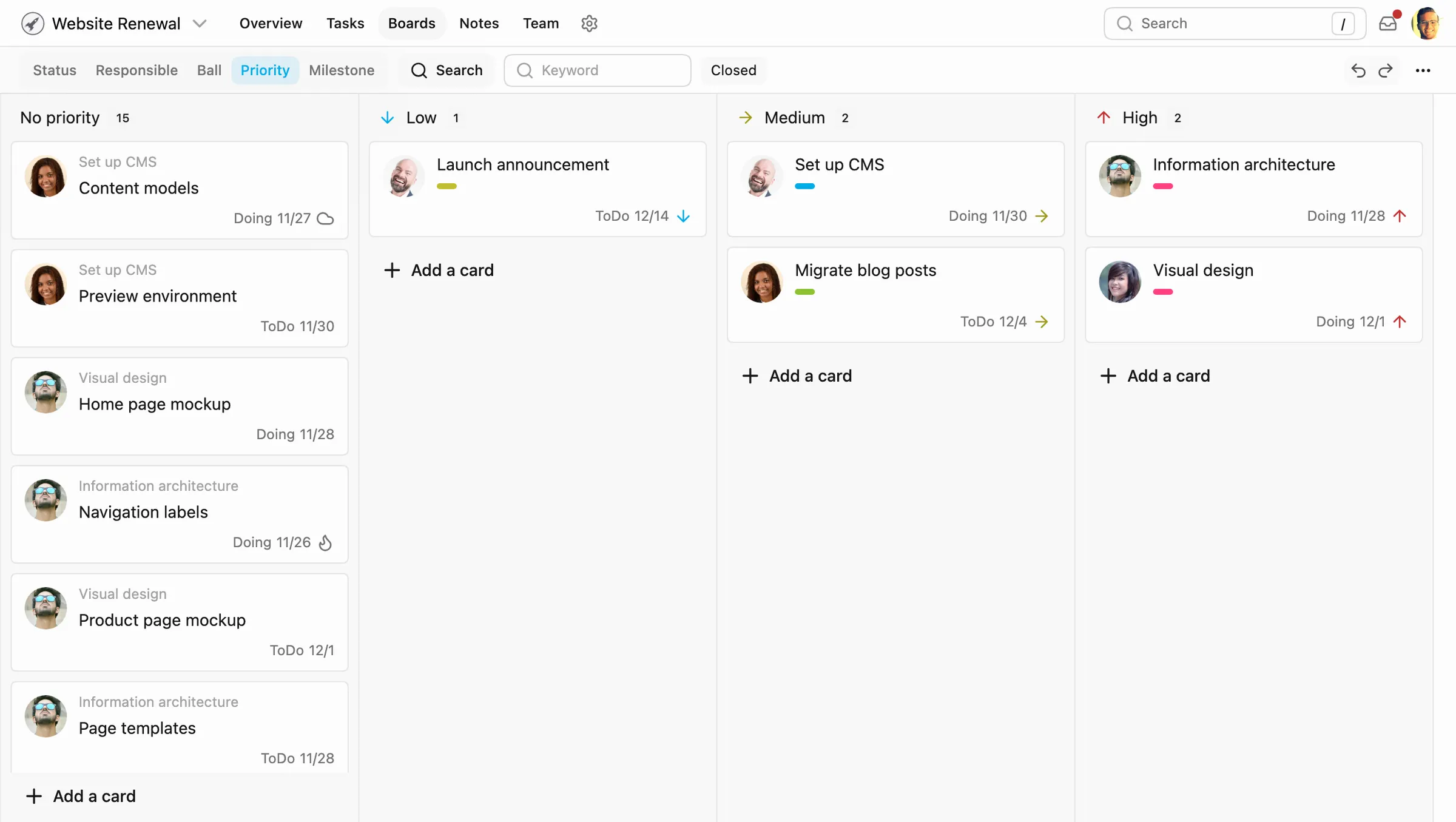
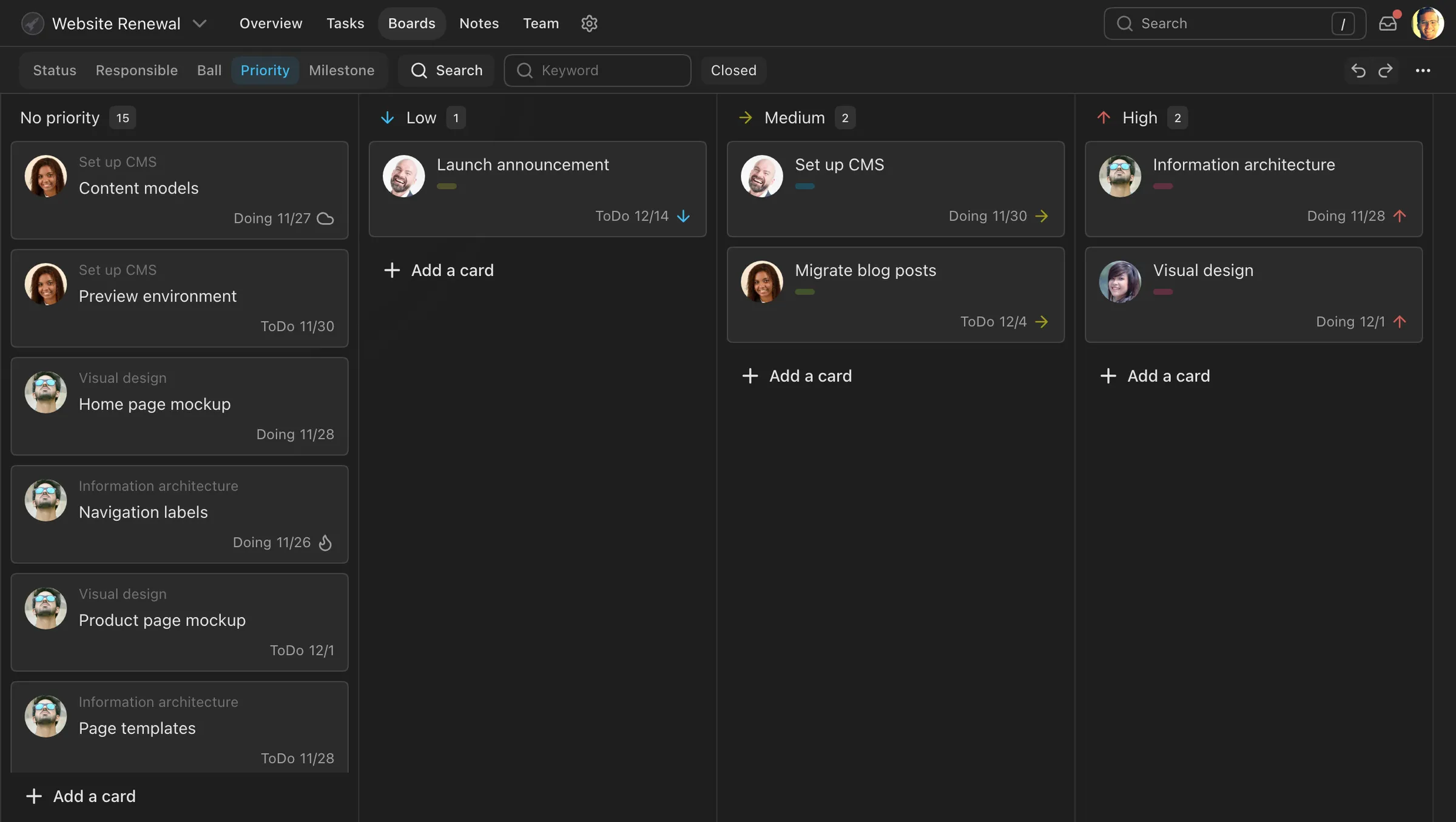
Switch the tab to Priority and the columns become No priority, Low, Medium and High. Now dragging a card changes its priority.
A card with a priority shows a colored arrow on every board. The team can look at one screen and agree on what to pick up first.
Group work by milestone
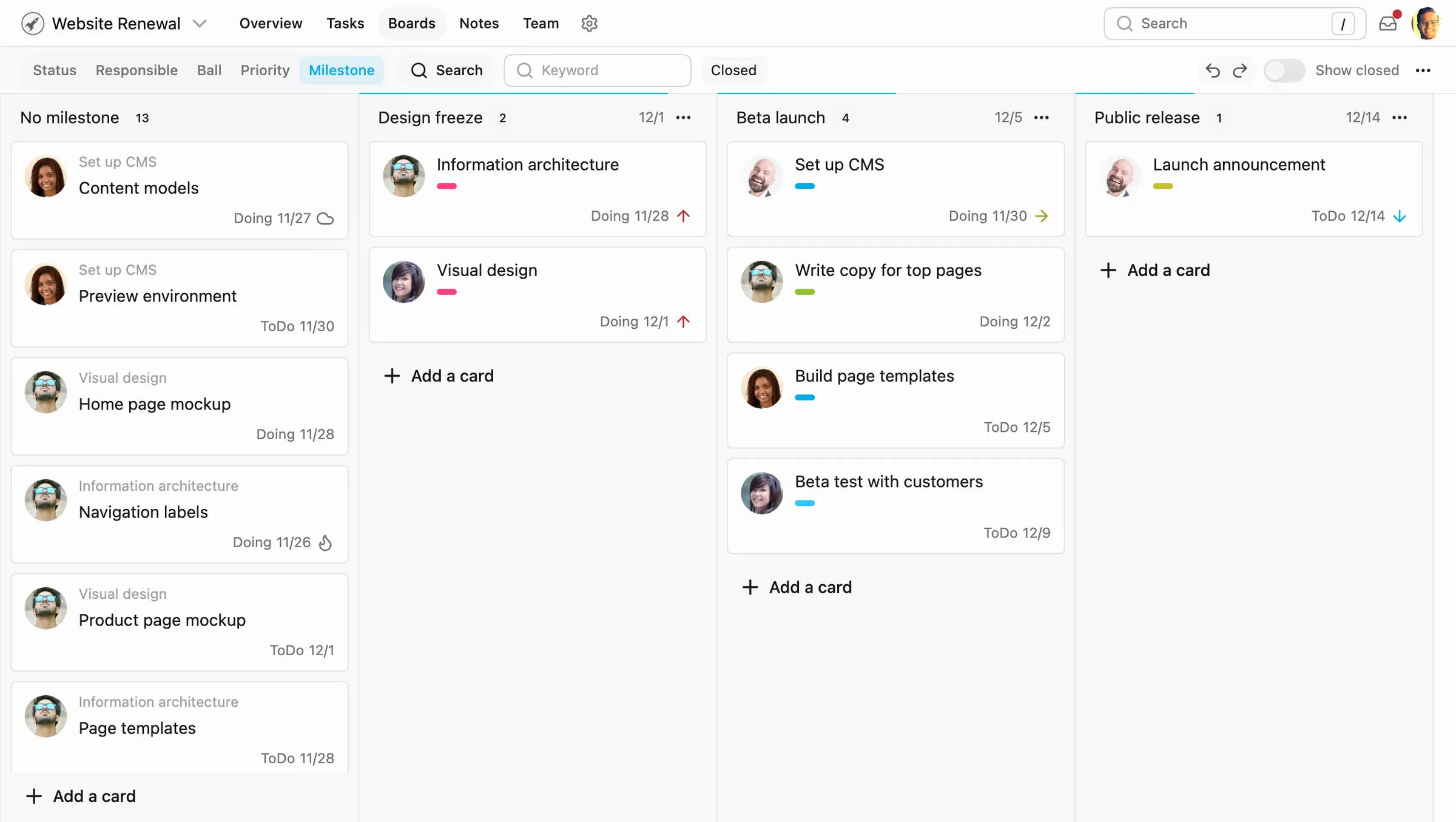
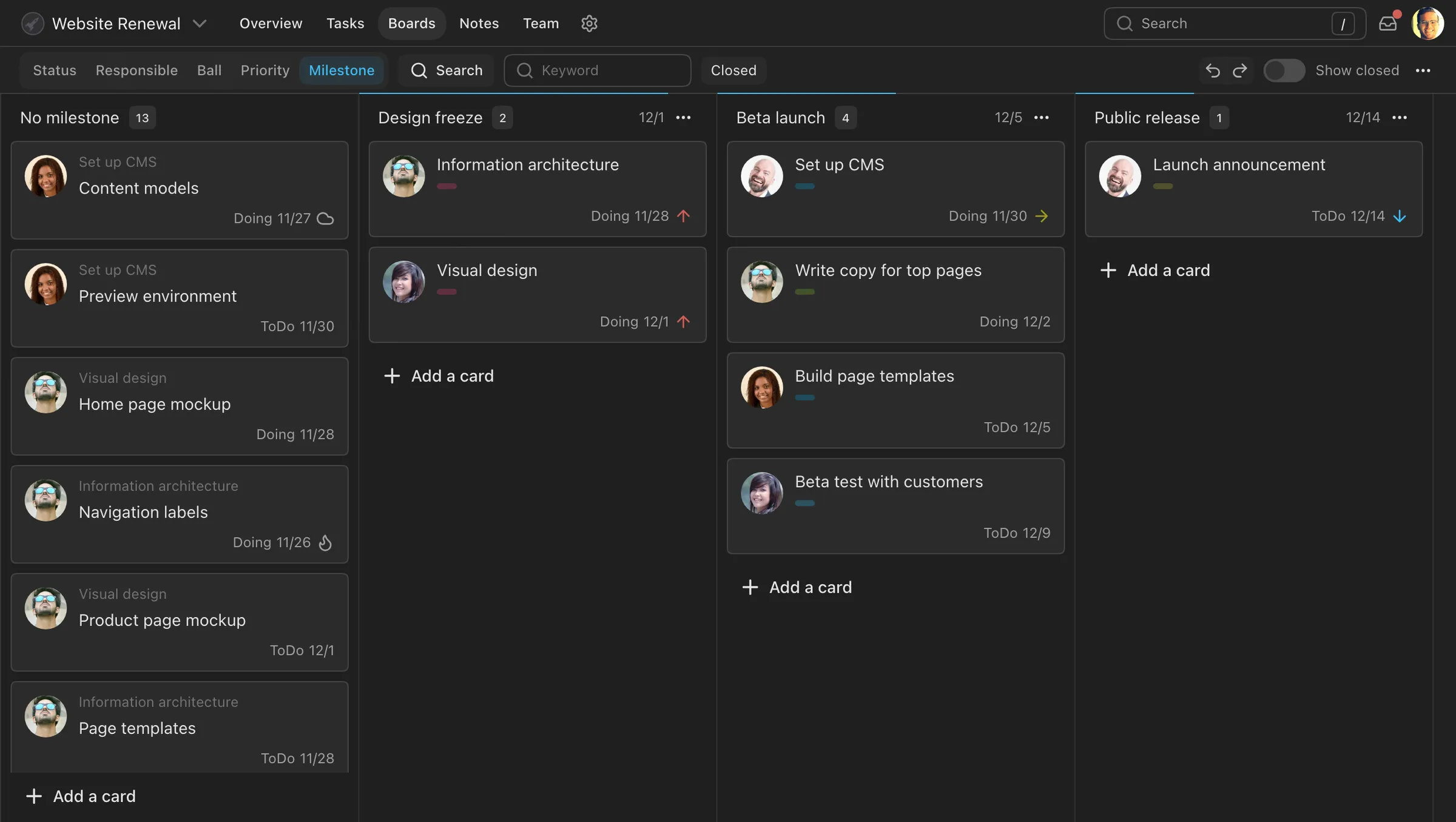
Create checkpoints such as "Design freeze" or "Beta launch" as milestones. Give each a name and a due date, and the columns line up from the earliest due date. Milestones without a due date come before them. Drag a card into a column to put that task in the milestone.
Each header shows the milestone's due date, and a progress line runs along the top of the column. It grows as the tasks inside move closer to closed.
See what's left with a burndown chart
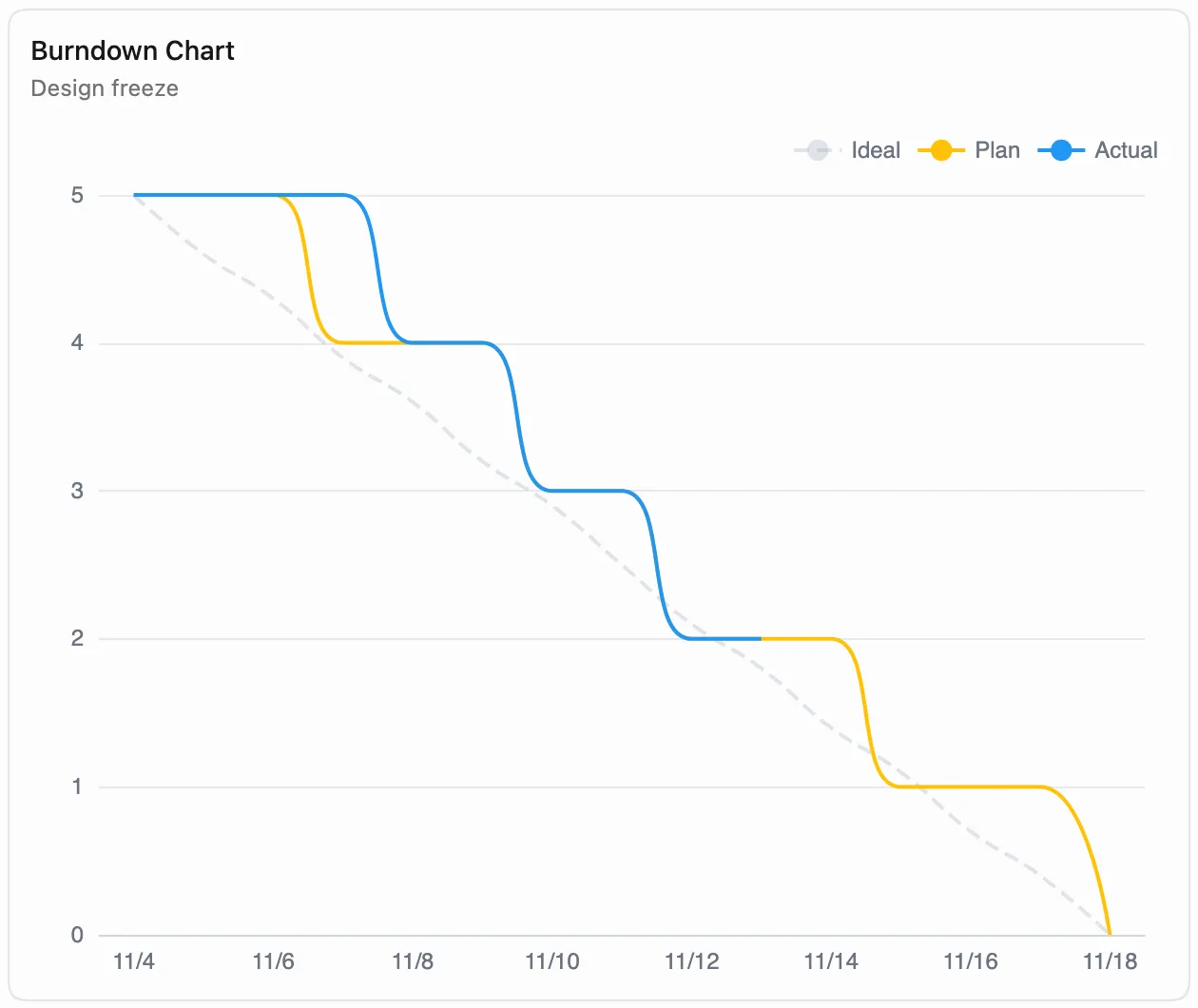
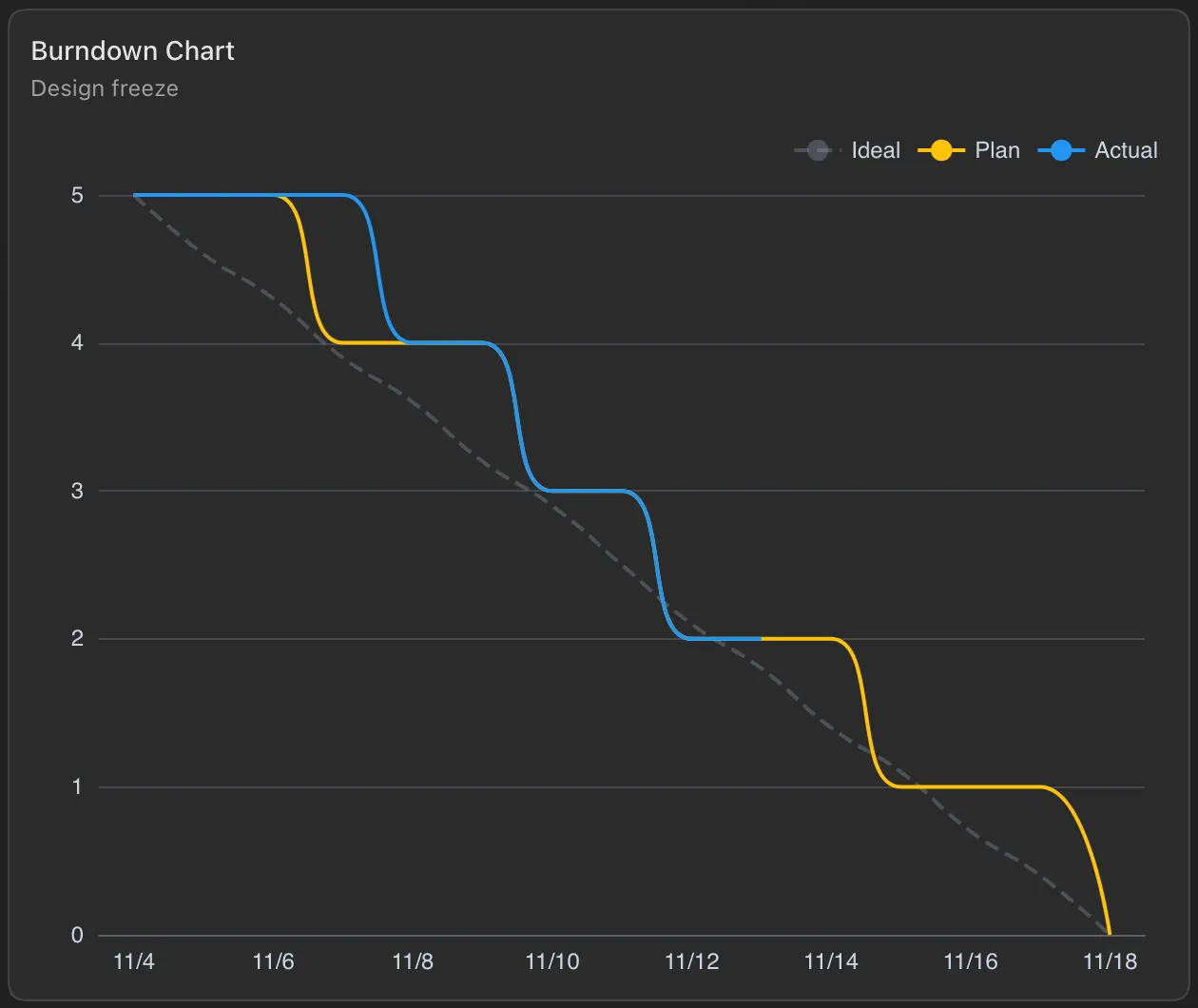
Every open milestone with a due date gets a burndown chart under Team, then Chart. It plots how the number of open tasks is planned to fall by the due date against how it is actually falling.
The same milestone also stands as a pin in the Gantt chart's date header. The checkpoints you group on the board carry straight through to the charts and the plan.
Carry unfinished tasks forward to the next milestone
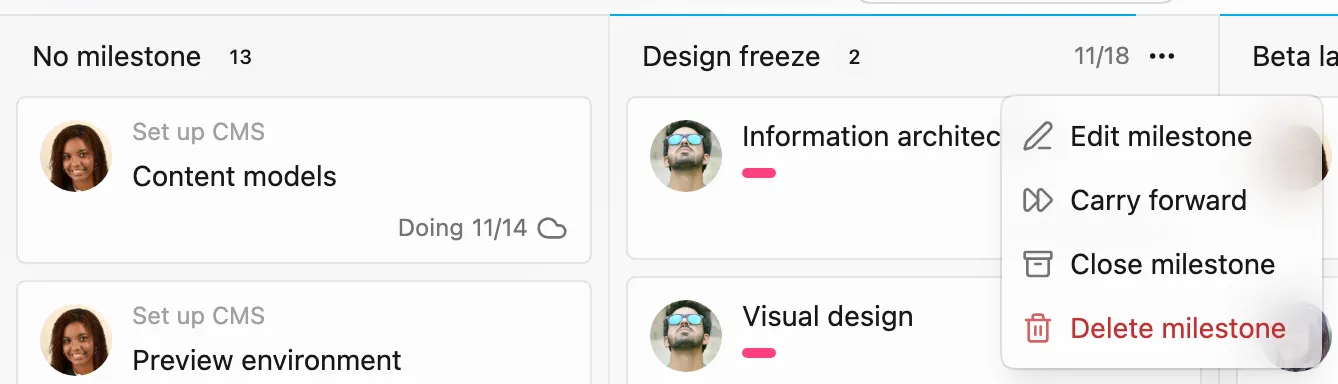
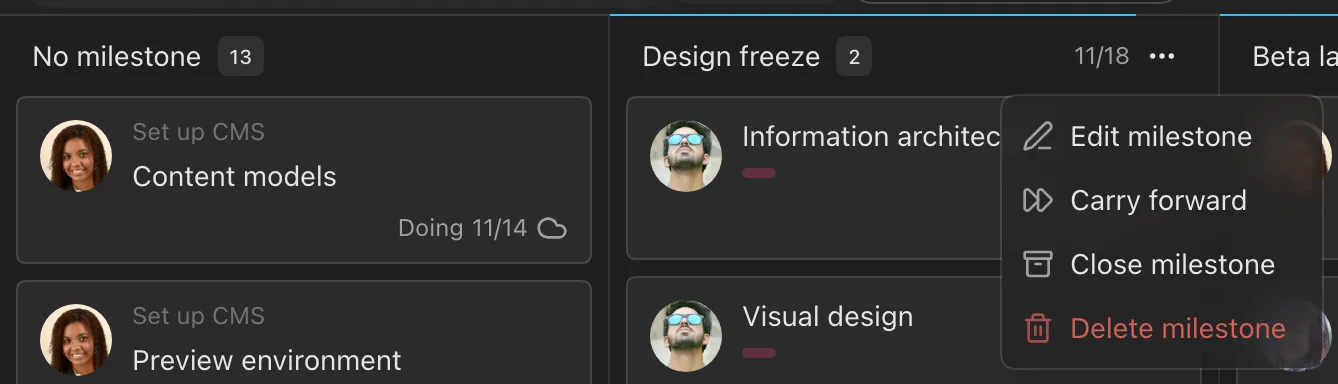
A milestone passes and some tasks are still open. Choose Carry forward from the milestone's menu and only the open tasks move to the next milestone, all at once.
Close a finished milestone to clear it off the board. Turn on Show closed to look back at closed milestones, and reopen one if you need to.
For a board by person, switch to Responsible or Ball
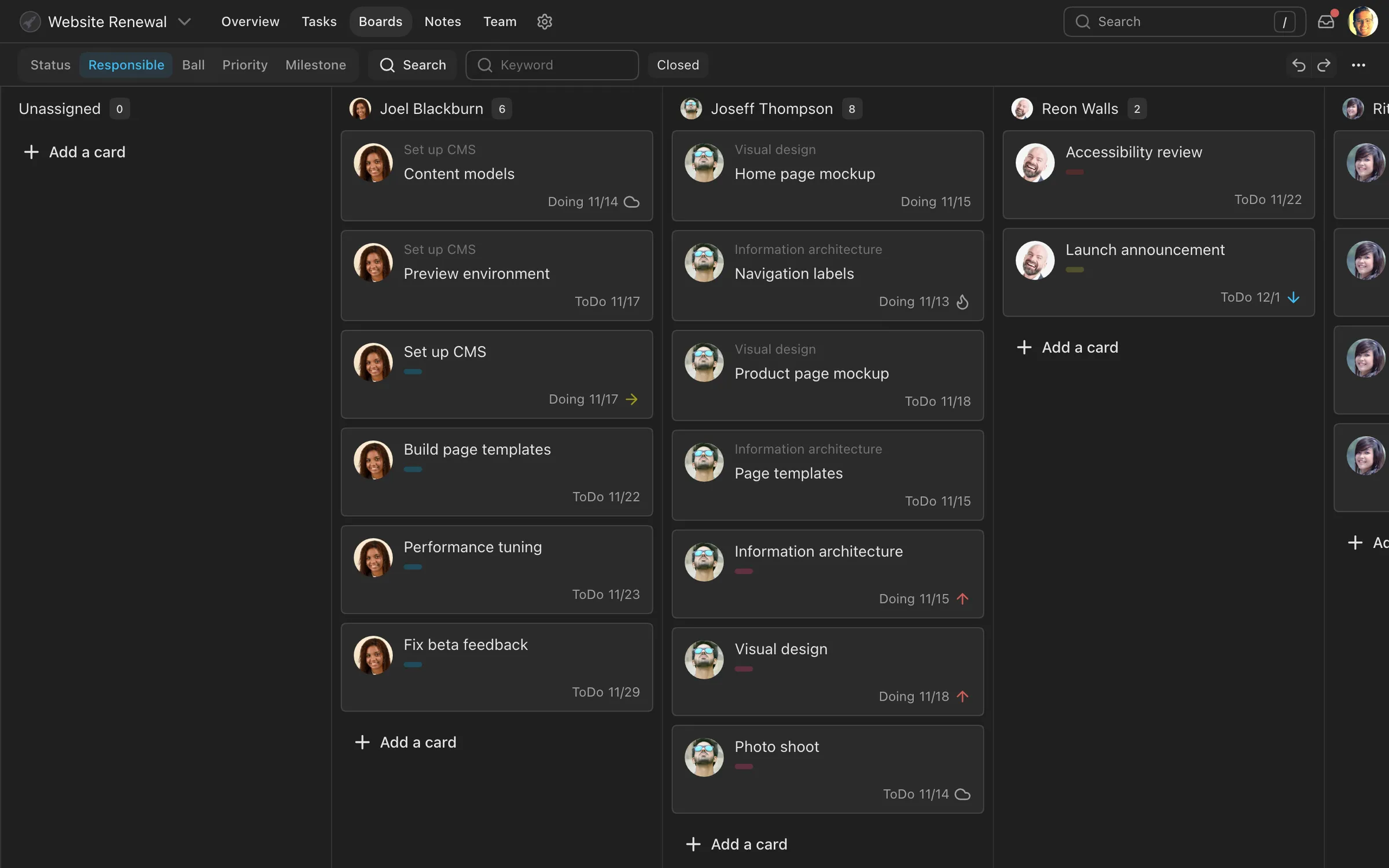
The same cards can also be laid out by assignee, or by who holds the ball. The length of each column shows who has the most on their plate and where work is waiting on someone.
There is more on the assignee and ball boards page.
What the Kanban board can do
| Area | What you can do |
|---|---|
| Moving cards | Drag between columns to change status, priority, milestone, assignee or ball holder. Reorder within a column, select several cards in one column and move them together, Undo and Redo |
| Adding cards | Add a card at the bottom of a column or between two cards (with a mouse), keep typing to add several in a row, or create one with full details |
| On each card | Who holds the ball (or the assignee), parent task name, tags, status, due date with a due mark, priority. In cross-project views, the project name |
| Status columns | Any project member can rename, recolor, mark as closed and reorder. Owners and admins add and delete statuses. Tasks in a deleted status go to No status |
| Closed | Columns to the right of the divider are closed. Closed cards are hidden by default on every board and show when you turn on Closed. Move a task that still has open subtasks into a closed column and you choose whether the subtasks get the same status |
| Hierarchy view | On the Status board, list only top-level tasks and step into their subtasks |
| Priority | Four columns: No priority, Low, Medium, High |
| Milestones | Name and an optional due date, columns in due date order, progress line, carry forward, close and reopen, delete |
| Filtering | Keyword, status, milestone, priority, assignee, ball, tag, due date |
| Board types | Status, Responsible, Ball, Priority, Milestone |
| Public projects | When a project is made public, people who aren't logged in can view its Status board |
| Not included | WIP limits on columns, swimlanes |
| Cross-project | All five boards can show the tasks of every project you belong to. Statuses with the same name share one column, and milestone columns carry their project's name. Adding cards, adding or editing columns and Hierarchy view stay on each project's own board |
| Plans | Every plan. Cross-project views are on the Standard plan |
Step-by-step instructions are in the help articles Manage statuses with the Kanban board, the Priority board and Milestones. Boards that span several projects are covered on the cross-project page. Member and project limits for each plan are on the pricing page, and the rest of Repsona is on the features page.
FAQ
- Is the Kanban board free?
- Yes. The Status, Priority and Milestone boards work in full on the Free plan. Cross-project views, which put the tasks of every project you belong to on one board, are on the Standard plan. Member and project limits are on the pricing page.
- Can I customize the columns?
- Yes. Each column is a status. Owners and admins add and delete statuses. Any project member can rename a status, pick its color, mark it as closed and reorder the columns, all on the board itself.
- Does it have WIP limits?
- No. You can't set a maximum number of cards for a column. Each column header shows its card count, so you can still see when too much is in progress.
- Does it have swimlanes?
- No. The board has columns only. To slice the same cards another way, switch the board to Responsible, Ball, Priority or Milestone, or filter it with search.
- How do subtasks show up on the board?
- Parent tasks and subtasks each get their own card, and a subtask's card shows its parent's name. Turn on Hierarchy view to list only top-level tasks and step into a card's subtasks from there.
- Where do finished cards go?
- They stay in the project. Cards in a closed status are hidden by default, and the Closed toggle in the toolbar or the search bar brings them back onto the board. A card you have just dropped into a closed column stays where you put it.
- Can I use the Kanban board together with a Gantt chart?
- Yes. A card on the board and a bar on the Gantt chart are the same task. Change the status on the board and the progress inside the Gantt bar follows. Milestones with a due date also appear in the Gantt chart's date header.
- Is there a mobile app?
- Yes. The iOS and Android apps open the same boards as the web version.