
Write the work down. The list becomes the plan.
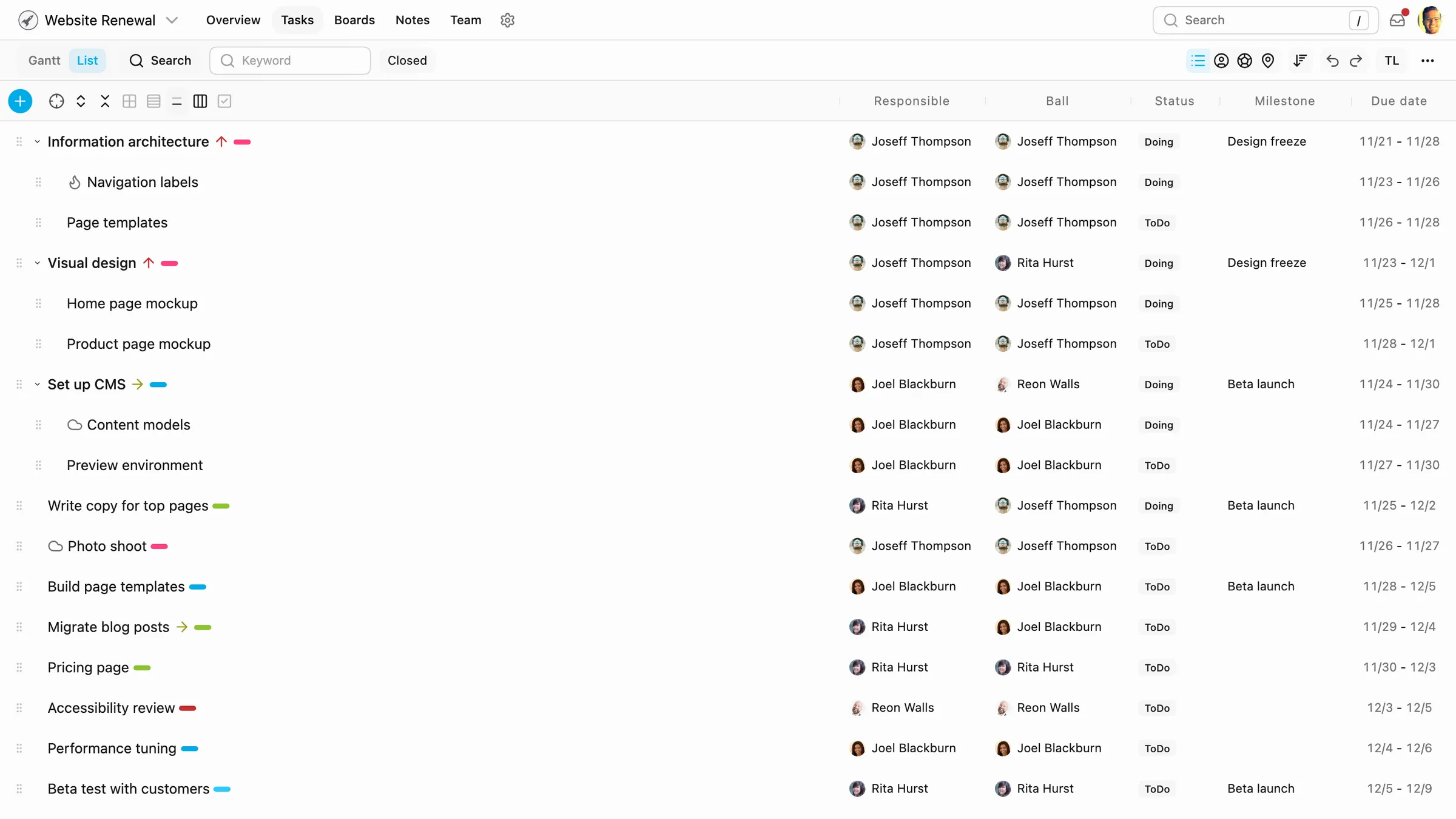
The same tasks as your Gantt chart, in a list with assignee, ball, status, milestone and due date. Press Enter to keep adding tasks, drag them under each other to break the work down, and click any task to open its details and comments beside the list. Included in the Free plan.
The same tasks as the Gantt chart, as a list
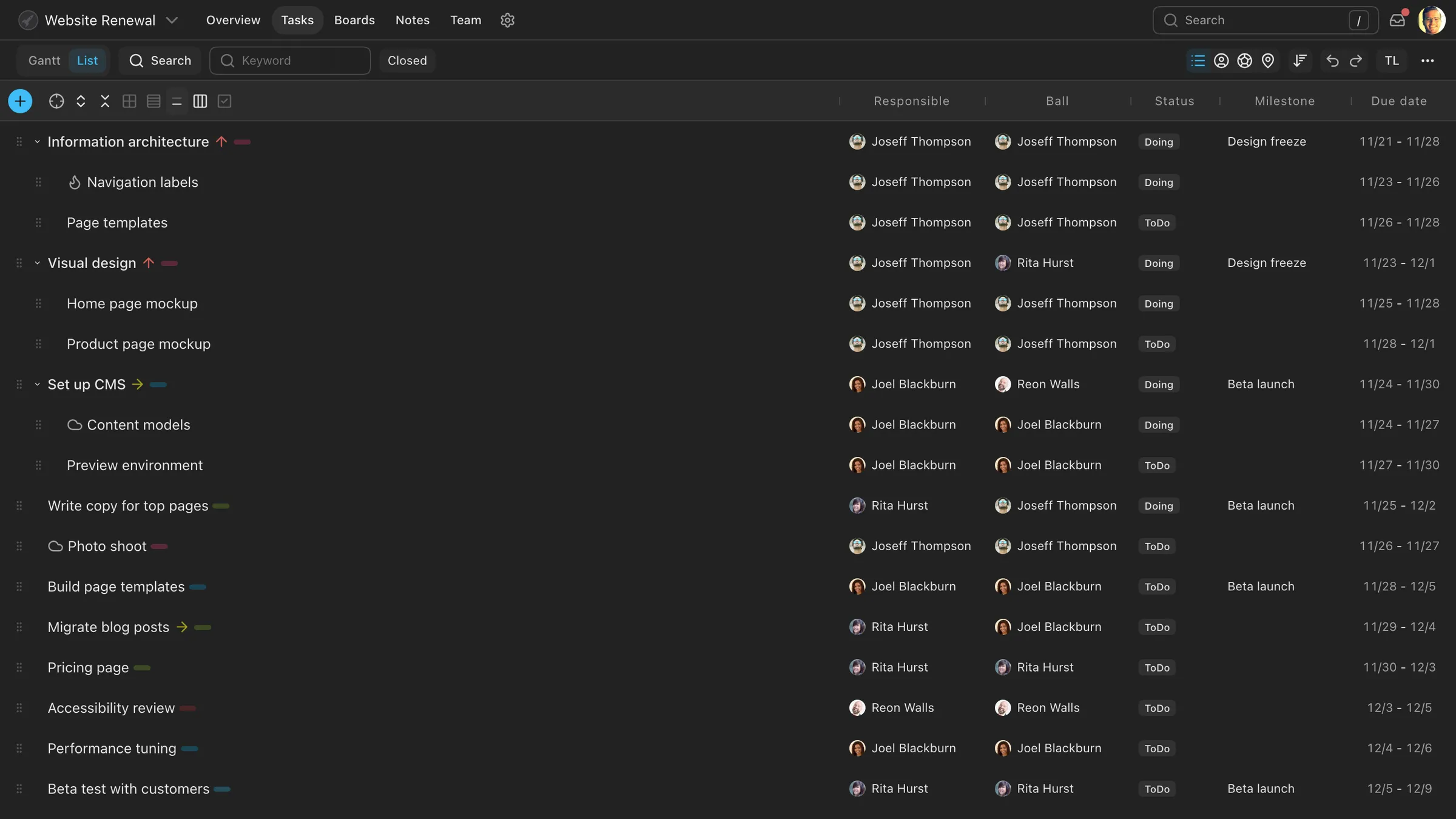
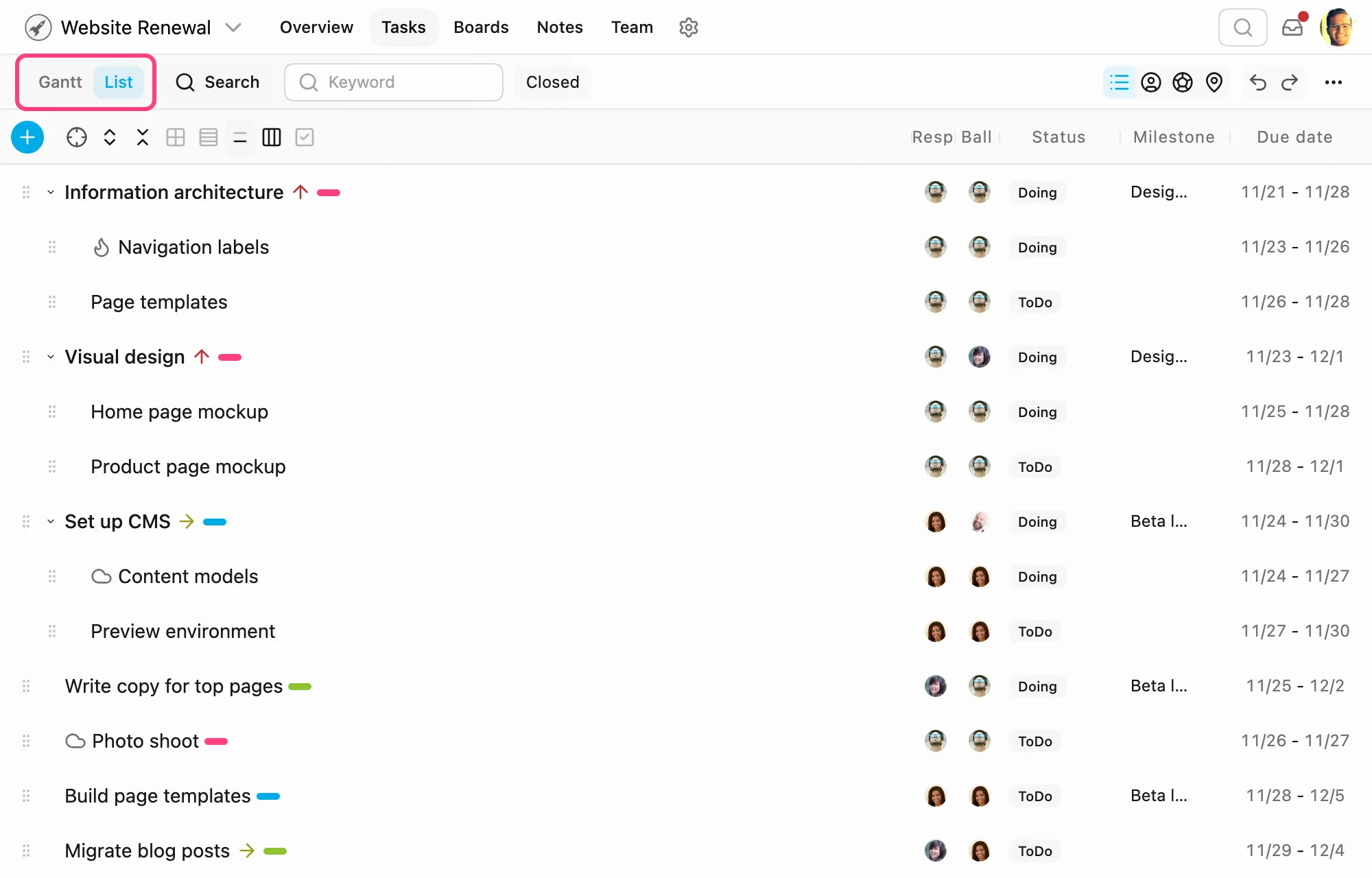
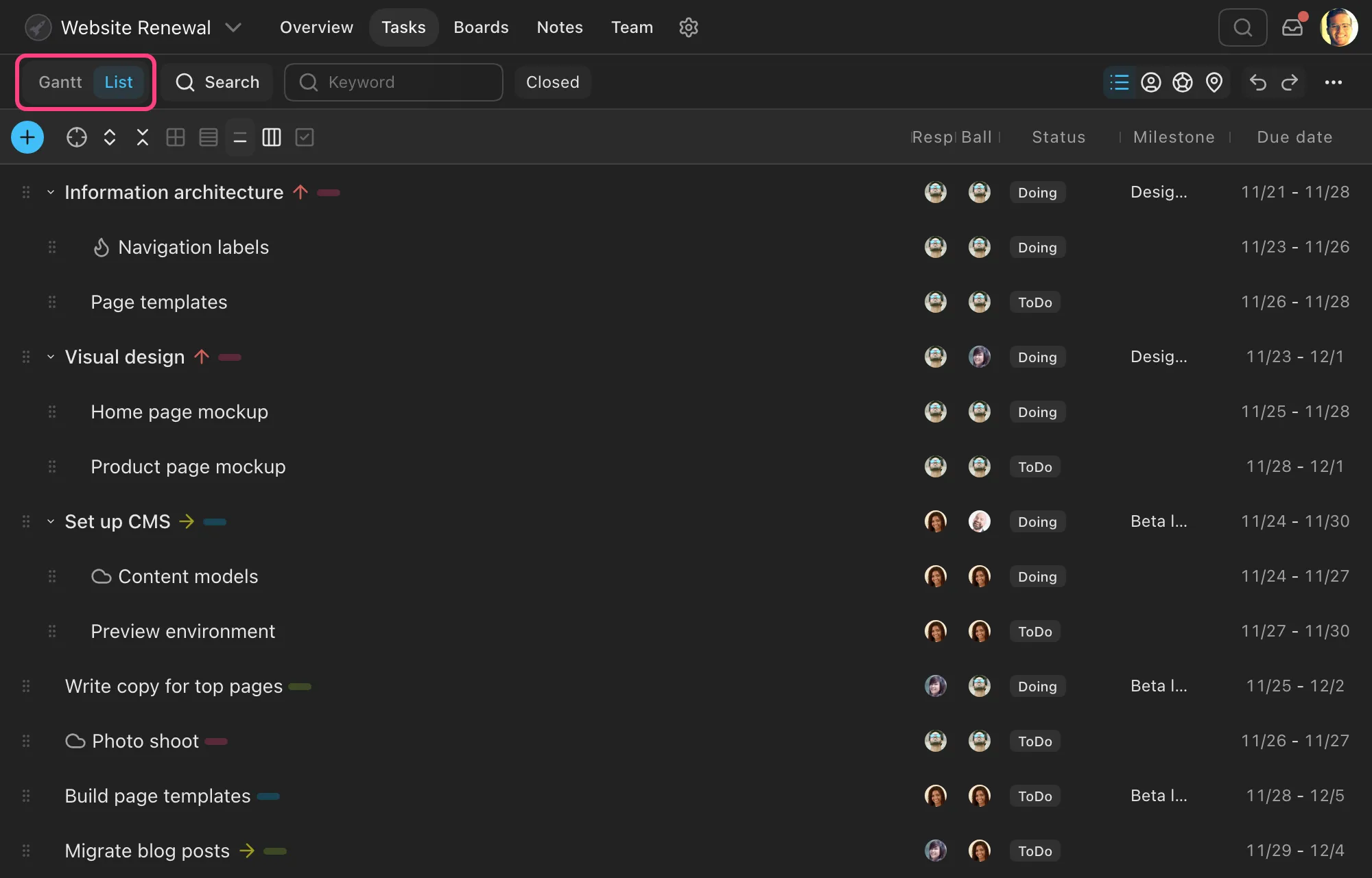
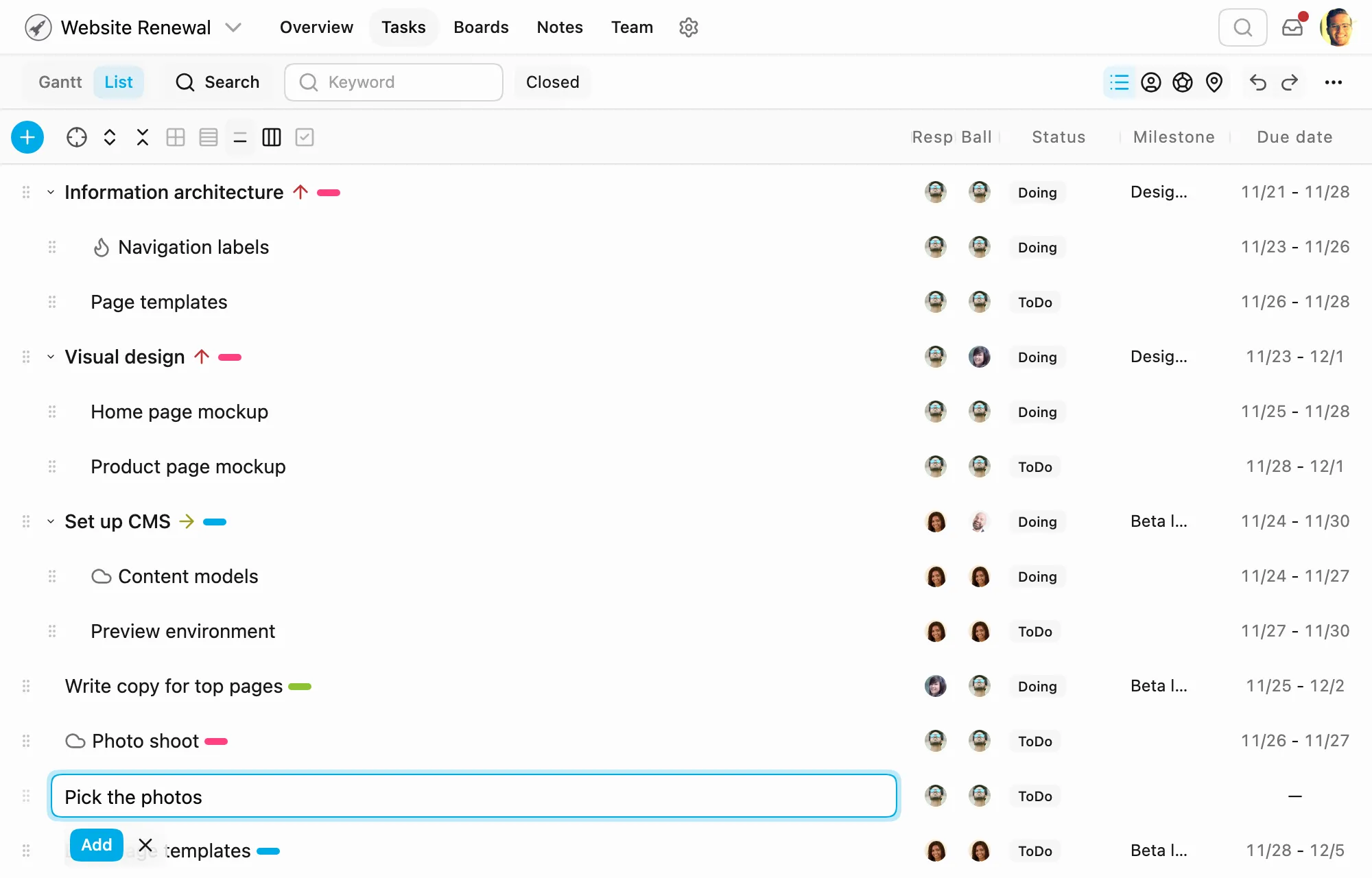
Click List on the Tasks screen and the Gantt chart turns into a list. These are the same tasks, so anything you change here shows up on the chart too.
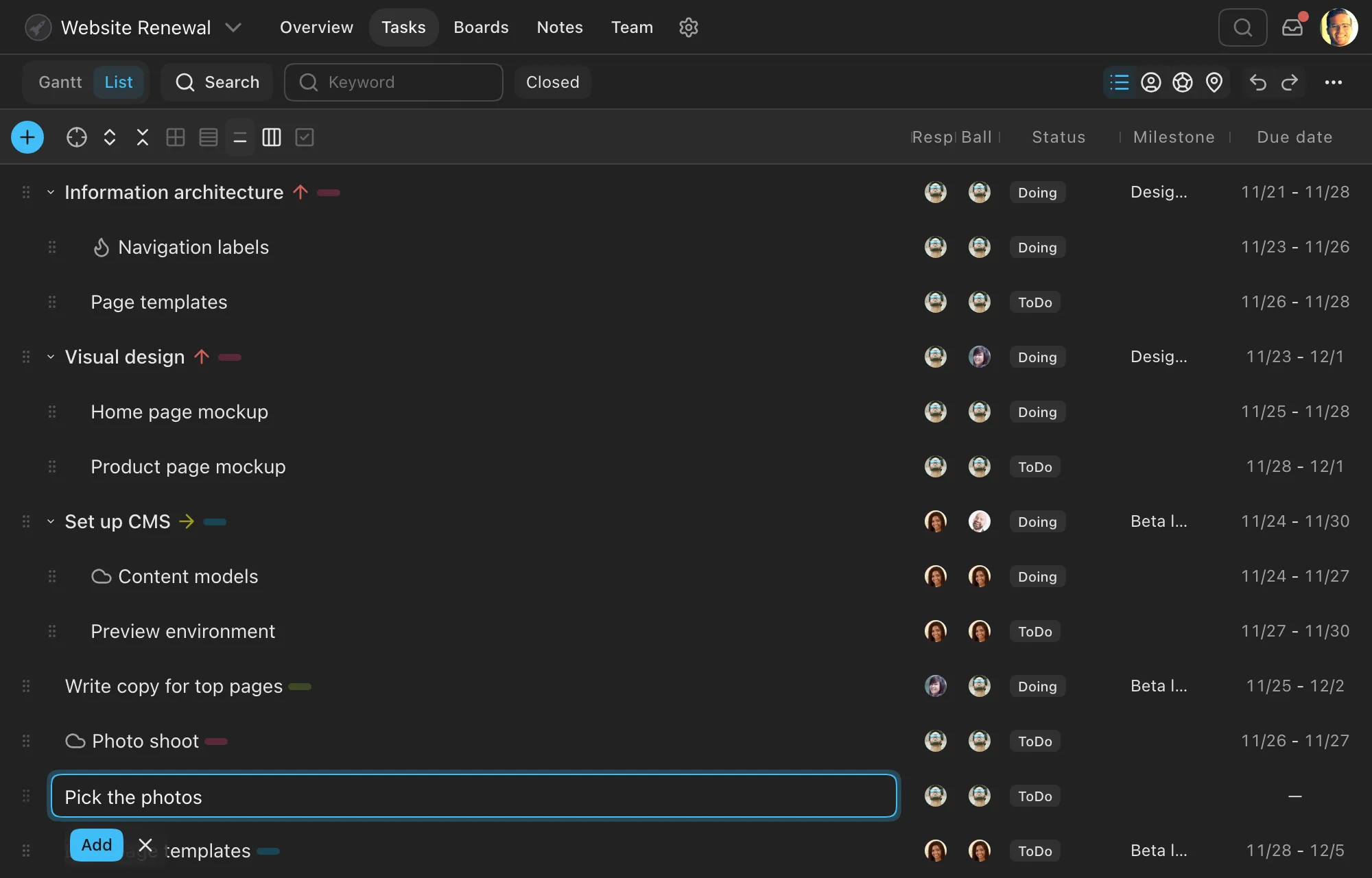
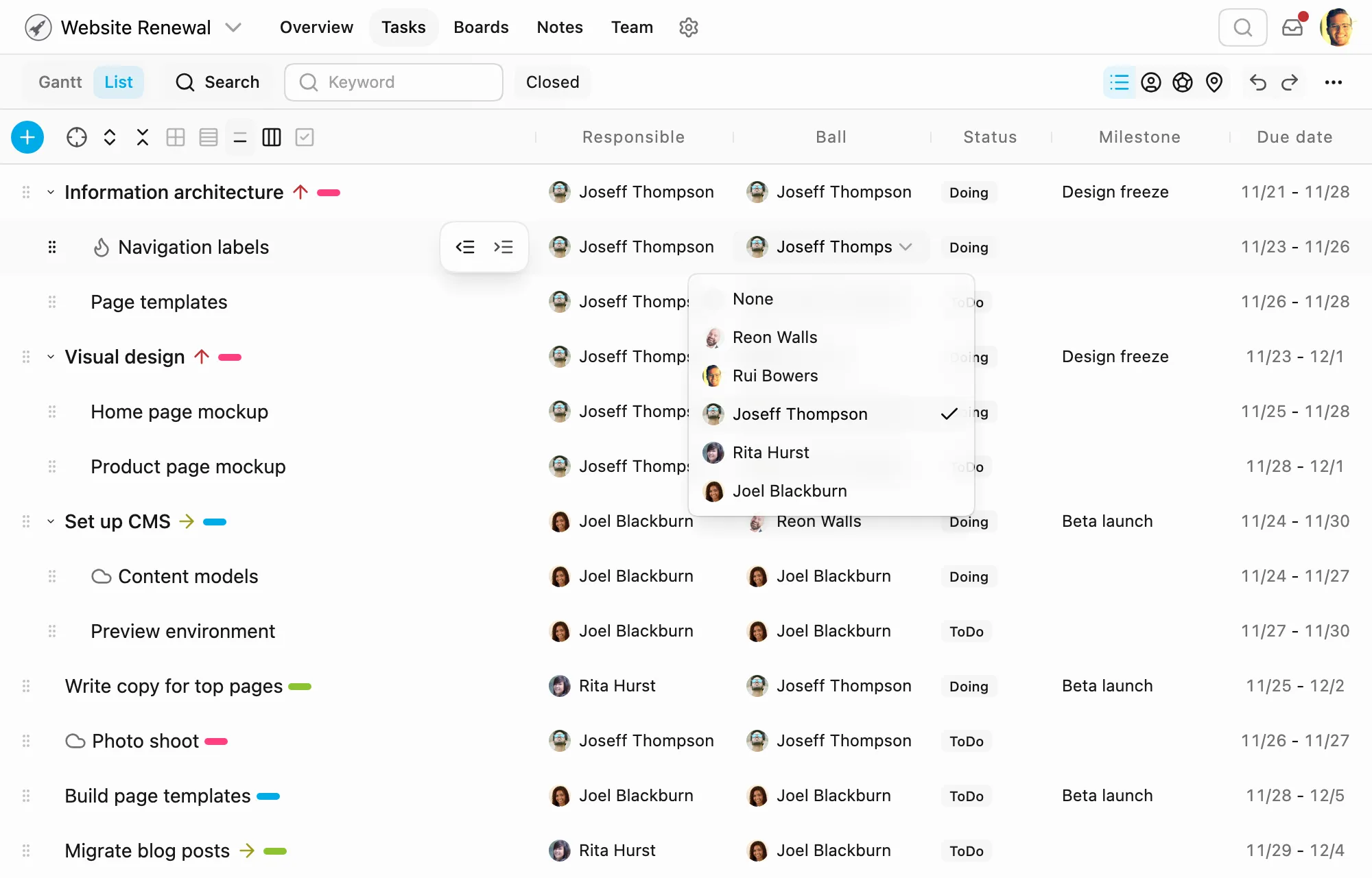
Each row carries the assignee (labeled Responsible in Repsona), who holds the ball (the person who acts next), the status, the milestone and the due date. A small icon in front of the name marks tasks that are due soon or overdue. An arrow shows the priority, and tags show as colors.
When you want to move dates by dragging bars, switch back to the Gantt chart.
Press Enter and keep adding
Click Add a task at the bottom of the list and an input opens right there. Type a name, press Enter, and the next input opens below it. You can get a whole list down without taking your hands off the keyboard.
Hover the edge between two rows and a dotted line appears. Click it to add a task at that spot.
A new row starts with the same assignee, ball, status and milestone as the task above it. Change them in the row if this one is different.
Or fill in everything as you create it
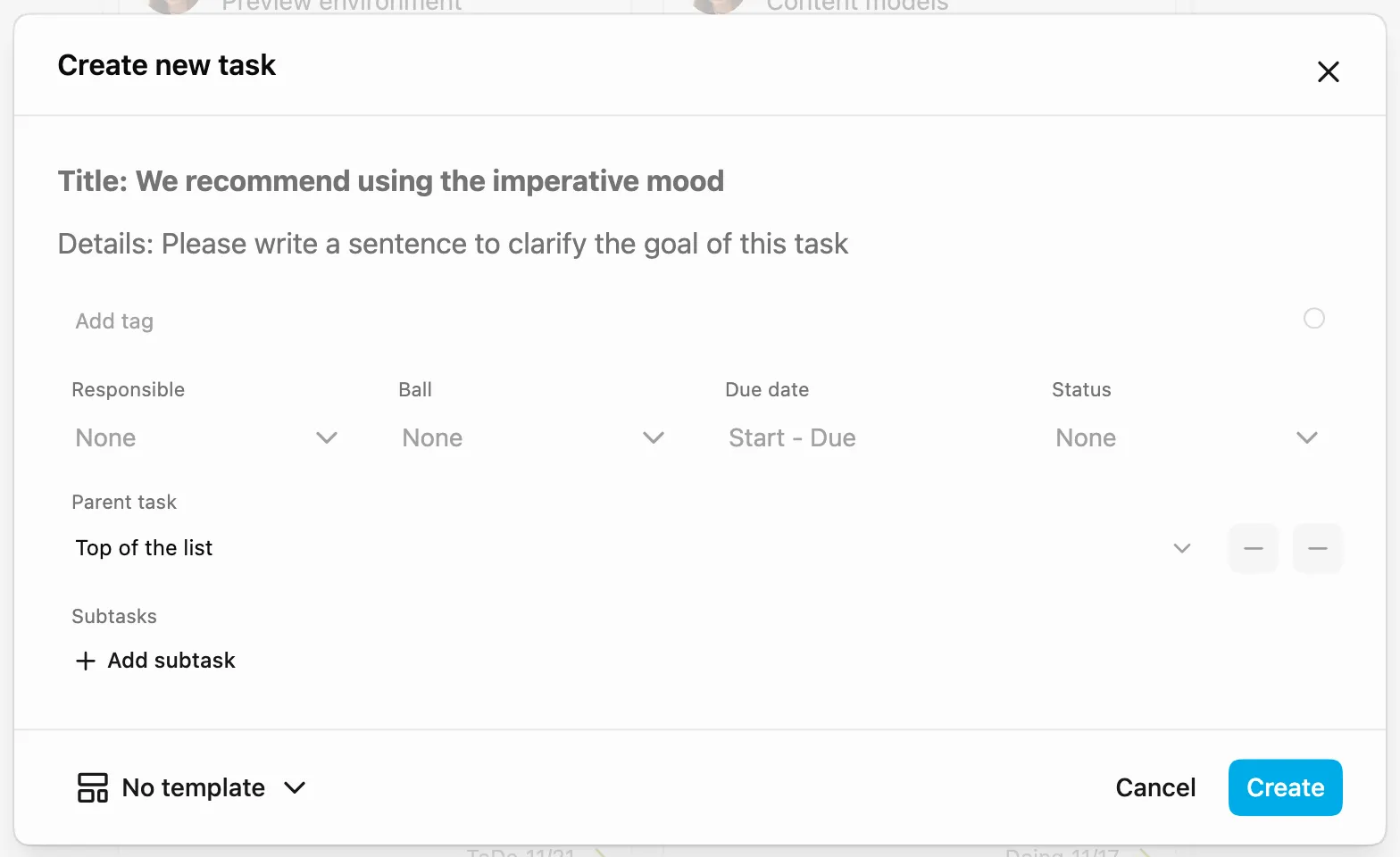
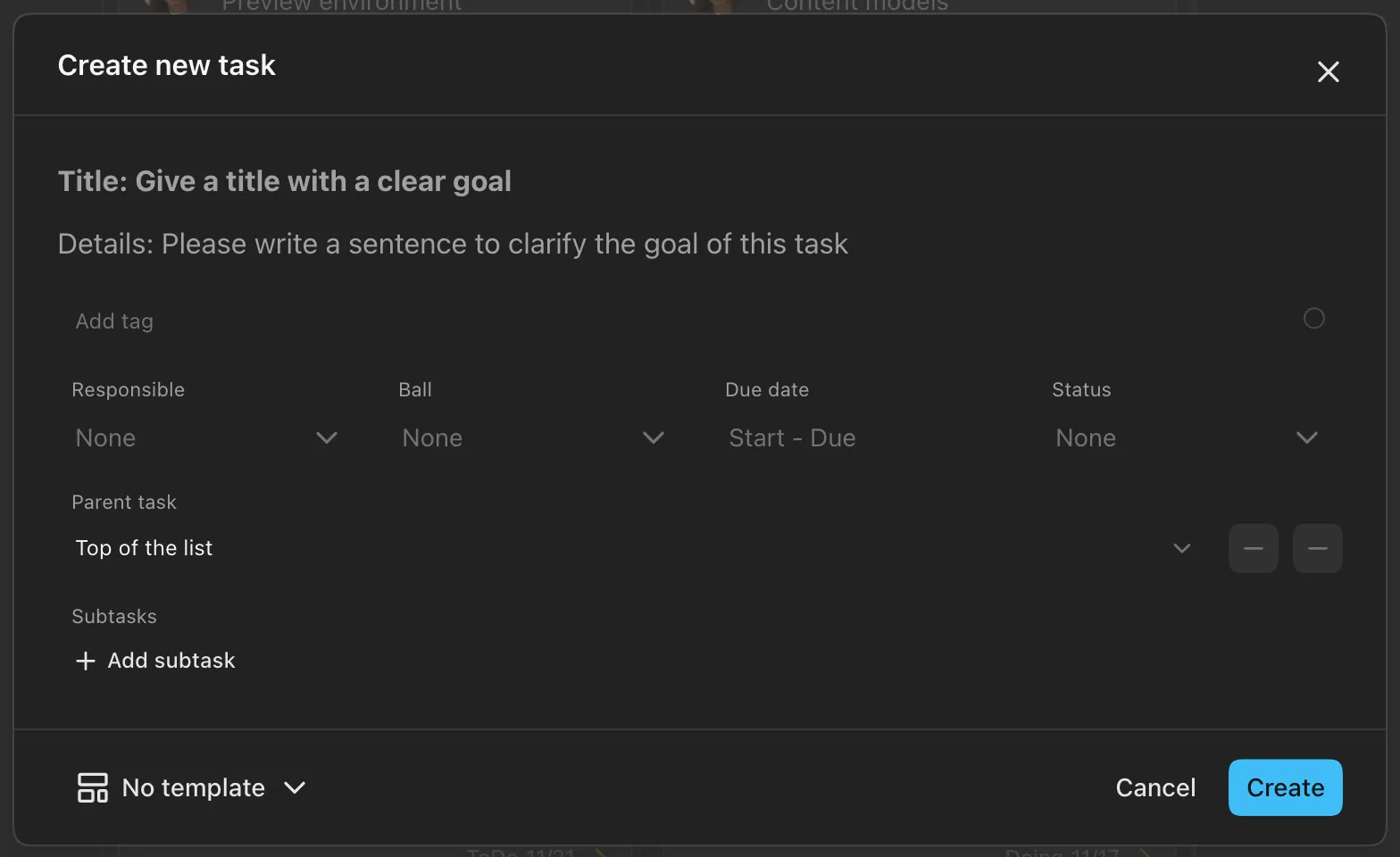
Click the + button at the top left of the list, or press c, to open the Create new task dialog. Give the task a title and details, tags, an assignee, the ball, dates, a status and a parent task. You can add its subtasks in the same dialog.
Save the tasks you create often as templates. Pick one in the dialog and you start with the details and subtasks already filled in.
Set the assignee and due date without leaving the list
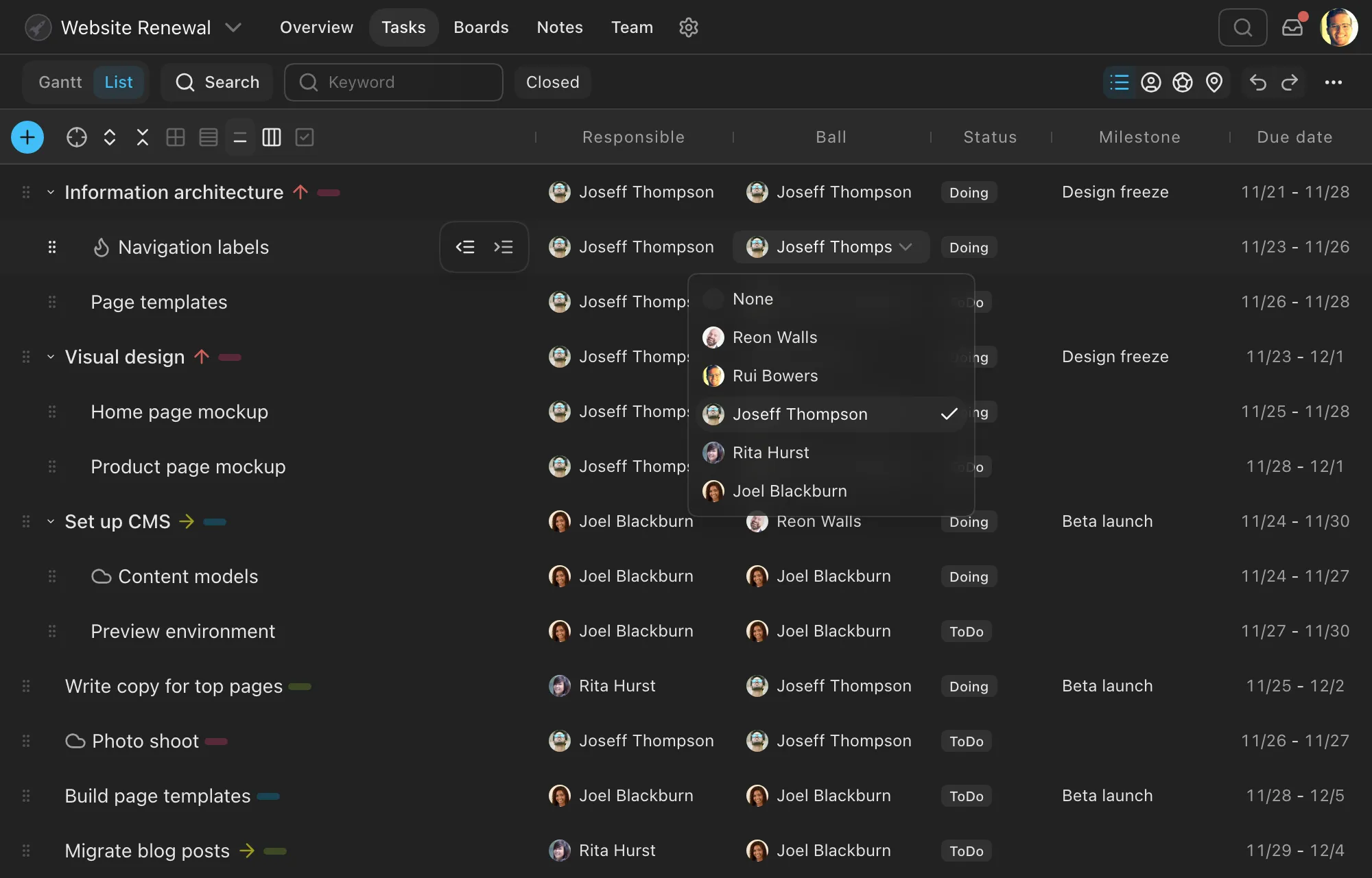
Click the assignee, ball, status or milestone in a row and the choices open in place. Pick one and it's saved. For the due date, choose a start date and a due date on the calendar.
You can work down the list and assign everything without opening tasks one at a time.
If you pick the wrong one, Undo and Redo take you back and forward one change at a time. Reordering, moving tasks between levels and bulk updates can't be undone this way.
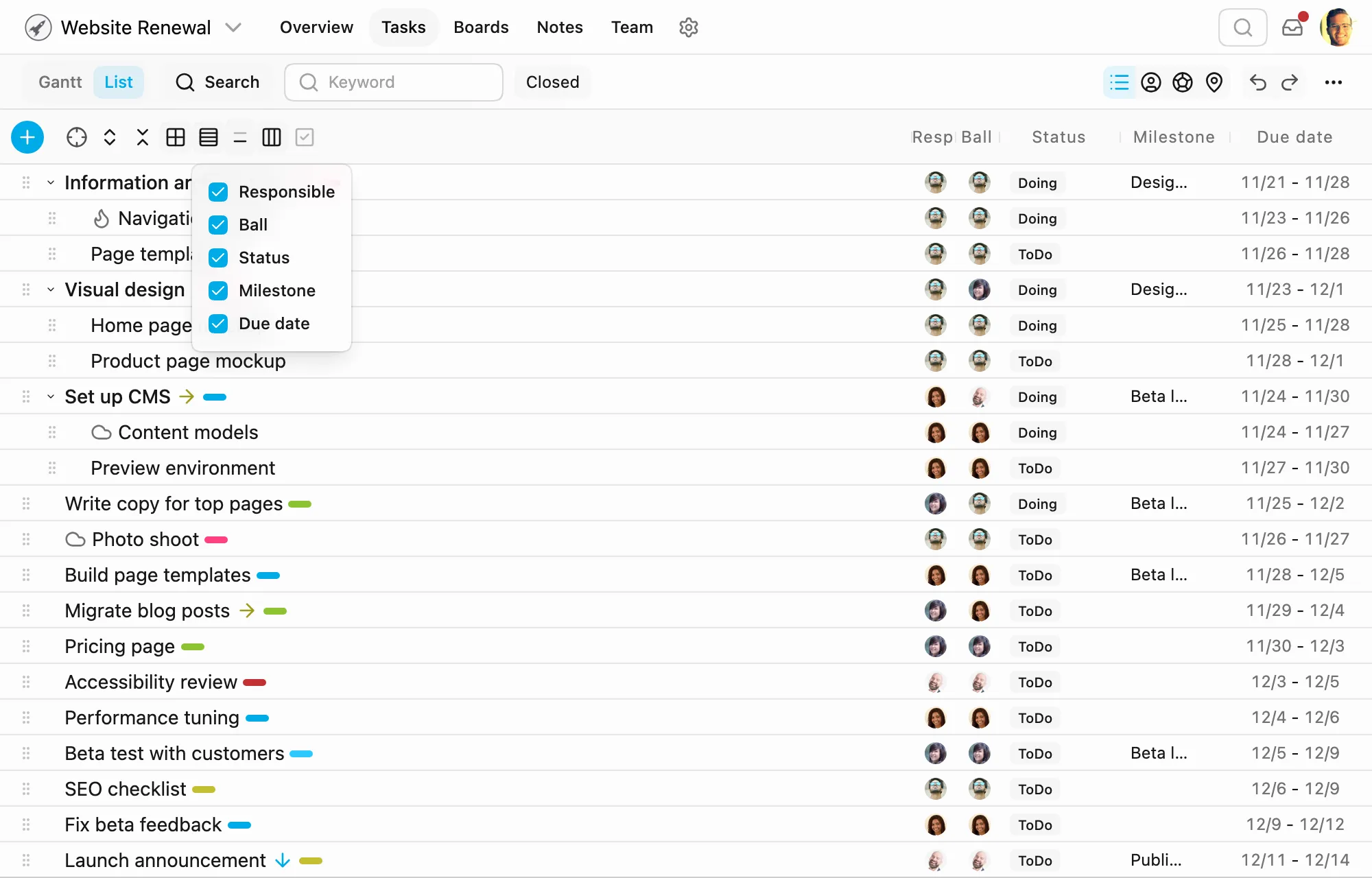
Show only the columns you need, and fit more on screen
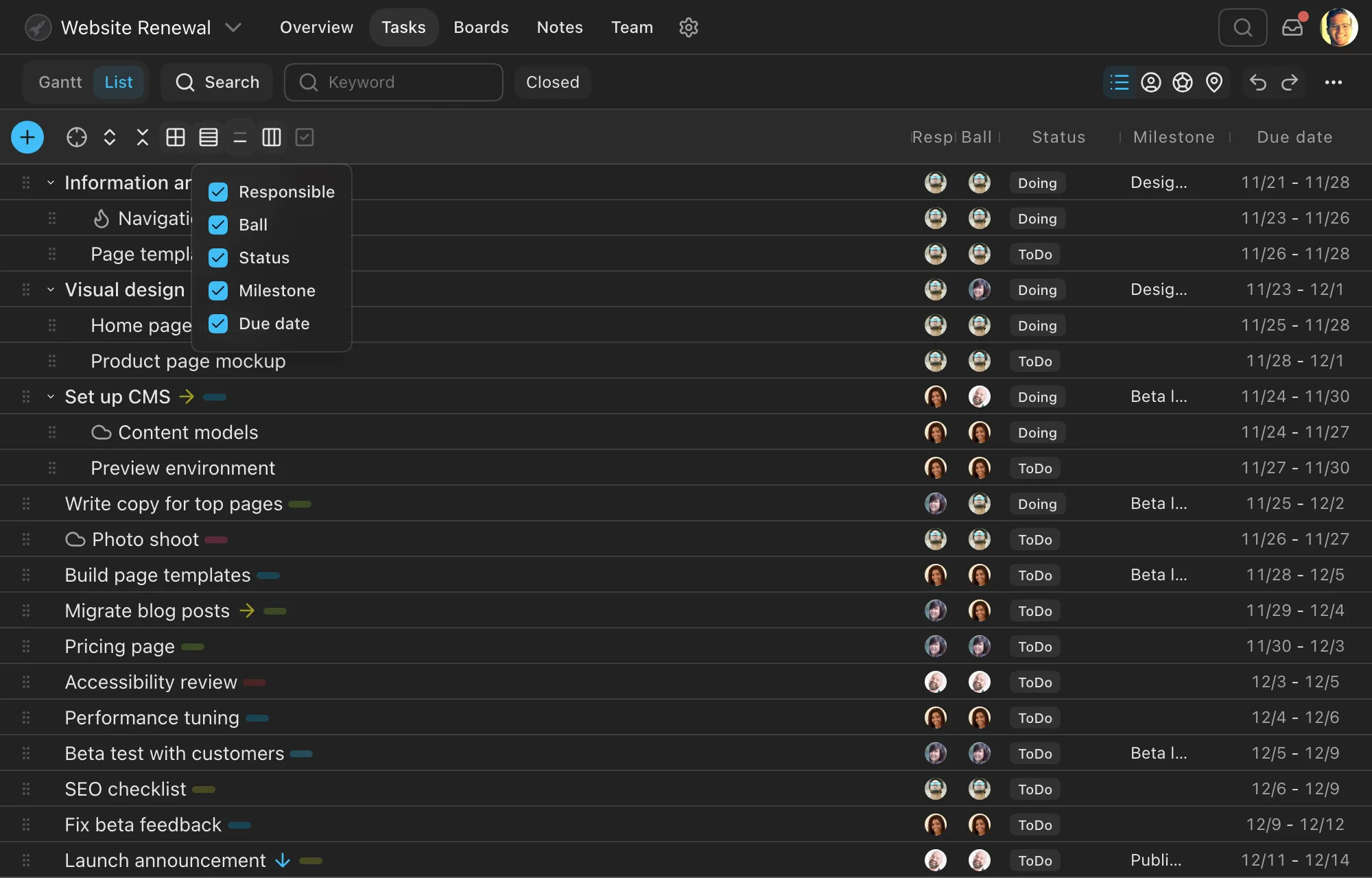
Use Columns to choose which of Responsible, Ball, Status, Milestone and Due date to show. Drag the edge of a column header to change its width.
Turn on Show borders and the list reads like a table. On a device with a mouse, Compact rows fits more tasks on one screen.
Drag to reorder, and to make subtasks
Grab a task and move it to change the order. Drop it onto another task and it becomes that task's subtask. Keep breaking big pieces of work into smaller ones and the list becomes your work breakdown structure.
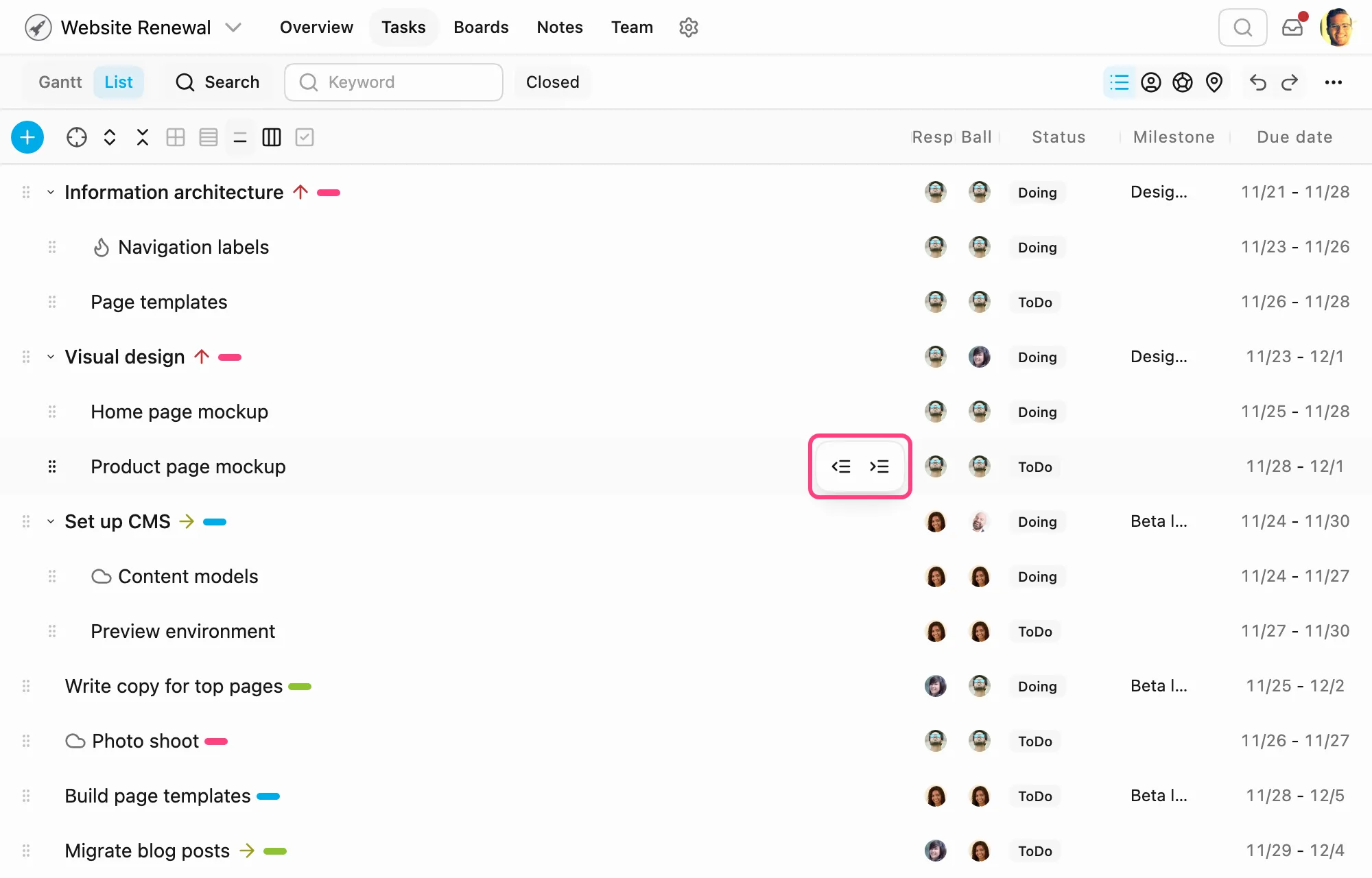
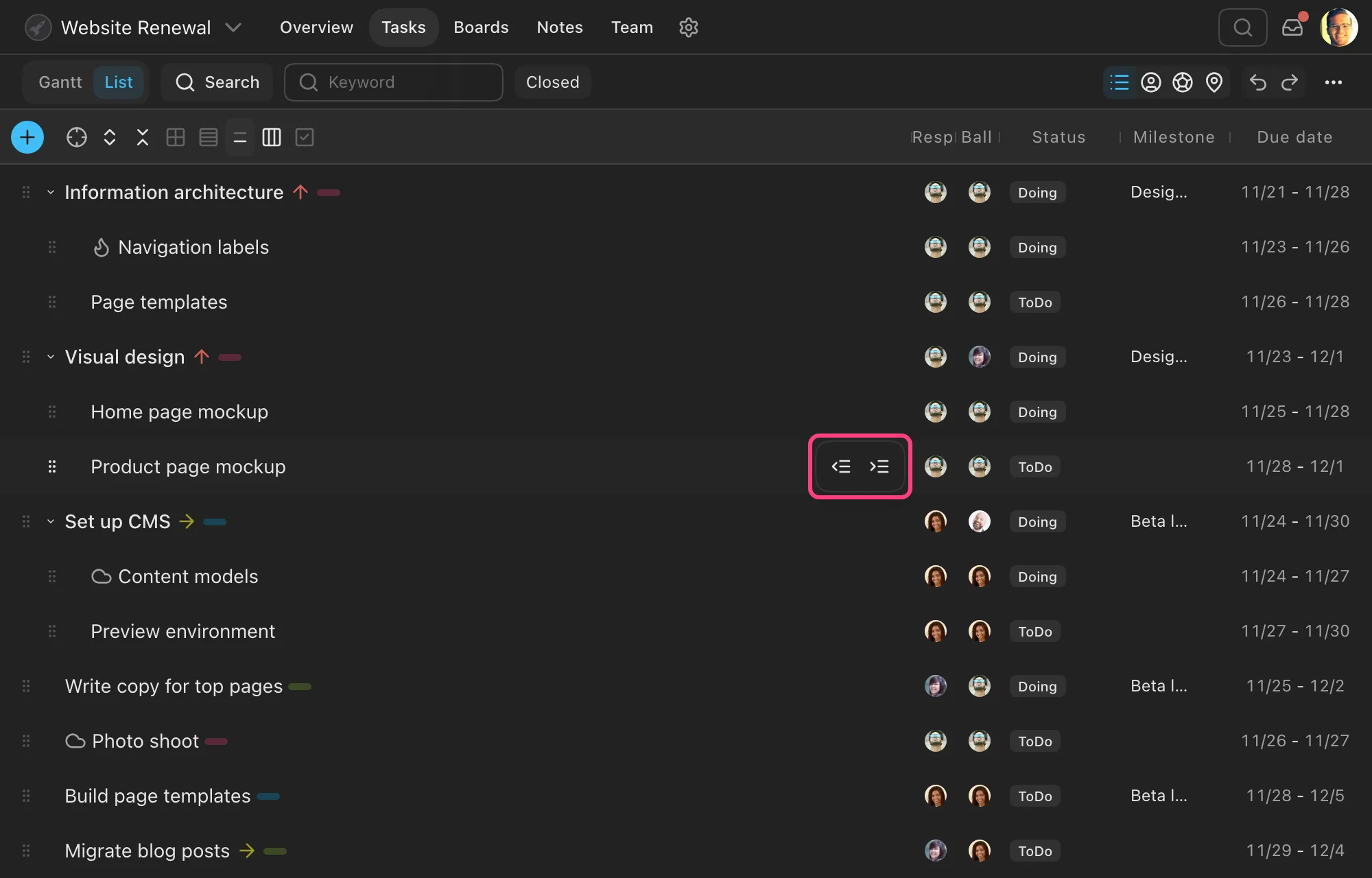
Hover a row with a mouse and Outdent and Indent buttons appear, to move the task up or down one level. On a touch screen, press and hold the task name, then drag.
Click a task to open it beside the list
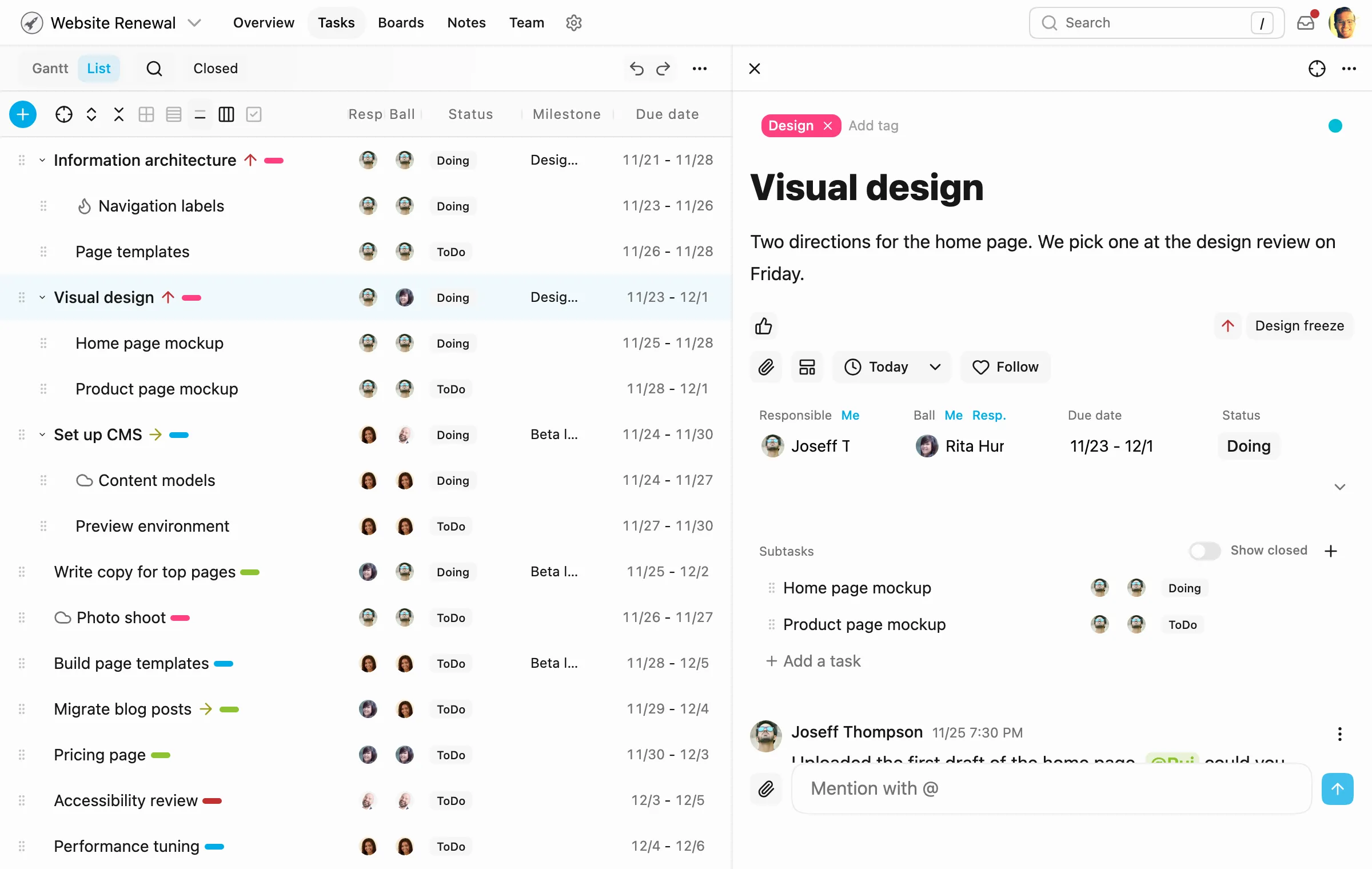
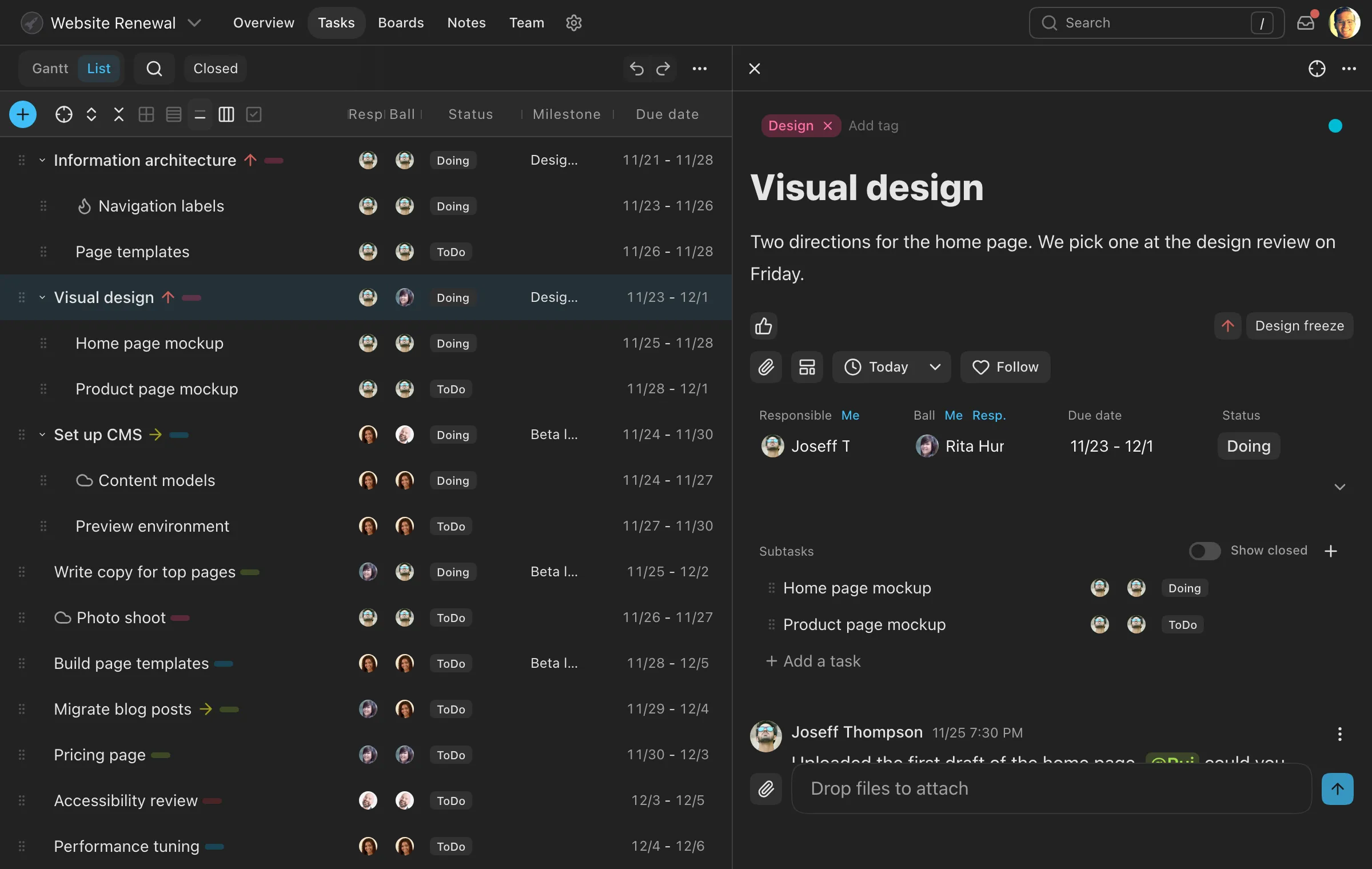
Click a task name and its details open on the right of the same screen. Write the description in Markdown, with checklists if you like. Attach files, add subtasks and tags, and set the priority, milestone and task color here.
Mark a task Today and it appears under Tasks for today on your Home screen. Follow the tasks you're involved in and you'll be notified when they change.
Keep the conversation on the task
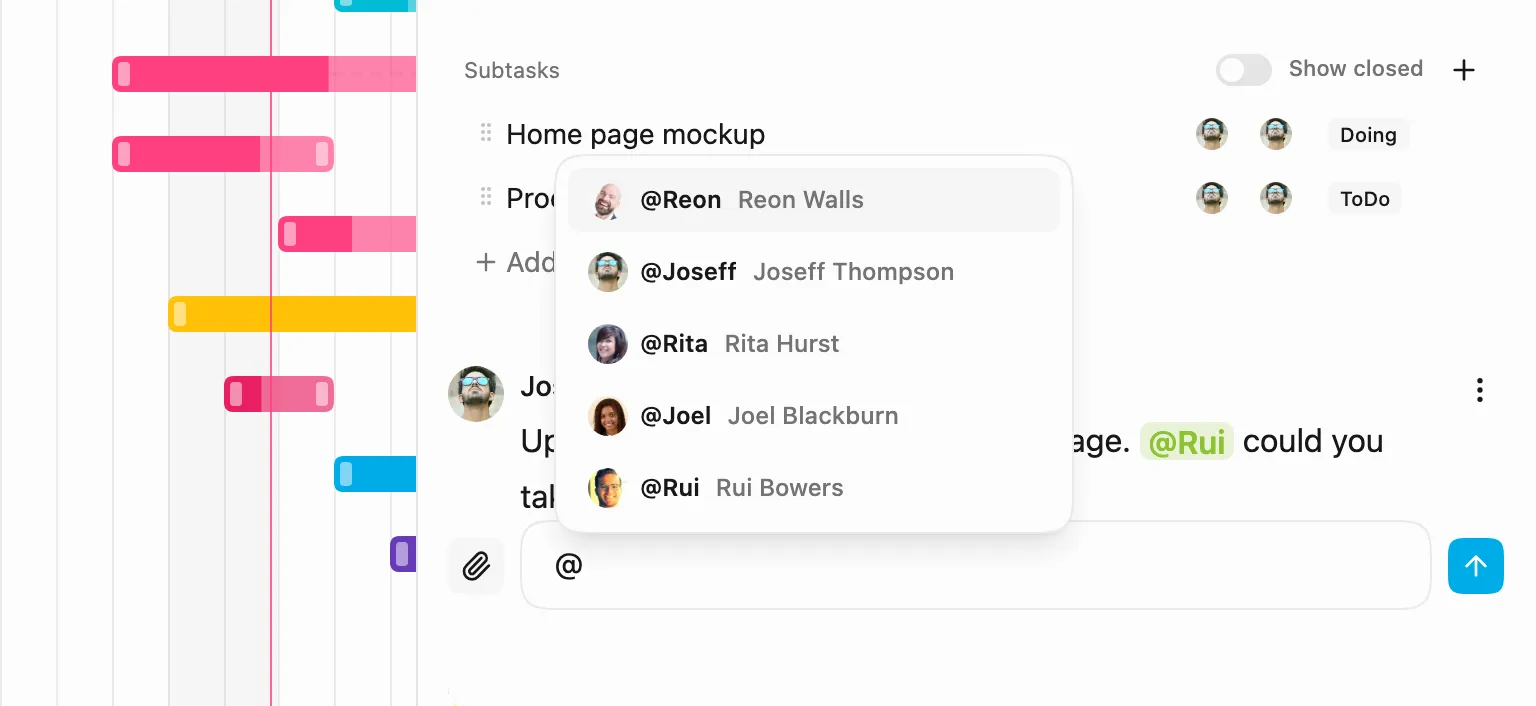
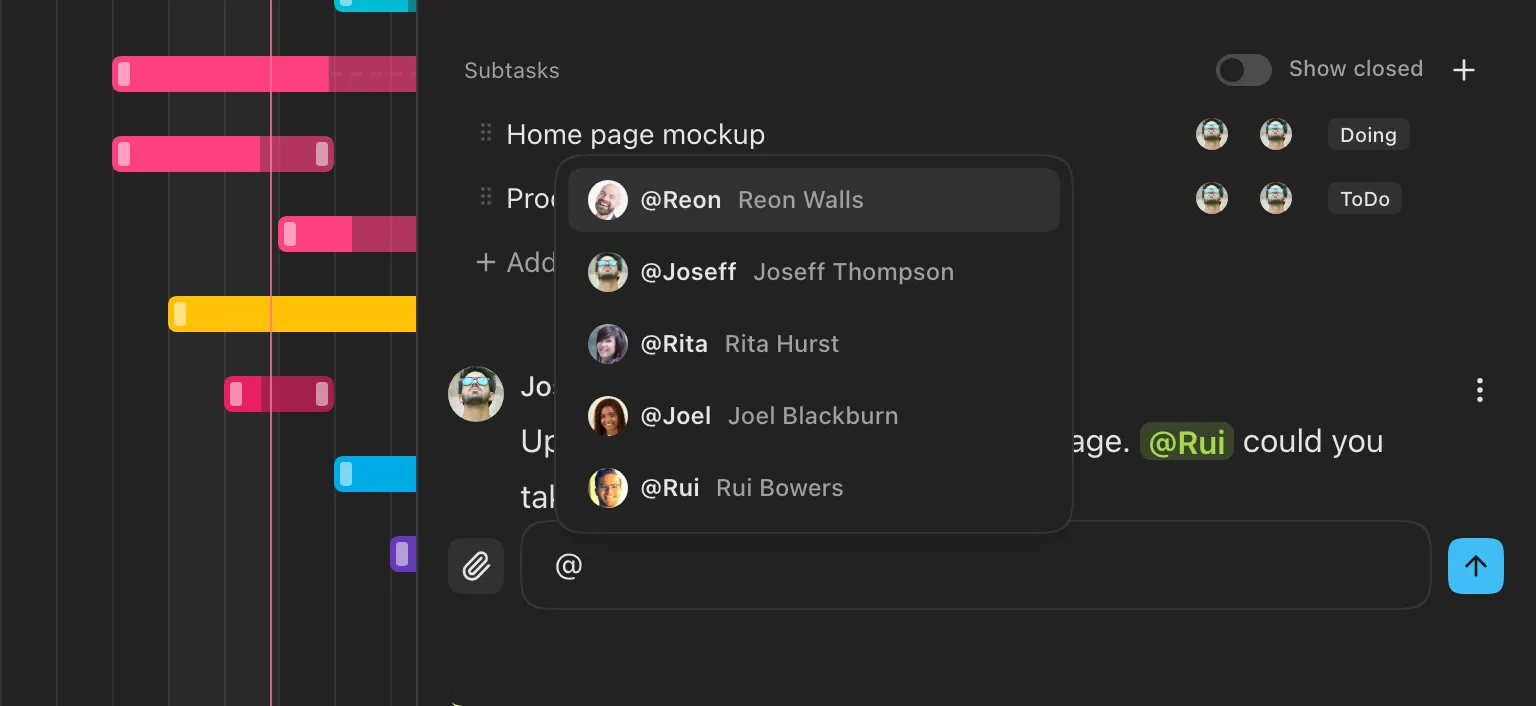
Comments sit below the details. Type @ to pick a teammate, and they get a notification. You can reply to a comment, attach files and add reactions.
The discussion stays with the task it's about. Anyone who opens it later can read what happened from the top.
You can also turn a comment into a new task or a note.
Everything addressed to you lands in the inbox
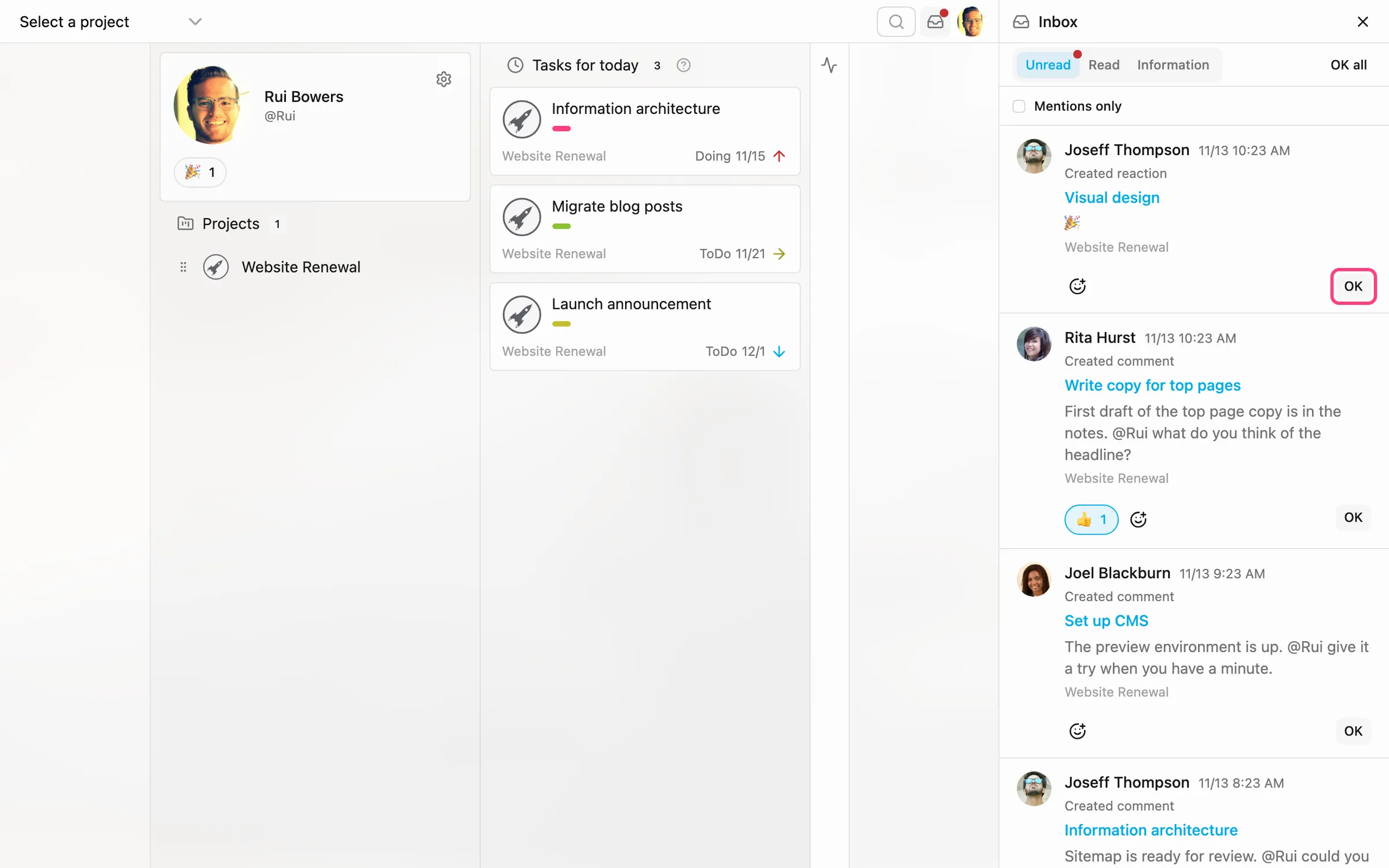
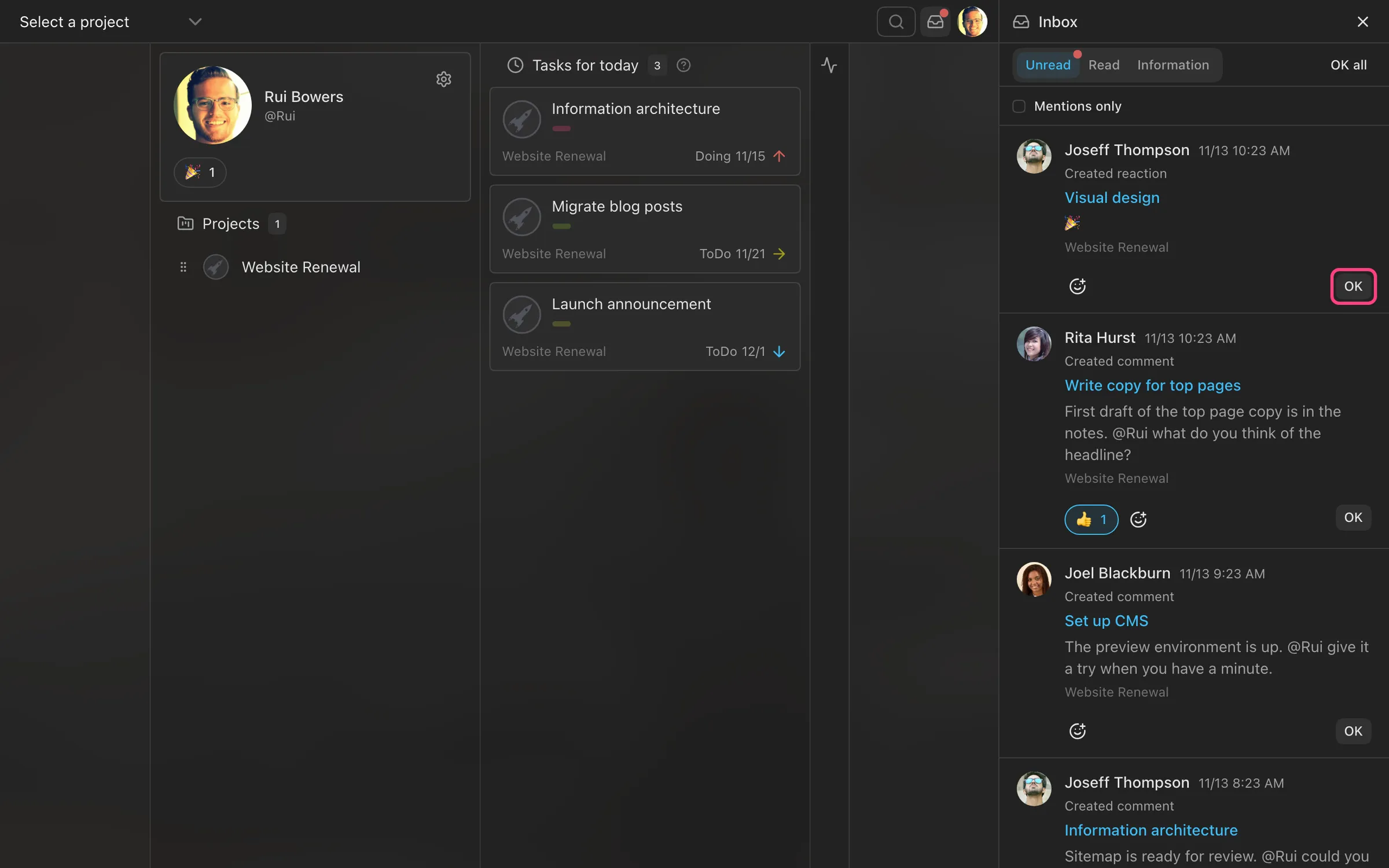
Comments that mention you, tasks assigned to you and the ball being passed to you all arrive in your inbox, along with comments on and completion of tasks you're responsible for or follow. Messages about the same task are grouped into a thread. Click OK when you've read one.
Check Mentions only to see just the comments.
Collapse the list to see the big picture
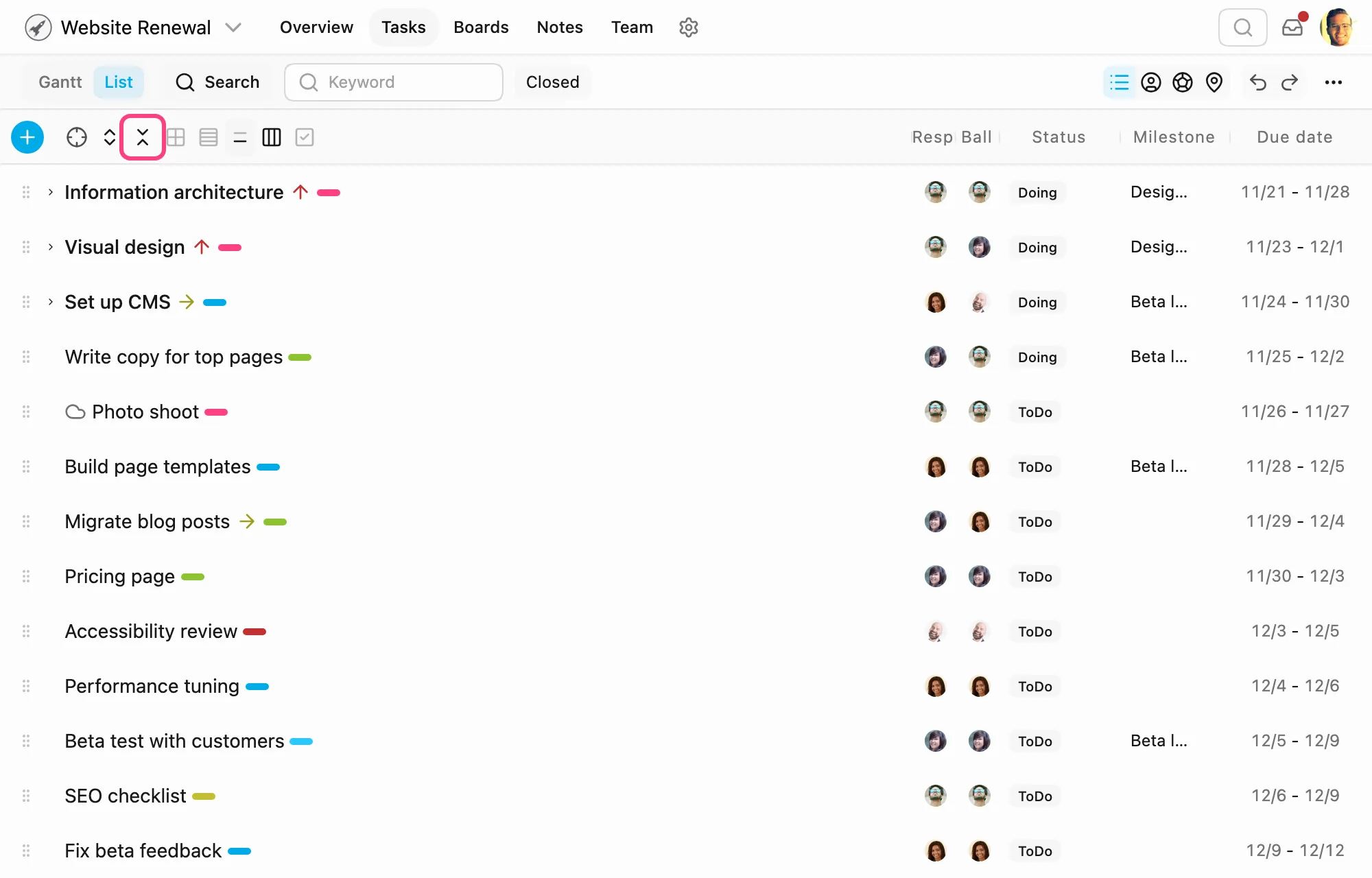
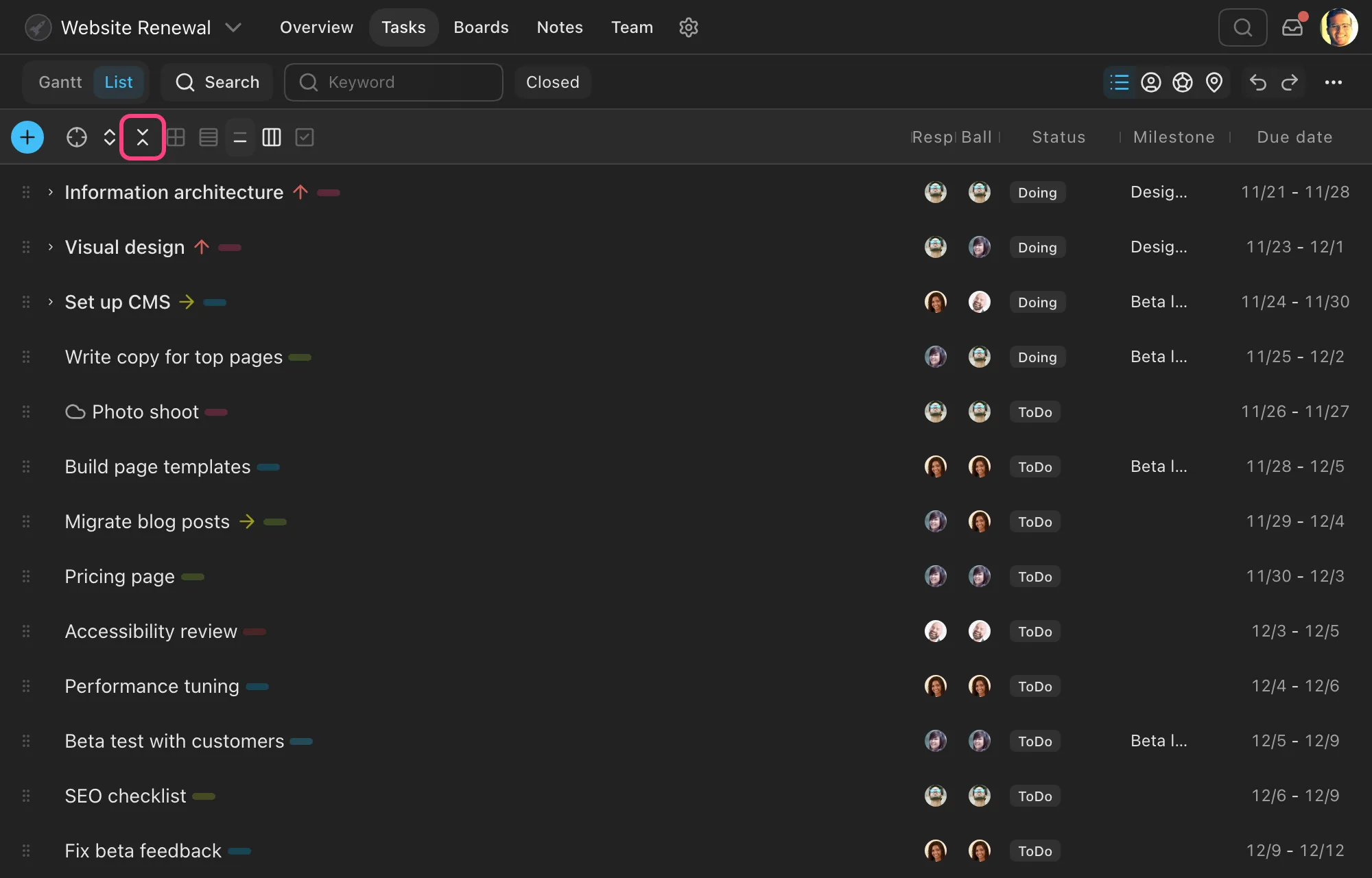
Click Collapse all to fold every subtask away and leave only the parent tasks. It's a quick way to check the overall structure. Expand all brings everything back.
If you lose track of the task whose details are open, click Go to the open task. The list opens whatever it is folded inside and scrolls to its row.
Change many tasks at once
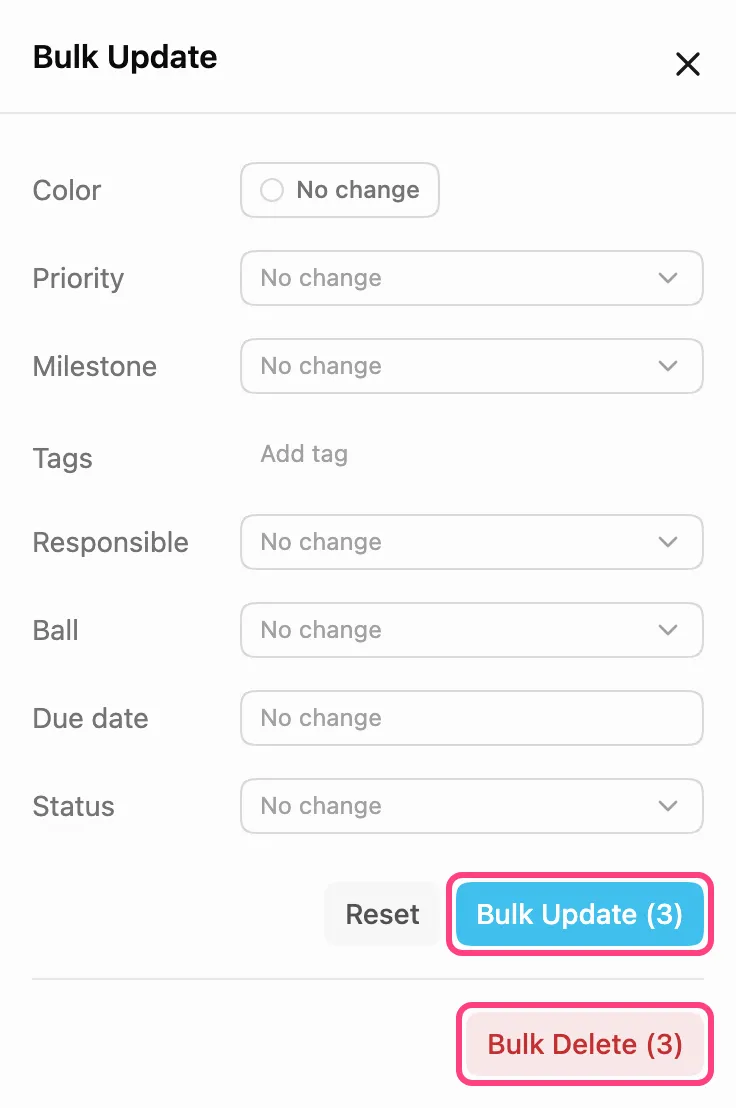
Click Bulk update and a checkbox appears beside each task. Hold Shift while you check one to select everything in between.
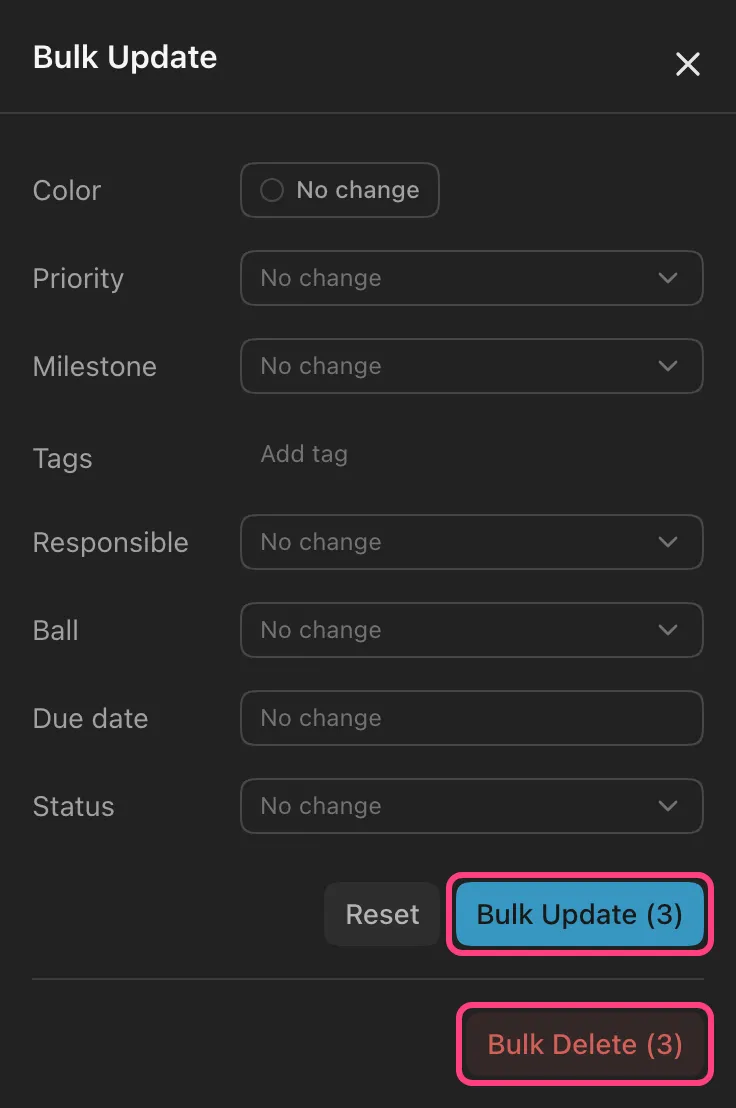
Fill in only the fields you want to change: color, priority, milestone, tags, assignee, ball, due date or status. Then click Bulk Update, and every selected task gets the same values. Handing work over to someone else, or giving a set of tasks the same dates, takes one step. Tags you enter replace the tasks' current tags.
You can also delete the selected tasks together. Their subtasks are deleted with them, and this can't be undone.
Find the task you're looking for
Open Search to filter the list by keyword, tags, status, assignee, ball, priority, milestone or due date. Closed tasks are hidden at first. Click Closed to show them as well.
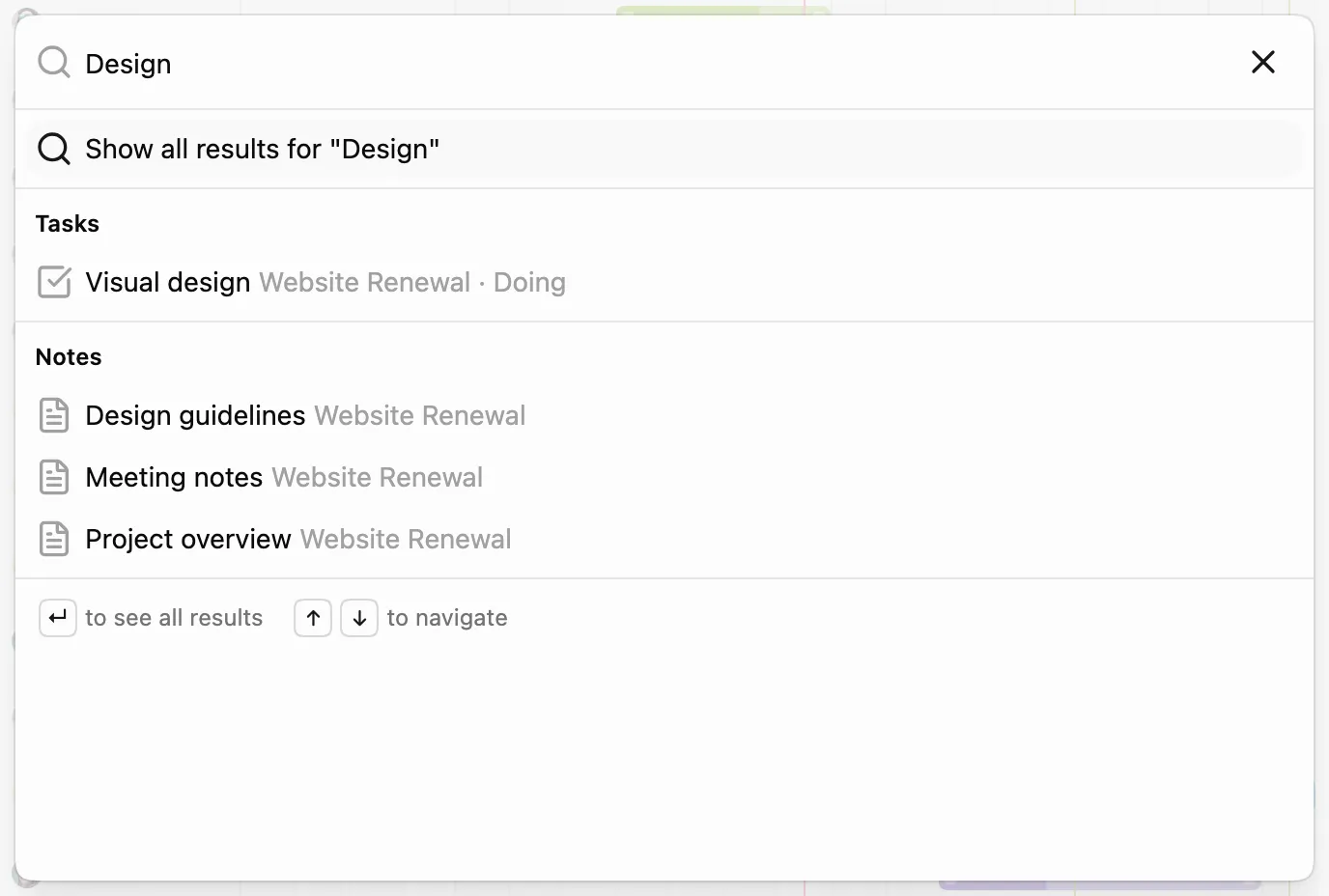
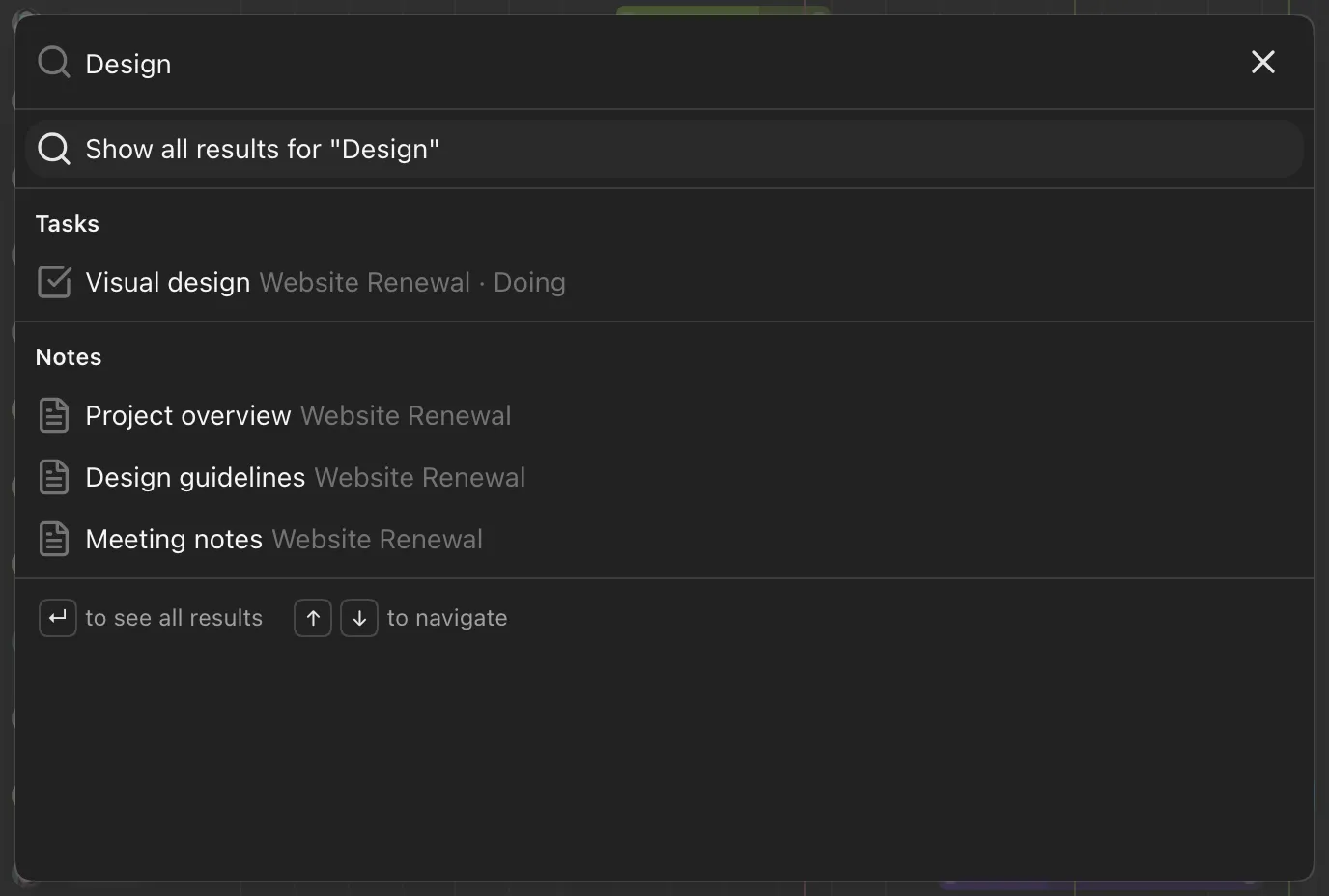
The search box in the header (press /) looks through the tasks and notes of every project you're a member of.
What the task list can do
| Area | What you can do |
|---|---|
| Adding tasks | Keep adding from the bottom with Enter, add between two rows (with a mouse), the Create new task dialog (press c), templates |
| Editing in the list | Assignee, ball, status, milestone and due date. Undo and Redo (not for reordering, hierarchy changes or bulk updates) |
| Hierarchy | Subtasks nested as many levels deep as you need. Drag onto a task to make a subtask, Indent and Outdent buttons (with a mouse), Collapse all and Expand all |
| Ordering | Drag to reorder. Due date order (earliest start date, then due date), grouping by assignee, ball or milestone |
| View | Choose and resize columns, borders, compact rows (with a mouse), dim the rows that don't match a search |
| Task details | Description (Markdown, checklists), tags, priority, milestone, color, attachments, subtasks, planned and actual values, predecessors and successors, Today, Follow, Like |
| Comments | Mentions, replies, attachments, reactions, create a task or a note from a comment |
| Records | Activity log, description history (restore an earlier version). How long they're kept depends on the plan |
| Bulk update | Update color, priority, milestone, tags (replaced), assignee, ball, due date and status. Bulk delete (subtasks included) |
| Search | Keyword, tags, status, assignee, ball, priority, milestone, due date. Search across all your projects |
| Export and import | Export to Excel (XLSX) and CSV, print or save as PDF (in a browser), import from CSV |
| Plans | Every plan |
Step-by-step instructions are in the help articles Create, share, and manage tasks, Bulk update and delete tasks, Comments and mentions, Inbox, Task and note templates and Exporting and importing tasks. Member, project and task limits for each plan are on the pricing page.
When the list is written and it's time to put dates on it, open the Gantt chart. To move the same tasks as cards by status, use the Kanban board.
FAQ
- Is the task list free?
- Yes. The list, task details and bulk update all work on the Free plan. Limits on members, projects and tasks, and how long the change history is kept, depend on the plan. See the pricing page.
- Can I use it as a work breakdown structure (WBS) tool?
- Yes. Subtasks nest as many levels deep as you need. Drag a task onto another task to put it underneath, or use the Indent and Outdent buttons that appear when you hover a row with a mouse. Collapse all shows only the top-level items.
- Do I have to build the Gantt chart separately?
- No. The list and the Gantt chart show the same tasks. Switch tabs and the hierarchy and assignees you set in the list are already on the chart.
- Can I import a task list from Excel?
- Yes, as a CSV file. The import reads task names, parent tasks, assignees, start and due dates, statuses and more. The column format is in the help center. You can also export from Repsona to Excel (XLSX) and CSV.
- Can I bulk edit tasks?
- Yes. Check the tasks you want, then change the color, priority, milestone, tags, assignee, ball, due date or status for all of them at once. You can delete them in bulk, too.
- Can I see tasks by assignee?
- Yes. Group the list by assignee, by who holds the ball, or by milestone. You can also filter by assignee, status and other fields in search.
- How do I know when someone mentions me or assigns me a task?
- It lands in your inbox. Comments that mention you, tasks assigned to you and the ball being passed to you all show up there, along with comments on and completion of tasks you're responsible for or follow. The mobile apps can send them as push notifications as well.
- Does it work on a phone?
- Yes. The iOS and Android apps open the list and task details, so you can read and answer comments away from your desk.