
Log in and switch spaces
This page explains how to log in to a Repsona space and how to switch between spaces if you use more than one.
| Who can use it | Available on |
|---|---|
| All | All |
Log in with your space URL
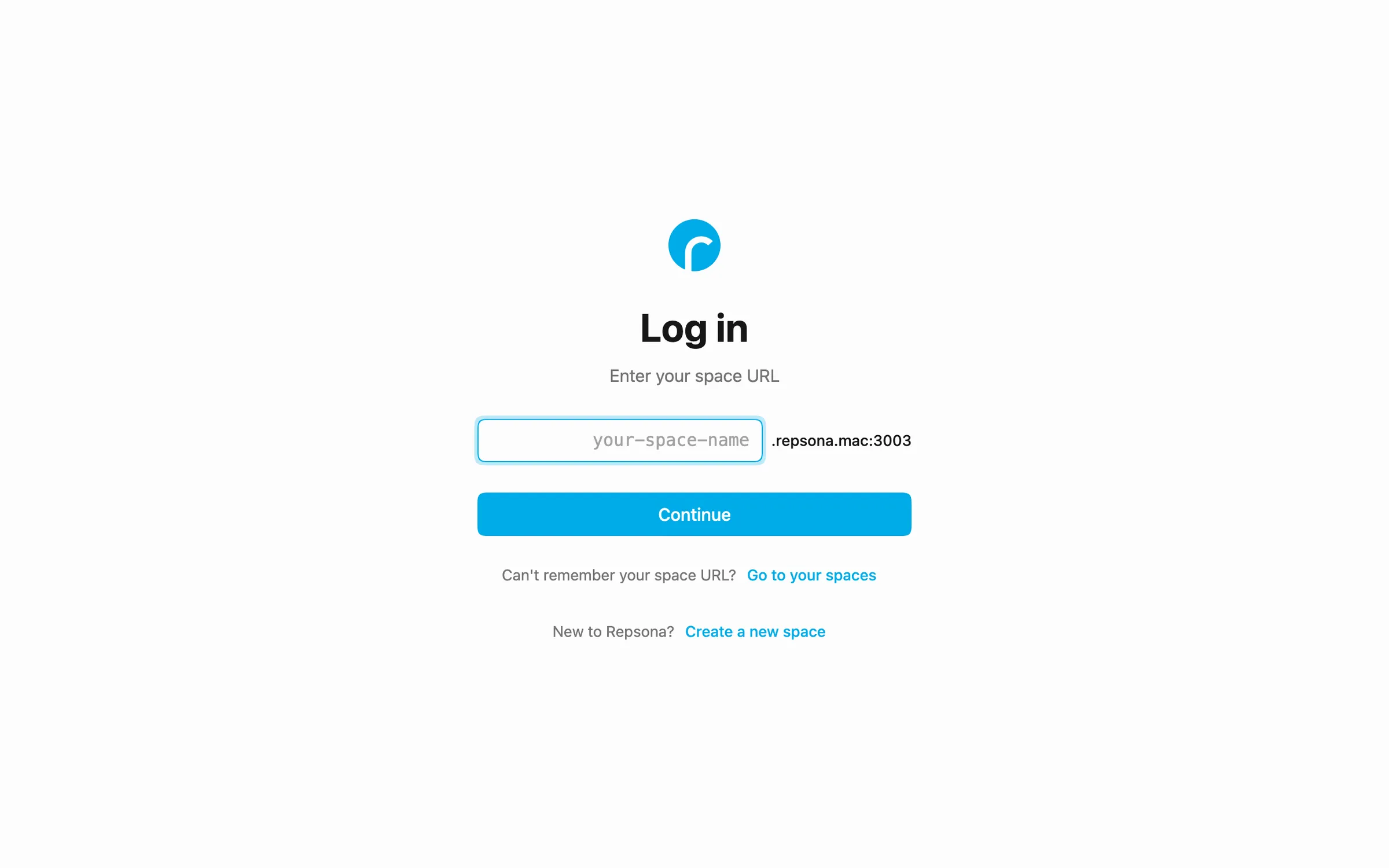
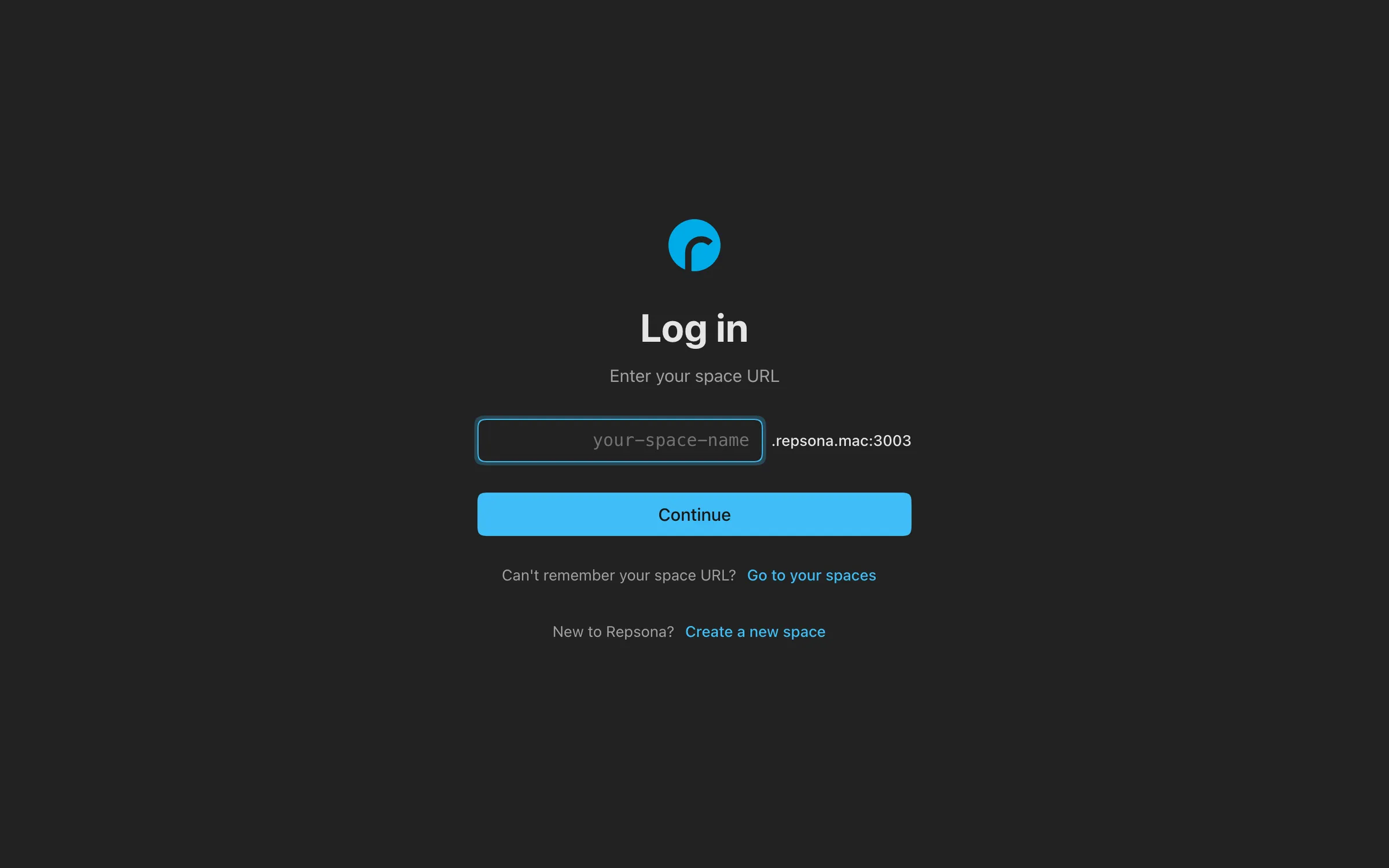
- On the login screen, enter your space name (URL) and click "Continue".
- Enter your email address and password, then click "Log in to (space name)".
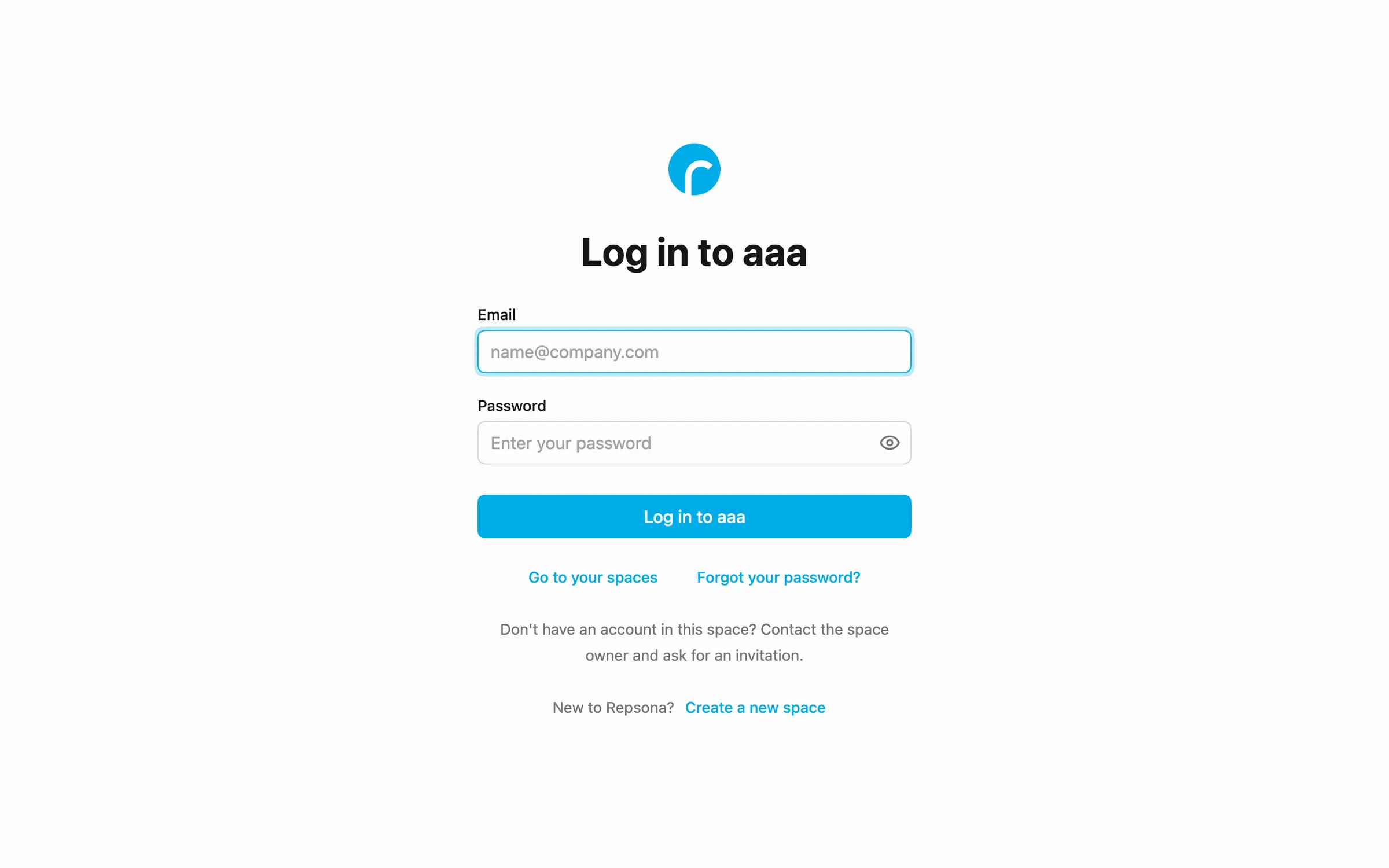
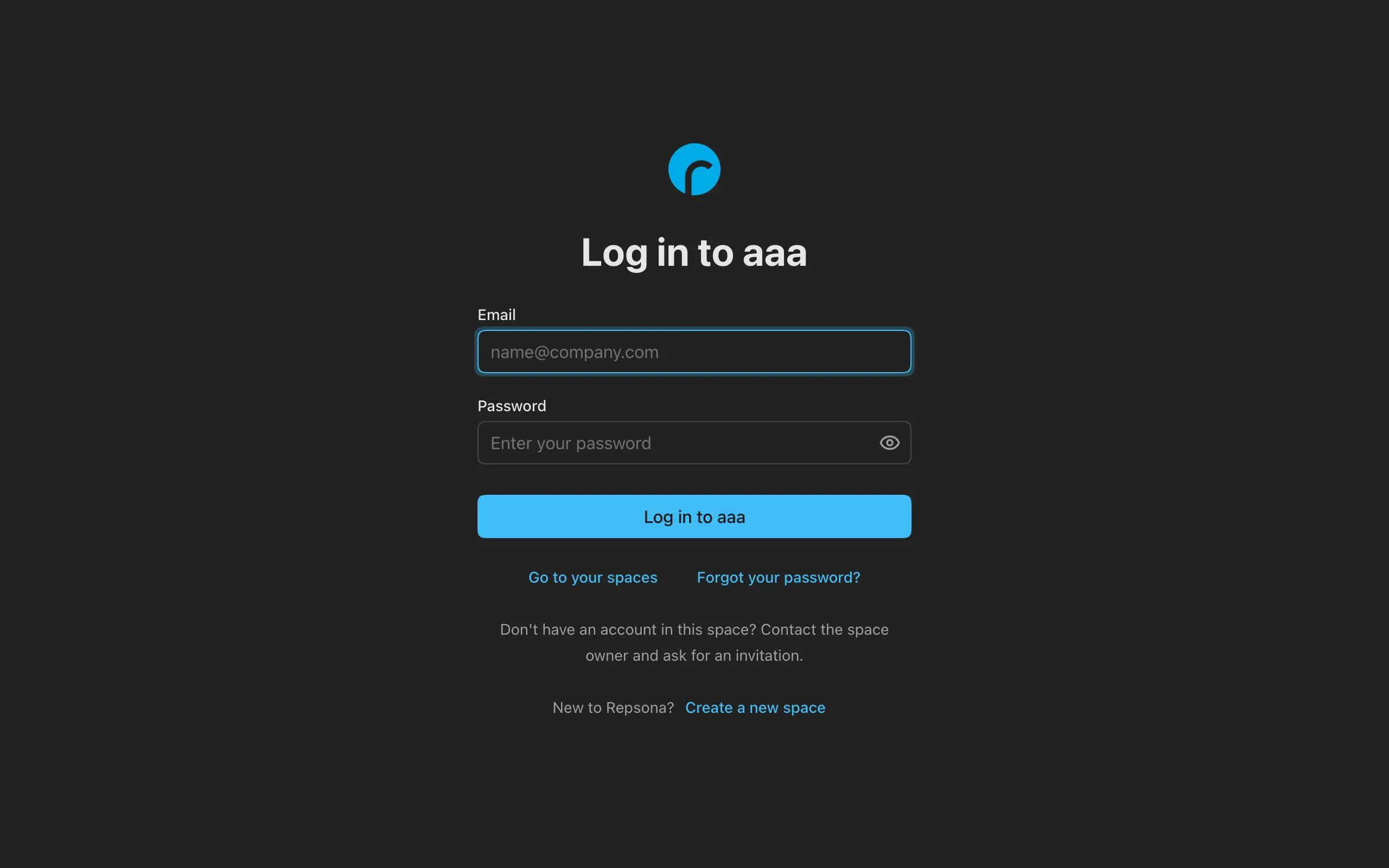
Click in the password field to check what you typed.
If you use two-factor authentication
If two-factor authentication (2FA) is enabled, a code screen appears after the password. Enter the code shown in your authenticator app and click "Continue". If you can't use your authenticator app, choose "Use a backup code" and enter a backup code (each code works once). See Two-factor authentication (2FA) for details.
If you forgot your password
Click "Forgot your password?" on the login screen, enter your email address, and click "Continue". Password reset instructions are sent by email.
If you forgot your space URL
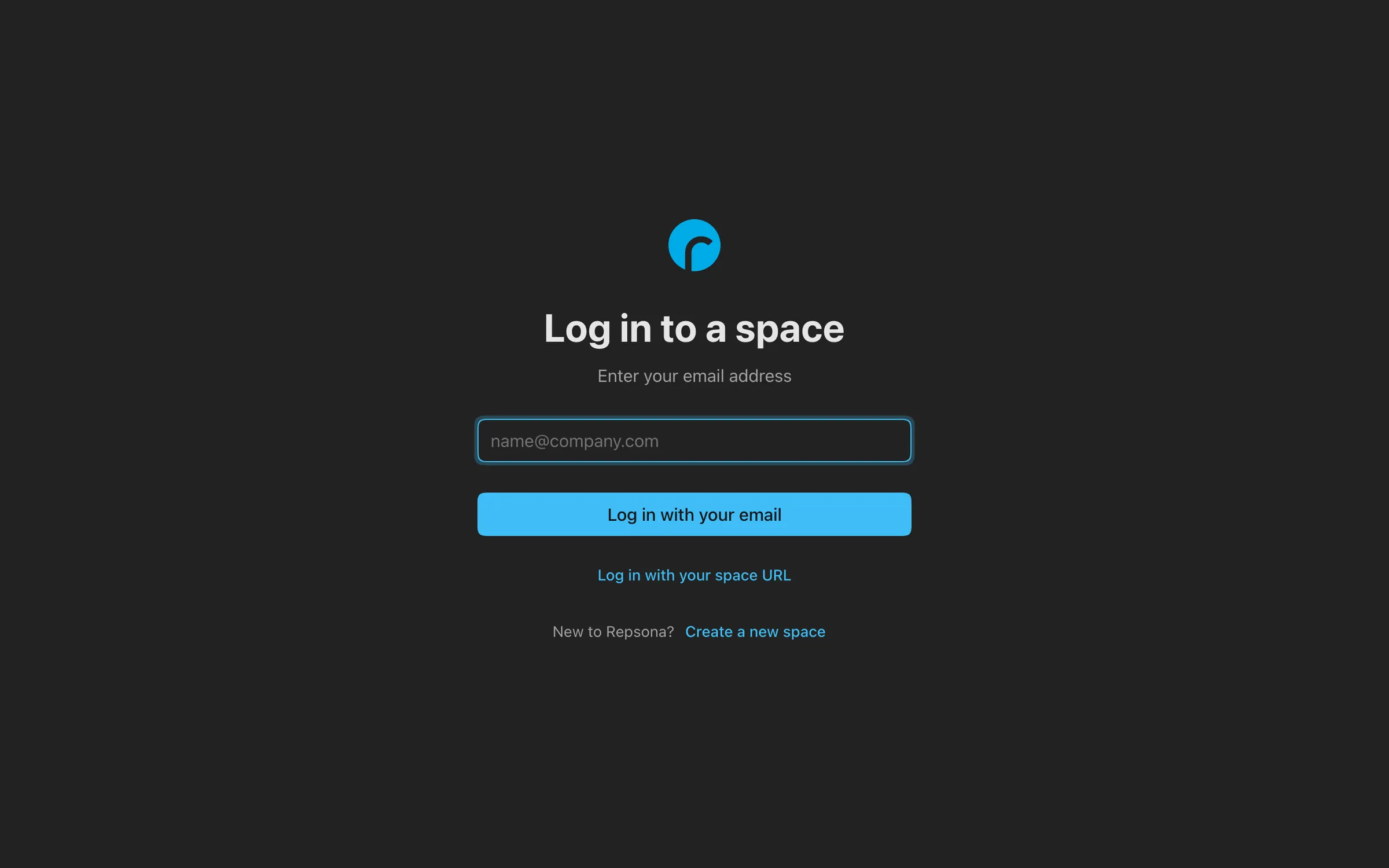
- On the login screen, click "Go to your spaces".
- Enter your email address and click "Log in with your email".
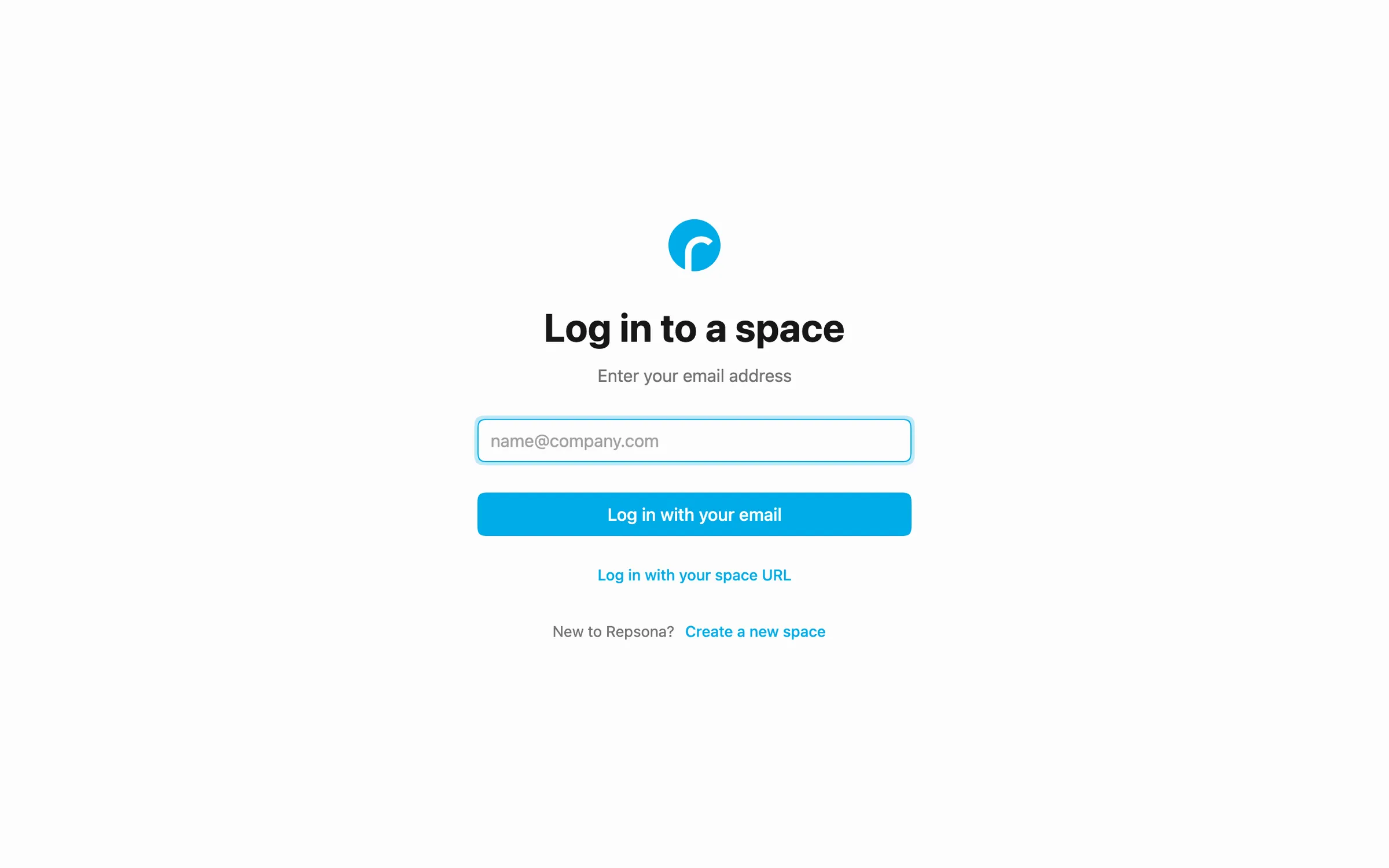
- Enter the 6-digit verification code sent by email and click "Continue with the code". You can also continue by opening the link in the email. If the code doesn't arrive, click "Resend the code".
- A list of the spaces you belong to with that email address appears. Click "Log in" next to the space you want.
What you can do in the space list
- Spaces you are logged in to appear under "Logged in". Drag to reorder them.
- Click on the right of a row and choose "Log out" to log out of that space.
- "Add another email address" adds the spaces you belong to with a different email address. There is a limit on the number of email addresses; when it is exceeded, the oldest are removed.
- Click on the right of an email address and choose "Remove this email address" to remove it from the list. This does not log you out of any space.
Switch spaces while logged in
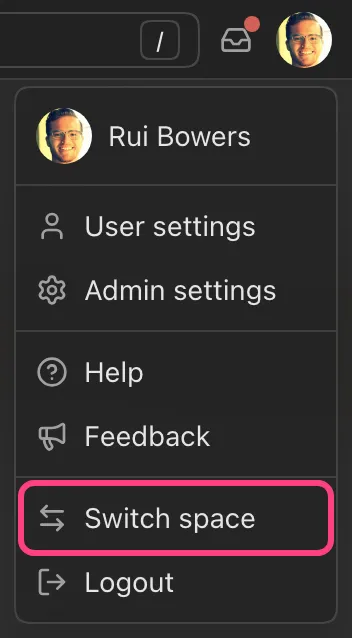
- Open the menu from the icon in the upper-right corner of the screen.
- Click "Switch space".
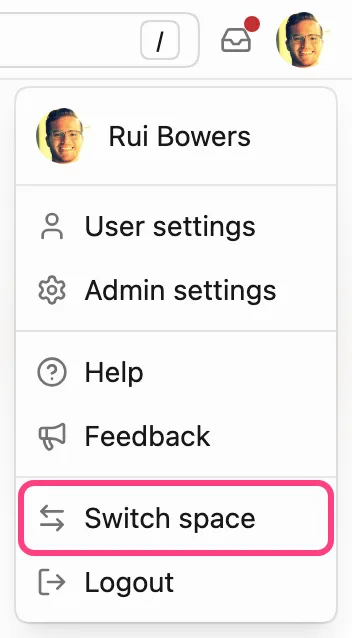
- Choose the space you want to go to from the list.
Was this page helpful?