---
title: Two-factor authentication (2FA)
categoryId: settings
subCategoryId: User settings
---
Repsona supports two-factor authentication (2FA) using authenticator apps. Enable two-factor authentication to add an extra layer of security to your Repsona account. When 2FA is enabled, you’ll verify your identity each time you log in.
| Who can use it | Available on |
|---|---|
| All | All |
## What are authenticator apps?
Authenticator apps are time-based one-time password (TOTP) apps such as Google Authenticator, Authy, Duo Mobile, or 1Password.
## Set up two-factor authentication (2FA)
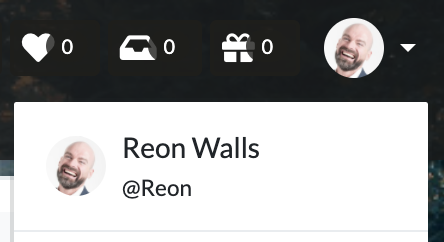
1. Open the settings menu from the icon in the upper-right corner of the screen.
 2. Click "Authentication".
3. A QR code appears. Scan it with your authenticator app.
4. The app displays a verification code. Enter the code.
5. Click "Enable".
6. Backup codes are displayed. Store them in a safe place.
## Disable two-factor authentication (2FA)
1. Open the settings menu from the icon in the upper-right corner of the screen.
2. Click "Authentication".
3. Click "Disable 2FA".
2. Click "Authentication".
3. A QR code appears. Scan it with your authenticator app.
4. The app displays a verification code. Enter the code.
5. Click "Enable".
6. Backup codes are displayed. Store them in a safe place.
## Disable two-factor authentication (2FA)
1. Open the settings menu from the icon in the upper-right corner of the screen.
2. Click "Authentication".
3. Click "Disable 2FA".