---
title: Set the display mode (dark mode, light mode)
categoryId: settings
subCategoryId: User settings
---
This page explains display mode settings (dark mode, light mode) for your Repsona account.
| Who can use it | Available on |
|---|---|
| All | All |
## Set to dark mode
1. Open the settings menu from the icon in the upper-right corner of the screen.
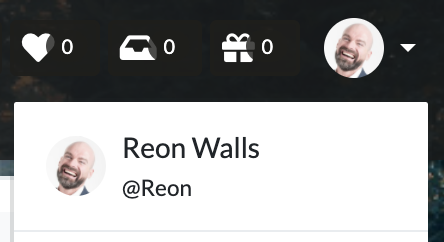 2. Click "Appearance".
3. Click "Dark".
4. Click "Save".
## Set to light mode
1. Open the settings menu from the icon in the upper-right corner of the screen.
2. Click "Appearance".
3. Click "Light".
4. Click "Save".
*By default, Repsona follows your system settings.*
2. Click "Appearance".
3. Click "Dark".
4. Click "Save".
## Set to light mode
1. Open the settings menu from the icon in the upper-right corner of the screen.
2. Click "Appearance".
3. Click "Light".
4. Click "Save".
*By default, Repsona follows your system settings.*